Base Member is the standard access level for individual contributors. Your view of Mosaic is personal. What you see is driven by the projects you are a member of, the work plans assigned to you, and the tasks on your list. This access level gives you what you need to see your own plate, keep your availability accurate, and stay connected to your projects.
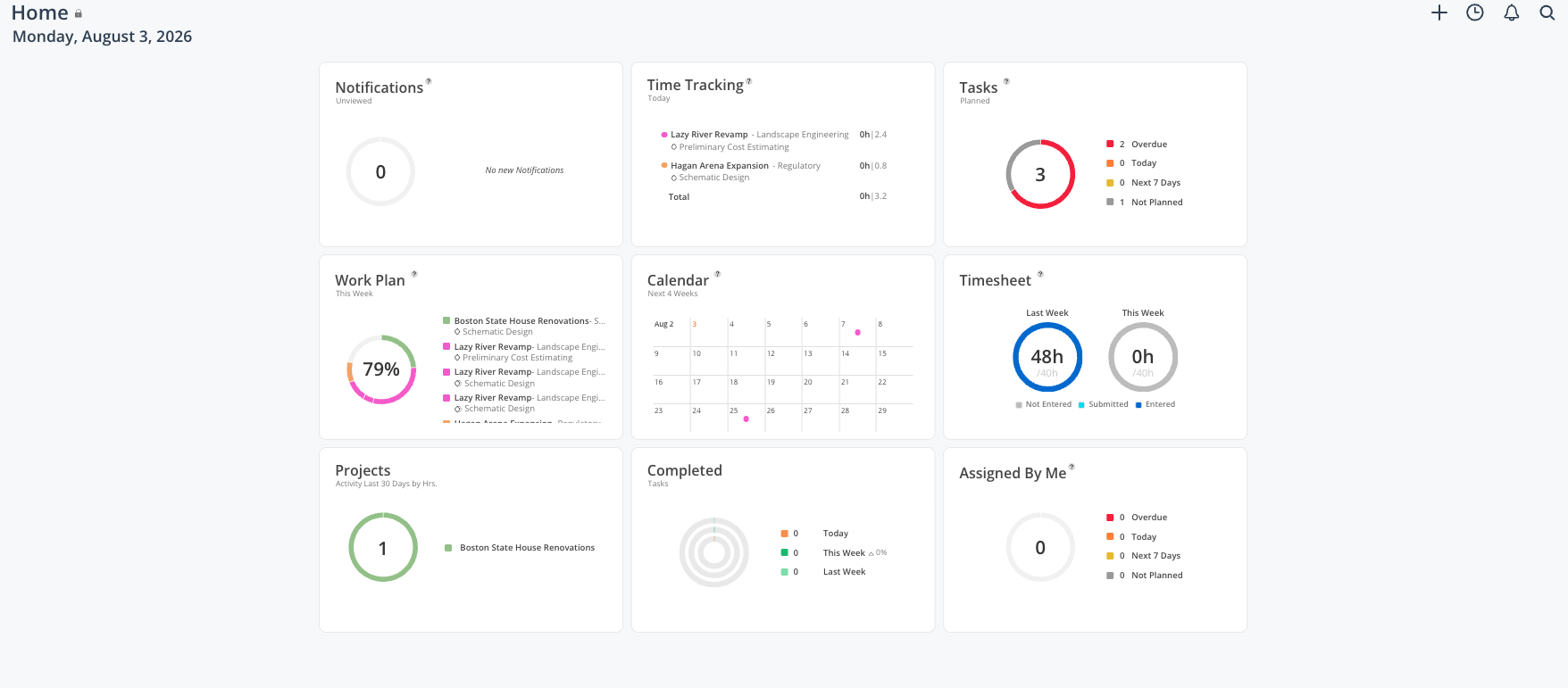
As as base member in Mosaic, you will:
Understand what you are scheduled to work on this week and next
Enter PTO so your schedule reflects your real availability
Find the phase dates and milestones coming up on your projects
Track and complete the tasks assigned to you
Learn the Mosaic vocabulary your PM is using in meetings
Home Space. Your personal hub. Work plans, calendar, tasks, time tracking, and notifications.
Projects. Any project you are a member of, with its schedule, phases, milestones, tasks, and notes.
Your own time off. Entered directly from your Work Plan widget.
The left-side menu shows every space in Mosaic. Spaces that open at a higher access level appear grayed out. Contact your organization’s Sector Leader, who can update your access level or permissions. Mosaic can not update a member’s access levels based on a request sent into support.
Portfolio. A Portfolio is a folder that holds multiple Projects, organizing them to improve productivity by efficiently categorizing and managing Tasks.
Phase. A stage of work inside a project, with a start and end date. Your work plans sit on phases rather than on the project as a whole.
Sub-phase. A phase nested underneath a parent phase. Behaves the same way, indented in the schedule.
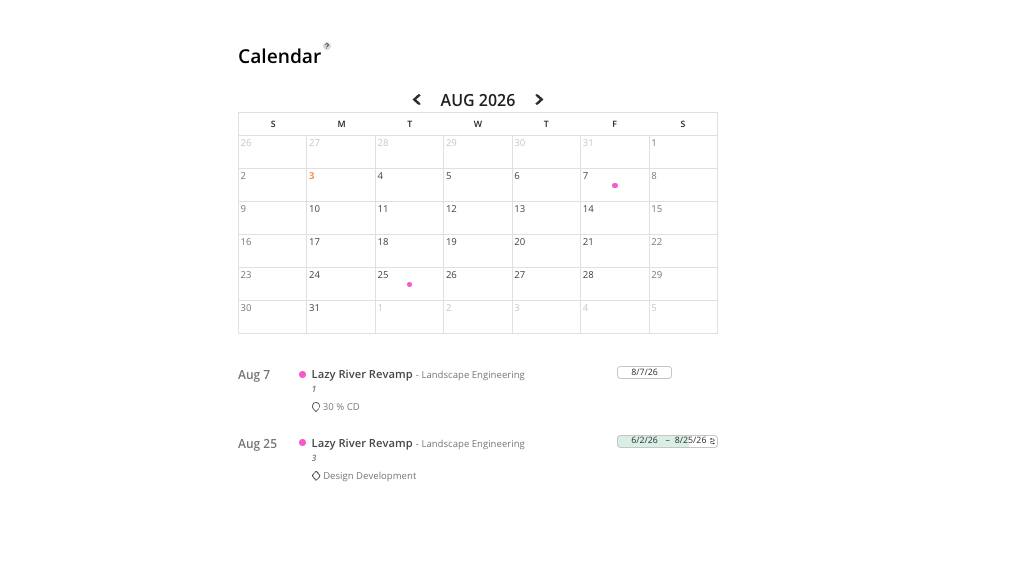
Milestone. A single important date that shows a project deliverable - such as a kickoff, a permit submission, or a client review. Milestones appear automatically on your calendar.
Work Plan. A block of scheduled time assigned to you for a specific project and phase. This is what fills in your Work Plan widget.
Task. A to-do or checklist item for tracking action items. Time estimates on tasks stay informational so your heat map keeps reflecting scheduled work.
Time Off. A plan you create to mark yourself unavailable. Time off lives in Mosaic for capacity visibility alongside your HR system.
Capacity. How many hours you are available to work in a given period. Your work plans and time off together determine it.
👉 Every Mosaic term is defined in the Mosaic Glossary, available from the Resources button in the bottom-right corner of any space.
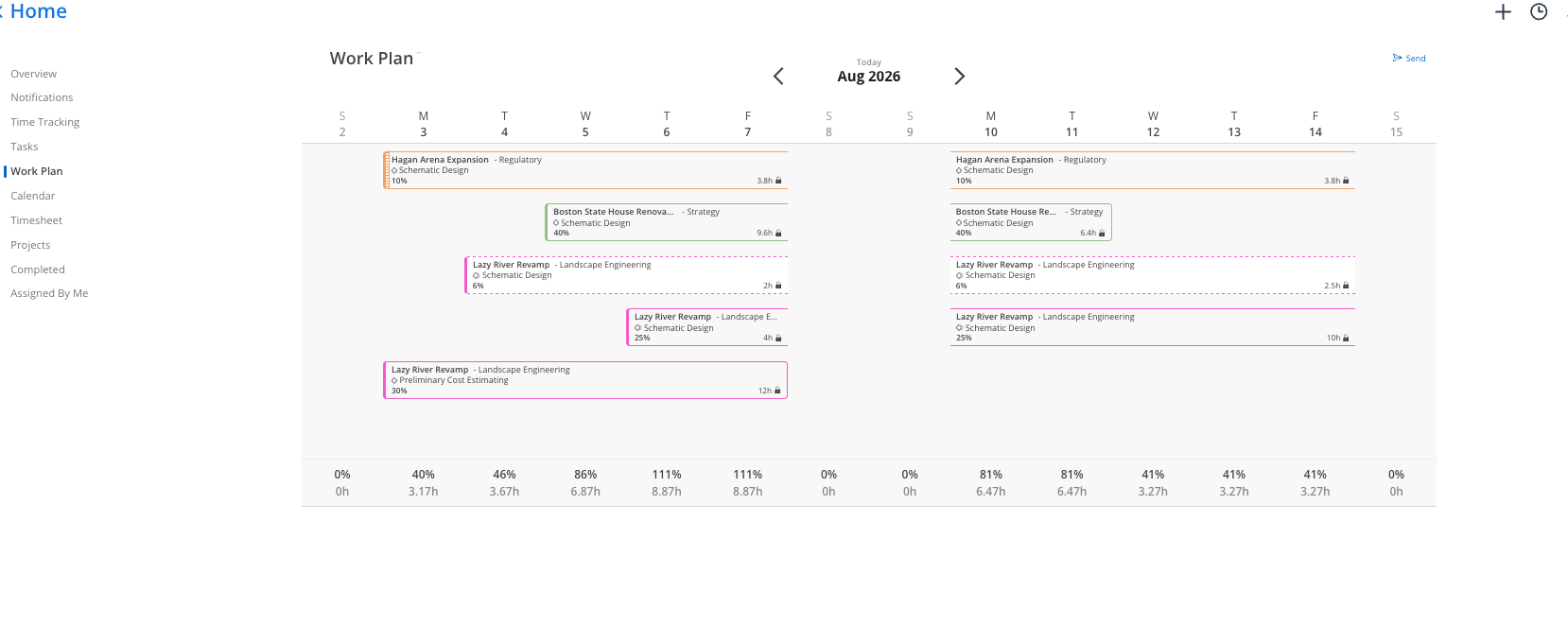
Your Work Plan widget shows a two-week rolling view of what has been scheduled for you.
Open your Home Space.
Find the Work Plan widget and review the current and upcoming week.
Hover any bar for a quick summary of the project, phase, date range, and planned hours per day.
Click into a bar for full detail, including hours, lock setting, dependencies, description, comments, and the activity log.
Work plans are created by your PM. If a plan does not match what you expected, leave a comment inside it to request a change, or open the activity log to see who scheduled it. Depending on your teams set up, you may have the ability to edit your work plan. Learn how to do so here.
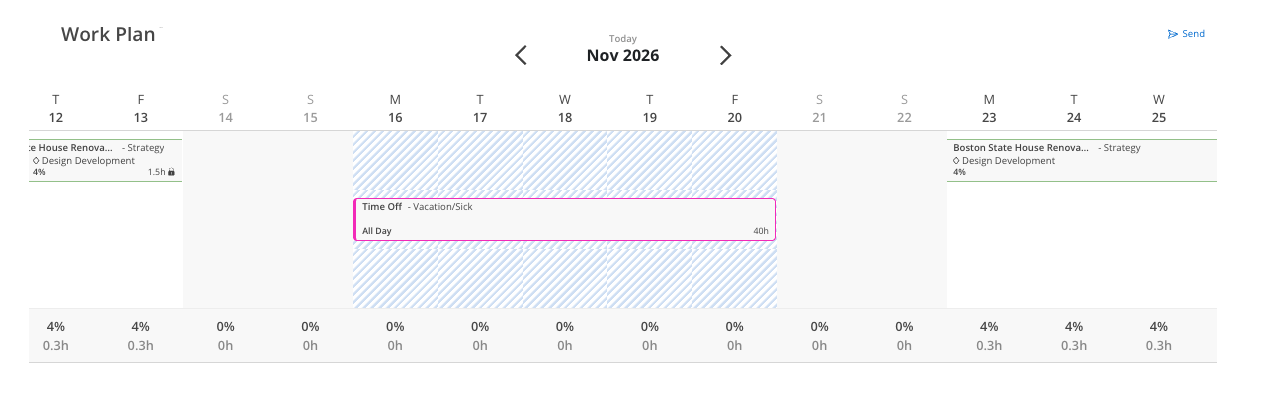
In your Work Plan widget, hover a blank cell on a day you will be out and click the blue + icon.
Choose Time Off, always first in the project list.
Leave All Day checked for a full day, or uncheck it and enter hours for a partial day.
Set your start and end dates and click Create.
Work plans without a phase dependency shift automatically around your time off. Delete the time off and they shift back to their original dates.
Check it at the start of each month. Phase start and end dates appear as diamonds, milestones as teardrops, your time off as blue hash marks, and company holidays as gray shading. Scroll below the grid for the full chronological list.
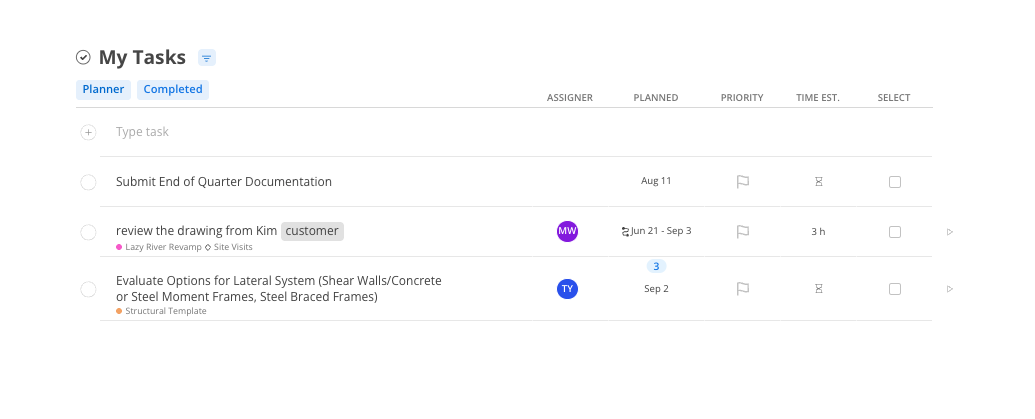
Open the Tasks widget to see everything assigned to you across all projects.
Click the sticky-note icon on a task for notes, attachments, comments, and its activity log.
Click the checkbox to mark it complete. If someone else is also assigned, Mosaic prompts you to confirm first.
You can also create personal tasks. Leave the project field blank and the task stays private to your account.
You become a project member automatically. Entering even one hour of time on a project, or having a work plan created for you, makes you a member. Your project list may include older work.
Need Assistance? Ask our Help Center first. The help center opens from the page icon in the bottom right. Type a question in plain language and it returns an answer with article links.
The green chain link icon means ERP-linked. A project or phase with that icon is synced from your ERP. A line through the icon marks it as Mosaic-only.
The integration runs one way. Your ERP feeds projects, phases, and time entries into Mosaic, so your planning stays contained here and your accounting records stay in your ERP.
