Tasks are internal checklist items you can create on a project or for yourself personally. They are designed for action items, deliverable tracking, and to-do lists — not for capacity planning. Unlike work plans, tasks do not affect a team member's scheduled capacity or the project budget by default.
Tasks can be created from the project space, from the Tasks widget in the Home Space, or from inside the Assigned By Me widget.
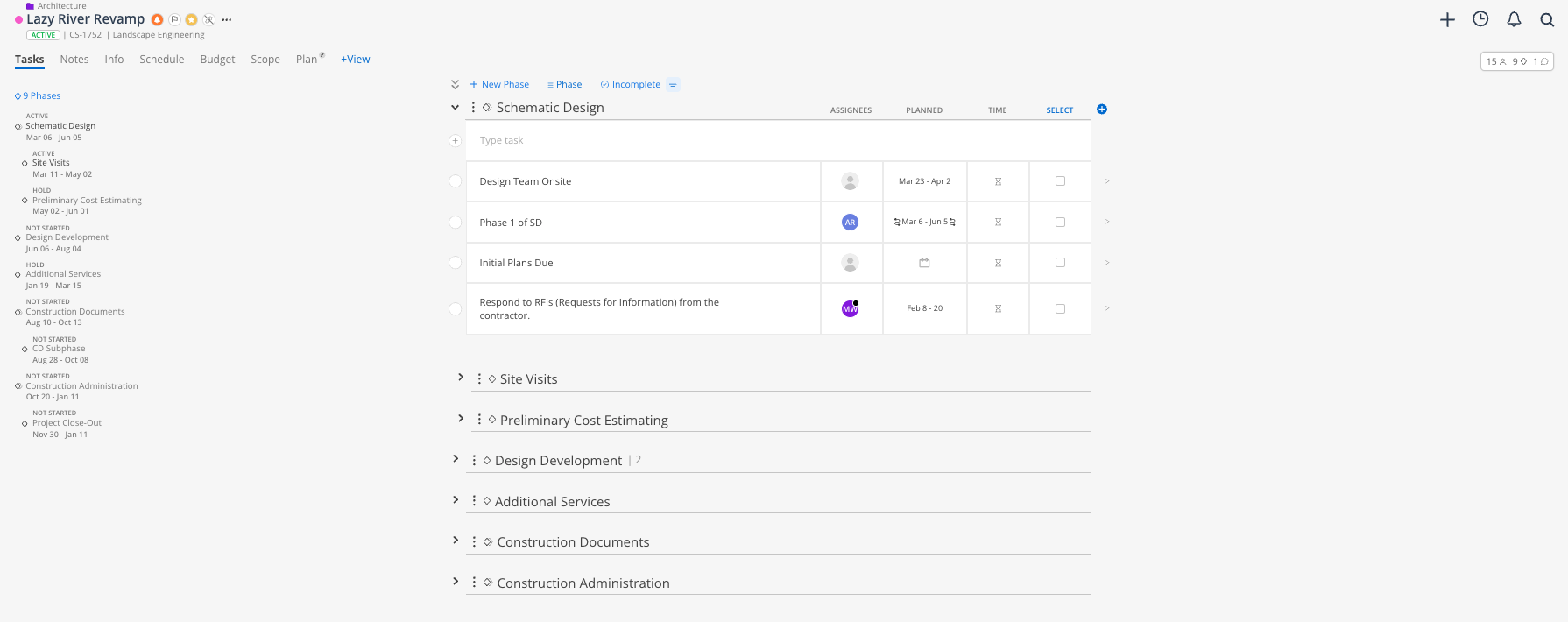
When you open the Tasks tab on a project or the Tasks widget in your Home Space:
Task list — All active tasks, showing task name, project and phase (if project-level), assignee initials, date range, and a sticky-note icon if notes are attached
Group by toggle — Changes how tasks are organized (by list, by phase, by due date)
Planner button — Switches to an agenda/calendar view showing tasks by date
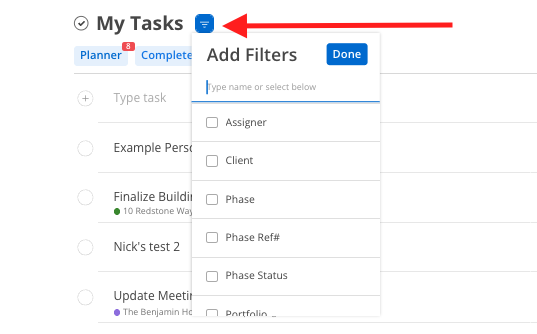
Filter button — Narrows the task list by project, portfolio, assignee, or date range
Completion toggle — Shows completed vs. active tasks
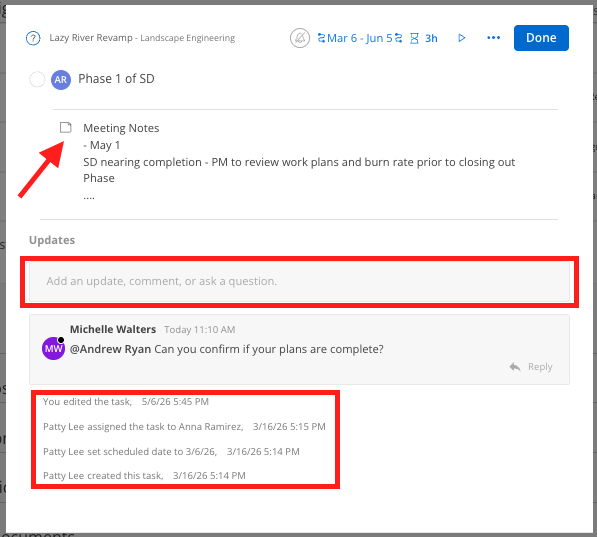
When you click into a task:
Notes panel — Add and view notes. A filled sticky-note icon on the task row indicates notes are present.
Comment field — Leave a comment with @mentions. Tagged people receive a notification.
Activity log — A record of every change made to the task, with timestamps and editor names
Attachments — Add files to the task for reference
Checklist / to-do items | Scheduled time blocks |
Do NOT affect capacity | Affect capacity and show on heat map |
Do NOT affect budget (by default) | Affect project budget |
Personal or project-level | Always tied to a project and phase |
Mark complete when done | Drag, split, copy, and adjust as plans change |
Time estimate is informational only | Hours or percentage drive capacity math |
Open the project and click the Tasks tab.
Change the grouping to Group by Phase if you want tasks organized under phases, by default tasks are grouped by lists.
Click into the phase row you want to add a task to and start typing the task name.
Press Enter / Return to save the task.
Assign it to one or more team members using the assignee field.
Set a date range for when the task should be worked on.
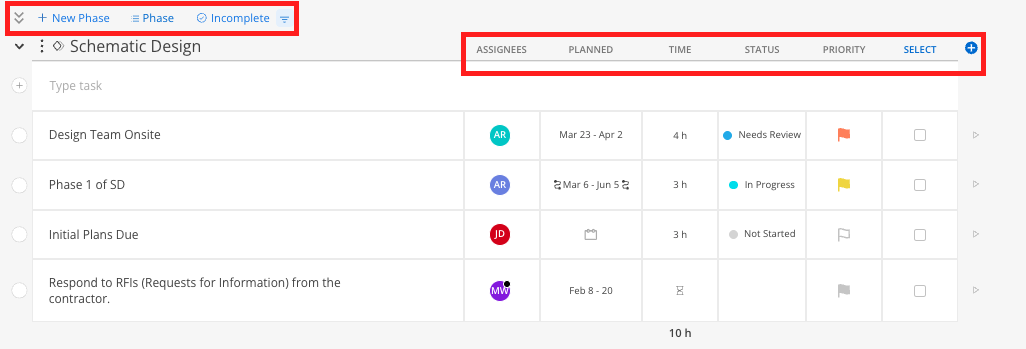
Click the + icon to add optional fields: time estimate, status, or priority flag.
Click the task's sticky-note icon to add notes, a checklist, attachments, or comments.

From the Tasks widget on your Home Space, click into the task entry field and type the task name.
Do not select a project — leave the project field blank.
Press Enter / Return to save.
The task is saved to your personal project and is visible only to you. It will show a padlock icon indicating it is private.
Optionally add a date range or priority from the task detail.

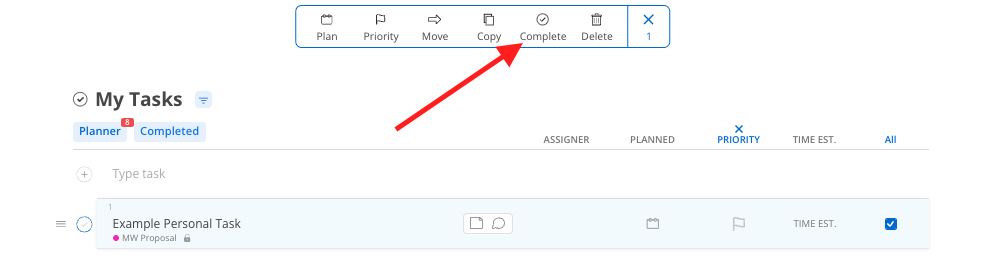
Click the checkbox next to the task name and select ‘Complete’ - this is great for marking multiple tasks complete. Or, select the circle next to the task to mark a single task complete.
If other people are also assigned to the task, a confirmation prompt appears asking if you want to mark it complete — giving you a chance to check in with co-assignees first.
Once confirmed, the task moves to the Completed Tasks widget on your Home Space and out of the active Tasks list.
To reactivate a completed task, open the Completed Tasks widget and mark it incomplete.

Click the filter icon at the top of the task list.
Select the page-level filter you’d like to use. These will save for your next log-in as well.
To sort, click any column header in the task list.
Use the planner view button to switch to an agenda-style view by date.
Use the sticky-note icon as a signal — If a task has notes or a comment thread, the sticky-note icon stays filled even when you are not hovering. Check these first when following up on a task.
Personal tasks are fully private — No admin, PM, or colleague can see tasks on your personal project. Use them freely for any private to-do tracking.
The Assigned By Me widget is your follow-up tool — If you assign tasks to others and want to track progress without emailing people, this widget shows every task you have sent out and its current status.
Tasks can have multiple assignees — If a task requires sign-off from more than one person, assign both. Mosaic will prompt whoever tries to complete it first to confirm before closing it out.
Work Plans
