Time off entries mark you as unavailable for capacity planning. They do not replace your HR time off system or your ERP's timekeeping. Logging time off here lets anyone scheduling your work see when you are out.
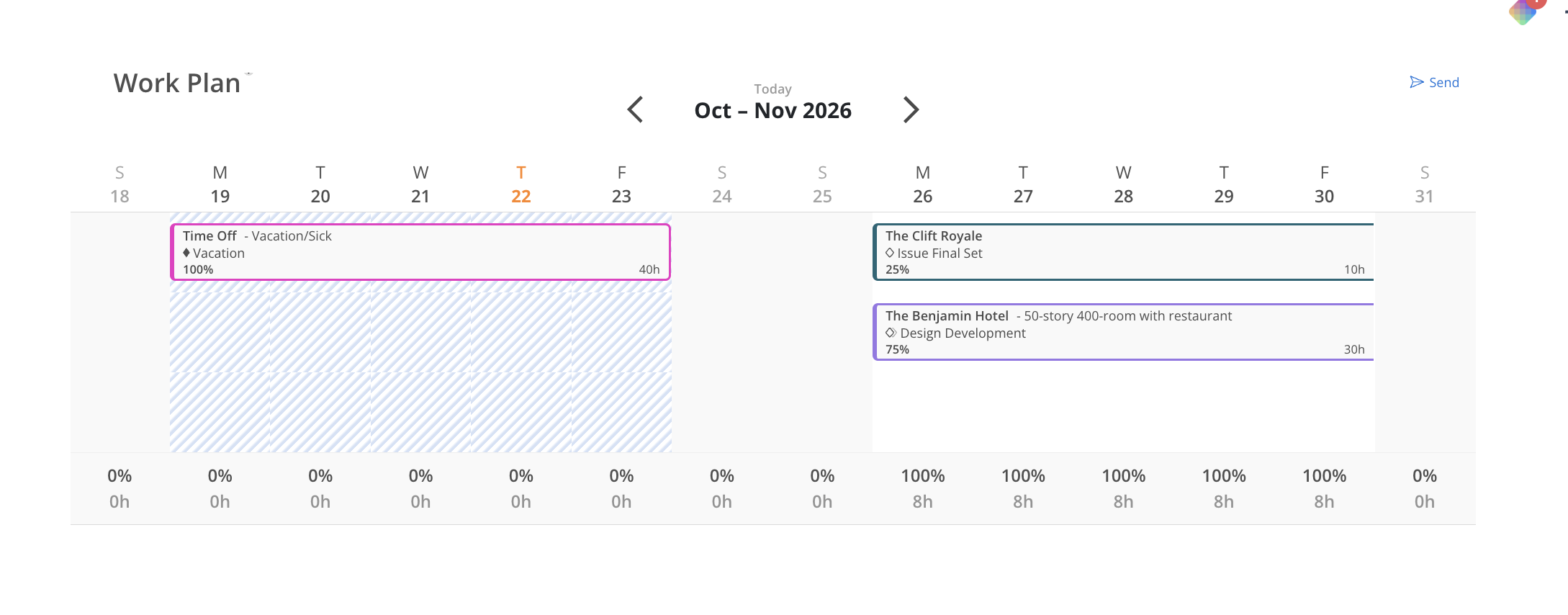
A Time Off bar with blue hash marks in your Work Plan widget, labeled with the Time Off Category you chose.
Blue hash marks on the Calendar widget for days you are out.
Gray shading for company holidays, set by your admin.
Company-wide holidays are configured by your admin in the organization settings. They appear automatically for all members — you do not need to enter them yourself. Holidays show as gray shading on the calendar and as gray lines in the Workload space timeline.
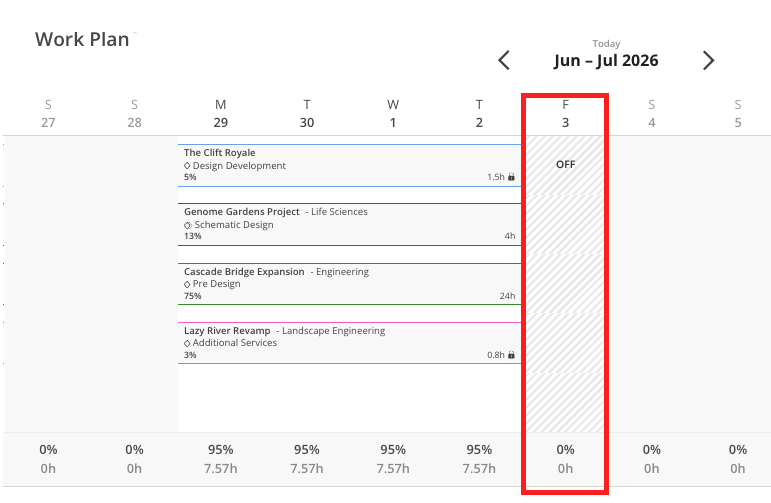
In the Work Plan widget on your Home space, hover over a blank cell for a day you will be out.
Click the blue plus icon.
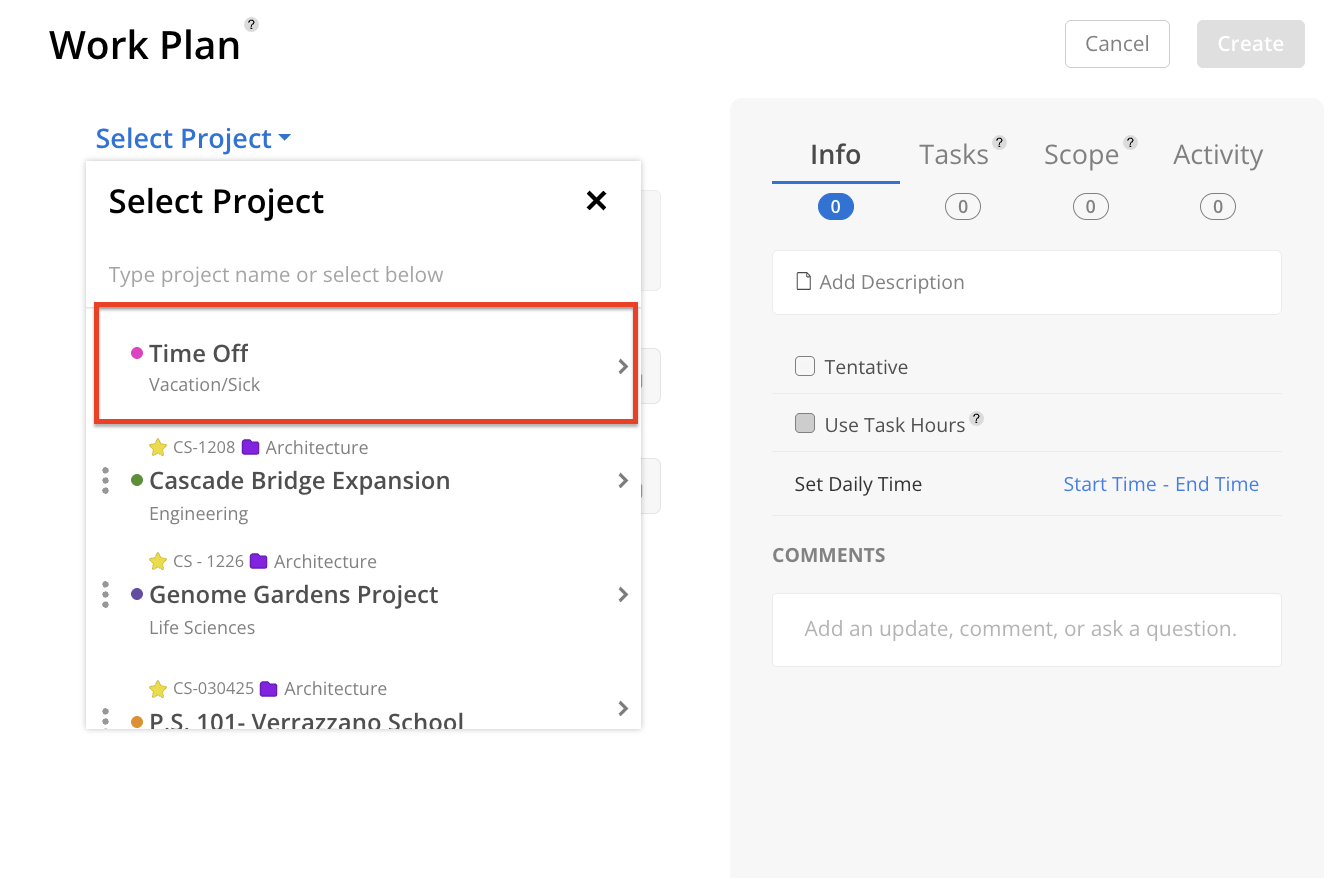
Choose Time Off from the project list.
Pick the Time Off Category that matches the absence.
Leave All Day checked for a full day, or uncheck it and enter hours for a partial day absence.
Set the start and end dates, then click Create.

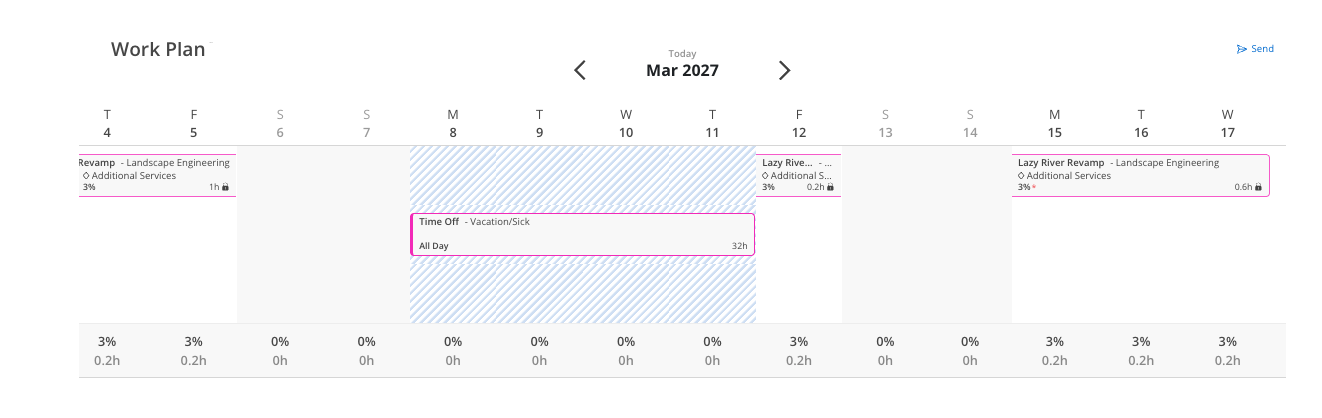
When you enter time off that overlaps with an existing work plan:
If the overlapping work plan has no phase dependency, the work plan automatically shifts forward past your time off to the next available working day.
If you later delete the time off entry, the work plan shifts back to its original position.
If the work plan has a phase dependency set, it will not automatically shift — it remains anchored to the phase date.
Visually, a work plan that spans across a time off period will appear to have a gap in the bar for the days you are out. The plan itself is not split — it just displays with a visual break.
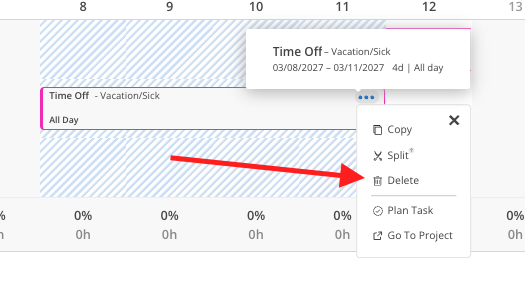
Right-click on the time off bar in your work plan widget.
Select Delete.
Confirm the deletion. Work plans that had shifted will return to their original dates.
Enter time off as early as possible — The sooner PTO is in Mosaic, the less likely a PM will schedule work that conflicts with your absence
Base members can add their own time off — You do not need access to the Workload space to enter time off. You can do it directly from the Work Plan widget on your Home Space.
Use partial-day time off for appointments — If you have a few hours out of office (dentist appointment, afternoon off), uncheck All Day and enter the exact hours so your available capacity reflects accurately
