The Work Plan widget is your personal schedule in Mosaic. It shows every work plan assigned to you, including project, phase, and hours, across a two week rolling timeline on your Home space.
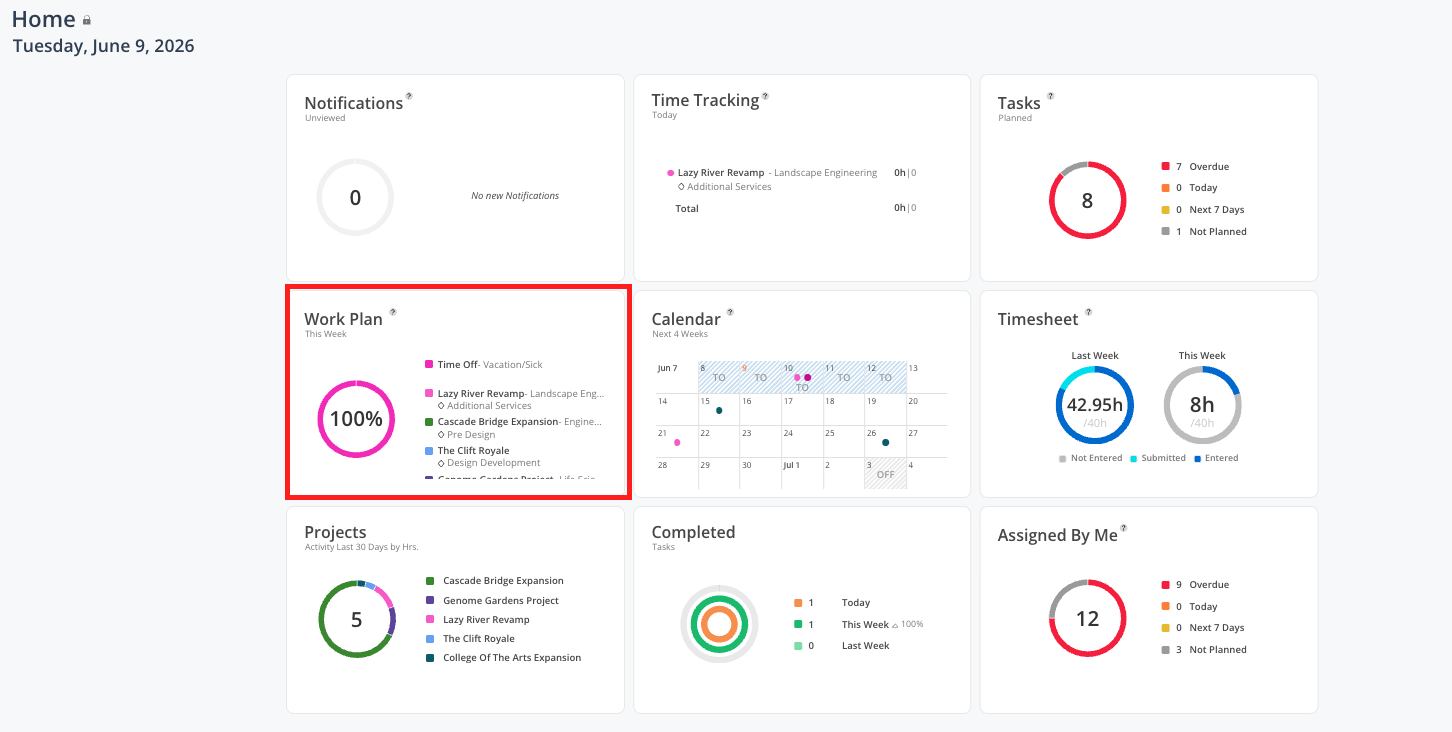

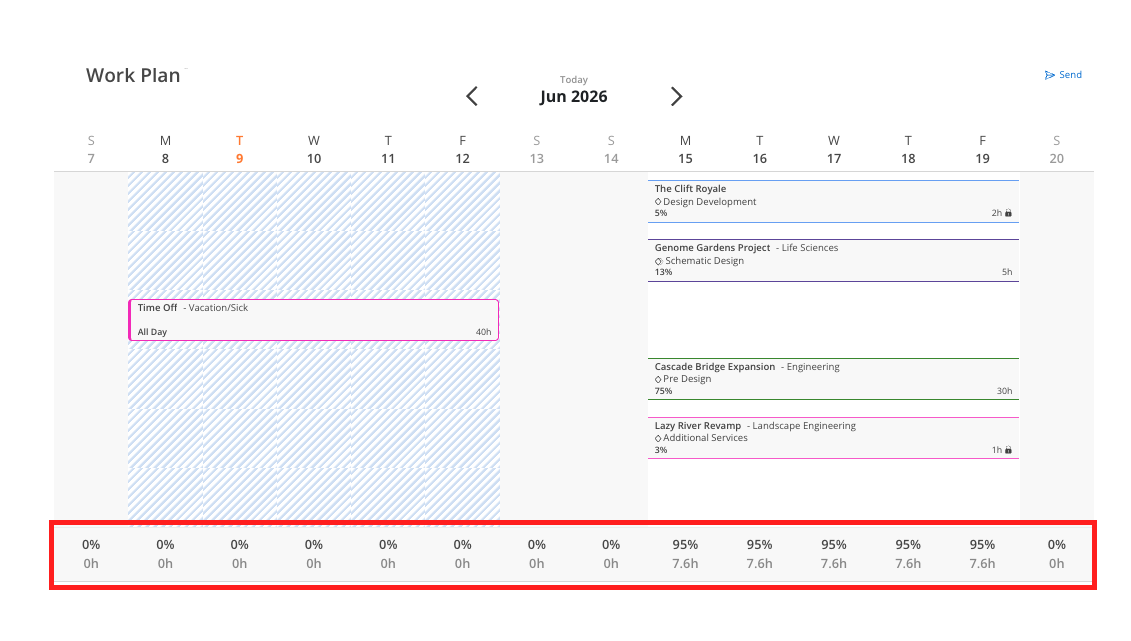
Each plan appears as a color coded bar matching its project.
Each day shows total planned hours and percentage of capacity.
Today is highlighted. Past days are grayed. Days with no capacity, such as holidays, are grayed with gray text.
A lock icon shows which value stays constant (hours per day, hours per week, percentage, or total hours) when dates change.
Dashed or hash lines on a bar mean the plan is marked tentative.
A gridded edge on a bar means that edge is dependent on a phase date. A solid edge means no dependency.
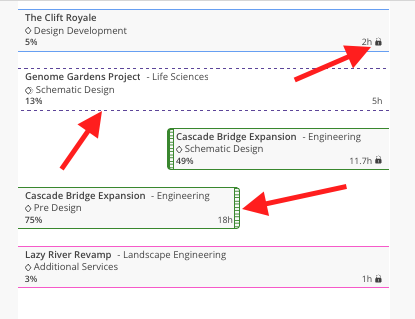
Reading work plan bars:
A lock icon on the bar indicates which value is the constant — hours per day, hours per week, percentage, or total hours. When dates change, the locked value stays the same.
Dashed / hash lines mean the plan is marked as tentative — it is not yet confirmed
A gridded line on the start or end edge of a bar means that edge is tied to a phase date dependency
A solid line on an edge means that end has no phase dependency
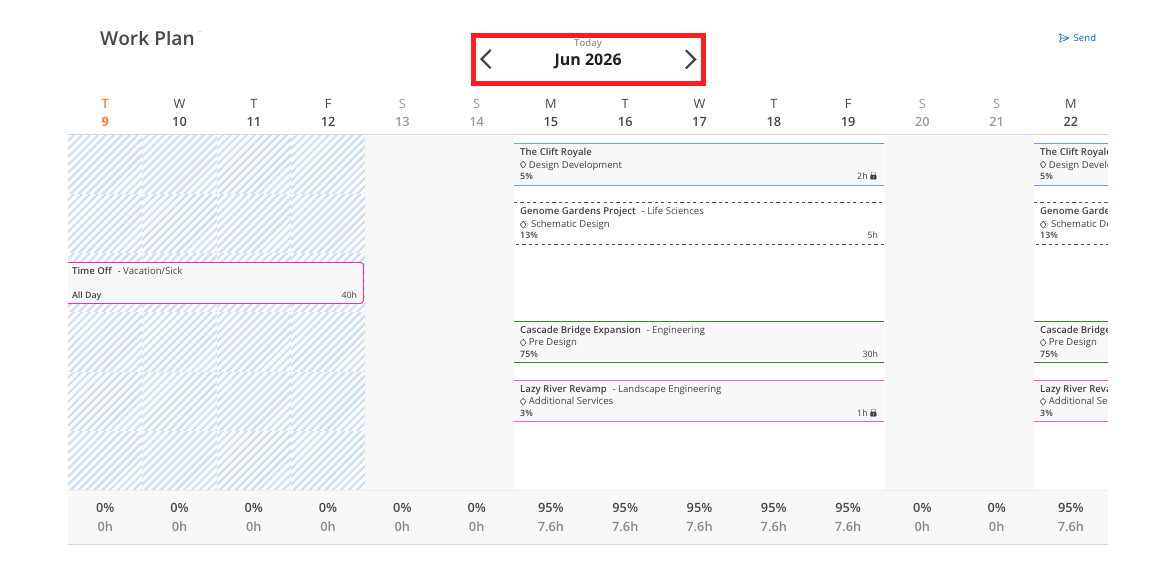
Scroll left or right to look back at past weeks or forward into future weeks.
Use the arrows or the date picker to jump to a specific month.
Click Today to snap back to the current week.
Hover over any work plan bar to see a quick summary: project name, phase, date range, and planned hours per day.
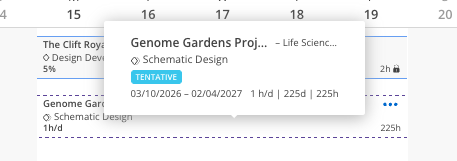
Click into a bar to open the full detail: hours, lock setting, dependency status, description, comments, and activity log.
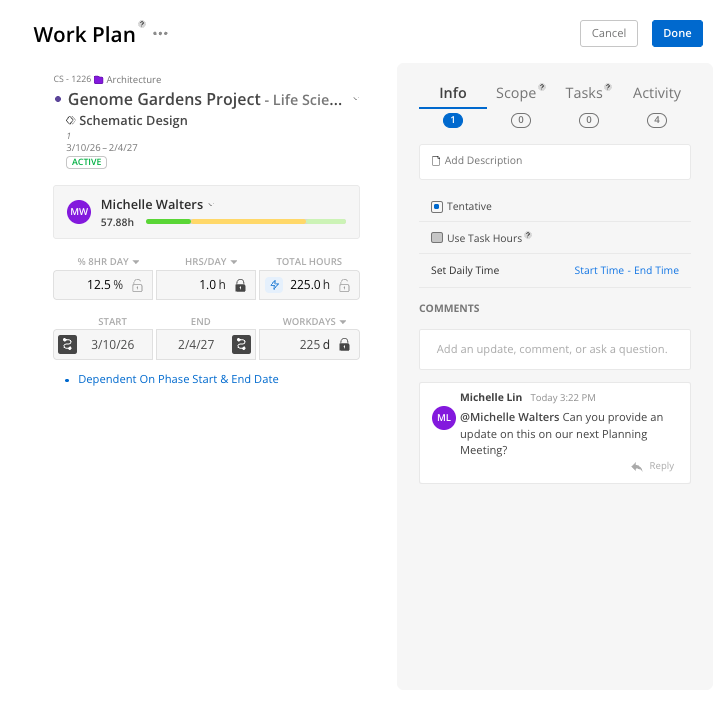
If you have permission to create work plans:
Click the plus icon on a blank day.
Choose a project and phase, or choose Time Off and pick the Time Off Category that matches the absence. 👉 Time Off (Home Space)
Set the hours or percentage, the start and end dates, and click Create.
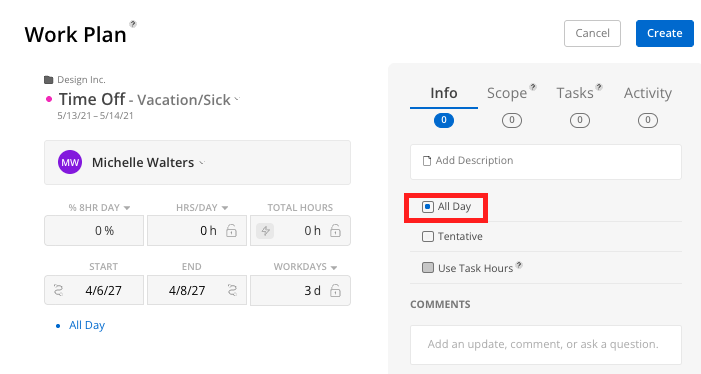
When Time Off is selected:
The All Day checkbox appears and is checked by default
Uncheck All Day and enter specific hours to log partial-day time off
Set the start and end dates and click Create
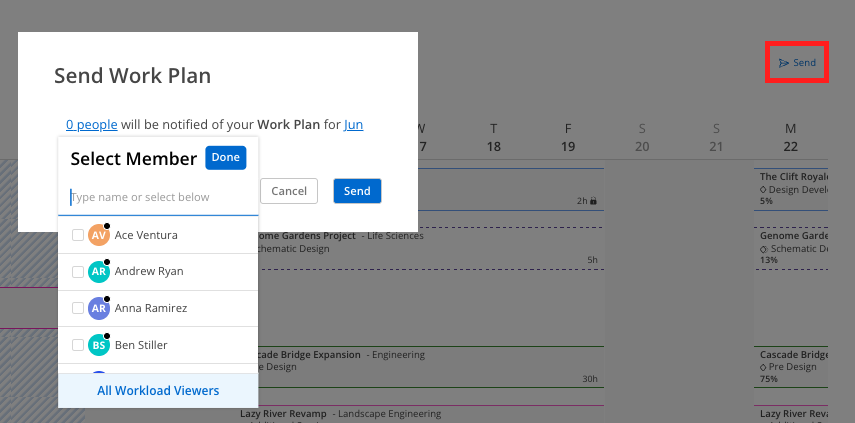
Click Send at the top of the Work Plan page.
Click 0 People (or the people selector) to choose which members receive the summary. Click Done.
Click the date to select which week to share. Click Done.
Click Send in the confirmation modal.
The selected members receive a notification with a summary of your work plans for that week.
Check the widget every morning to see what is on your schedule before opening anything else.
Use the activity log to understand a plan that looks different than you remember.
Treat dashed bars as unconfirmed. Tentative plans can still change.
