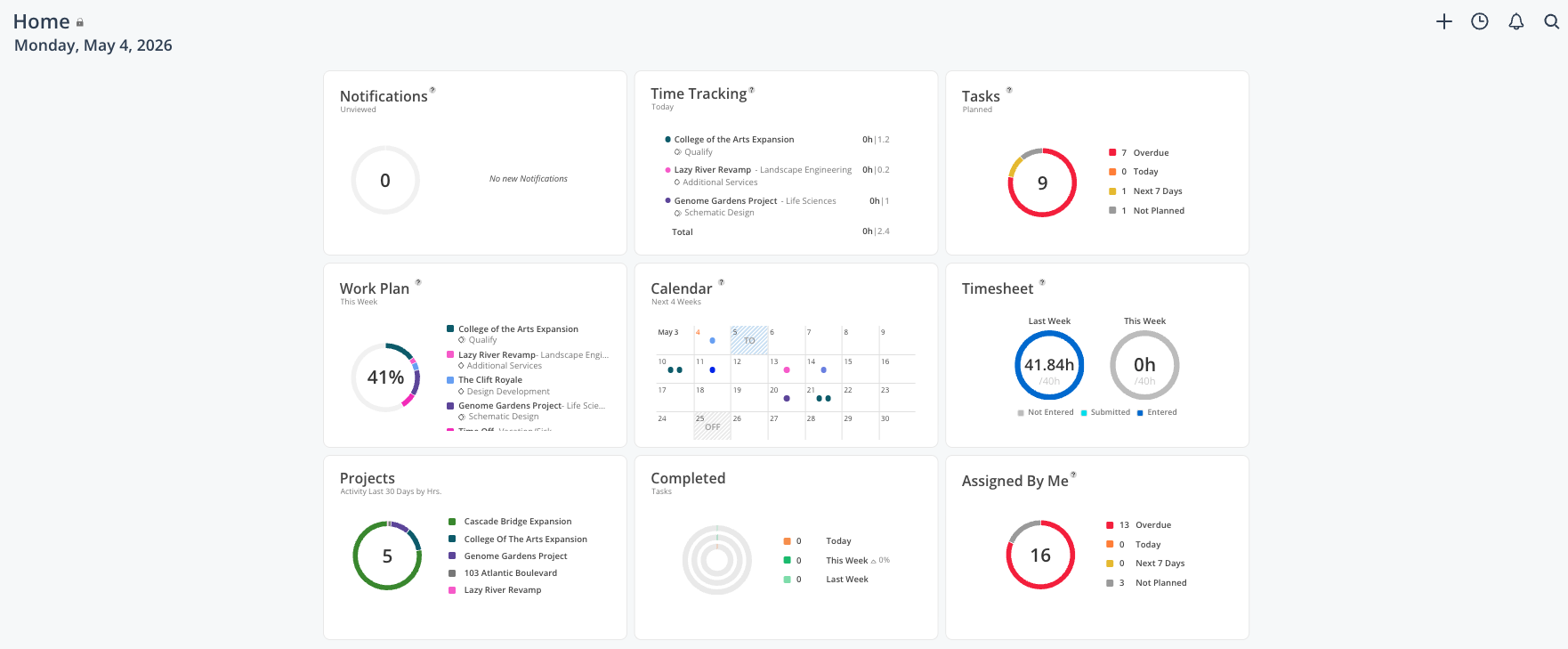
Mosaic’s Home Space is the first thing most team members see when they log into Mosaic. The Home Space is made up of widgets — modular panels each focused on a different type of information. Every widget is personal: what it shows is driven entirely by your projects, your work plans, and your activity in Mosaic. Widgets can be dragged and rearranged on the page to match your personal preference.
While team leaders and project managers spend most of their time in the Workload and Planner spaces, most individual contributors will live in the Home space for their day-to-day work.
This is the best place to go when you want to answer questions like:
What am I scheduled to work on today or this week?
What tasks have been assigned to me?
Where do I log my time for today?
Did anyone comment on my work plan or assign me to a project?
What does my week look like at a glance?
The full set of Home Space widgets:
Work Plan — Your two-week rolling schedule of assigned work plans
Time Tracking — Today's scheduled hours with an editable actual-hours field and a timer
Calendar — Monthly view of phase dates, milestones, PTO, and company holidays
Projects — List of your active projects
Tasks — Your assigned to-do items across all projects
Completed Tasks — Tasks you have marked as done
Assigned By Me — Tasks you have assigned to others
Timesheet — Read-only view of time entries synced from your ERP
Notifications — In-app alerts for tasks, comments, and @mentions

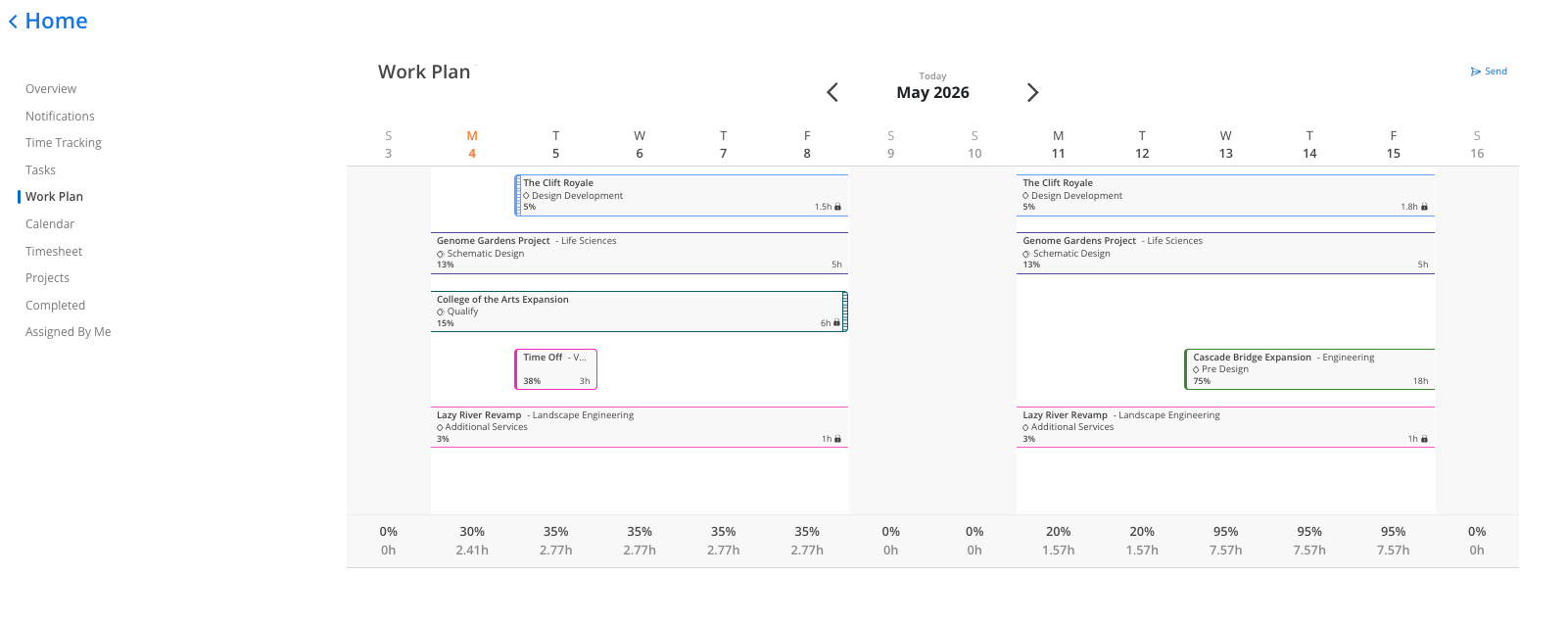
Shows your personal work plan schedule in a two-week rolling view.
Scroll left or right to look back at past weeks or forward into future weeks
Use the arrows or date picker to jump to a specific month
Hit Today to snap back to the current week (marked with an orange T indicator)
Hover over any work plan bar to see a summary: project name, phase, date range, and planned hours per day
Click into a work plan bar to open the full detail: hours, lock setting, dependency status, description, comments, and activity log
Reading work plan indicators:
A lock icon inside the work plan shows which value is the constant (hours per day, hours per week, percentage, or total hours). When dates change, the locked value stays the same.
Dashed/hash lines on a work plan bar mean the plan is marked as tentative.
A gridded line on the start or end of a bar means that edge is dependent on a phase date. A solid line means no dependency on that edge.
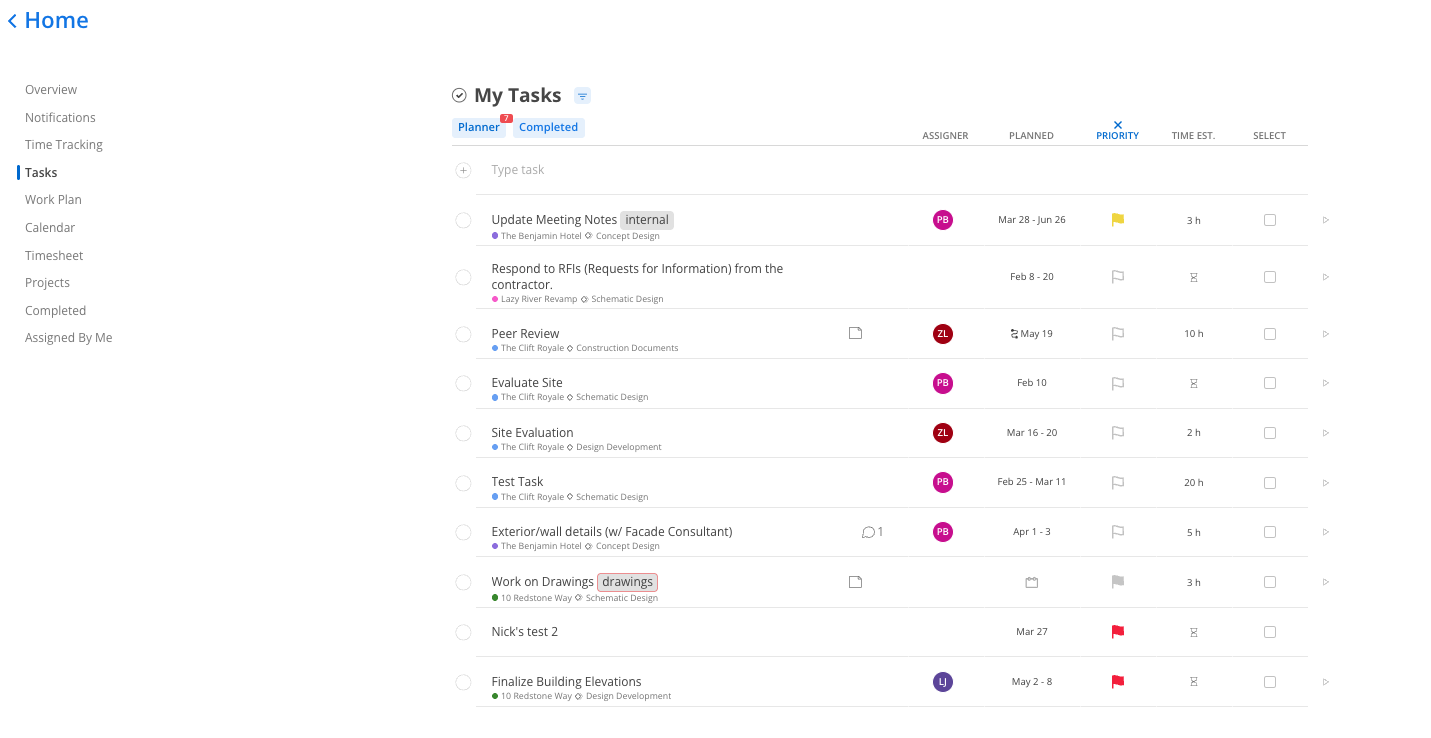
Shows your assigned tasks that are active (not yet marked complete). Includes project-level tasks assigned to you and personal tasks you created for yourself.
See task name, project, phase, due date, and who assigned it
Click the sticky-note icon on a task to open its detail panel: notes, attachments, comments, and activity log
Mark a task complete by clicking the checkbox next to it
If the task has multiple assignees, Mosaic will prompt you to confirm before marking it complete — giving you a chance to check in with your co-assignee first
Switch between list view and planner/agenda view using the calendar button at the top right of the widget
Tasks with dates in the past are flagged as Reschedule — update or complete them to clear the flag
Shows tasks you have marked as complete. Stays populated indefinitely so you can review your completed work. You can reactivate any completed task by marking it incomplete again.
Shows all tasks you have personally created and assigned to other team members. This is the PM accountability view — see task names, assignees, and completion status for everything you have sent out. Click into a task to leave a comment or check on progress without navigating into the project.
Log your time directly from the Home space. The timesheet is your daily or weekly record of actual hours worked, tied to specific projects and phases.
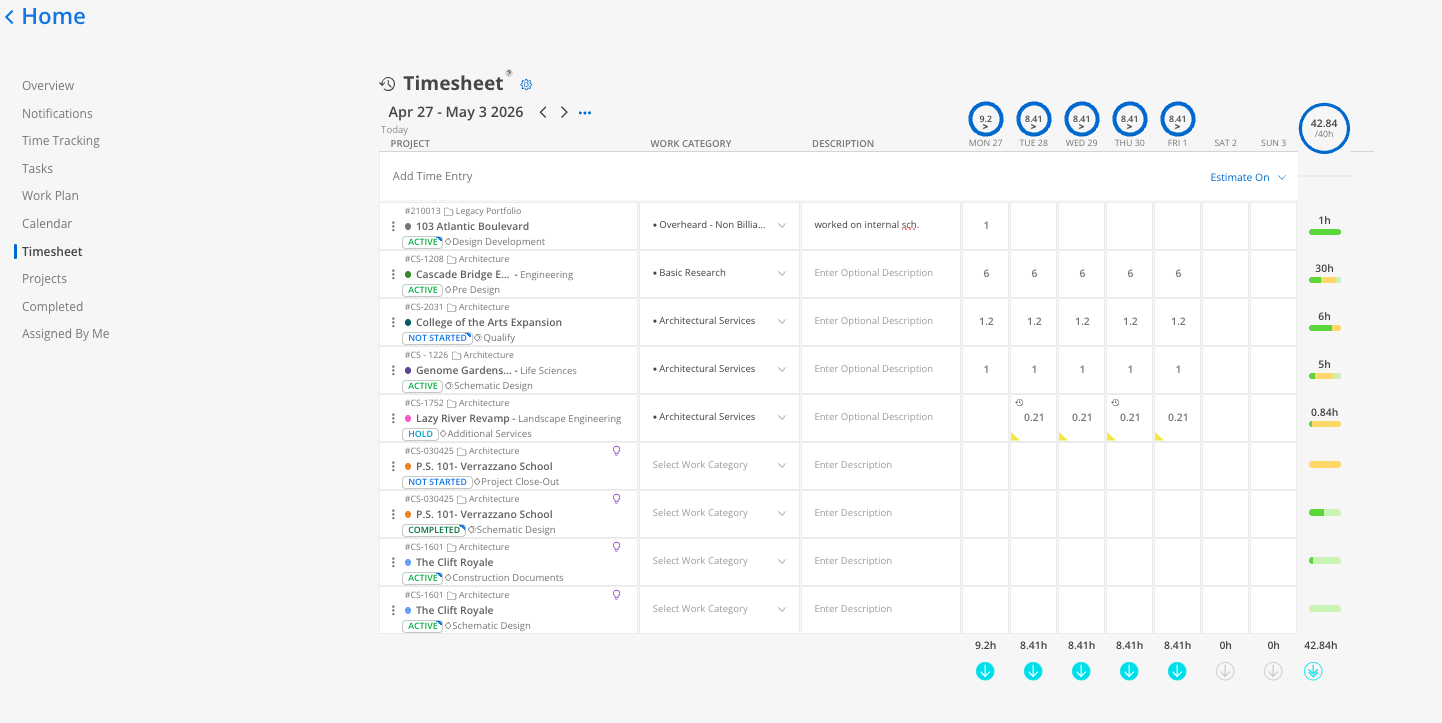
In the Home space, open the timesheet widget or navigate to the Schedule view.
Find the project and phase you worked on.
Enter the number of hours (or use the timer if available).
Add a description of what you worked on — this is especially useful for billing and client reporting.

Mark entries as billable or non-billable if your organization tracks this.
Submit the entry by using the Blue arrow at the bottom of the row
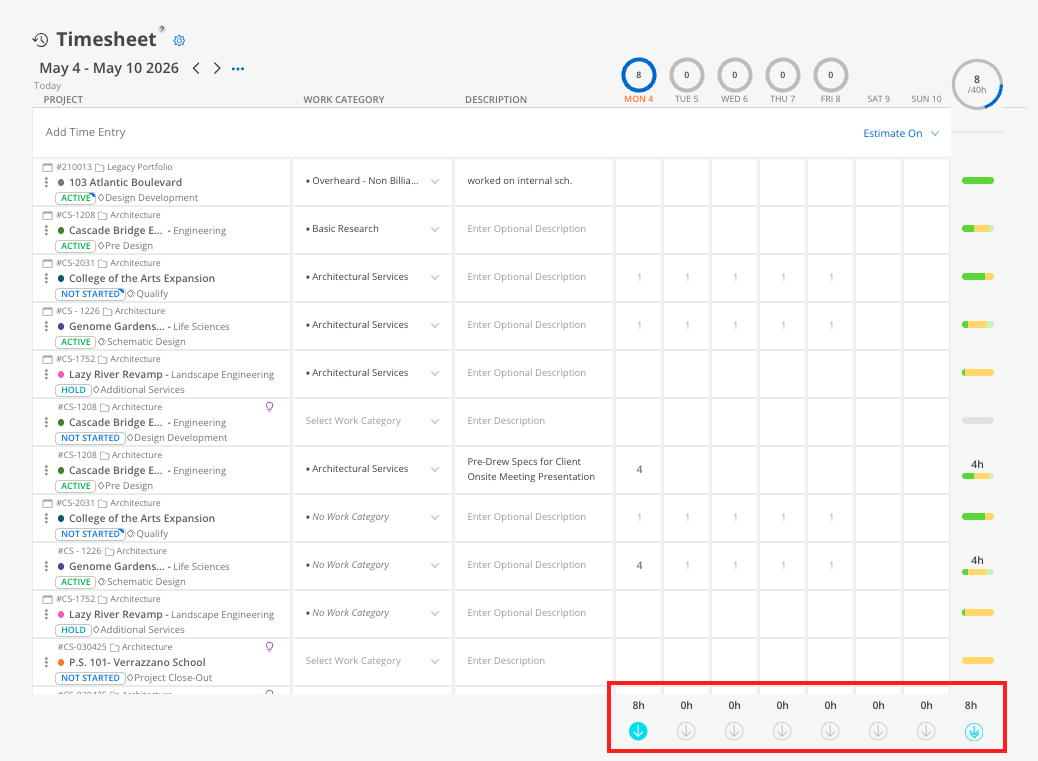
Enter time daily — Daily time entry is the most accurate and takes the least effort. Trying to reconstruct a week on Friday is harder and less reliable.
Match your work plan — Your work plan shows what you are scheduled to log. Use it as a guide for where to enter time.
Descriptions matter — A brief note about what you did helps project managers and billing staff understand the work. Even one sentence is valuable.
Use Mosaics’ suggestions for quicker entry - Each member has the option to toggle on suggestion’s (based on your work throughout Mosaic) or last weeks’ time entries by selecting the Cogwheel for settings.
Your timesheet feeds reports and billing — Depending on your ERP integration (Vantagepoint, Ajera, BQE, etc.), time entered in Mosaic may sync to your financial system. Accurate entries keep project budgets and invoices correct.
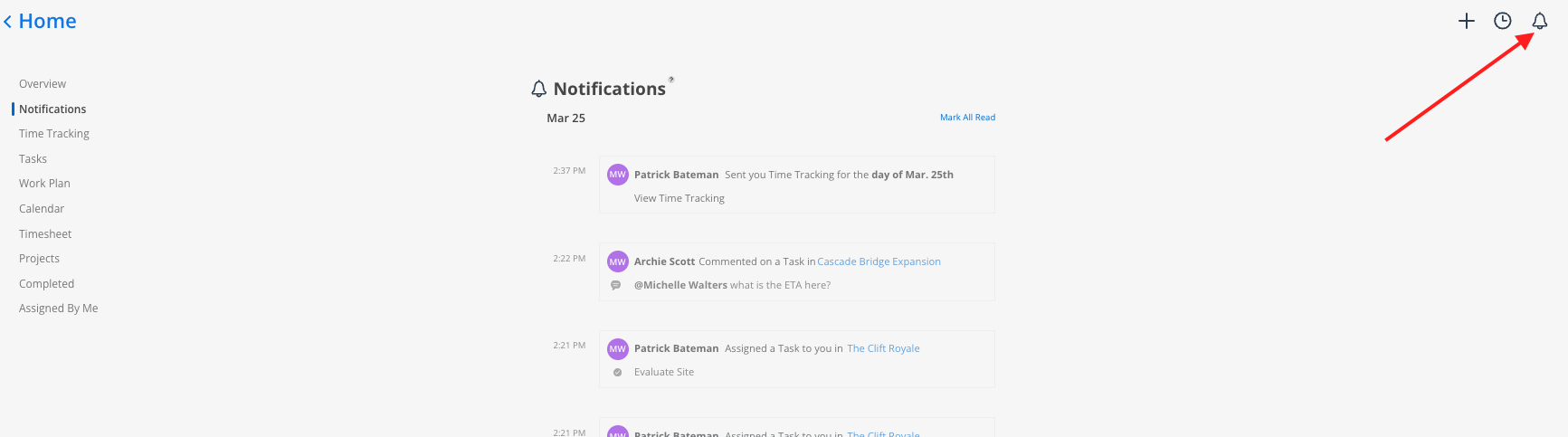
Shows all your in-app notifications. You also see unread counts as a red badge on the bell icon in the top-right corner of every space in Mosaic.
You receive notifications for:
Tasks assigned to you
Comments where you are @mentioned
Work plan comments where you are tagged
You do not receive a notification every time a work plan is created or edited for you. To check for work plan changes after being away, review your Work Plan widget and check the activity log inside any plan that looks different.
Mark notifications as read from the widget or by clicking the bell icon from any space.
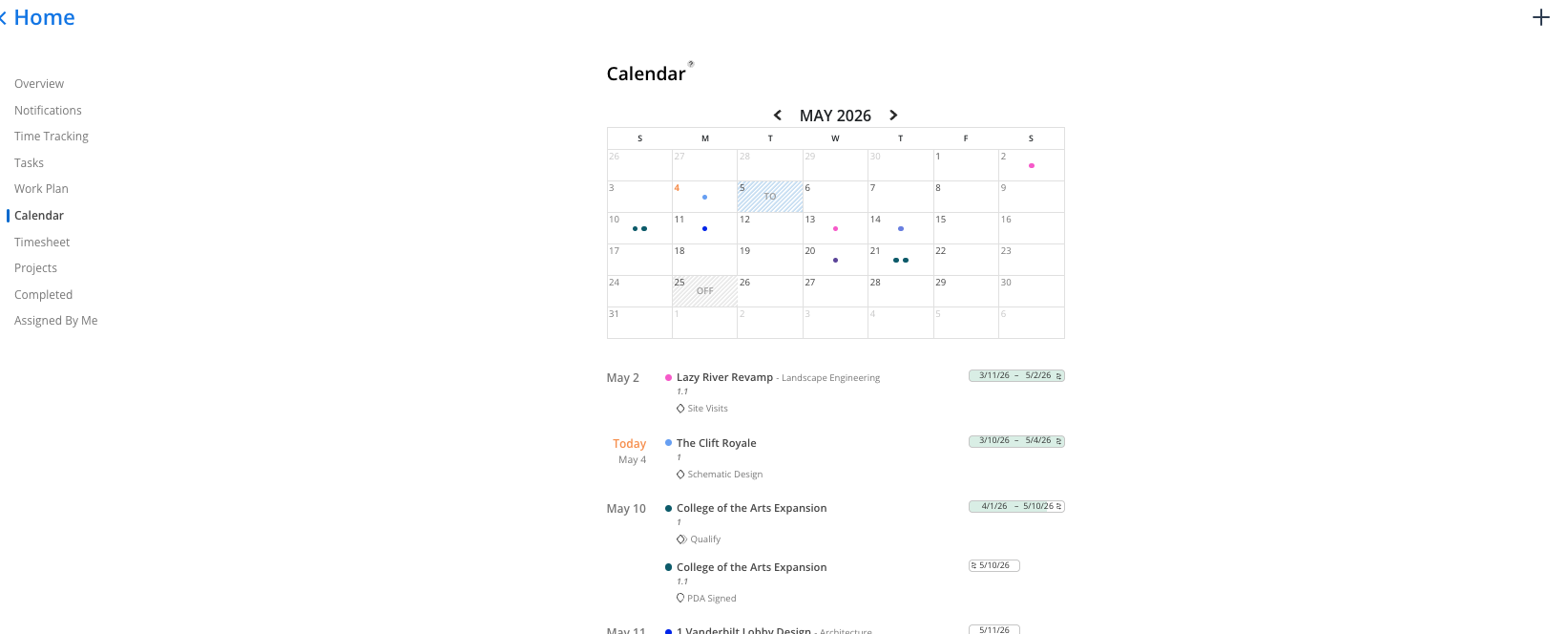
A monthly calendar showing important dates from all of your projects. Personal to your account — it only shows items from projects you are a member of.
What appears on the calendar:
Phase start and end dates — Diamond icon
Milestones — Teardrop / map-pin icon
Your time off entries — Blue hash marks
Company-wide holidays — Gray shading
Hover over any dot on the calendar to see a tooltip, or scroll below the calendar grid to see the full chronological list of events for that month.
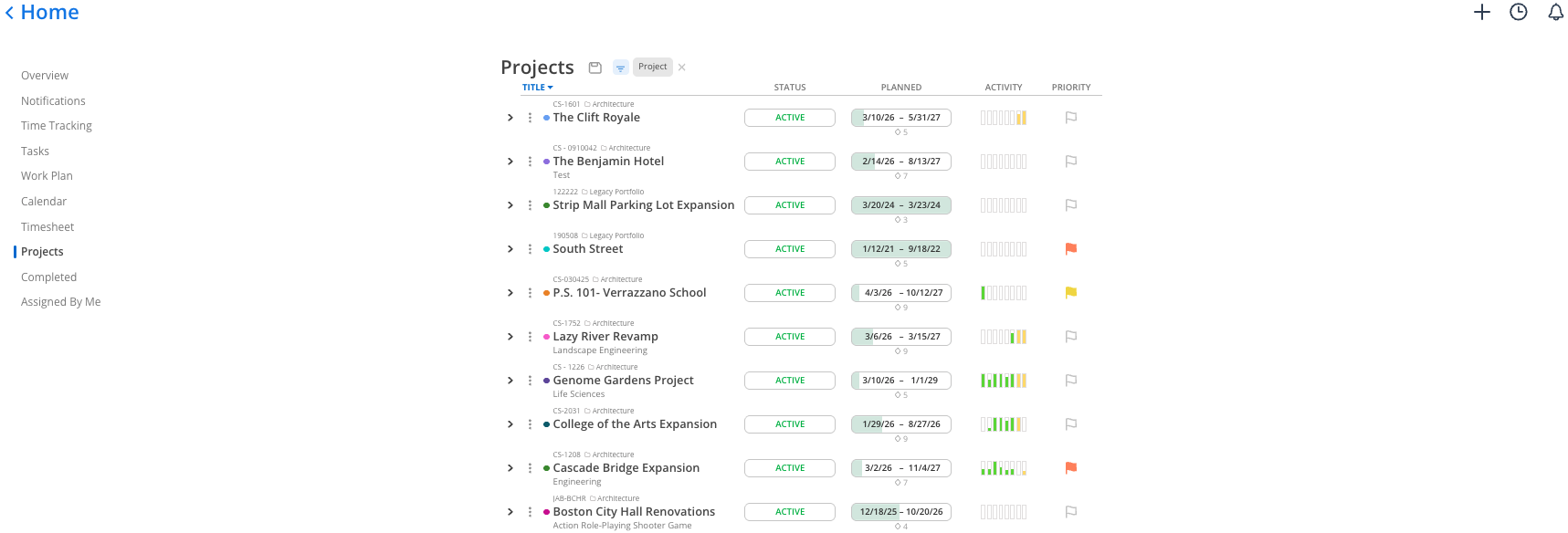
Shows all projects you are a member of that are considered active — meaning they have had time entries synced in recently or have work plans scheduled in the upcoming weeks.
Click into the widget to see the full project list with phase details expanded
Use the filter icon to narrow by portfolio, status, phase, or other attributes
Click the floppy disk icon to save the current filter so it persists when you next log in
Users with elevated access see activity bars showing a split between spent time (last 6 weeks) and planned time (next 2 weeks)
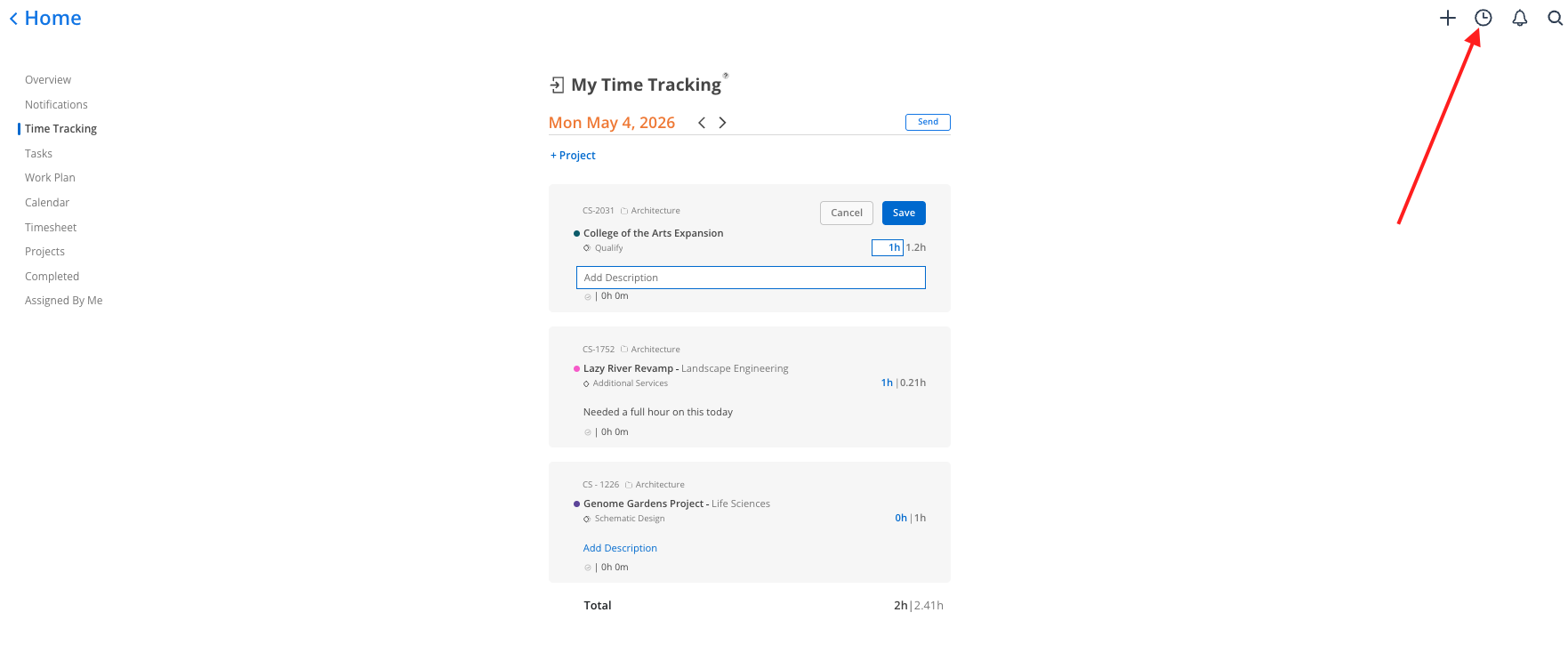
Shows a daily breakdown of your scheduled hours for today, drawn from your active work plans. This is not a time entry system and does not sync to your ERP. It is a personal drafting tool.
The gray number next to each project shows how many hours your work plan allocates for today
The blue editable field is where you can record how many hours you actually worked
Use it as a scratch pad to track actual hours before entering time in your ERP at the end of the week
Add entries for projects you worked on but are not scheduled for by clicking Add project
Click the stopwatch icon to start a running timer. The timer turns green when active and is also accessible from the clock icon in the top-right corner of any space in Mosaic
You can customize the Home space to your preferences
Resize and rearrange — Drag widgets to reorganize your dashboard layout
Your layout is saved — Changes persist across sessions so your Home looks the same each time you log in
Drag widgets to rearrange — Put the widgets you use most at the top. Your layout persists across sessions.
Work Plan widget is your daily starting point — Check it every morning to see what is on your schedule before opening anything else
Use Time Tracking as a scratch pad — It is not required, but it is a convenient way to track actual hours without relying on memory at the end of the week
Completed Tasks widget is a quick wins view — Some team members like to check it at the end of a Friday to see everything they got done that weekBest Practices
Start your day in Home — Check your work plans and tasks first thing to orient yourself before diving in
Log time before you close your laptop — End-of-day time entry while work is fresh takes two minutes and saves headaches later
Use task checkboxes — Checking off completed tasks keeps your project manager informed without requiring a message or meeting
Set up your notifications — Spend a few minutes adjusting notification settings so you get the alerts that matter and not the ones that do not
