This workflow keeps a project reporting the truth. Dates match where the work actually is, the heat map reflects real availability, and anyone who opens the project sees current information without asking you.
It runs on three rhythms. A short weekly pass on each active project, a longer monthly review, and a one-time close-out when the work finishes. Feature mechanics live in the linked articles. This article carries the sequence.
You own active projects and want a repeatable weekly check
A phase date slipped and you need to know what else moves with it
Capacity looks wrong for someone on your team
Membership or tasks have drifted since the project started
The work has finished and the project should come off the active list
Phases exist on the project. Depending on your Integration settings, phases may sync automatically when an integration is set up. Add them manually for unlinked work. 👉 Projects - Schedule
Dependencies are set where the schedule allows. Linked phases, milestones, and work plans move on their own, which is most of what makes this pass short.
Open the Projects widget on your Home Space, or your favorited projects in the project drawer, and scan for anything different from last week.
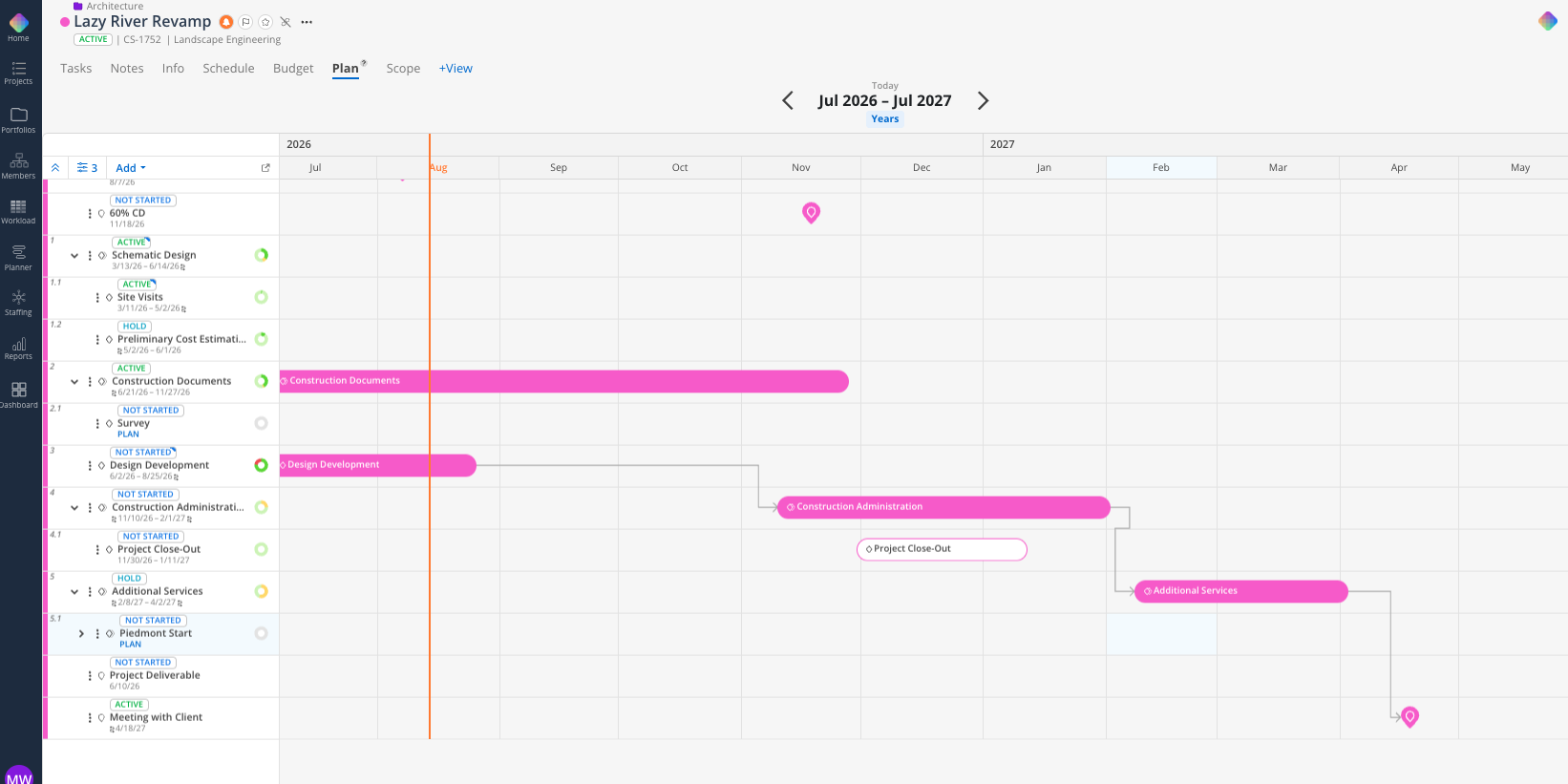
Open the Schedule or Plan tab on any project that changed. Initials beside the phase name show who last edited the dates in Mosaic, and the Workdays column holds the original baseline duration for comparison.
Click the phase bar to open the Project Schedule Modal, adjust the date range, and confirm the status is still accurate. Dependent phases and milestones shift automatically. Work plans anchored to that phase edge shift with it.
Move to the Workload space for the member view or Planner for the project view and reconcile the plans. Extend or condense plans running long or wrapping early, split a multi-week plan at the current week when only the remaining portion changes, drag a plan to another member when someone is overbooked, and clear tentative plans for work now confirmed or cancelled. Work plans without a dependency stay where they are, so these are the ones to move by hand.
Click the Tasks button on the Schedule tab to open the sidebar of tasks with no planned date, then drag each one onto the timeline to schedule it. Use Group By to sort the sidebar by list, member, priority, or phase.
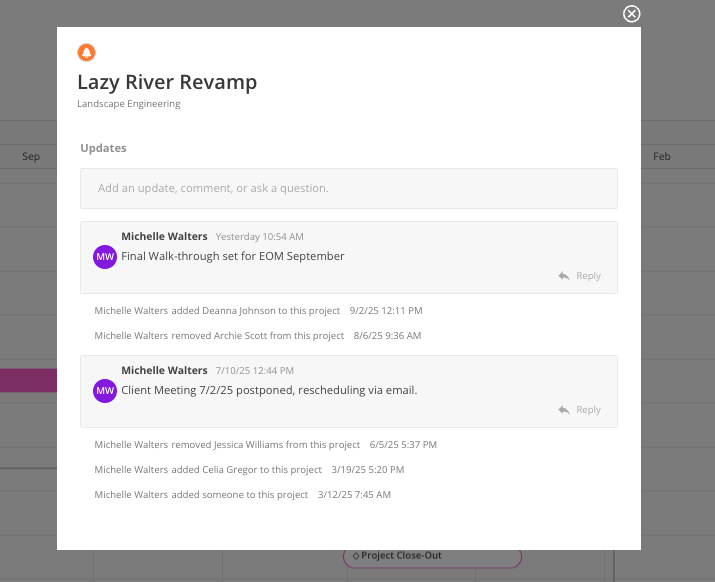
Click Project Update in the top right and post anything the team needs to know. The update stays attached to the project, and Project Members and Project Managers can reply in the thread.
Click the members avatar to open the Member Management Modal. Set each person to Project Manager, Can Edit, View Only, or Remove from Project. Members join automatically when a work plan is created for them or a time entry is submitted, so the list grows on its own.
Open the Project Schedule Modal and click Add Milestone for any tracked date that carries no budget line, such as a kickoff, a permit submission, or a client review. Milestones appear on the calendar of every project member.
In the Planner space, scan the next 30 to 60 days for phases with no one assigned. Add an unassigned role so the phase reads as work that needs staffing.
Add meeting minutes, decisions, and client context to the Notes tab.
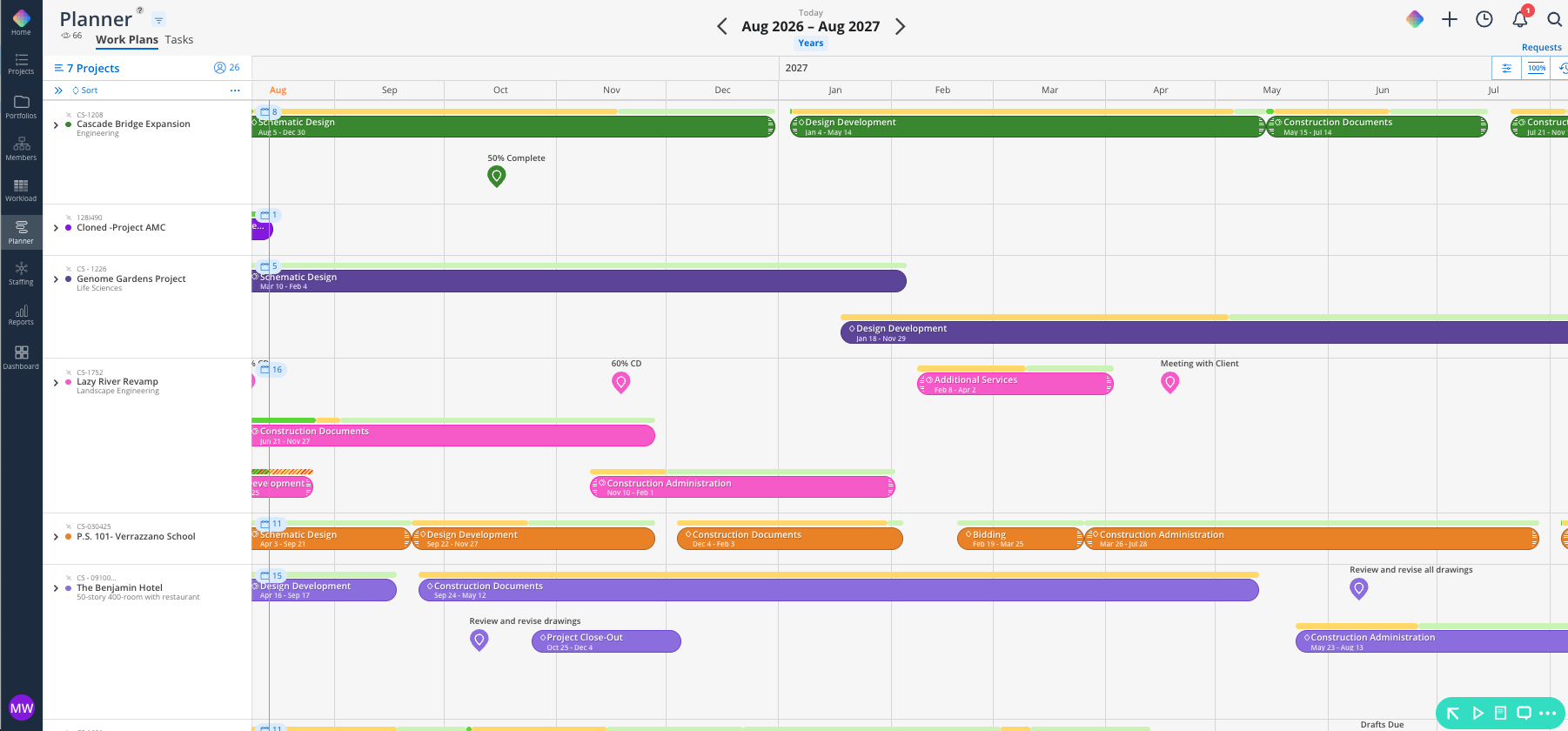
Confirm no active work plans remain on the project in Workload or Planner.
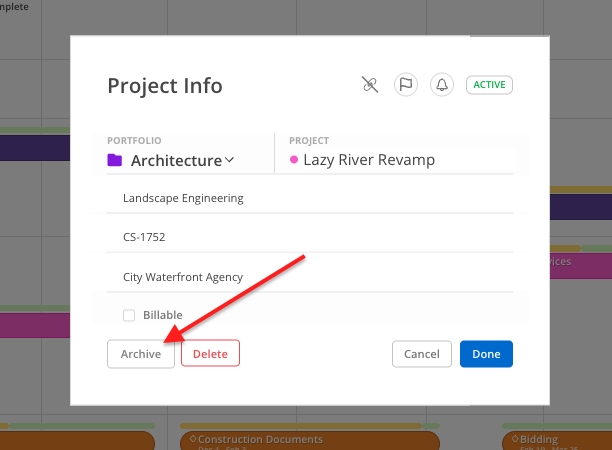
Open the three-dot menu beside the project name and select Archive Project.
Confirm the project shows Archived beside its title and appears in the archived view of the portfolio page. Archiving preserves the full project record.
Watch for these signals between passes. A past phase end date on an active status, a member booked on finished work, tasks sitting undated in the sidebar, or a month with no project update.
Check the activity log before asking. It shows who changed a plan and when. An editor of "IS" means the change came from the ERP sync.
Save your Schedule view. Set the date range and display view, then click the save icon so it loads the same way next time.
Run this alongside your staffing meeting. Most of what you need is already on screen.
