Tasks carry the work that runs alongside the schedule. Follow-ups, internal checkpoints, coverage duties, and the specific items a member should complete during a block of planned time. Tasks stay lightweight, so the heat map keeps reflecting scheduled work while the task list carries the rest. The Tasks article covers how tasks work. This one covers what teams use them for.
A phase is running over its hours and the correction needs an owner and a date
Internal work has a deadline and an owner but no ERP phase behind it
A member is out for an extended period and their responsibilities need distributing
A scheduled work plan needs an explicit definition of done
Group by Phase. Open the Tasks tab and switch the grouping from Group by List to Group by Phase. Every workflow below relies on it. 👉 Tasks
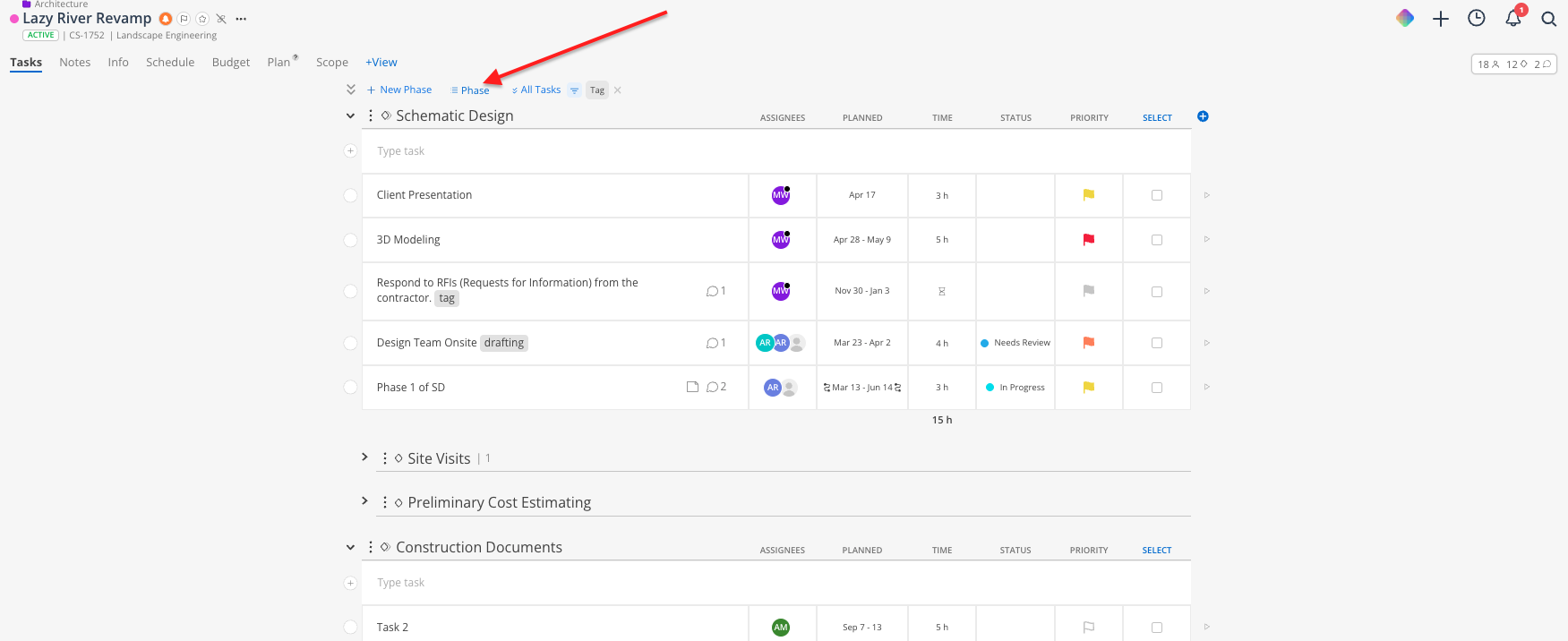
Budget and Reports show the variance. A task gives it an owner and a due date, turning a red number into a named next step.
Open the project and click the Tasks tab.
Click into the phase row that holds the variance and type the task name. Name the number. "CD phase 120 hrs over, review scope and confirm additional services" carries more than "Budget issue."
Press Enter / Return to save.
Assign it to whoever owns the correction, usually the PM or a Budget Manager.
Set the date range to end on the date the answer is needed rather than the date the overage appeared.
Click the + icon to add the priority flag, status, and time estimate fields.
Open the sticky-note icon and record planned versus spent, the phase, and the date you observed it. Those numbers shift as the budget moves, so the notes are what keep the task auditable.
Add a comment with an @mention if someone beyond the assignee needs to weigh in.
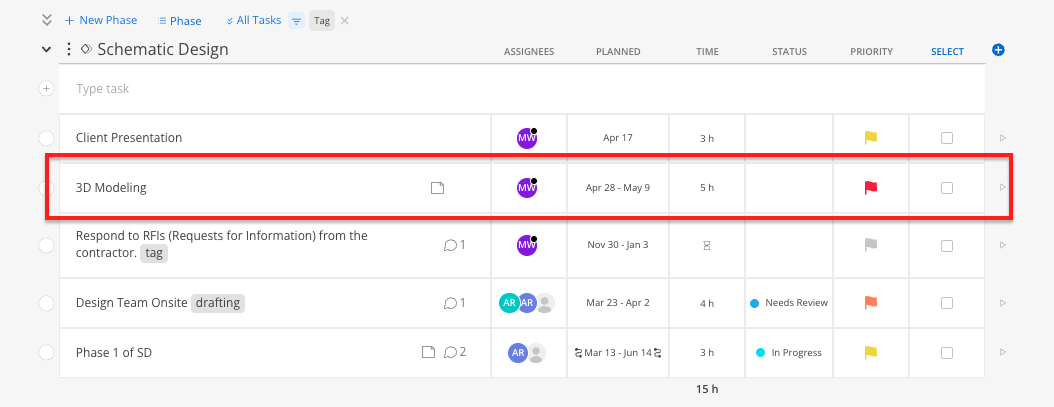
Project deliverables like QC reviews, drawing set assembly, coordination checks, submittal prep, and closeout documentation all have owners and dates. Tasks track them while the heat map and the project financials keep reflecting scheduled production work.
In the Tasks tab, add each deliverable under the phase it supports. A QC review sits under the phase being reviewed.
Assign it and set the date range to the working window. The planner view is date driven, so a range shows the assignee when to start as well as when it is due.
Add the priority flag to separate hard deadlines from the rest.
Use checklist items for multi-part work. A submittal package with six components is one task with six checklist items.
Add attachments so the assignee has the markup or template in hand.
For a significant internal date, add a milestone as well. The milestone puts the date on every project member's calendar widget, and the task keeps a named owner and a completion state.
Tasks can be made dependent on milestones or on other tasks.
An extended absence splits into two pieces. Scheduled hours move in Workload. Responsibilities move through tasks.
Enter the time off for the full leave period so capacity reflects the absence before anything is redistributed. 👉 Time Off & Holidays
Reassign the member's work plans in the Workload space. Drag each plan to the covering member's row, or split it at the leave start date and reassign the portion inside the window. 👉 Managing and Modifying Work Plans
Open the relevant project and click the Tasks tab.
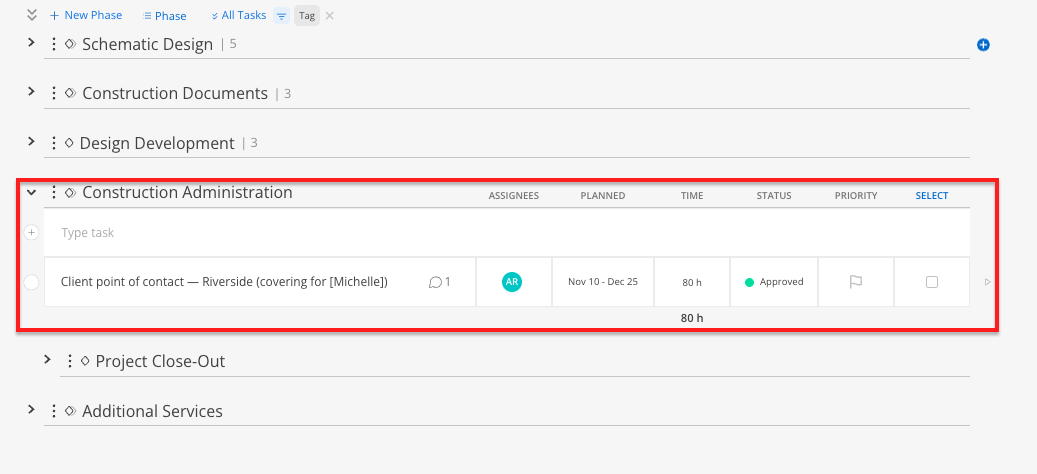
Create one task per responsibility rather than one per project. "Client point of contact, Riverside, Mar 3 to Apr 28" reads clearly to whoever picks it up.
Set the date range to match the leave window. Tasks that outlive it show the Reschedule flag, which is the prompt to hand the duty back.
Assign each task to the covering member. Assign both people when a responsibility is shared. Mosaic prompts whoever completes it first to confirm.
Use the notes panel for the handoff content. Context, contacts, standing meetings, and where files live.
Add attachments for anything the covering member would otherwise have to ask for.
Have the departing member leave a comment with @mentions looping in the covering member and the PM before their last day.
When the member returns, filter the task list by their name and the leave dates. Anything still open is what needs a deliberate hand back.
A work plan sets when and how much. Attached tasks set what. Together they give a scheduled block an explicit checklist.
In the Tasks tab, create the tasks under the same phase, with a date range matching the work plan window.
Assign them to the member who will hold the work plan.
Create the work plan in Workload or Planner for that member, project, phase, and date range.
Write the intent of the block in the work plan description field in one line. "Complete floor plan revisions per 6/12 markups."
In the work plan's Tasks tab, click Edit Tasks, then find and select the tasks to attach.
Select the checkbox to use task hours to create work plan hours when the estimates should drive the plan. Those hours stay editable.
The member then sees the scheduled time in the Work Plan widget and the specific items in the Tasks widget, aligned to the same dates.
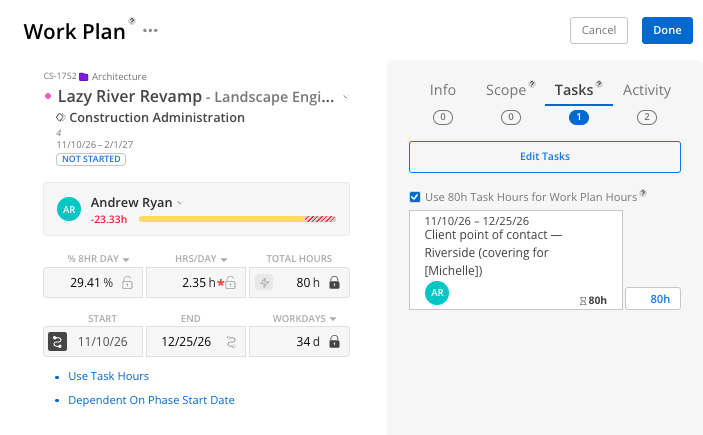
Time estimates stay informational. An estimate drives planned hours once the task is attached to a work plan and the task hours checkbox is selected.
Personal tasks stay private to the member who created them. Coverage handoffs belong on the project so the covering member and the PM can see them.
Completed tasks are kept indefinitely. The Completed Tasks widget holds the record of variance and coverage work after the fact.
The Reschedule flag marks past-dated tasks. For variance and coverage work, that flag is the signal to close the loop.
Name tasks as an action. "Confirm additional services for CD overage" tells the assignee what to do. "CD budget" leaves them guessing.
One variance task per phase. A phase-level task stays actionable and stays grouped where the variance lives.
The Assigned By Me widget is the delegation view. Pull it up before a project review to walk every task you have handed out without opening each project.
Date ranges beat single dates. A range tells the assignee when to start. A single date tells them only when they are late.
Filters hold. Filtered task selections persist to your next login, the same as in other Mosaic spaces.
