The Tasks widget shows every active task that has been assigned to you across all projects you are a member of. It also shows personal tasks you have created for yourself. This is where you manage your action items, check off completed work, and keep track of what is due when.
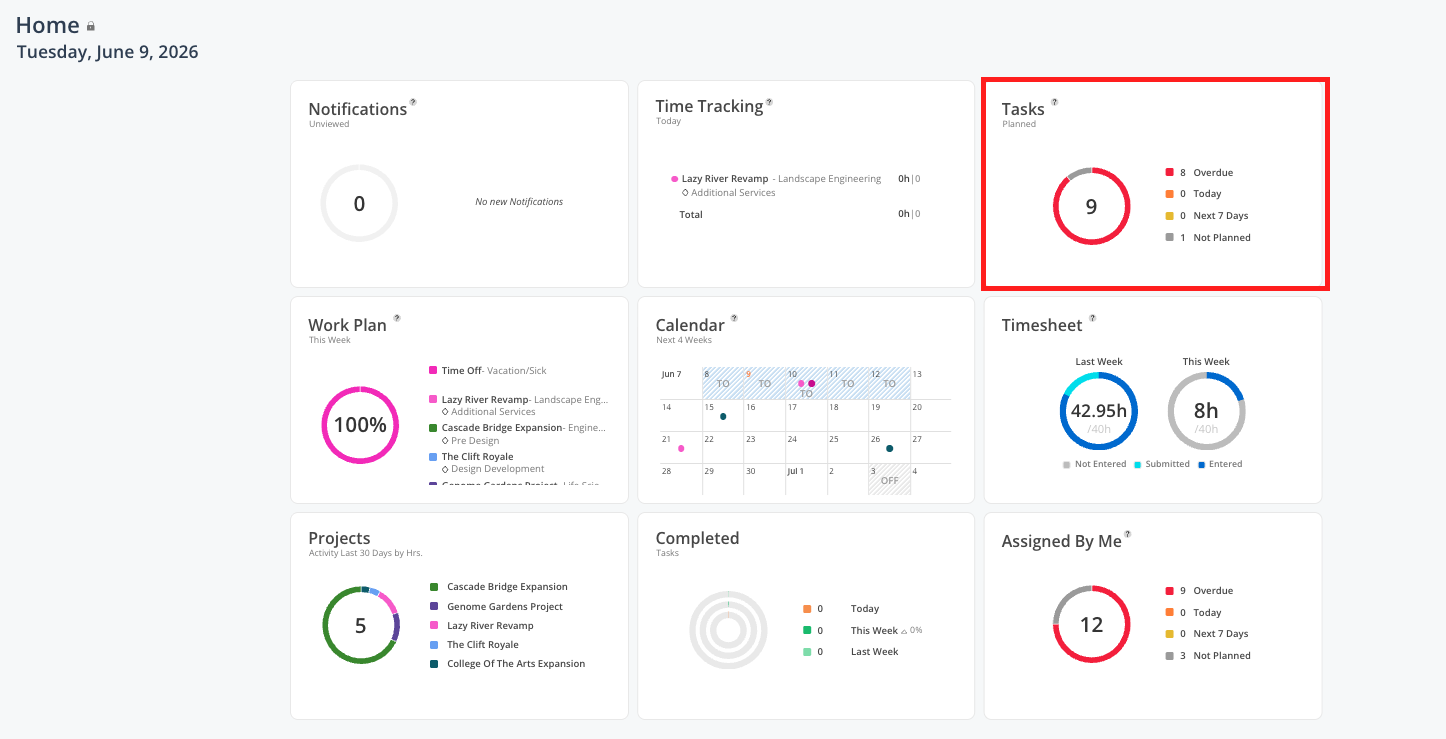

See everything that has been assigned to you across all projects you are a member of
Check what is due this week - or what is overdue
Mark a task complete when you finish it
Leave a note or reply to a comment on a task
Create a private to-do list for yourself
See tasks in a calendar/agenda-style view by date
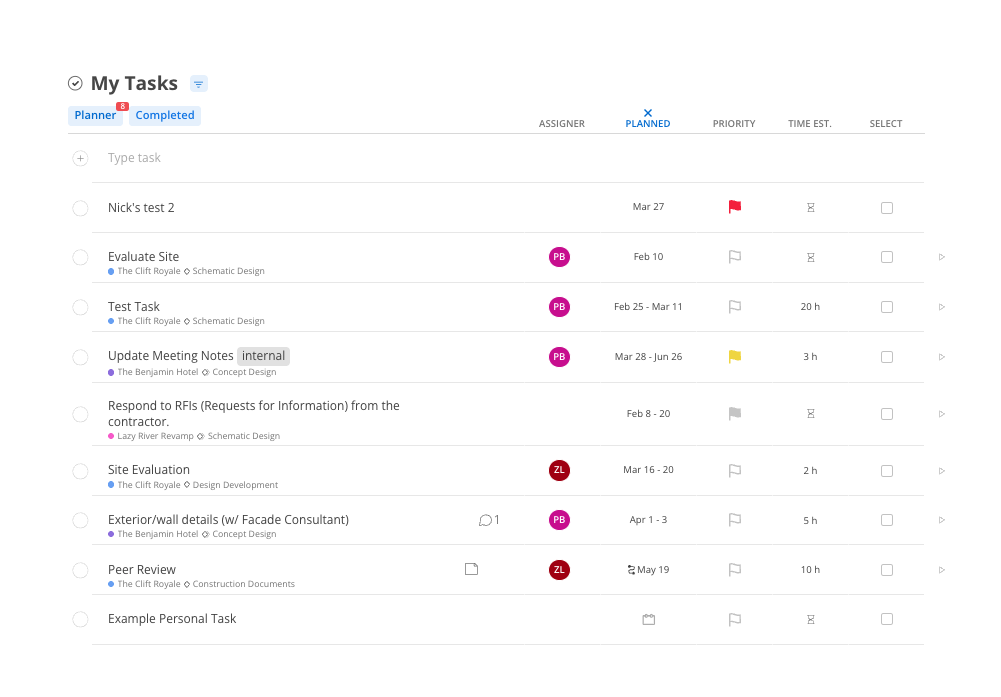
The Tasks widget shows a summary count of your active tasks and, when expanded, a list view with:
Task name
Project and phase the task belongs to (or "Personal" with a lock icon for private tasks)
Assigner initials — who assigned you to that task (if on a project)
Date range — when the task is scheduled
Sticky-note icon — filled in (always visible, not just on hover) when notes, attachments, or comments are attached to the task
Comment icon — populates with a count of the total comments that are added in the task modal.
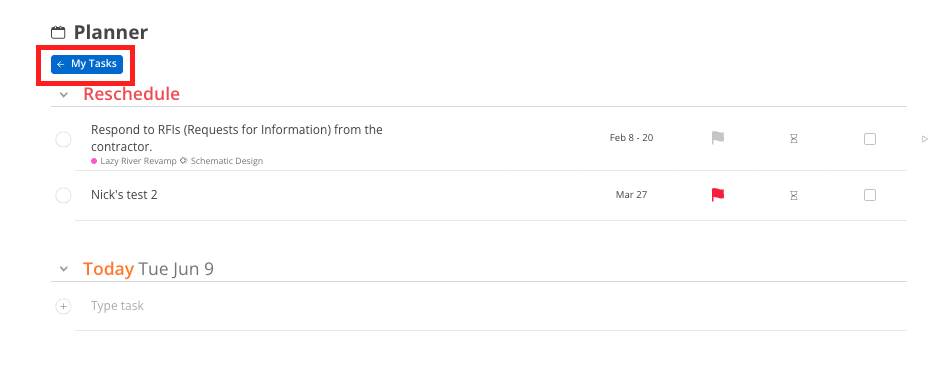
Status flags — tasks with past dates are marked Reschedule.
Time Est — if the task has a estimate of hours added to it, you’ll see that here. If not, you’ll see a hourglass icon.
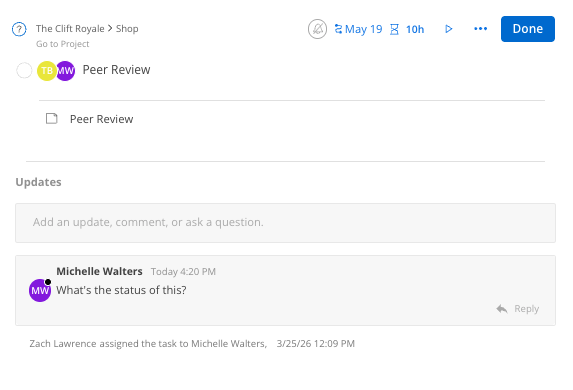
Click the sticky-note icon on any task to open its detail panel. From here you can:
Read and add notes
Leave a comment and @mention team members who will receive a notification
See the activity log showing every change made to the task with timestamps and editor names
Add or view attachments
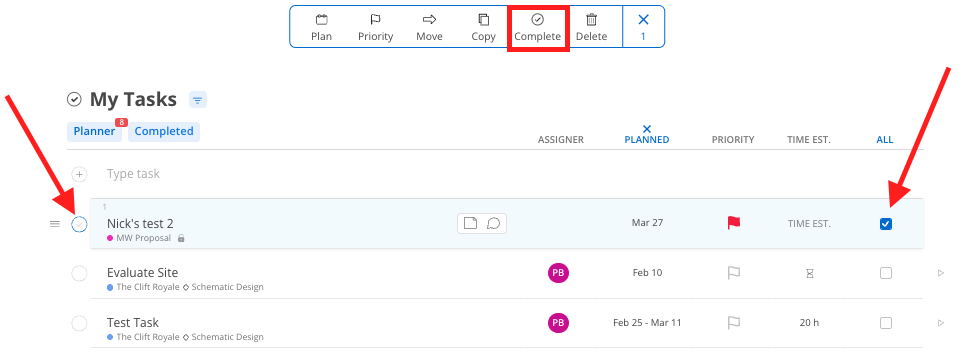
Click the checkbox next to the task name.
If the task has multiple assignees, Mosaic will prompt you to confirm before marking it complete — this is a reminder to check in with co-assignees first.
Once confirmed, the task moves to the Completed Tasks widget and disappears from your active list.
To reactivate, open the Completed Tasks widget and mark it incomplete.
Click into the task entry field in the Tasks widget.
Type the task name.
Do not select a project — leave the project field blank.
Press Enter / Return to save.
The task is saved to your personal project and is visible only to you. It shows a padlock icon to confirm it is private.

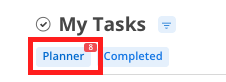
Click the planner button at the top of the widget to switch to an agenda-style view that shows tasks organized by date
Click My Tasks to return to the list view
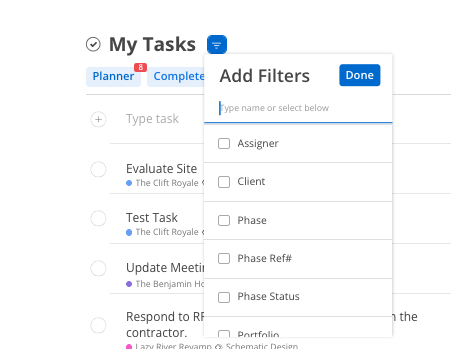
Click the filter icon at the top of the task list.
Filter by portfolio, project, assignee, or date range.
Click any column header to sort by that field.
Check for Reschedule flags regularly — Tasks with past dates are flagged automatically. Update the date or mark the task complete to clear the flag and keep your list accurate
Use the sticky-note icon as a signal — If the icon is filled in without hovering, there are notes or a comment thread on that task worth reviewing
Personal tasks are fully private — No admin, PM, or colleague can see them. Use the personal project freely for any private tracking you want
Switch to planner view for a deadline-oriented perspective — List view is faster to scan; planner view is better for understanding what is due when
