The Budget Space gives you full visibility into the financial health of each project. Instead of discovering overruns after billing; you can proactively monitor how time and dollars are being used, adjust plans, and make informed decisions before problems grow.
The Budget connects directly to your Planner, Reports, and can pull over from your ERP integration. Fees, work plan hours, and timesheets are all updated in real time.
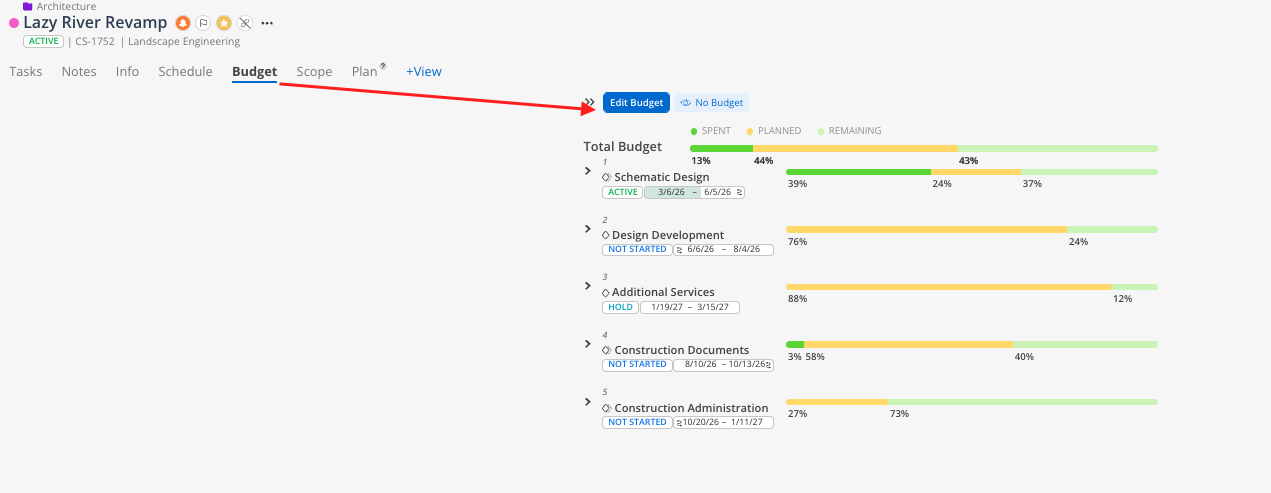
Open the Budget Space from the Project Space:
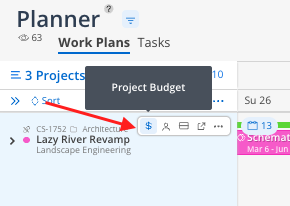
Or from within the Planner Space’s project menu bar:
This is the best place to go when you want to answer questions like:
How much budget is remaining on a phase?
Are we tracking ahead or behind on time for this project?
Which team members are using the most hours on a phase?
How does actual spent time compare to what was planned?
What should I bill for this phase?
Where are the variances on this project?
The Budget space opens as a modal for a specific project. It contains six tabs, each providing a different view of the project's financial data.
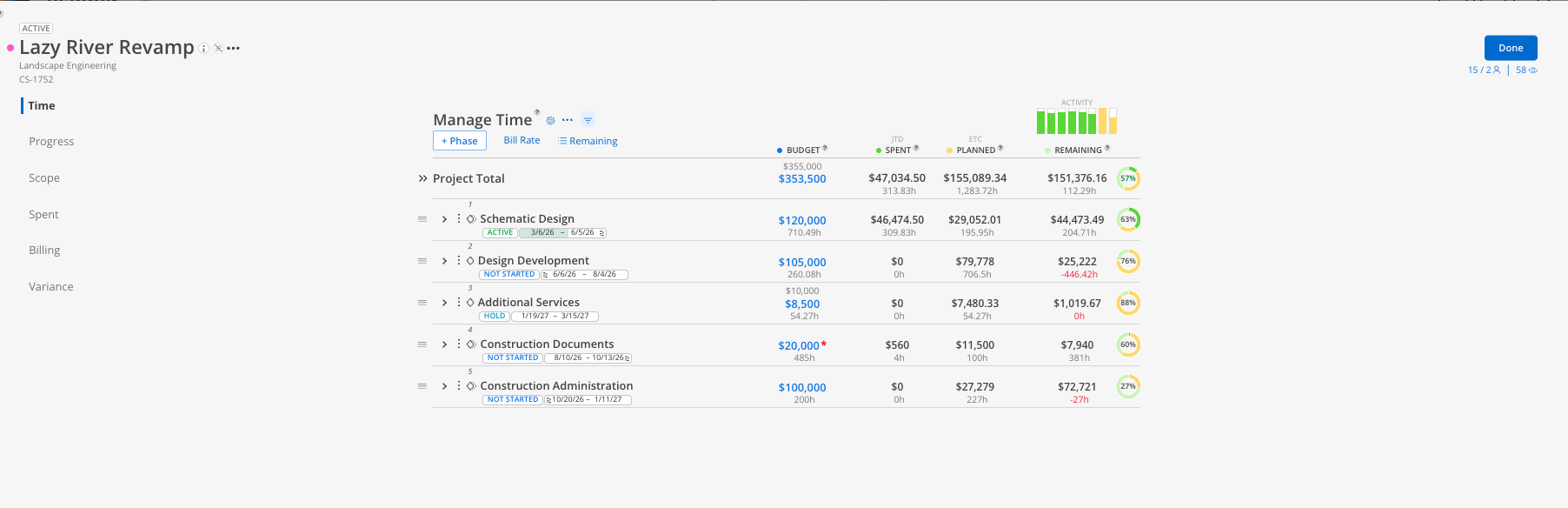
The primary tab for managing time and financial budgets. View fees, spent time, planned time, and remaining budget for every phase, sub phase, and team member. Set member budget estimates and create work plans directly from this tab.
View budget, spent, planned, and remaining columns for each phase
Set member-level budget estimates in hours or currency
Create work plans using the lightning bolt auto-plan feature
Toggle between hours and currency views
See sub phase counts at a glance with the number badge on each parent phase row
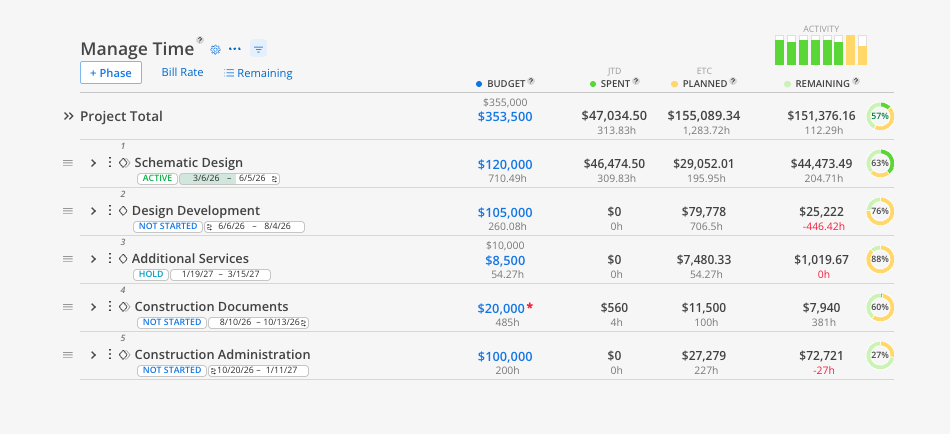
👉 Learn more about Time Tab
View all time entries pulled from your ERP or submitted in Mosaic. Filter by date range and review hours and rates on a per-member, per-entry basis.
Browse time entries by phase or by member
Adjust the date range to review any period
Rates and hours are read-only — pulled directly from your ERP, or directly from member’s time entires entered in Mosaic
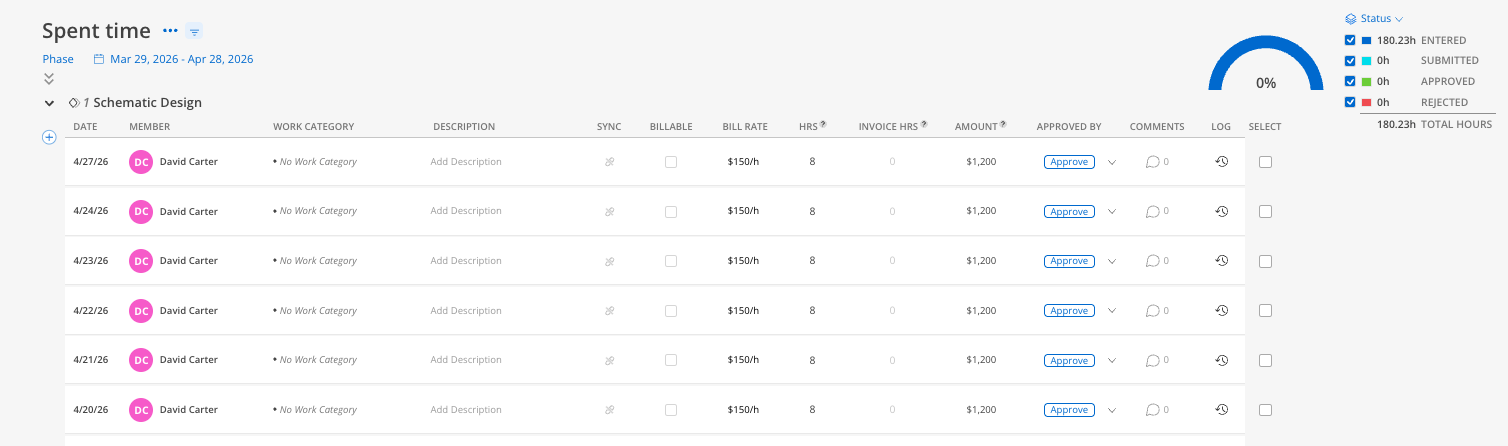
👉 Learn more about Spent Tab
Break down your budget of phases into scopes of work. Assign members, estimate hours, and track percent completion for each scope.
Add scopes to any phase or sub phase
Assign members and estimate their hours per scope
Track percent completion for each member and scope overall
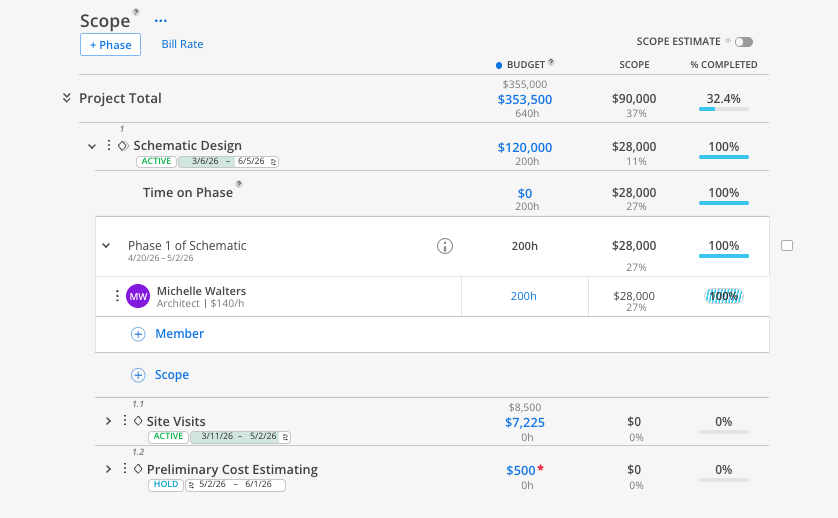
👉 Learn more about Scope Tab
Visualize the project's financial trajectory over time. View spent, planned, billing, scope, and budget as lines or bars on a chart.
Line chart shows projections over the project timeline
Bar chart compares spent vs planned by time period
Toggle between currency and percentage views
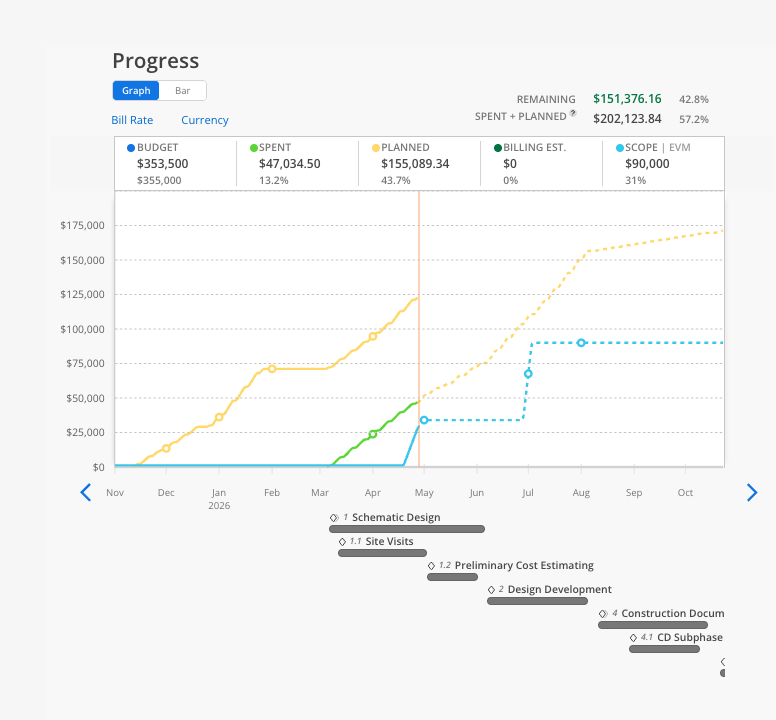
👉 Learn more about Progress Tab
Manually track billing estimates and invoiced amounts for each phase. Useful for monitoring how much has been billed against the project fee.
Add billing estimates per phase
Track billed amounts against the total fee
View billing data in the Progress chart
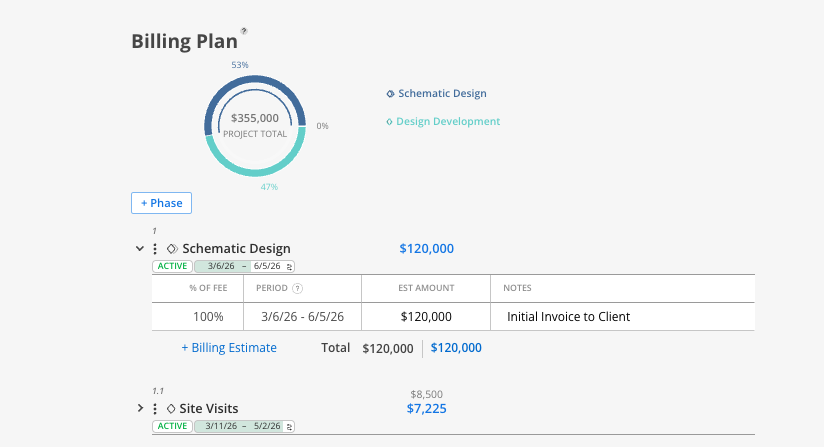
👉 Learn more about Billing Tab
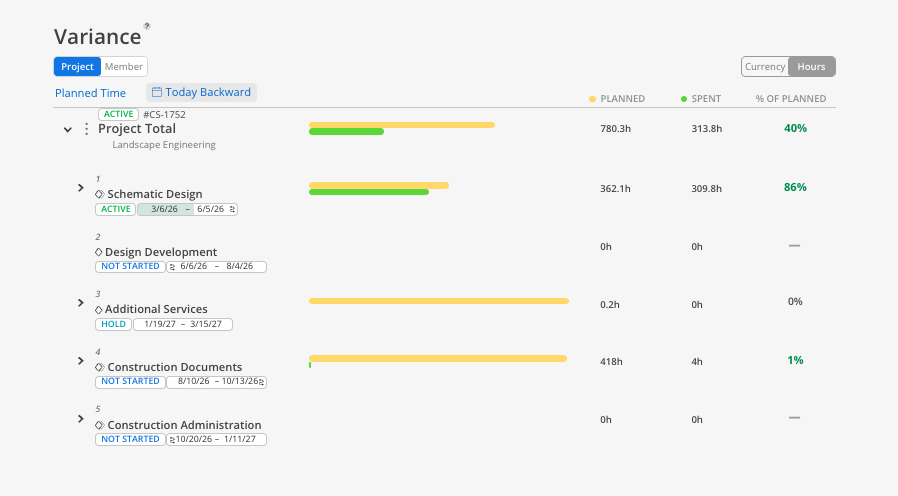
Compare actual spent time against planned time or member budgets. Identify overages on a phase or member level.
Compare spent vs planned or spent vs member budget
View by project (phases) or by member
Filter by role to spot trends across the team
👉 Learn more about Variance Tab
Start in the budget before planning. When a phase is about to kick off, set member budget estimates first, then use the lightning bolt to auto-create work plans.
Use the Planner as your home base. Keep your projects pulled up in the Planner and use the dollar sign icon to quickly open and close budgets without navigating away.
Check remaining regularly. The remaining column updates daily as spent time flows in and planned time drops off. Review it frequently to catch issues early.
Use scope for complex phases. If a phase has a large fee that needs to be broken into workstreams, the Scope tab lets you manage that without adding sub phases in your ERP.
Don't worry about breaking anything. Changes in Mosaic do not push back to your ERP. You can always adjust or undo.
