Overview
Mosaic does not automatically pull invoiced amounts from your ERP. However, the Billing tab provides a manual way to record what has been billed for each phase. These amounts feed into the Progress chart and give you a running view of how billing tracks against the project fee.
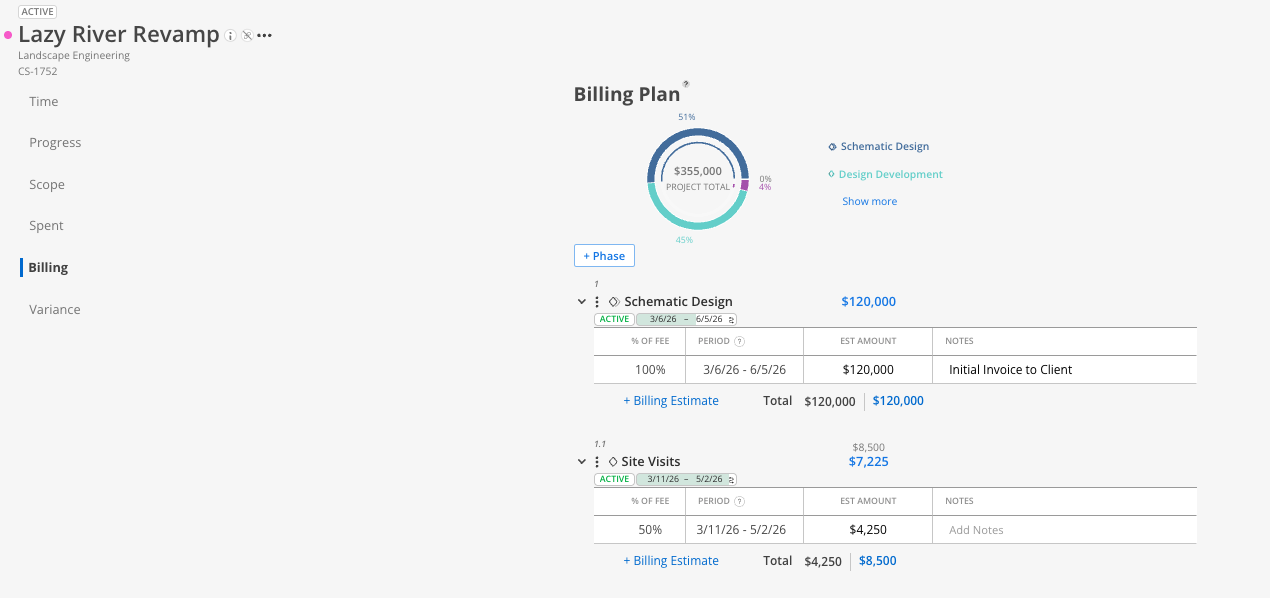
What You See
Phases listed with their status, dates, name, and fee.
A + Billing Estimate button for each phase.
Billing entries appear as line items under each phase.
How To Add a Billing Estimate
Open the Budget and click the Billing tab.
Expand the phase you want to add a billing entry for.
Click + Billing Estimate.
The field auto-populates with the total phase fee. Adjust the amount if you are billing in installments (e.g., 50% of the fee).
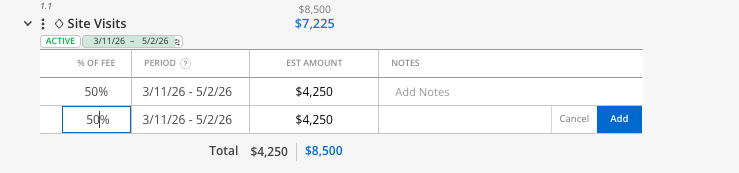
Click Add.
A billing line appears on the chart in the Progress tab.
You can add multiple billing entries per phase to track partial invoices over time.
Tips
Use billing to track invoicing cadence: Even though it is manual, recording billing estimates keeps a clear picture of cash flow against the project timeline.
View billing in Progress: The green line on the Progress chart represents billing estimates, making it easy to see how billing compares to spent and planned time.
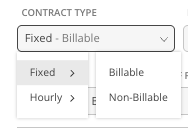
Ensure a phase’s contract type is marked Billable to enter: To enter billing estimates, a phases contract type must be marked Billable. This can be changed using the Phase Info Modal.