The Spent tab provides a detailed view of the time entries connected to the Project you are reviewing. For Integrated Teams, this view shows the time entries that have been synced from your ERP (e.g.., VantagePoint, Ajera, BQE) and the page is view-only. For Teams entering time directly in Mosaic, this view does allow Admins or Budget Managers (permission dependent) to edit time entries as needed.
Use the Spent Tab to verify rates, review hours by member, and check how time has been recorded across phases.
Time entries listed by phase or by member (toggle between the two).
Each entry shows the date, hours, bill rate, and total amount.
The date range defaults to the last 30 days. Adjust it using the calendar at the top of the tab.
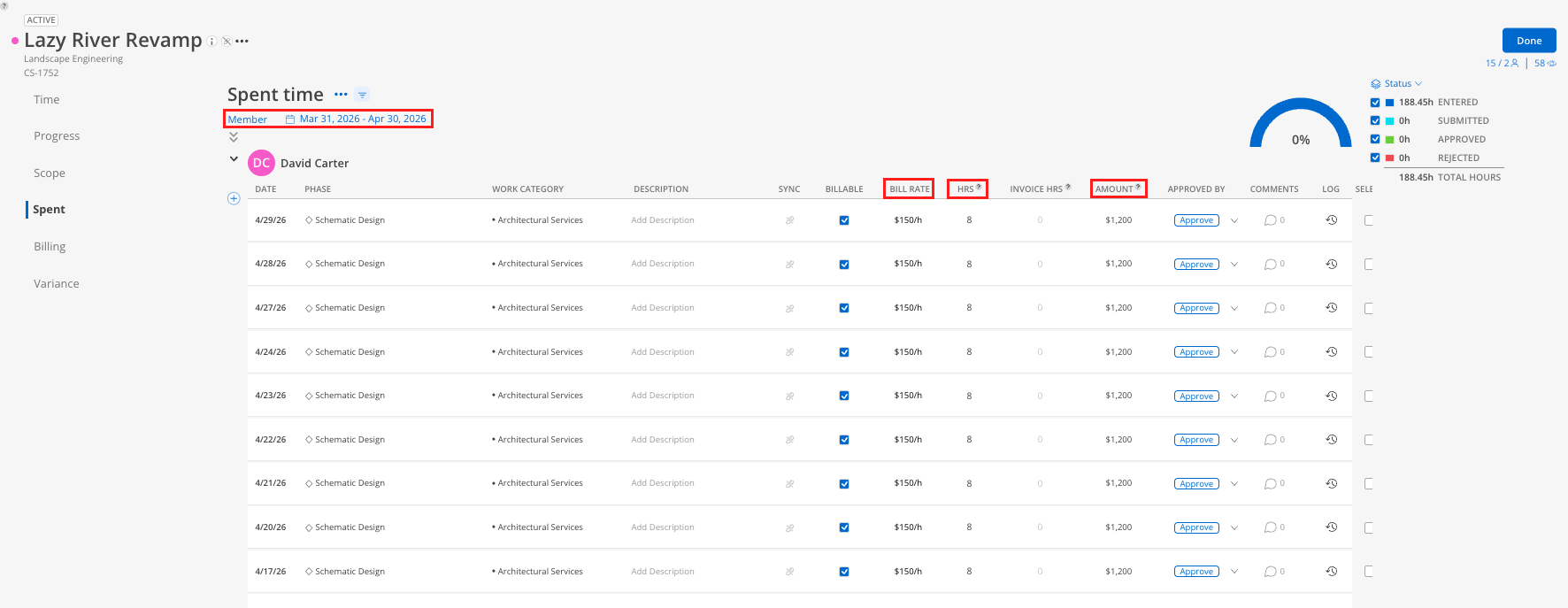
Open the Budget for any project and click the Spent tab.
Expand a member or phase to see individual time entries.
To change the date range, click the date range selector at the top. A calendar modal appears where you can set start and end dates.
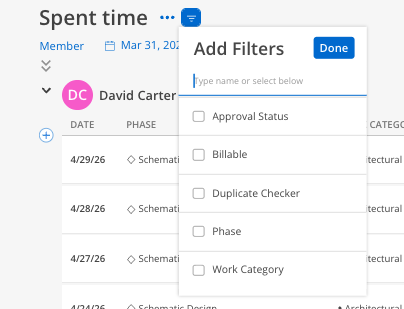
Use the filter button to narrow by phase, member, or other attributes.
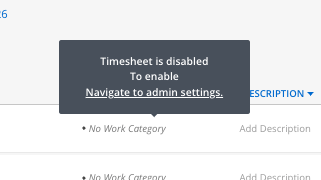
Timesheets are disabled. For Teams with integrations, time entries are pulled from your ERP and cannot be edited in Mosaic. Hovering over an entry shows "Timesheet is disabled." This prevents accidental changes that could conflict with your ERP data.
Rates come from your ERP. The bill rate shown on each entry is the rate entered in your ERP, not the planning rate used in Mosaic.
Teams that use Mosaic as their primary timekeeping tool will see an editable interface here. For ERP-integrated teams, it is read-only.
Extend the date range to project start. If you want to see all time ever recorded on a project, adjust the start date to when the project began.
Use this tab to verify spend. If the Spent column on the Time tab looks unexpected, drill into the Spent tab to see the individual entries causing it.
