The Time tab is the most frequently used tab in the Budget space. It displays the full financial picture of a project — fees, spent time, planned time, and remaining budget — broken down by phase and by team member. This is where you set member budget estimates, create work plans, and configure budget settings.
Access the Time tab by opening the Budget for any project. It is the default tab when the Budget modal opens.
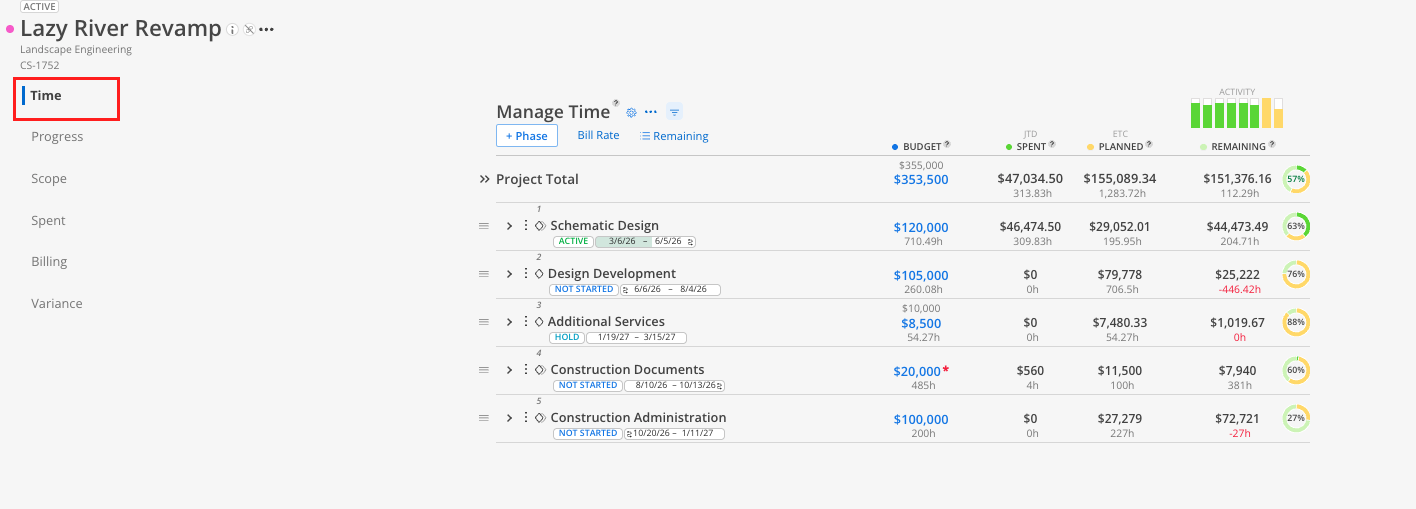
When you open the Time tab, the project's phases and sub phases are listed on the left. Each row shows the financial data for that phase. Additionally, you’ll find:
8-week Graph — At the top of each phase, six columns show spent time from the last six weeks (lime green bars) and two columns show planned time for the next two weeks (yellow bars). This gives a quick visual snapshot of recent activity.

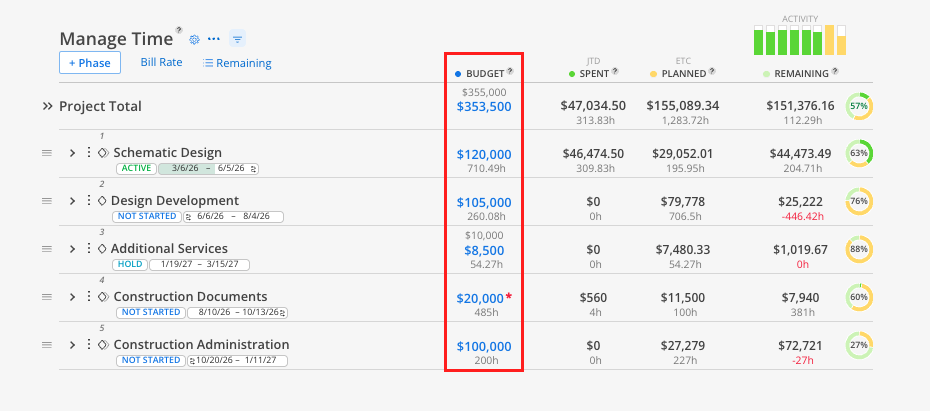
Budget / Fee column — The fee pulled from your ERP. If a budget override has been applied, the fee appears above and the budget appears below in blue text.
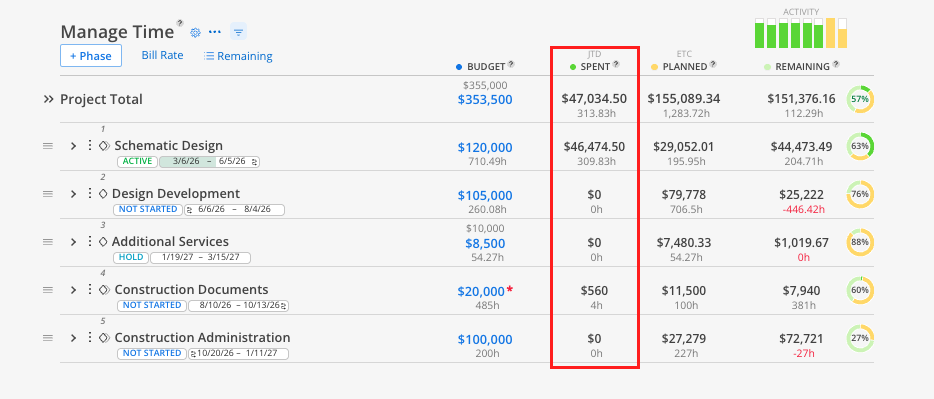
Spent column — Total spent time (in hours or currency) pulled from your ERP. This is historical — yesterday and earlier.
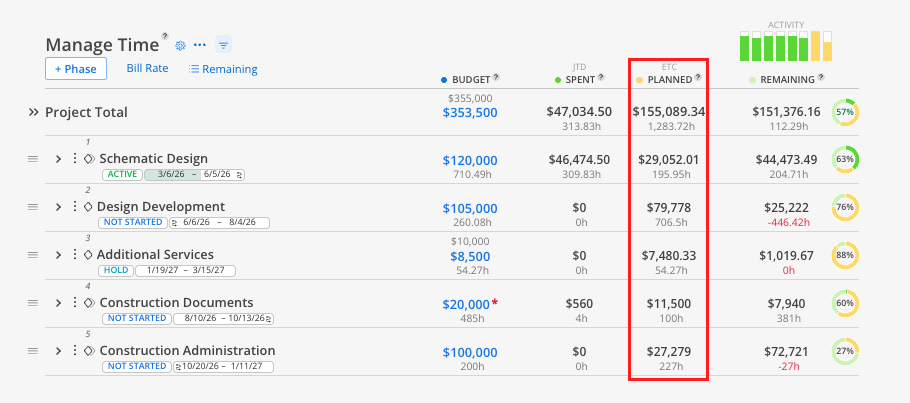
Planned column — Total planned time from today forward, based on existing work plans.
Remaining column — Calculated as Budget minus Spent minus Planned. This tells you what you have left to allocate.
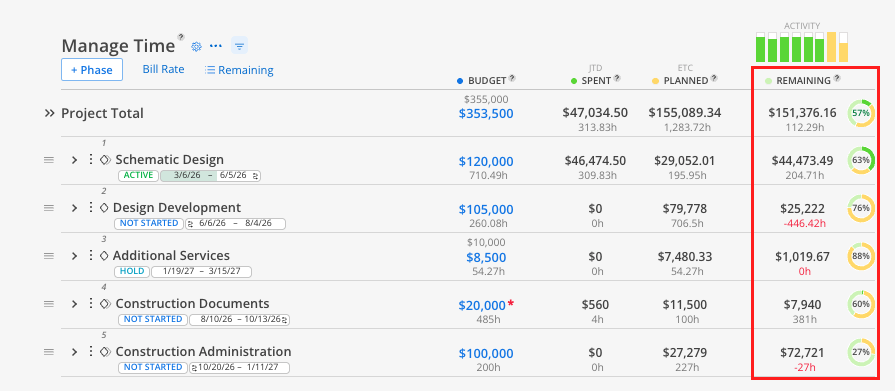
Color coding:
Lime green = Spent time (from ERP or Mosaic Time Entries)
Yellow = Planned time (from Work Plans)
Light green = Remaining budget
Red / hash lines = Over budget
These colors are consistent across the entire Mosaic platform — in the Budget, Planner, and Reports.
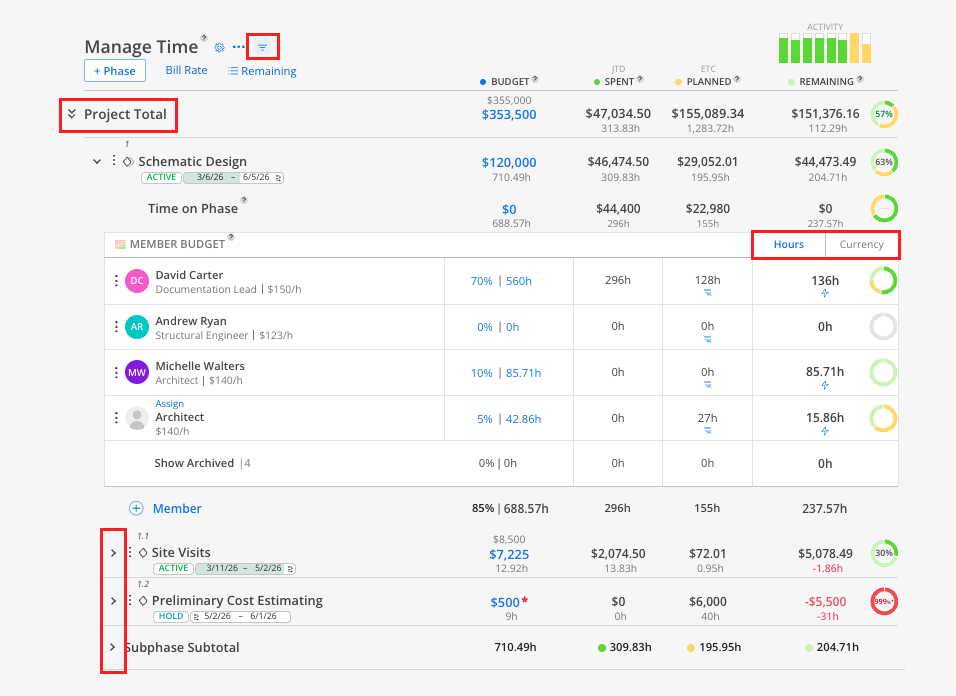
Click the small caret next to a parent phase to expand and show sub phases. A number badge on the parent phase row indicates how many sub phases are nested underneath it. Phases with no sub phases show no badge.
Click the double caret to expand all phases and sub phases at once.
Use the filter button (upside-down triangle icon) at the top to filter by specific phases, members, or other attributes.
Toggle between hours and currency using the button at the top of the tab.
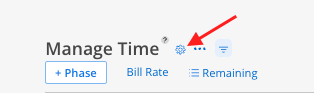
Click the cogwheel icon at the top of the Time tab.
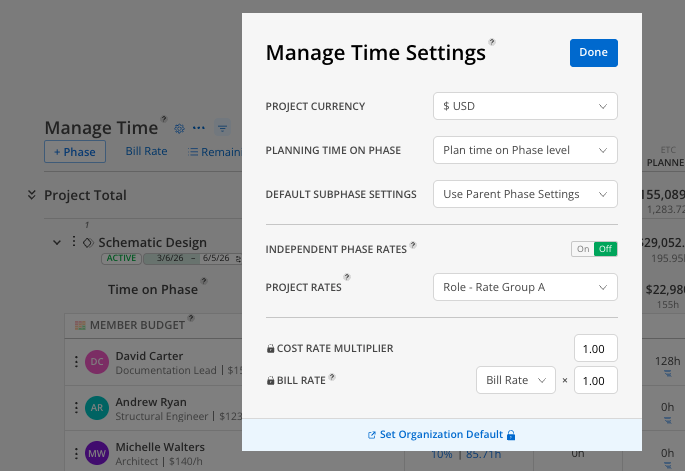
Review and adjust the following settings:
Project currency — Change if you are working on a project in a different currency
Planning Time on Phase - Change if you’d like to not track time on Project
Default Subphase Settings - Allows you to match Project settings or match Parent Phase settings for subphases (if in use)
Sub phase budget roll-up — For teams on the hours-only setting, turn this on to have sub phase budgets total up to the parent phase automatically. Set the budget at the sub phase level and the parent phase reflects the combined total without separate entry.
Independent phase rates — Toggle on to allow different rates on a phase-by-phase basis. When off, each member's rate applies uniformly across all phases.
Project rates — Select the rate type: Role Rate Group (default), Work Category Rate Group, or Member Rates. Role Rate Group applies a rate based on each member's assigned role. Member Rates applies individual-level rates.
Cost Rate Multiplier - Allows multiplier to be set if cost rates are in use
Bill Rate - Allows rate and multiplier to be set for bill rate
Click the blue fee number on any phase row.
A modal opens showing the phase details: status, link icon (indicates connection to ERP), name, reference number, parent phase, and profit center.
The Fee row shows the amount pulled from your ERP (if applicable) This updates automatically when the ERP syncs. This can be manually entered for teams using Mosaic without an Integration.
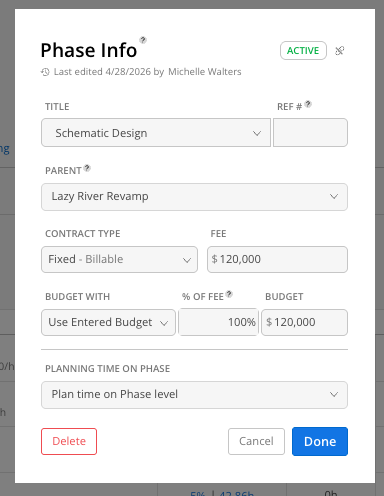
The Budget row lets you set a different amount for planning purposes. Enter a % of fee or type in a specific dollar amount.
Click Done. The fee remains visible above, and the budget appears below it.

Budget source options (click the arrow next to Budget):
Use sub phase totals — Rolls up sub phase fees to the parent. Useful when fees are only set at the sub phase level.
Member time budgets — Uses the total of all member budget estimates as the fee. Helpful for proposals when you do not yet know the final fee.
Spent + planned total — Uses the sum of spent and planned time as the fee. Useful for hourly or time-and-materials projects.
Note: Use sub phase totals has historically been a currency-mode option. Teams on the hours-only setting can now enable automatic sub phase roll-up as well, so hours set at the sub phase level total up to the parent phase. See Project Budget Settings - Hours Only View.
Expand a phase to see the members listed below it.
Each member has a Member Budget column. Click it and enter the number of hours (or dollars) you estimate that member will use on this phase.
Based on the member's rate, Mosaic calculates the percentage of the phase fee that estimate represents.
The Remaining column for that member updates to show: Member Budget minus Spent minus Planned.
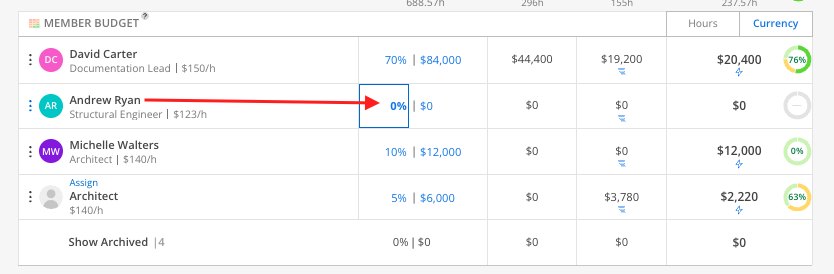
When a member has a positive remaining amount, a lightning bolt icon appears next to their name.
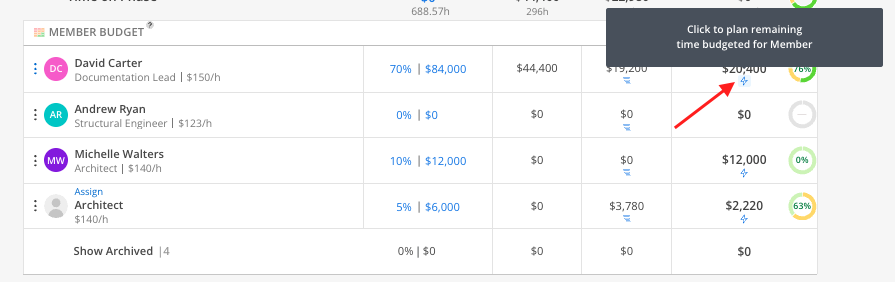
Click the lightning bolt. Mosaic automatically creates a work plan for that member using the remaining budgeted hours.
Adjust the work plan dates, duration, and percentage of day as needed.
Click Create.
Click the three-line icon under the Planned column for any member.
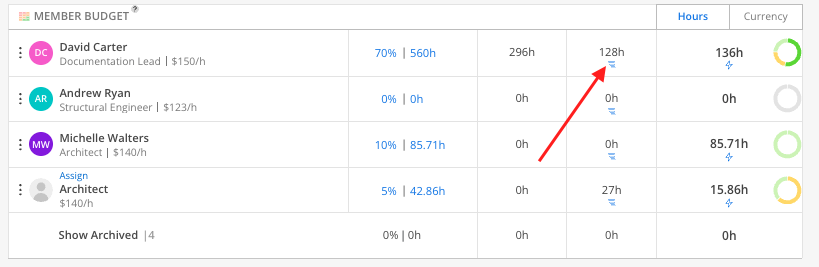
A new work plan opens for that member on that phase. It defaults to today's date.
Set the hours, date range, and percentage of day.
Optionally mark the plan as tentative, add a description, or add a comment.
Click Create.
Scroll to the bottom of a phase's member list.
Click + Member.
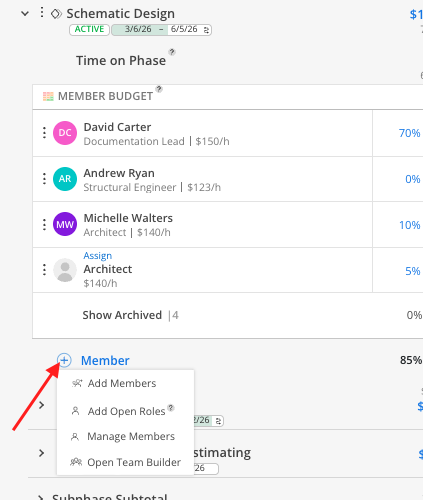
Select a team member or an open role (e.g., "Designer" or "Project Manager").
The member or role appears as a new line item with its own budget estimate, planned, spent, and remaining columns.
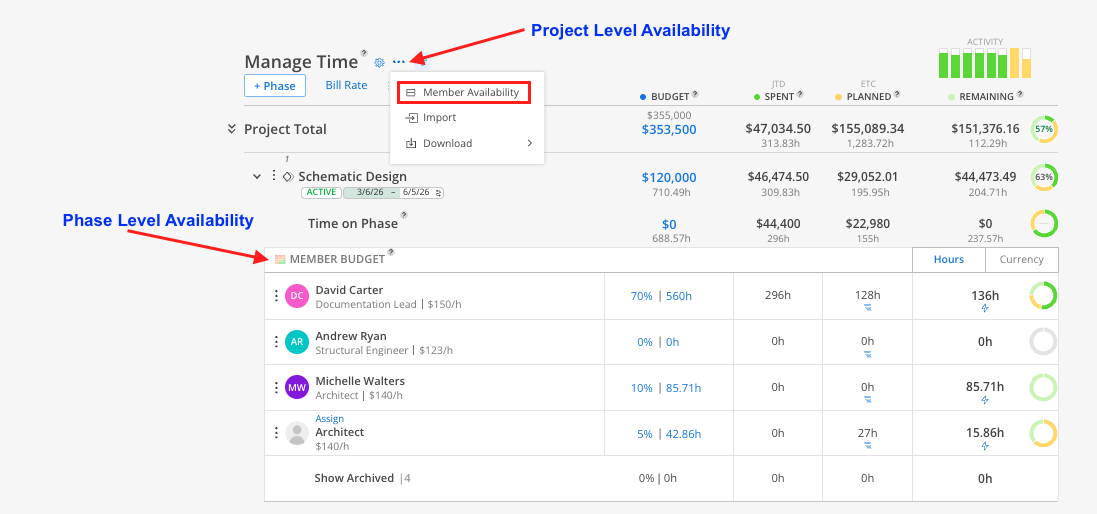
Phase-level availability:
Click the colorful square icon at the top of any phase or sub phase (next to "Member Budget").
A split-screen view opens showing all members of that phase and their workloads across all projects.
This view is read-only. Use it to check capacity before assigning more work.
Click the member count to add filters (by name, role, etc.).
Project-level availability:
Click the three-dot menu at the top of the Time tab.
Select Member Availability.
All project members appear with their full workloads.
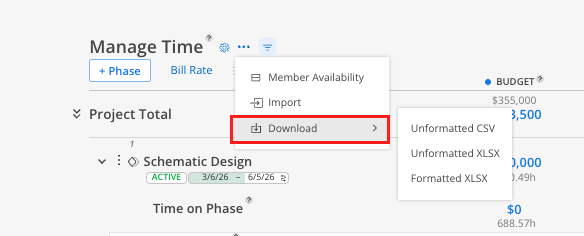
Click the three-dot menu at the top of the Time tab.
Select Download.
Choose CSV or Excel format.
Budget bar colors on phases. In the Planner space, phase bars show the same color coding (lime green for spent, yellow for planned). Hover over any phase bar to see a quick financial summary without opening the full budget.
Remaining updates daily. As spent time syncs from your ERP and planned time drops off, the remaining column recalculates automatically.
Data syncs every 12 hours. Time entries from your ERP pull into Mosaic on a regular sync cycle. In some cases, data may arrive sooner.
