The Scope tab is useful when a phase has a broad fee that needs to be subdivided into work streams without creating additional subphases in your ERP. You can define scopes, assign members, estimate hours, and track completion percentages — all within Mosaic.
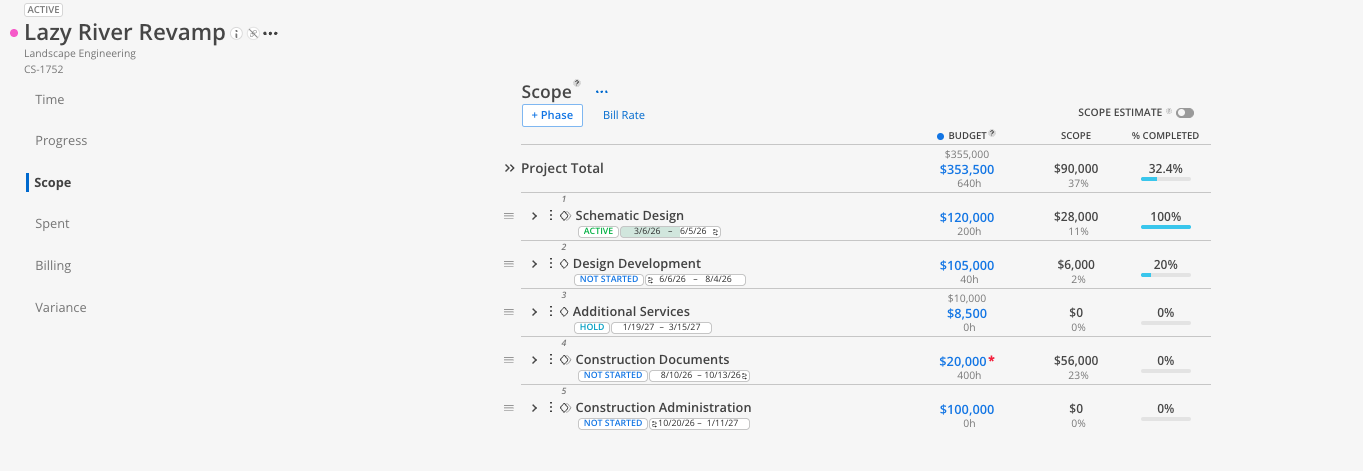
Phases and subphases listed on the left, matching the project schedule.
A + Scope button under each phase for adding new scopes.
Each scope shows assigned members, estimated hours, calculated dollar amounts, and percent completion.
Open the Budget and click the Scope tab.
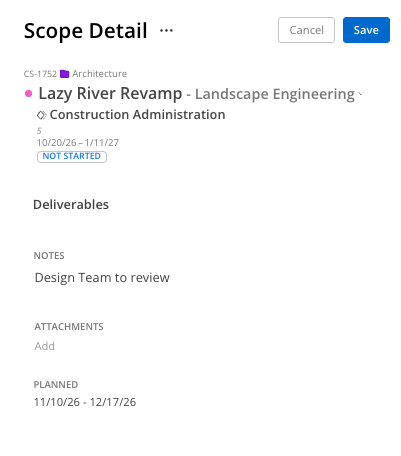
Expand the phase you want to add a scope to.
Click + Scope.
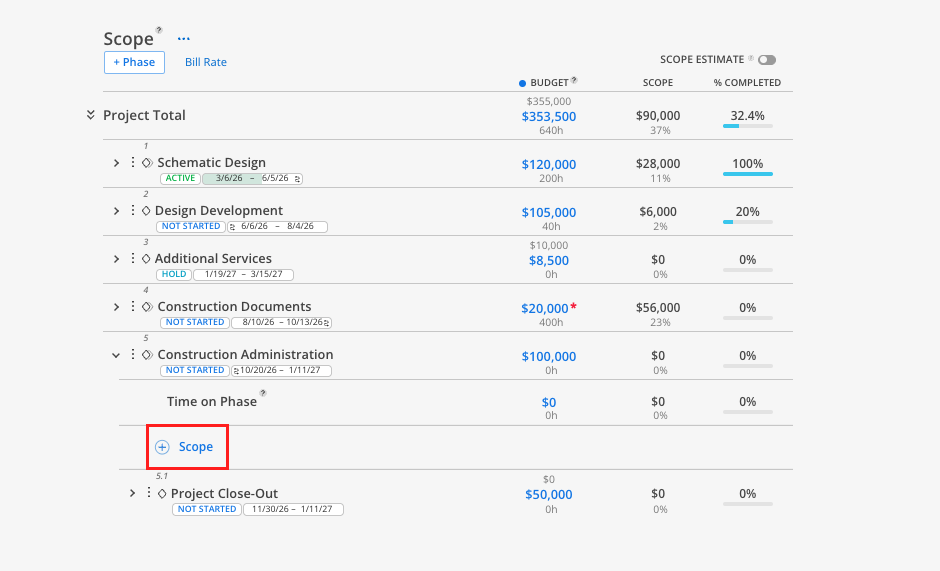
Enter a name for the scope (e.g., "Deliverables").
Optionally set start and end dates for the scope.
Add notes or attachments if needed.
Click Save. The scope appears under the phase.
Under the scope you just created, click + Member then Assign Scope.

Choose Add project members or Add open roles.
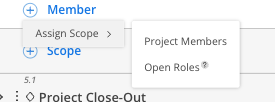
Select the member(s) or role(s).
For each member, enter the estimated hours. Mosaic calculates the dollar amount based on the member's planning rate.
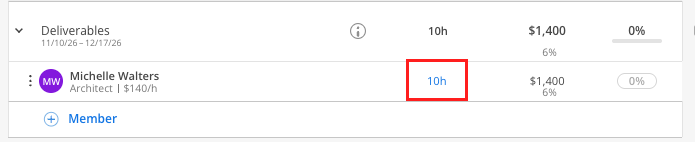
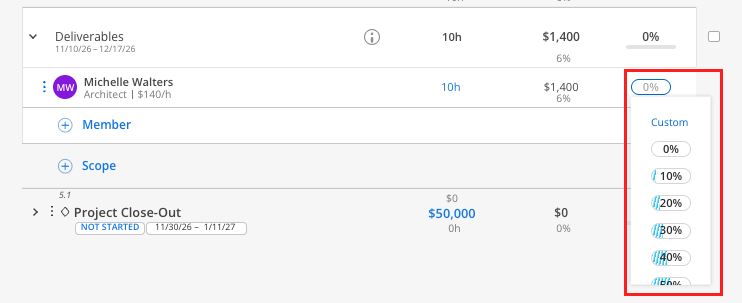
Click the percentage field next to any member within a scope.
Select a predefined percentage or click Custom and enter a value.
The member's completion percentage updates immediately.
The scope's total percentage is calculated as the average of all member completion percentages within that scope.
Tick the checkbox at the right end of any Phase, Work Category, Scope or Scope member row.
Click the All button on the top of the column header to select all scopes.
The number at the right end of the toolbar is how many scopes are selected. The ✕ beside it clears the selection.
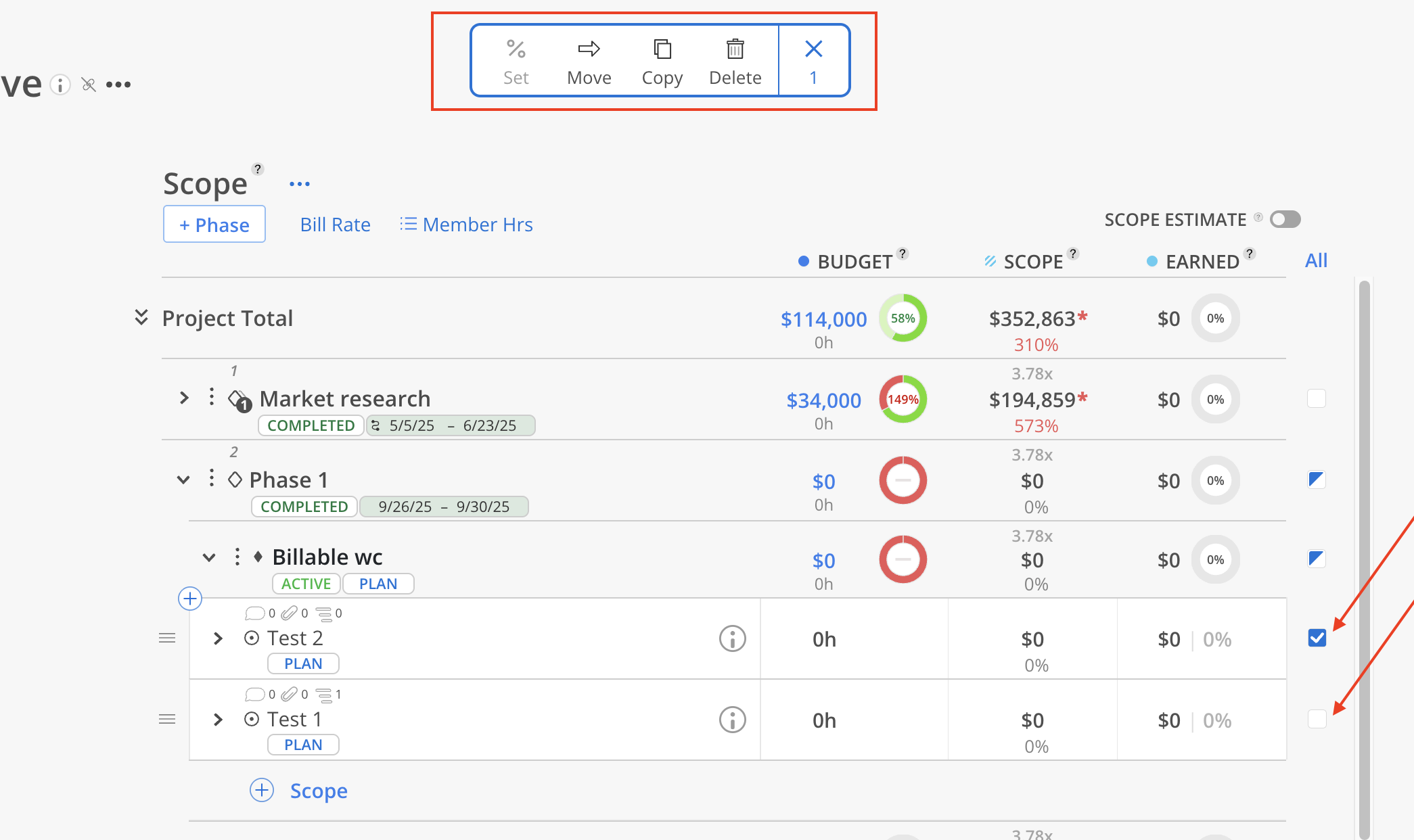
Set — applies one % complete to every selected row. Pick a preset from 0% to 100% in steps of ten, or type a custom value up to 100%. It only writes to rows that have a budget to earn against.
Move — moves the selected Scope to another Project’s Phase or Work Category.
Copy — copies the selected Scope to another Project’s Phase or Work Category. You have option to copy the assigned Members or not. If the assigned Members are not part of the destination Project yet, Mosaic asks to add them first.
Delete — permanently deletes the selected Scope. It cannot be undone, acts on Scope rows only, and stays greyed out if you lack permission to delete any one of them.
At the top of the Scope tab, find the Scope Estimate toggle.
Toggle it on. The hours and amounts entered in the Scope tab now populate as the member budget estimates on the Time tab.
On the Time tab, hovering over a member's budget field shows a void icon indicating the scope is the source of truth.
To revert, toggle Scope Estimate off. Previous manual budget estimates return.


Use scope for internal planning. Scopes do not affect your ERP or your phase structure. They exist only in Mosaic for planning and tracking purposes.
Multiple scopes per phase. You can add as many scopes as needed. Each tracks independently with its own members and completion percentages.
Great for project meetings. Walk through each scope in a team meeting to review who is working on what and how far along they are.
