The Variance Tab is designed for retrospective analysis. It shows you where actuals diverged from the plan — on a phase level, a member level, or a role level. Use it to identify problem areas, investigate cost overruns, and improve future planning accuracy.
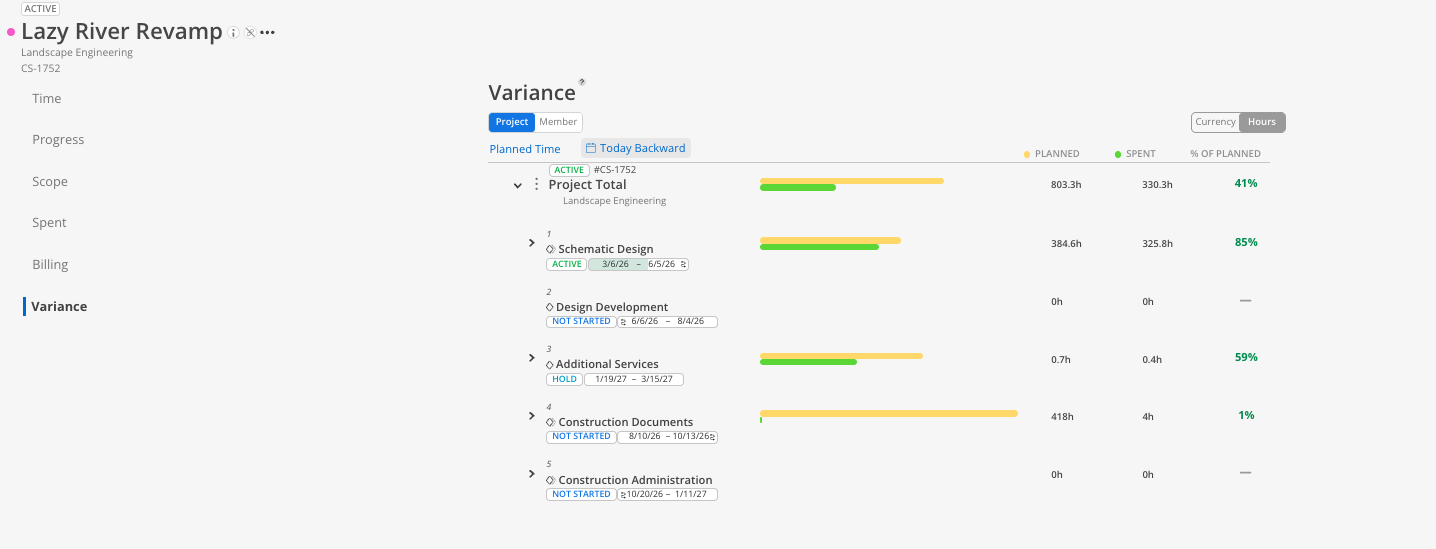
Project view — Phases and sub phases listed with spent, planned (or member budget), variance amount, and variance percentage.
Member view — Individual members listed with the same metrics, expandable to show which phases contributed to their variance.

Open the Budget and click the Variance tab.
The default view is Project with Plan Time selected.
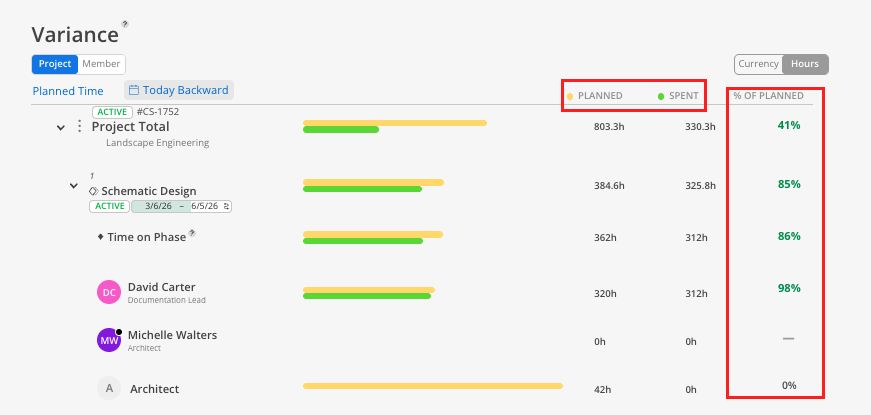
Each phase row shows:
Plan Time — The total planned hours (or currency) for the period.
Spent — The actual hours (or currency) spent.
% of Plan — What percentage of the plan has been used.
Variance — The difference. Negative values (over plan) appear in red.
Expand any phase to see the breakdown by member.
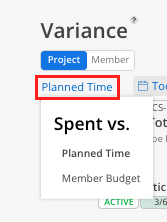
Click the dropdown that says Plan Time.
Select Member Budget.
The comparison now shows spent time against the member budget estimates you set on the Time tab.
This view is most useful when you have entered member budget estimates. Without them, the comparison will show all members as over budget.
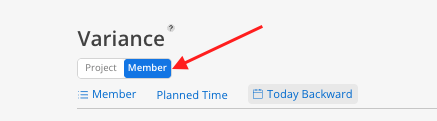
Click the Member tab at the top of the Variance tab.
Members are listed with their total variance across all phases.
Expand any member to see the phase-by-phase breakdown.
Click the member icon next to the dropdown to switch to a role view, which groups members by their assigned role.
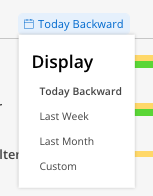
The default date range runs from today backwards.
Click the date range selector to choose a preset (last week, last month, etc.) or select Custom to pick specific dates.
Click the hours/currency toggle at the top of the tab. The same toggle used on the Time tab works here as well.

Use variance to investigate overruns: If a phase went over budget, expand it in the Variance tab to see which members drove the overage.
Role view reveals patterns: If a particular role consistently exceeds planned hours across projects, it may indicate the need to adjust rate assumptions or planning estimates.
Compare on a monthly basis: Use the custom date range to review variance for a single month, which is useful for monthly project reviews.
