For Teams with Integrations, your ERP sends the project, its phases, and their dates. Mosaic adds who is doing the work, when, and how much. That work clusters at a few predictable moments rather than arriving as one setup event; so this article walks the moments in planning order.
For Teams without an Integration, refer to the article here on ‘How to Create a Project’.
A new project synced in from ERP and nobody is staffed yet
The dates are set and the schedule needs work plans
A date slipped, a member came off, or scope grew
A phase is wrapping up and the next one needs staffing
The project is finishing and its plans come off the capacity view
Open the project from its portfolio, or search by name or number in the Projects sidebar. A green chain link icon beside the name means the ERP sync is live.
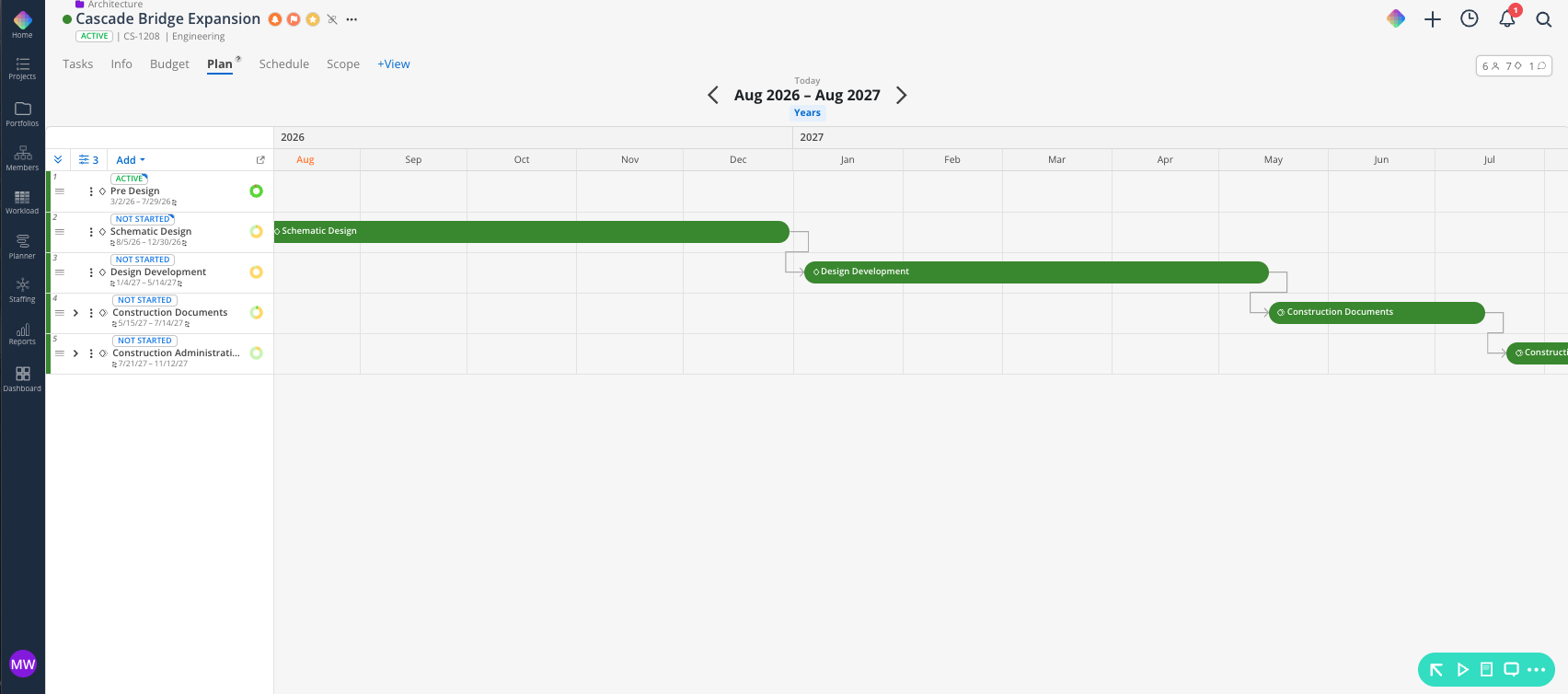
Open the Plan tab and confirm the phases and dates match the plan. Enter and adjust dates in Mosaic where the plan has moved on, and correct the source record where the data is wrong.
Add milestones for project deliverables that carry no budget line, such as kickoff, client review, or permit submission. Milestones land on every project member's calendar.
Set phase dependencies wherever one phases start or end date is dependent on another’s phase date. A squiggly connector appears between the two, and a later slip then cascades on its own.
Open the members count icon and add the core team. Anyone who logs time or receives a work plan joins automatically.
Set the priority flag if your team uses it, then post a project-level update. Every current member is notified.

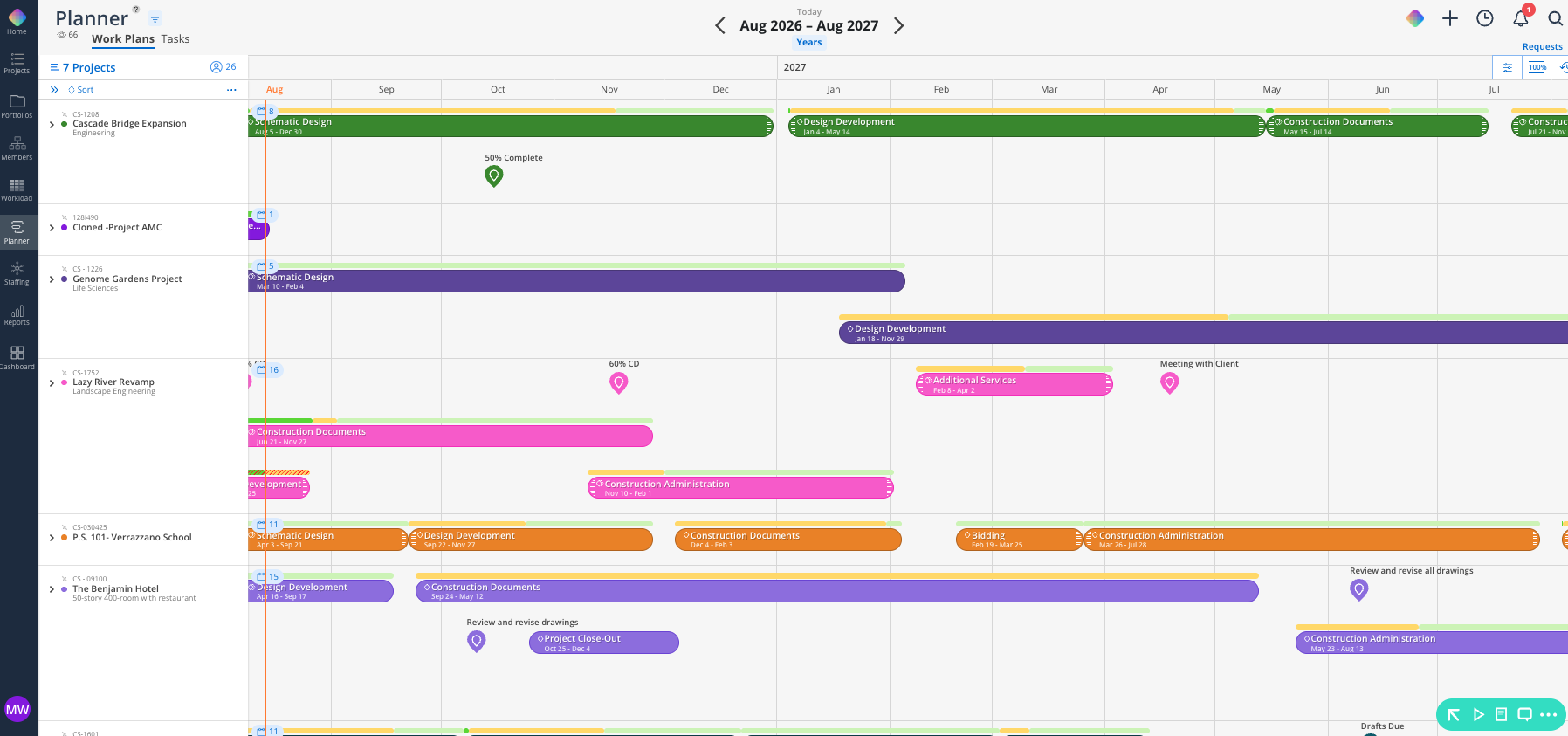
To broadly staff, open the Planner space and select the project. Planner and Workload create the same work plans, and Planner is faster for a single project.
Open the split-screen availability view to see candidate members' existing load beside the project schedule.
Create a work plan for each member and phase. Pick a scheduling mode and enter the amount. The lock icon lands on the field you type in, and that value holds when the dates change. 👉 Work Plans
Set the start and end dates. The date picker shows gray fill where the member already has plans.
Create an open role for work you know is coming but cannot yet assign. It holds the demand on the project and can be assigned to a person later.
Select tentative for work that is not yet confirmed. Tentative plans have their own display toggle, so you can read capacity with and without them.
The recurring rhythm lives in its own article. Once a week, check what moved, fix slipped phase dates, reconcile work plans against reality, sweep tasks, and post an update.
👉 Project Upkeep: A PM's Working Routine
Four situations cover most mid-project change.
The schedule slips. Move the phase date in the Plan tab. Dependent phases and dependent work plans move with it. A gridded line on a work plan edge marks it as dependent and a solid line marks it as independent. Independent plans hold their dates until you move them.
Someone comes off the project. Drag their work plan bar into another member's row in Workload. For a partial handoff, split the plan at the handoff point and reassign the back half.
Someone takes time off. Overlapping plans with no phase dependency shift forward past the absence. Dependent plans stay anchored to the phase date. Deleting the time off returns shifted plans to their original dates.
Scope grows. Add the hours to the existing work plan so the capacity math stays legible. Use a separate plan when the addition is different work on different dates.
👉 Managing and Modifying Work Plans
Confirm the phase status on the Schedule tab matches where things stand. Depending on the integration settings set by your Team Admin, the phase status may pull from your ERP.
Trim work plans still running past the phase end date. Drag the right edge inward, or change the end date in the plan.
Open the Tasks tab with grouping set to Group by Phase. Move open items to the next phase or close them out.
Staff the rest of the project phases using the Stage 2 steps, ahead of its start date.
Trim or delete work plans that run past the real end date so the heat map reflects current capacity.
Archive plans you want off the view and on the record. Archived work plans have their own display toggle in Workload. [VERIFY: how a work plan is archived and by whom]
Leave a closing note in the Notes tab. It is what the next person reads.
Unstar the project to drop it out of your quick-access list.
Projects that end at the proposal stage follow a different handoff. 👉 Create a Proposal Project With Tentative Work Plans
The sync runs one way, from your ERP into Mosaic. Planning here stays independent of your accounting records, so edit freely.
Dependencies set at Stage 1 are what keep Stage 4 short. One phase move then cascades through the schedule on its own.
Set dependencies before you staff. Ordering it this way keeps the schedule and the work plans aligned from the start.
Use tentative plans as a decision tool. Build the version where you take the work on, read the heat map, then commit or delete.
Check the initials in the Schedule tab. They show who last changed a phase date in Mosaic, which is the fastest way to find out why a date moved.
