A phase at 70 percent spent is healthy at 70 percent delivered and in trouble at 30 percent delivered. This workflow puts those two numbers side by side. You update member completion percentages, read them against spend on the Progress chart, then move into Variance when the two lines separate. Run it weekly or biweekly for the life of the project.
Scope detail lives in the Budget modal, so this workflow uses Budget Manager or Admin access.
On your weekly or biweekly project health pass
Ahead of a project review or client check in
When a phase is approaching its fee and you need to know how much work remains
When spend looks high and you want to see whether delivery matches it
When you are deciding whether to add staff to a phase
Every active phase has a scope, with members assigned and estimated hours entered. The Progress chart draws its scope line from those estimates. 👉 Scope Tab and Scope Detail
Open the project and click the Scope view, then click Edit Scope. You can also reach the Scope tab from the Budget modal, or from the Budget button in Planner and in budget related reports.
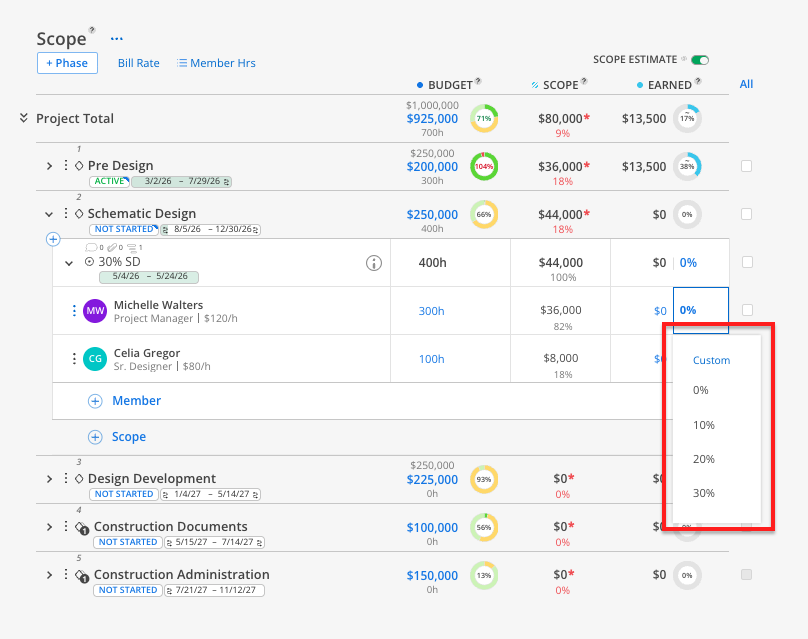
Click the percentage field next to a member inside a scope.
Select a predefined value, or click Custom to enter an exact number.
Repeat for every member carrying hours on the phase.
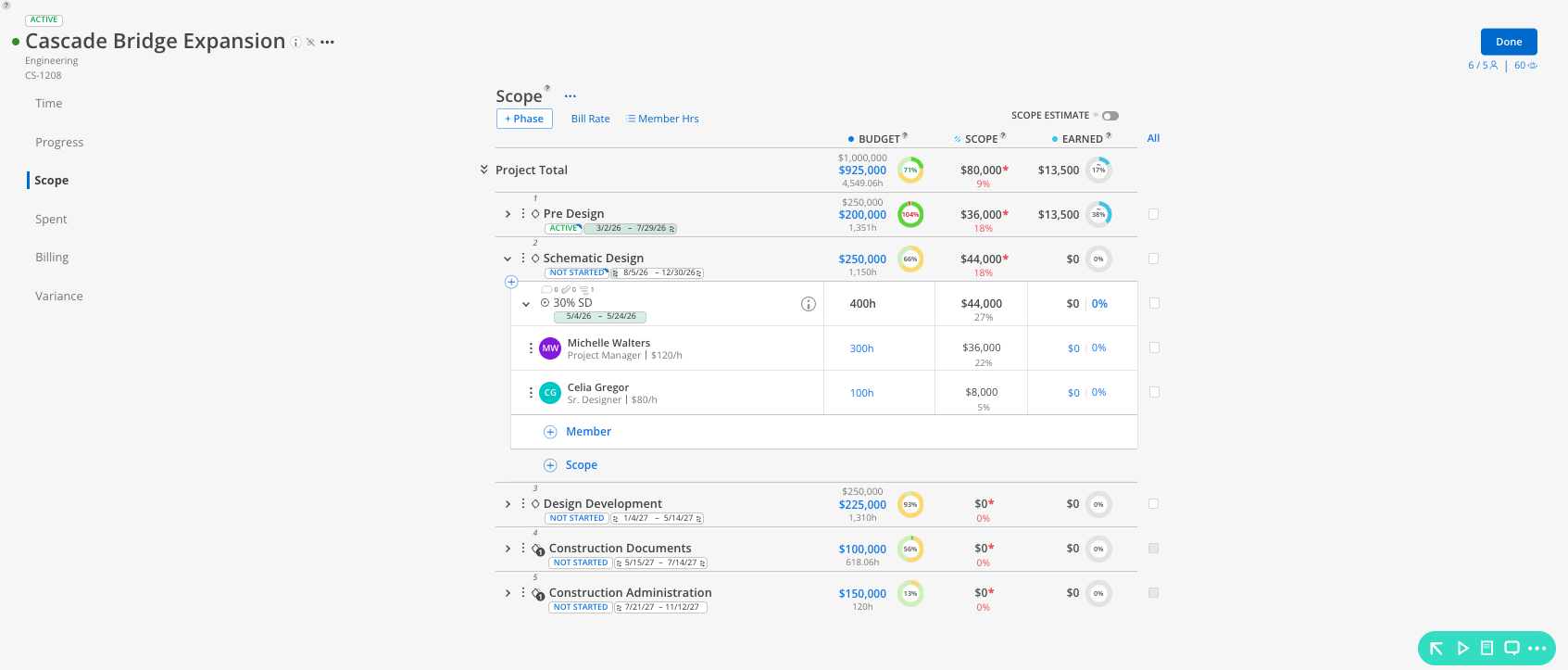
The scope percentage is the average of all member percentages inside it. Completion percentage is a judgment you enter directly, which keeps it measuring delivered work rather than hours burned. Update every percentage before you read the chart so the trajectory reflects where the phase actually stands.
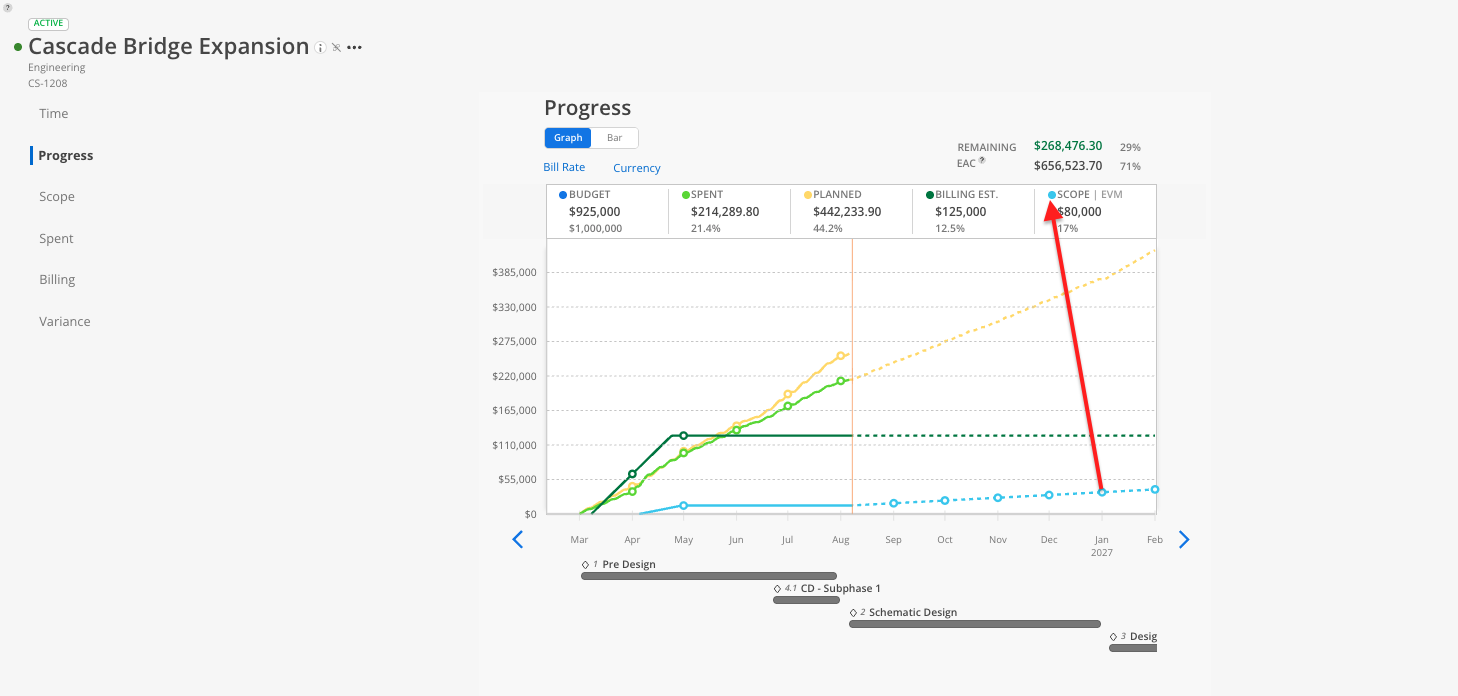
In the Budget modal, click the Progress tab. It opens on a cumulative line chart.
Find the two health lines. Aqua blue is scope estimates. Lime green is spent time. Yellow is planned time, green is billing estimates, blue is budget.
Toggle currency and percentage at the top. Percentage reads faster on a quick health pass.
Hover any point on either line for exact values.
What the shapes tell you.
Spent at or below scope. Delivery is keeping pace with the hours. Log it and move on.
Spent climbing faster than scope. Hours are going out ahead of delivered work. Move to the Variance tab.
Scope flat while spent climbs. The percentages are usually stale. Confirm them before you escalate.
Both lines flat. The phase is idle. Check whether it belongs on Hold.
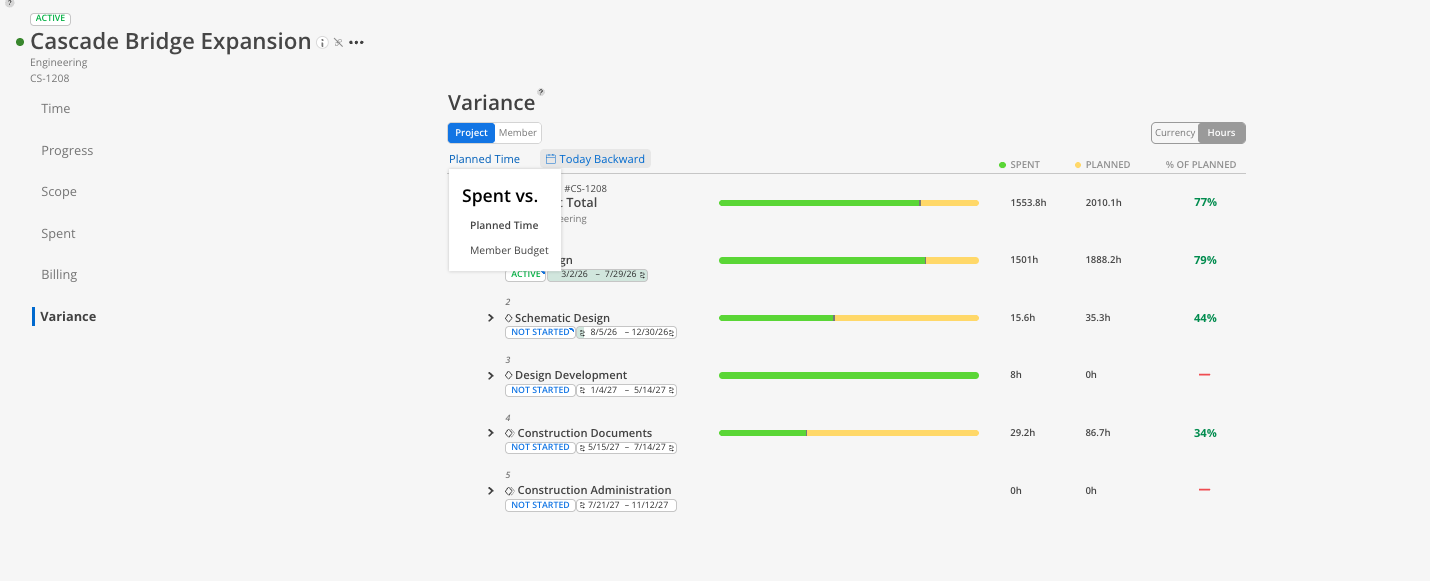
Click the Variance tab. It opens in Project view with Plan Time selected.
Read the phase rows for Plan Time, Spent, % of Plan, and Variance. Amounts over plan appear in red.
Expand the phase you flagged to see the member breakdown.
Switch the dropdown to Member Budget to compare against budget estimates instead of the plan. Member Budget reflects scope while the project wide Scope Estimate toggle is on.
Open the Member tab for per person variance across every phase, or click the member icon to switch to role view.
Set the date range with a preset or Custom, and use the hours and currency toggle to switch units.
Progress and Variance answer different questions. Progress gives you the forward looking trajectory at project level and carries the scope series. Variance gives you the retrospective read at phase, member, or role level. Use Progress on the weekly pass, and Variance when Progress flags something.
Clear the pending scope request queue first so approved changes land in the numbers before you report them. 👉 Scope Requests
Run the Project Scope Export the morning of the review at the earliest. It arrives by email and the link stays live for 24 hours. 👉 Project Scope Export
Bring the Progress chart in percentage mode for the trajectory, and the Variance phase rows for anything you flagged.
Name scopes after deliverables. If you cannot say whether a scope is 60 percent done, the name is too broad. "Permit Set" is easier to judge than "Drafting."
Set a standing cadence for percentage updates. Tie it to the staffing meeting or the timesheet deadline. A chart built on stale numbers still looks authoritative.
Check role view periodically. A role running over across several projects points at rate or estimating assumptions rather than any one project.
Assign every contributor to the scope. Scopes take multiple assignees, so one deliverable can carry the full set of people working it.
