Admin is the broadest standard access level. You can see and do everything the other levels can, and you control who gets what. Admins decide which spaces and data each member can reach — which means you are the person protecting bill rates, cost data, and org settings from reaching the wrong people, while making sure the people who need access actually have it.
Start here when you want to:
Assign and adjust access levels across the organization
Configure portfolios, company holidays, and org-wide defaults
Verify the ERP integration is syncing correctly
Onboard new members and get them productive quickly
Troubleshoot "I can't see X" reports from your team
All Spaces in Mosaic — Home, Projects, Workload, Planner, Budget, Scope
Org Settings — Including the Permissions tab, member management, and org-wide defaults
Access level assignment — For every member, individually or in bulk
Company holiday configuration — Applies to all members automatically
Portfolio structure — How projects are organized across the firm
Term | What it means to you: |
Standard Access Level | The four foundational tiers. Every member has exactly one: Admin, Budget Manager, Work Planner, or Base Member |
Additional Access Level | Portfolio Manager and Project Manager. Not tiers — extra responsibilities layered on top of a member's standard level |
Portfolio | The top-level folder projects live in. You control the structure — by year, office, client type, or whatever fits the firm. A project can only be stored in one portfolio |
Phase | A stage of work with dates, synced from the ERP. Where work plans and budgets attach |
Milestone | A single date with no hours, no budget, and no ERP link. Member-created, appears on every project member's calendar |
Chain Link Icon | Green means the project or phase is actively ERP-linked. A line through it means Mosaic-only — usually a sample or planning project |
One-Way Sync | Data flows from the ERP into Mosaic and never back. Nothing anyone does in Mosaic can alter ERP records |
Pending Member | A member who has been created but has not activated their account. Shows a pending indicator under their name in the Permissions tab |
Company Holiday | An org-wide non-working day you configure. Reduces capacity automatically for everyone and appears in every date picker |
Open Org Settings and go to the Permissions tab.
Find the member in the list. Their name, default role, and current access level are shown.
Use the access level dropdown to change their level.
For Work Planner and Budget Manager, set the additional configuration:
View vs. edit — whether they can only see plans or also change them
Scope — all projects, only projects they are a member of, or only projects where they are the Project Manager
To update several people at once, use the checkbox on the far right to bulk select, then apply the level.
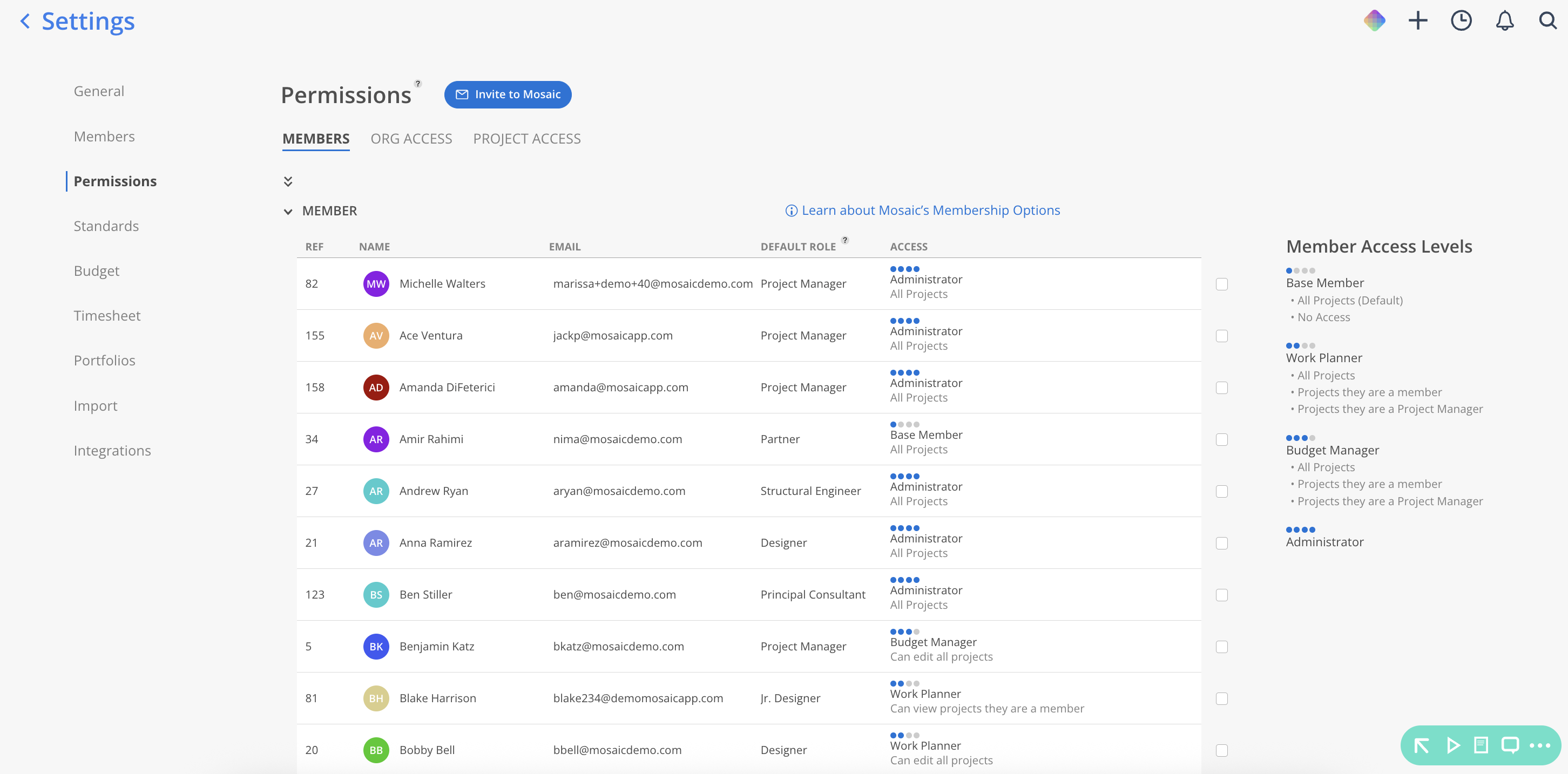
Members synced from an ERP integration arrive as Base Members by default. Raising their access is one of the first steps after the integration connects — otherwise your PMs cannot build schedules.
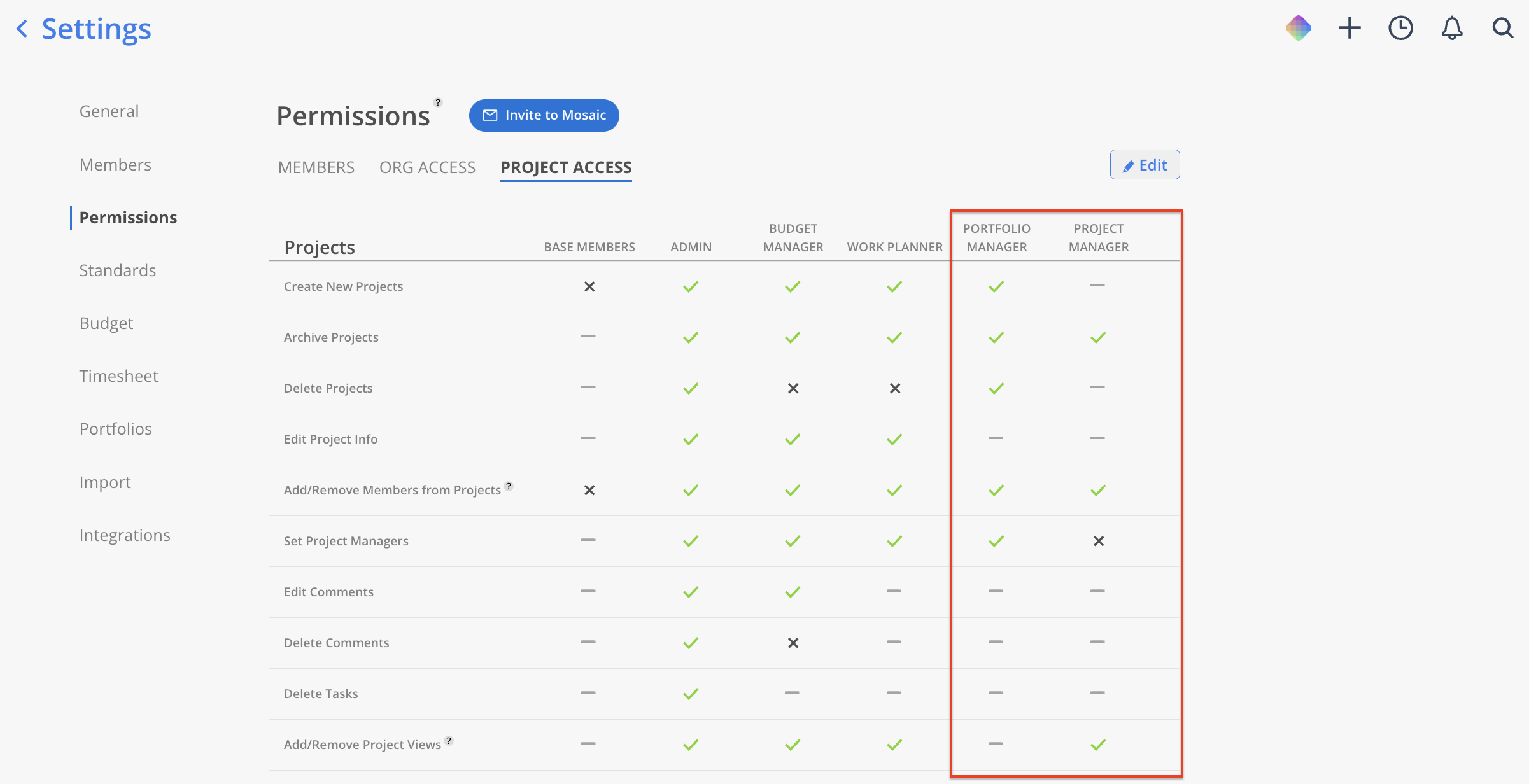
The Permissions tab includes two reference matrices:
Org Access tab — Which actions each level can perform across spaces
Project Access tab — What each level can do inside individual projects
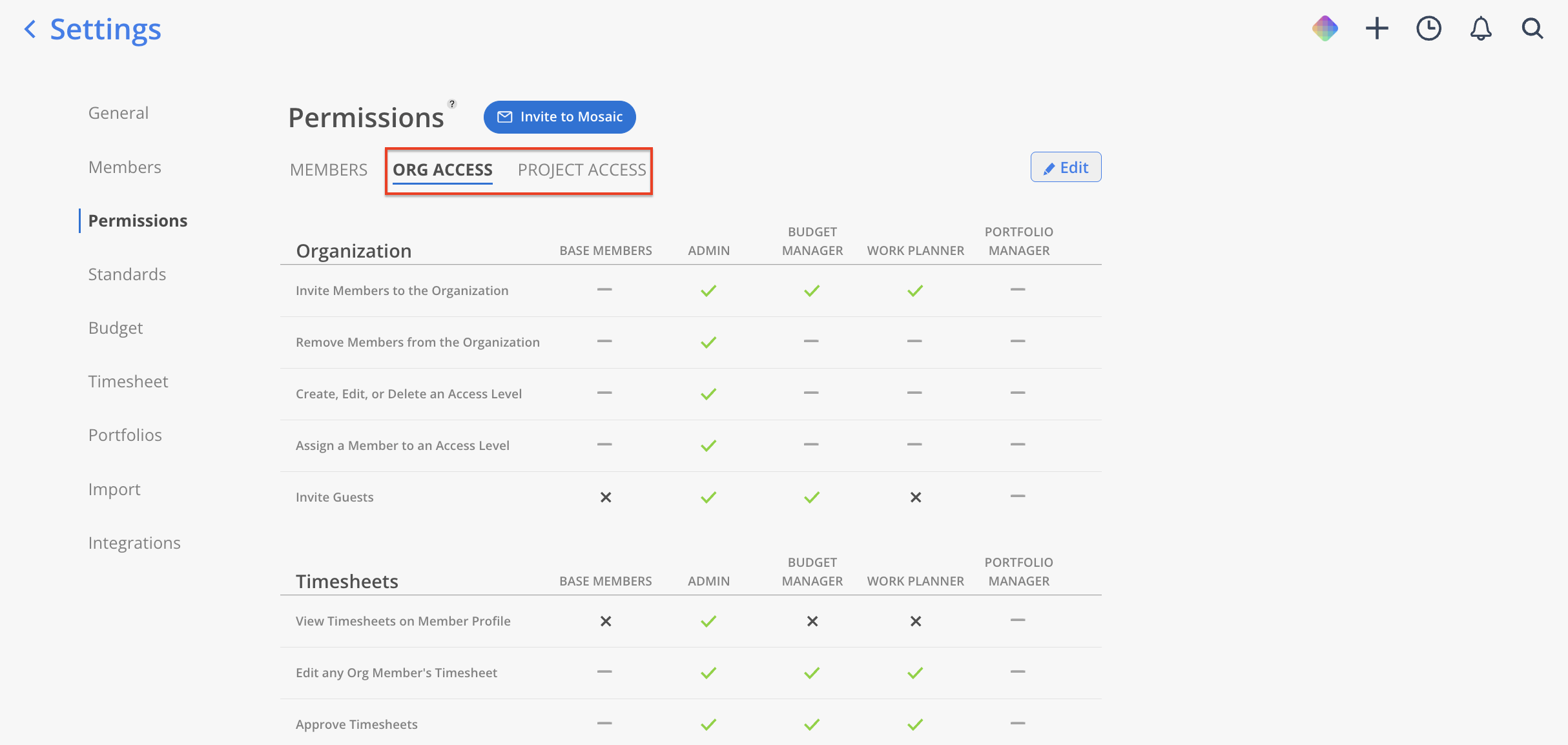
Portfolio Manager and Project Manager are not tiers — they sit on top of a member's standard access level to give them extra responsibility over specific portfolios or projects. A Work Planner who runs three projects can be given Project Manager access on those projects without being moved to Budget Manager.
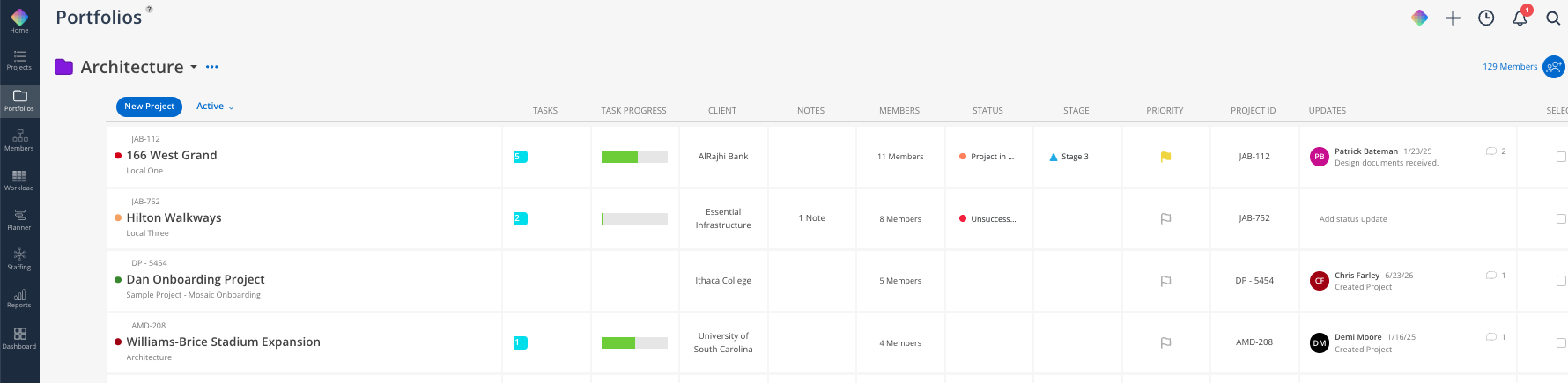
Create portfolios to group related projects under one client, program, or business line. A portfolio helps to rolls up budget, hours, and profitability across every project inside it, and works as a single filter across Workload, Timelines, and reports.
Department, office, region
Add department, office, and region to each member in member settings. These fields feed the member filters, so you can pull up everyone in one office or department in a click instead of scrolling the full list.
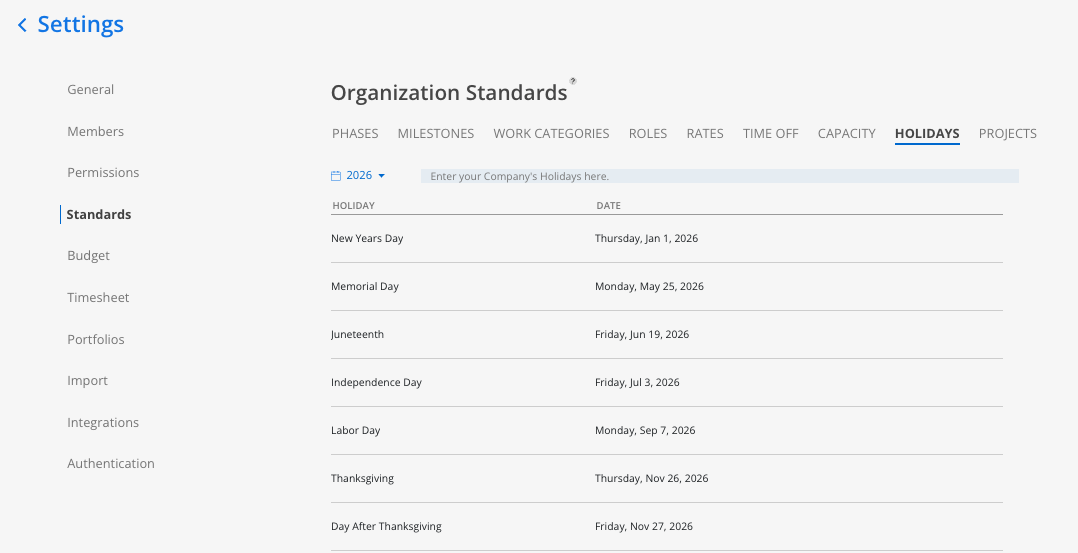
Set org-wide holidays in organization settings. They apply to every member automatically — no one enters them individually. Holidays reduce capacity for that day, appear as gray lines in the Workload timeline and gray shading on Home Space calendars, and surface in the date picker so planners avoid scheduling over them.
Check for the green chain link icon on projects and phases. A line through it means the item is not ERP-linked
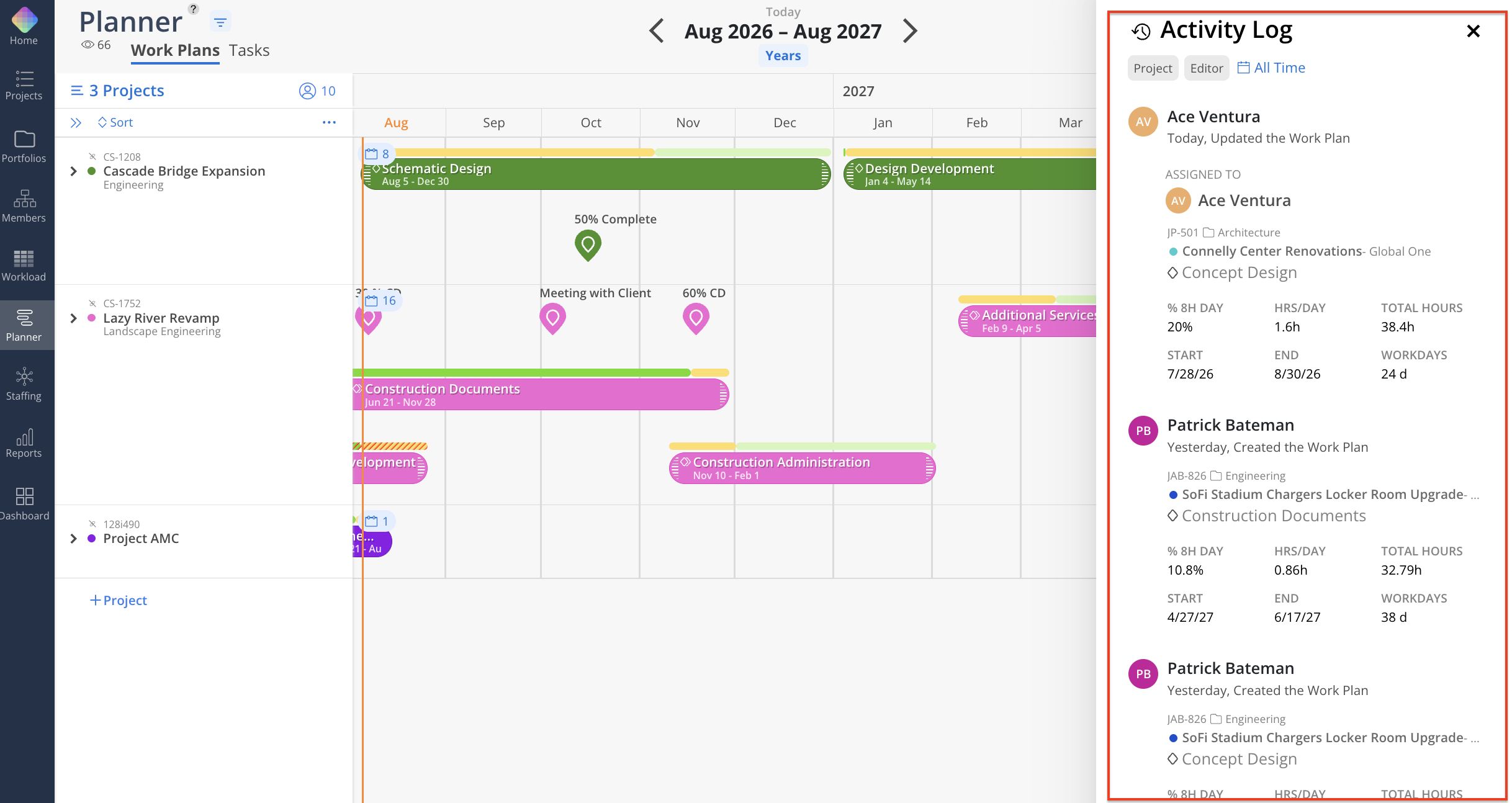
In the Workload or Planner Space activity log, changes made by the integration show IS as the editor rather than a person's name. Use this to distinguish sync behavior from user behavior when someone reports an unexpected change
Remember the sync is one-way. If ERP data looks wrong in Mosaic, the fix is upstream
Heat map color wave and ranges — You set the org default; individual users can override the color scheme for their own view, but the ranges are yours
Email notification master toggle — There is an org-level toggle that must be on before individual email preferences take effect. This is the first thing to check when someone reports missing email notifications
Portfolio structure — Decide the organizing logic before projects start landing. Restructuring later is more disruptive than getting it right up front
👉 Workload Settings · Portfolios
If your team integrates with your ERP, new members can be synced over directly. If you are not integrated with your ERP, members can be manually created. Read more about that process here.
Assign their access level in the Permissions tab.
Confirm the pending indicator clears once they activate.
Point them at the Getting Started guide for their level (linked below).
Have their PM build a few work plans for them — the Home Space widgets are close to empty until real plans exist, and it is hard to grasp the product without them.
Space | Your Access |
Home Space | Full |
Projects | Full, all tabs |
Workload | Full |
Planner | Full |
Budget | Full |
Org Settings | Full — Admin only |
Grant the minimum that unblocks the person — Bill rates and cost data are visible from Budget Manager up. Someone who needs to build schedules needs Work Planner, not Budget Manager
"It's grayed out" is almost always an access level — When a member reports a missing space, check their level first. It resolves the majority of these issues.
"I can see it, but can't change it" is almost always view-vs-edit or scope — The second thing to check for Work Planners and Budget Managers
Bulk update after an integration sync — New members land as Base Members. Batching the level changes right after a sync is faster than doing them one at a time as people complain
Send the level-specific guide, not the whole help center — Each of the four guides in this set is written to one audience. Sending an Admin guide to a Base Member is how people conclude Mosaic is complicated
