
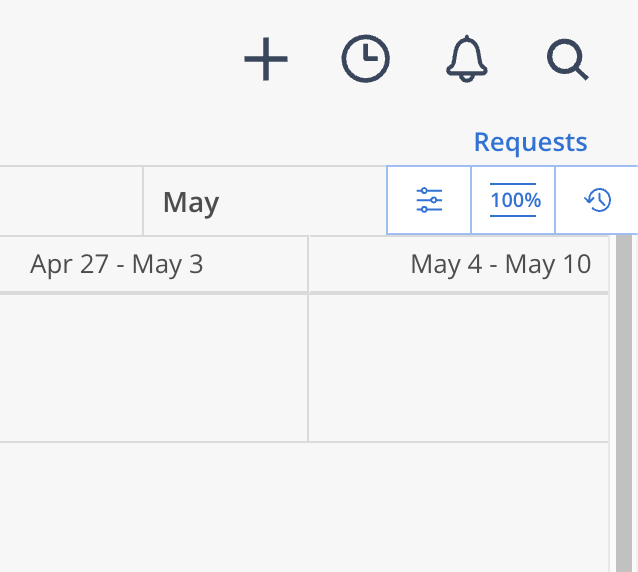
Just like the Planner Space; when accessing the Workload Space, you’ll notice some options in the top-right corner; these are your Space Controls:
The Cogwheel Icon is your Planner Settings. Read more about those here.
The Three Dot/ Line Icon is your Planner - Display Settings. Read more about those here.
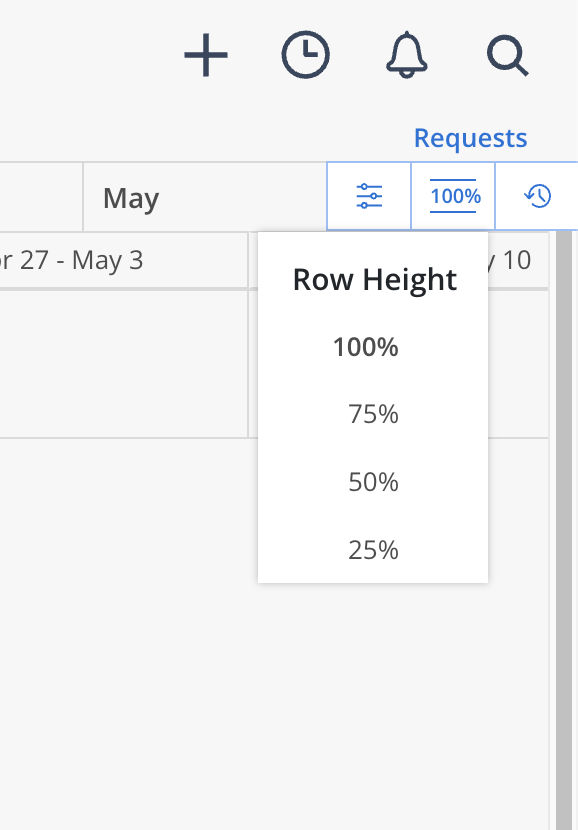
The Percentage Icon is your controls to expand or condense the Row Height of Planner:
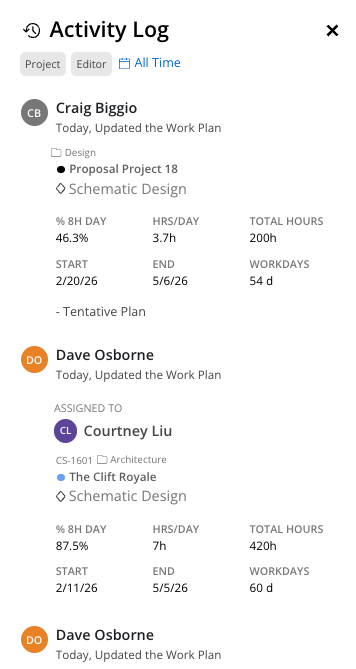
The Clock Icon represents your Space Activity Log. Once selected, a log window will appear to show all work plan related activity (include work plans being created, edited or deleted). This log can be filtered by specific Projects where action has occurred, by Members performing this action - and further filtered by a specific time period:

Activities that you don’t have access to (e.g. private portfolios, private projects) is excluded.