Budget Manager is the standard access level for principals, PMs with financial oversight, and accounting staff. It includes everything a Work Planner can do, plus the financial layer: dollar amounts, bill rates, cost rates, and the Budget space on projects. Where a Work Planner sees hours and percentages, you will also see the dollars.
Start here when you want to:
Set project budgets and monitor spending against them
Compare planned time to spent time by phase and by member
See bill rates and cost rates when making staffing decisions
Understand how the schedule your PMs build drives project financials
Pull budget-based reports for leadership

Everything at Work Planner level — Home, Projects, Workload, Planner
Budget tab on projects — Full financial view including dollar amounts
Budget-based reports
Bill rate and cost rate visibility — Including the bill rate display toggle in Workload
Scope tab on projects — Advanced scope management

Term | What it means to you: |
Phase | The unit budgets attach to. Budgets, work plans, and spent time all roll up through phases — not through the project directly |
Sub-phase | A nested phase. Budget rolls up into its parent phase |
Milestone | A single date with no budget and no hours. Milestones never affect financials — this is the key distinction from a phase |
Work Plan | Scheduled time for a member on a phase. Work plans are what drive planned cost and planned revenue |
Planned vs. Spent | Planned = what work plans allocate. Spent = actual time synced from your ERP. The gap between them is your early warning. |
Bill Rate | What the member's time bills at. Visible only to Budget Managers and Admins, and requires an extra click to reveal in Workload |
Cost Rate | The organization’s cost for a person per hour, including wages, benefits, and overhead expenses. |
Burn Rate | How quickly a phase or project is consuming its budget relative to the schedule |
Tentative Plan | A plan flagged as tentative. Confirm whether these are included in the budget bar calculation before relying on it — see Accuracy Check |
Scope | Advanced project scope management, gated to Budget Managers. |
Set estimated hours per member per phase in the Budget modal. Work plans draw against those estimates, and Mosaic tracks what is left.
Open the Budget modal from the Budget icon button.
On the Time tab, expand a phase or work category.
Click + Member, then choose Add Members or Add Open Roles.
Check every phase, subphase, or work category that person belongs on.
Rates appear beneath each name and come from organization settings. They can be overridden for this project. Use Add Open Roles when you know the role but not the person. Assigning the role later transfers its work plans and estimated hours.
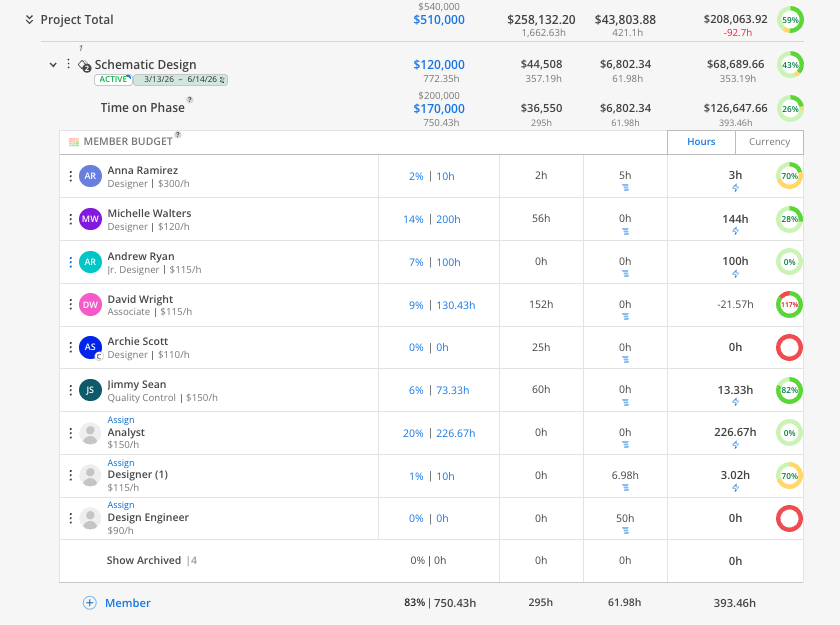
Enter estimated hours for each member on the phase or work category.
Mosaic calculates the dollar amount from that member's rate.
Estimates roll up into work category, phase, and project totals.
Turning on Scope Estimate makes scope hours the source of member estimates and sets the Time tab fields to read-only. Decide this before you start estimating.
In Workload or Planner, open the work plan modal on the member's row.
Select the project and the phase holding the estimate. Estimated hours appear beneath the member's name.
Click into the total hours field, then click the lightning bolt to pull in the remaining hours.
Set the date range and click Create.
The remaining figure accounts for hours already planned and spent, so scheduling in stages works cleanly.
In Workload Space, open the display toggles in the top right.
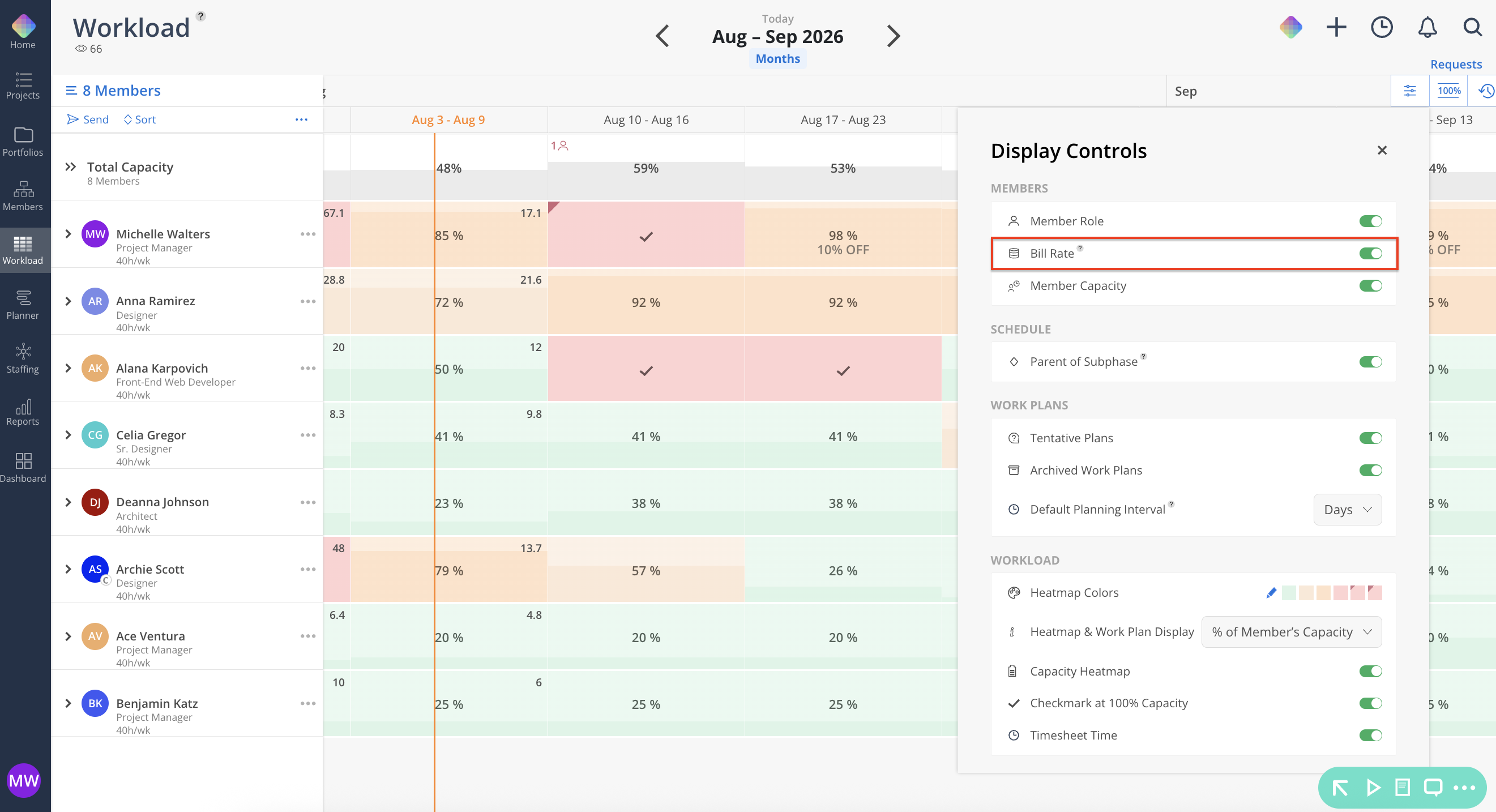
Enable Bill Rate to show rates under member names. The actual number requires one additional click to reveal — a deliberate safeguard when you are screen sharing.
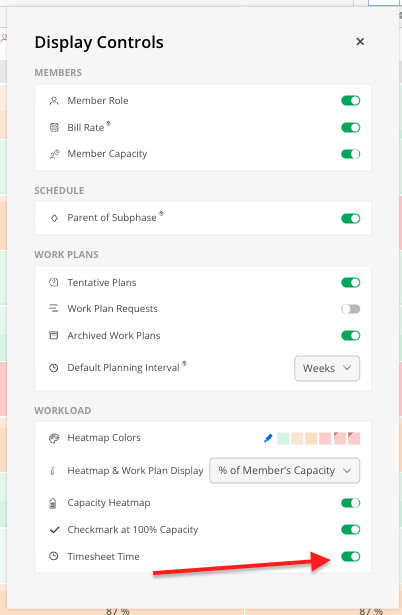
Enable Timesheet Time to show synced actual hours in the corner of each heat map cell, so planned and actual sit side by side.
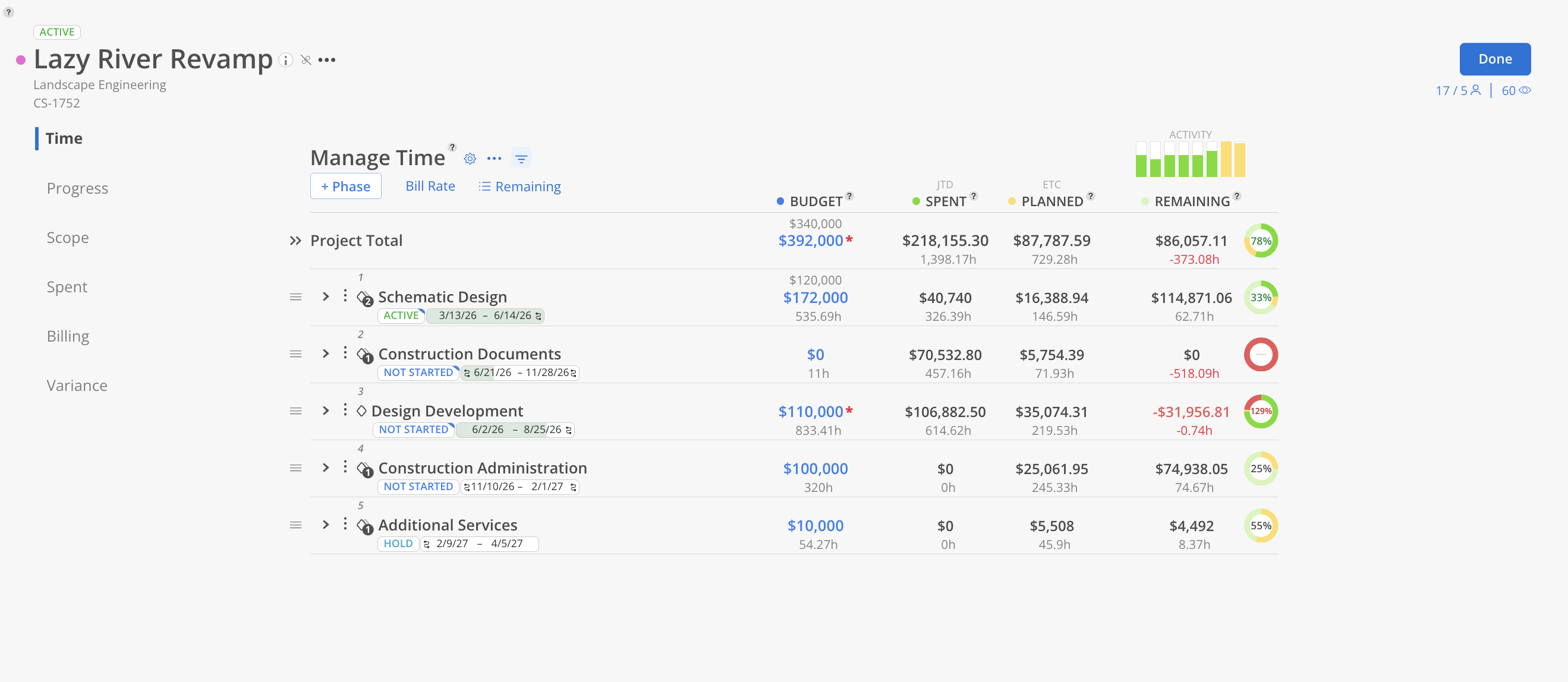
Open the project and click the Budget tab.
Review the budget by phase and by member, with planned versus spent time and overall burn rate.
Cross-reference against the Plan tab to see whether the schedule still supports the budget.
The timesheet numbers in the Workload heat map and the Timesheet widget on each member's Home Space both draw from ERP-synced actuals. Compare them to planned hours to catch a phase burning faster than its schedule.
Turn timesheet time off during forward planning sessions — it adds clutter — and back on when reviewing actuals.
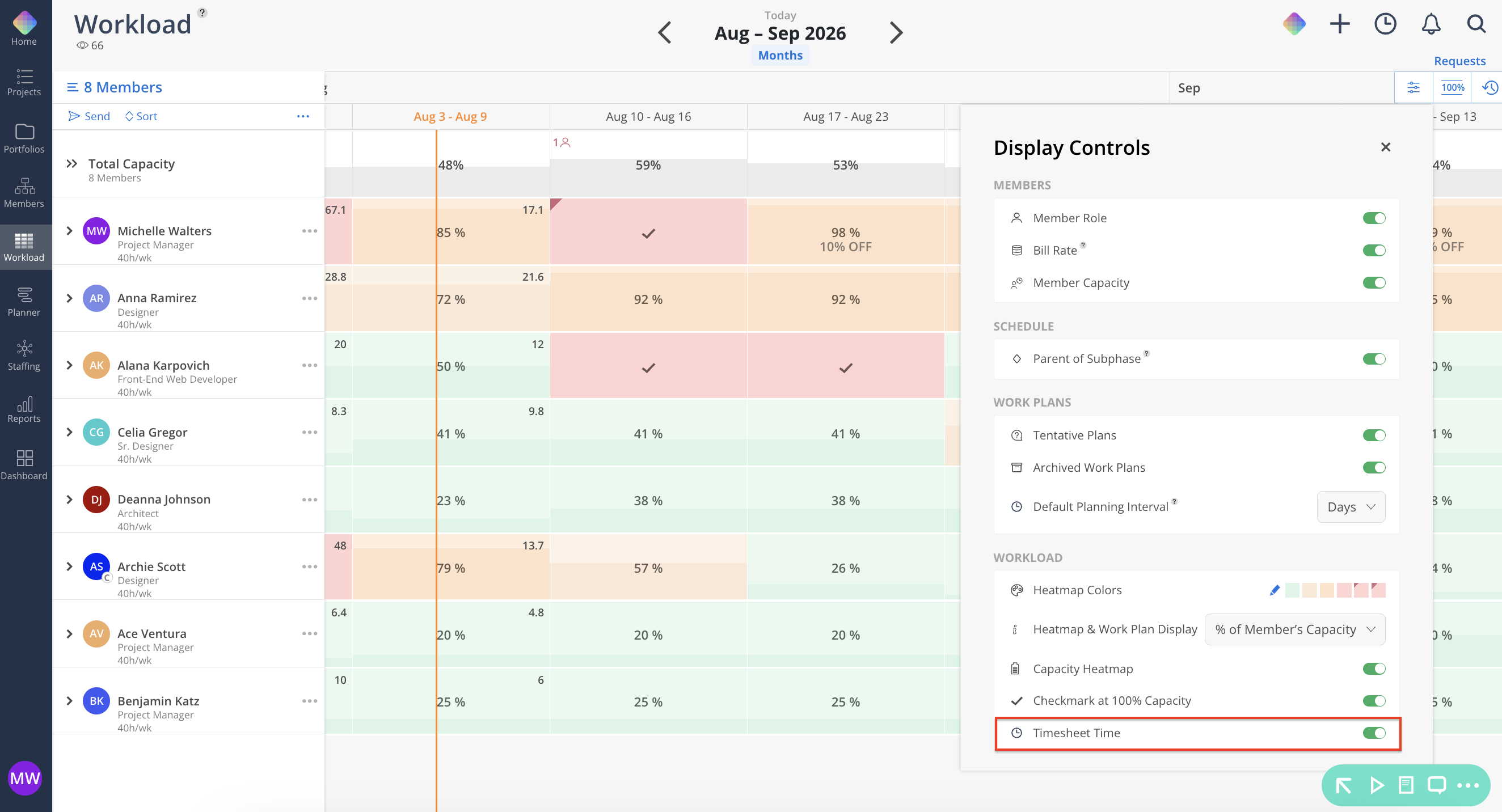
When you are choosing between available members, bill rate is visible alongside availability in Workload. Filter by skill to narrow the candidate pool, then weigh rate against availability.
👉 Member Selection & Filtering
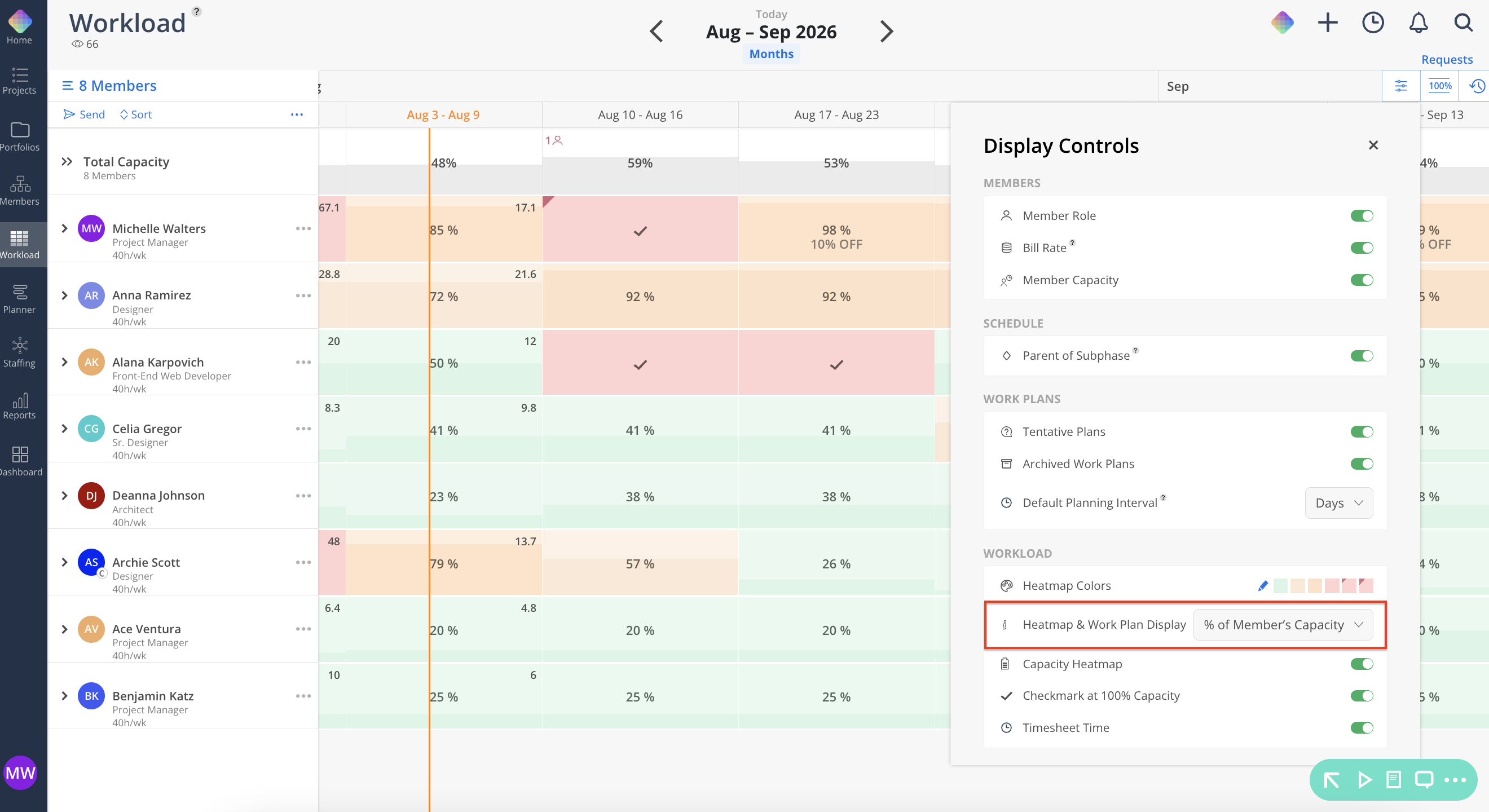
Budget Managers and leadership generally prefer % of capacity as the heat map display value — it answers "how much of what we're paying for is committed" at a glance. Set it from the gear icon in Workload.
Space: | Your Access: |
Home Space | Full |
Projects | Full, including Budget and Scope tabs |
Workload | Full, including bill rate visibility |
Planner | Full |
Budget | Full financial view including dollar amounts |
The budget is downstream of the schedule — If the numbers look wrong, check the work plans first. Budget math follows from hours, and hours come from plans your PMs build
Reveal rates deliberately — The extra click on bill rate exists so you don't expose compensation data mid-screen-share.
Milestones carry no budget — If a date needs a budget line, it needs to be a phase, not a milestone. This is the most common structural mistake
Coach your Work Planners on the lock — A plan locked on total hours spread across a longer date range gets thinner, not bigger. That distinction shows up directly in your burn rate
