After adding Members and Open Roles to the relevant Work Categories, Budgets can be assigned to each.
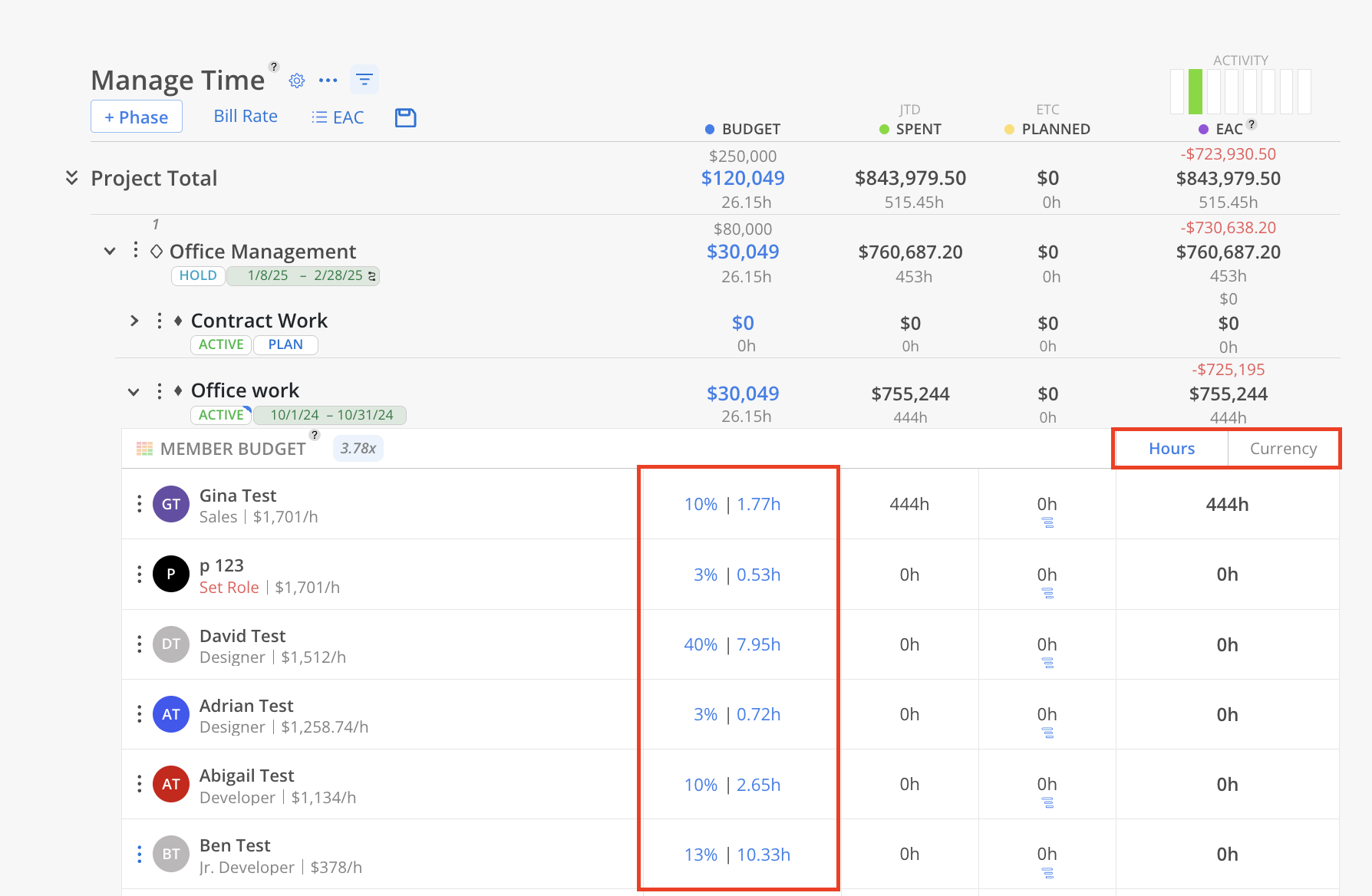
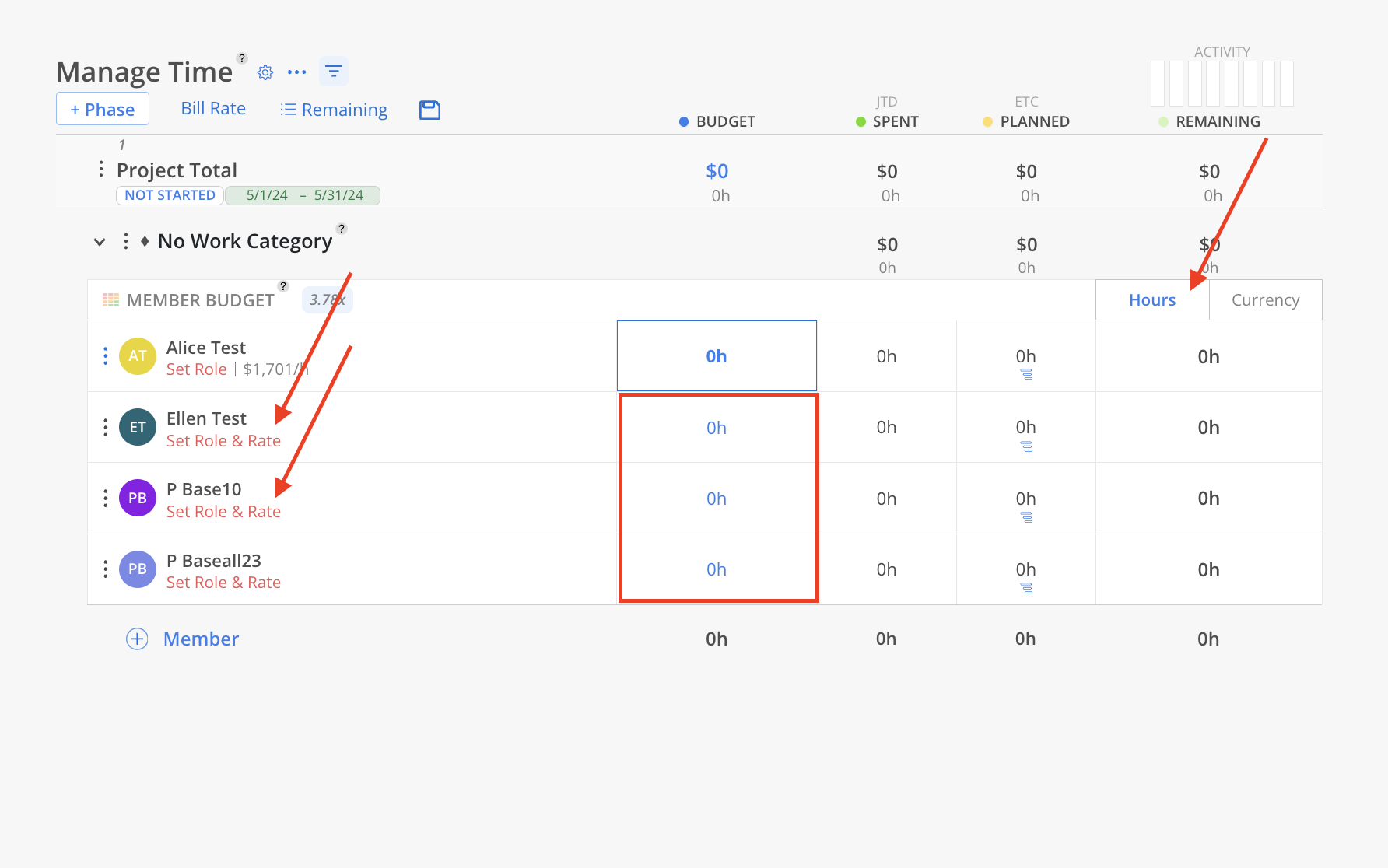
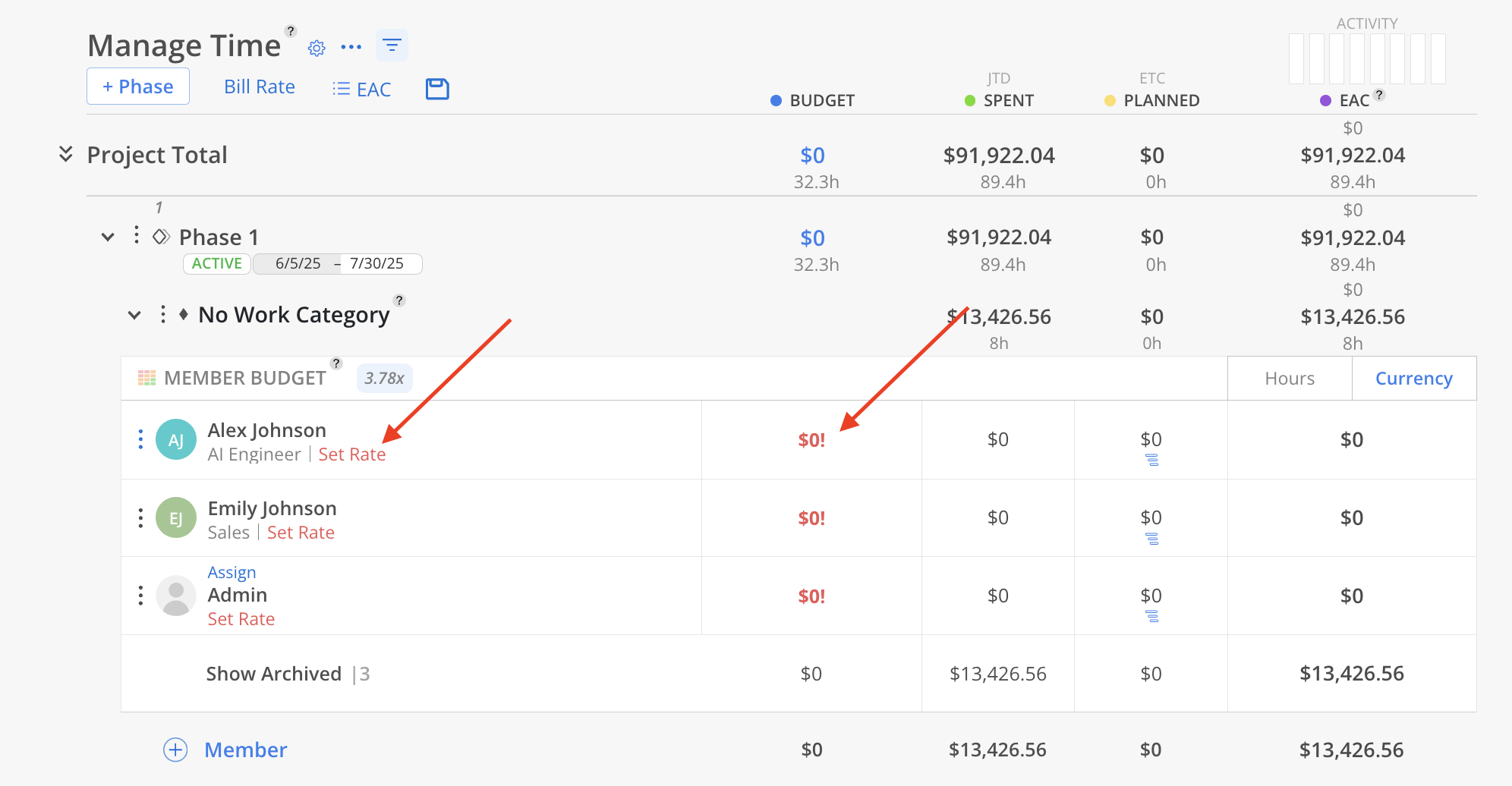
To set the Budget for each Member or Role, click the corresponding field under the Budget column.
In Currency view, enter either a percentage or a specific currency amount.
In Hours view, enter the number of hours.

Learn more about Project Rates
Learn more about Rates and Rate Groups
When a Member is archived from a Work Category, Mosaic compares their Budget Estimate to their actual Spent amount (from Timesheets):
If the Budget Estimate is greater than the Spent amount:
The Member is archived and the estimate is automatically adjusted to match the actual Spent amount.
If the Budget Estimate is less than the Spent amount:
The Member is archived, but the estimate remains unchanged, since it was already lower than what was actually spent.
Click the three-line icon button in the Planned column.

A Work Plan modal will appear. Total Hours will be pre-filled if Budget Hours exist. Start and End Dates will also auto-populate if the associated Phase or Work Category has future Planned Dates. Adjust the hours and date information as needed, then click Create.

The Planned time column will update if the Work Plan is scheduled for a future date.

