Unlike the Workload Report which shows plans relative to capacity, this report focuses on the financial and time impact of planned work. It automatically shows today moving forward. Access it from the Reports tab under Planned Time.
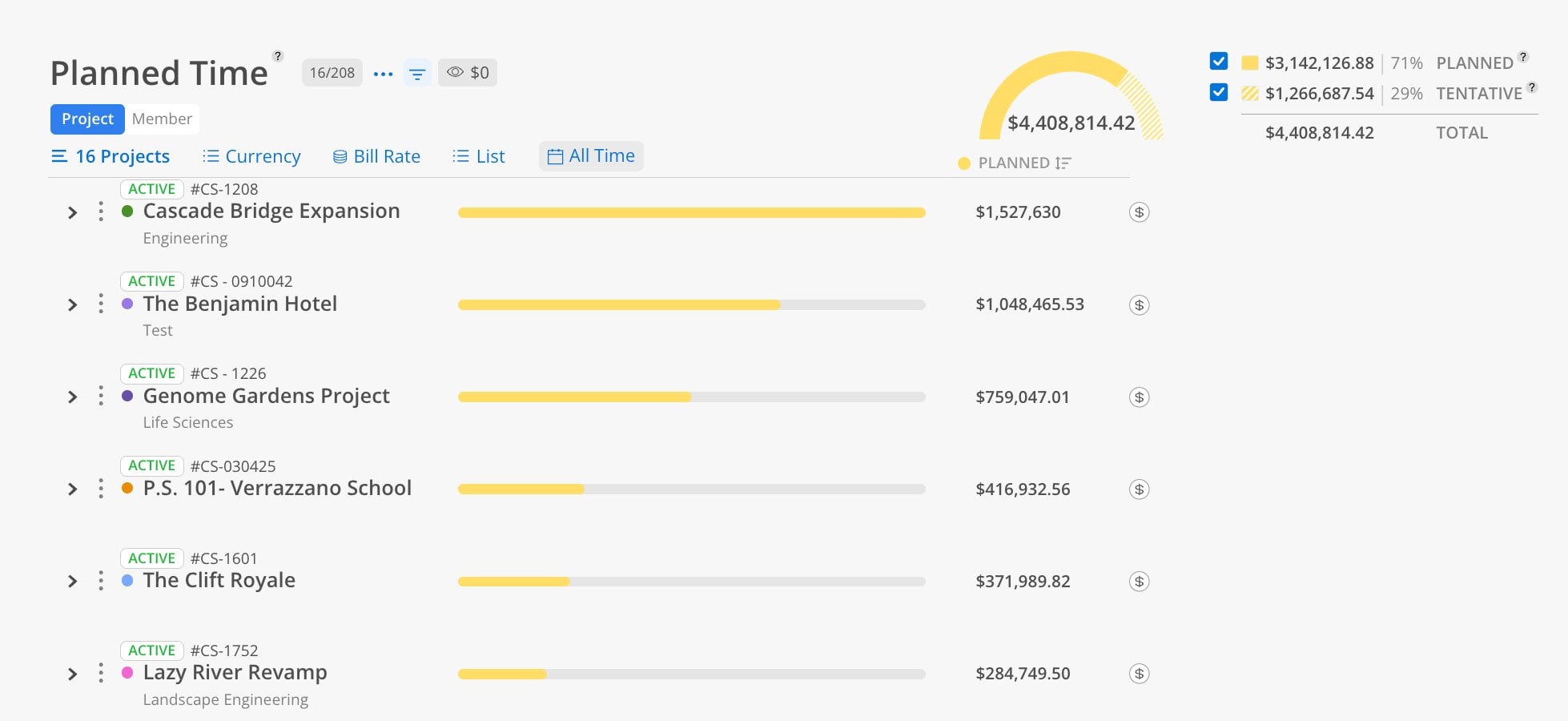
Use the Planned Time Report when you need to answer: "How much work is planned for the future, and what does that look like in hours or dollars?" This report is ideal for understanding the financial impact of upcoming plans, spotting members with no future work assigned, or reviewing how planned work is distributed across projects and phases.
The Bars
Solid yellow = confirmed planned time
Hashed yellow = tentative planned time
Gray = remaining capacity (unfilled portion)
Summary & Toggles (top right)
Summary gauge — total planned dollars or hours as a visual ring
Planned checkbox — toggle confirmed plans on or off, with amount and percentage (e.g., 71% Planned)
Tentative checkbox — toggle tentative plans on or off (e.g., 29% Tentative)
Total — combined planned + tentative amount
Controls
Currency / Hours toggle — switch between dollars and hours
Bill Rate dropdown — choose Rate, Bill, or Cost
Date range selector — this month, 30 days, all time, or custom
Eye icon — hide rows with no planned time in the unit you are viewing: 0h in the hours view, $0 in the currency view. A member with planned hours but no bill rate is hidden in the currency view and shown in the hours view.
Budget link ($) — jump to the Budget space for any project
This report has 3 views: Member, Project, and Graph (bar or line). The Member and Project views show the same underlying data organized from a different starting point. The Bar view summarizes planned time as a chart with a monthly breakdown underneath.
The Member view shows total planned time per person from today forward.
Click the Member tab at the top.
Select members using the member selector or filters.
Choose a date range.
Toggle between hours and currency.
Each member row shows their total planned hours or dollars. Expand a member to see which projects they are planned on, and expand further to see the specific phases. Use the eye icon to hide members with zero planned time.
Members showing zero planned time may need to be staffed on upcoming projects or may have their capacity adjusted.
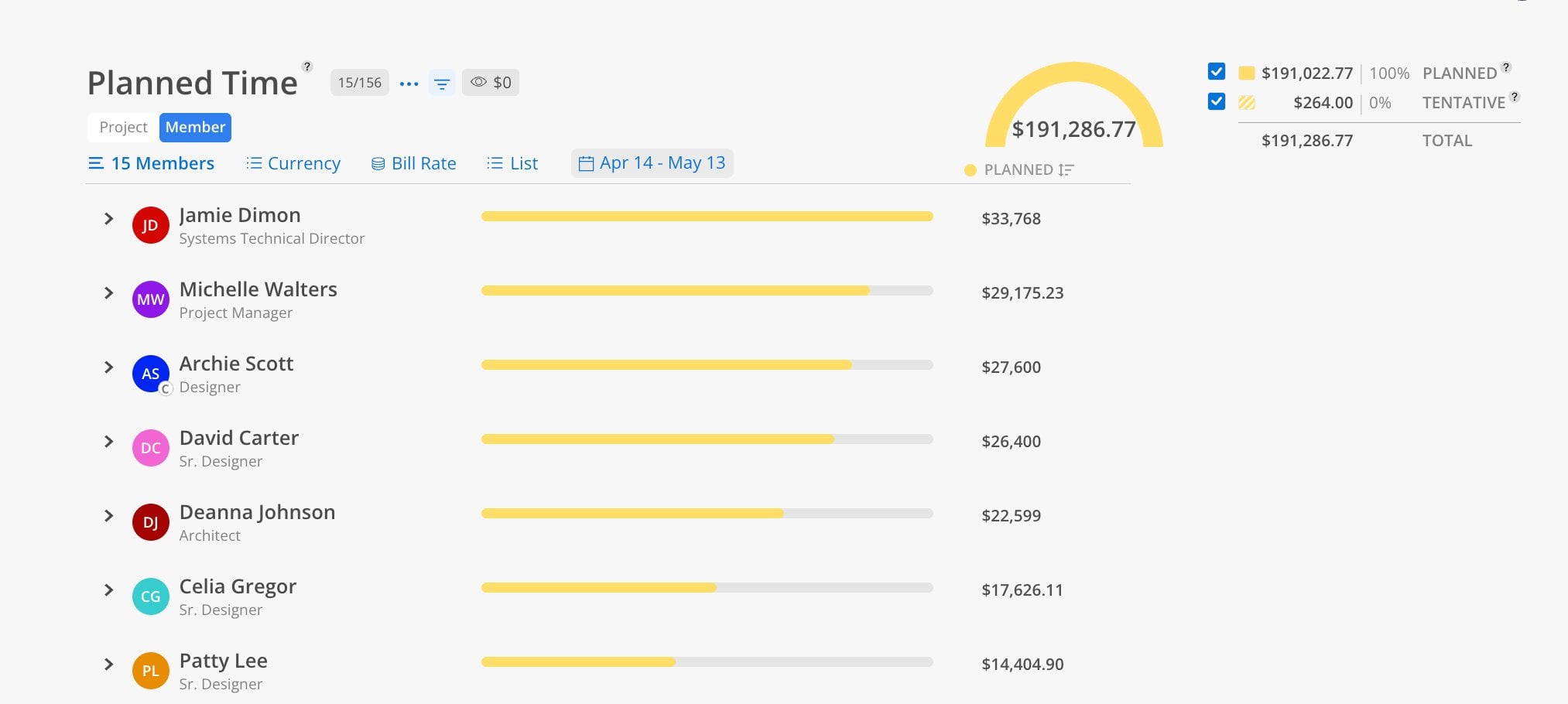
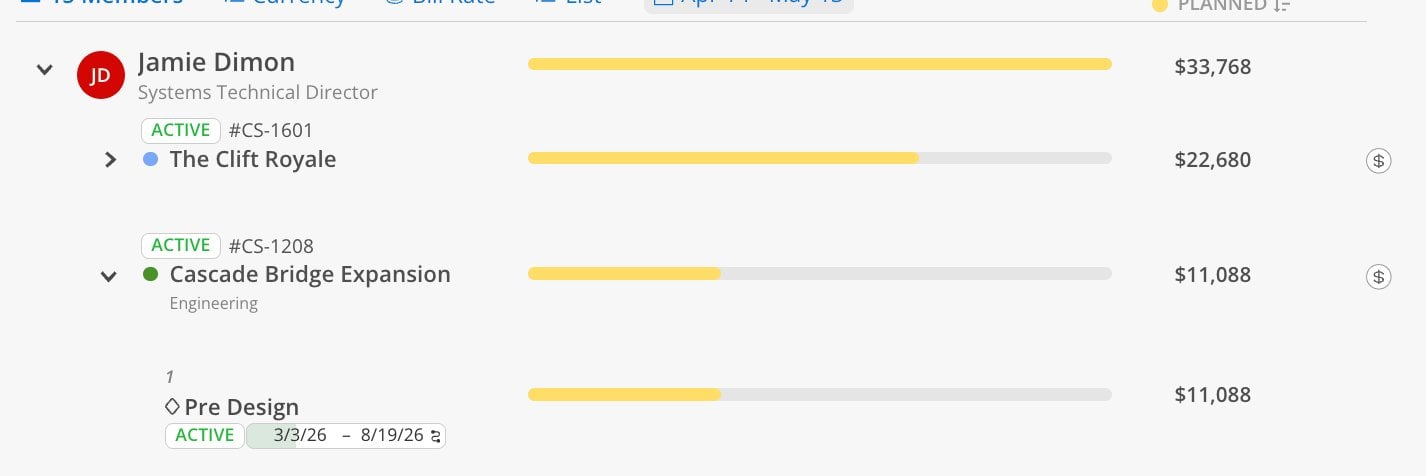
Expand a member to see which projects and phases their planned time is allocated to, with dollar amounts at each level.
The Project view shows total planned time per project from today forward.
Click the Project tab at the top.
Select projects by name, number, or portfolio.
Choose a date range.
Toggle between hours and currency.
Each project row shows total planned hours or dollars. Expand to see the phase breakdown, and expand further to see individual member allocations within each phase.
The Graph view summarizes total planned time as a bar chart, with a month-by-month breakdown listed underneath the chart.
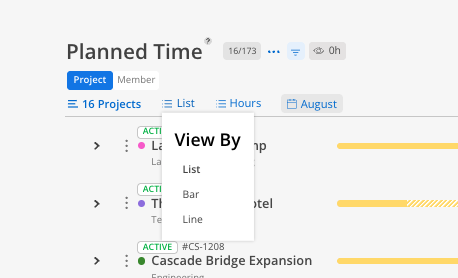
Click the List tab at the top of the graph
Select members or projects and choose a date range.
Toggle between hours and currency, and set the Bill Rate if you are viewing dollars.
Review the bar chart for the overall shape of upcoming planned work.
Below the chart, review the monthly breakdown rows.
Click a month row to expand it and see the planned time making up that month.
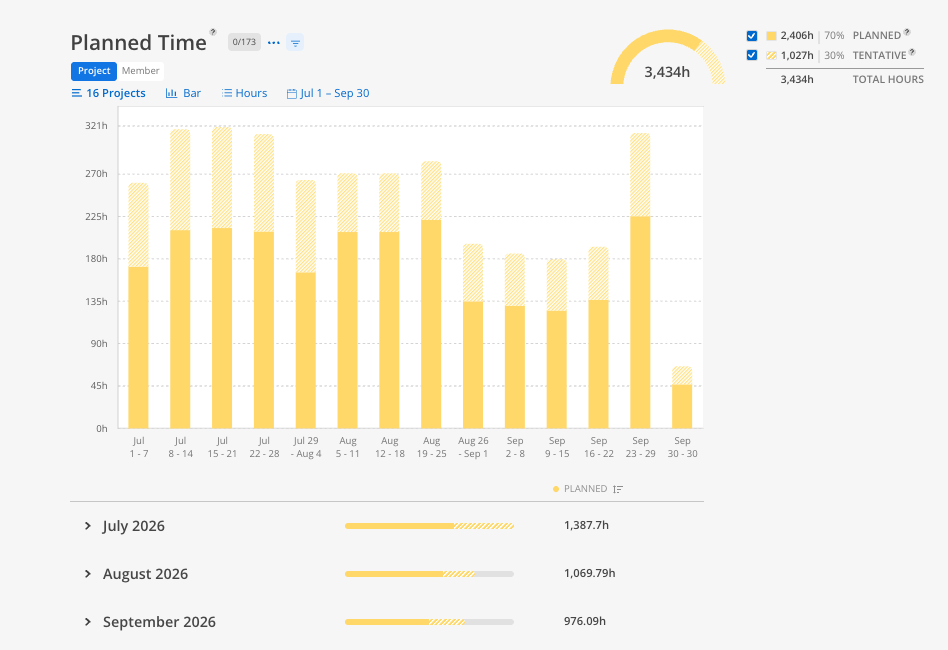
How the monthly breakdown behaves
Each row represents one month inside your selected date range
Expand a month to see the detail behind that month's total
The breakdown refreshes and collapses automatically when you change units, bill rate, or date range. Any month rows you had expanded will close — re-expand them after changing a control.
Important Notes
The Bar view reflects the same today-forward planned time as the Member and Project views. Changing views does not change the underlying data, only how it is grouped.
Because the breakdown collapses on every control change, set your units, rate, and date range first, then expand the months you want to read.
Append to the end of the existing paragraph.
Use the Graph view when the question is about timing rather than totals — for example, spotting a month where planned work drops off sharply or piles up beyond what the team can absorb.
Set your controls before expanding months — changing units, rate, or date range collapses the monthly breakdown, so lock those in first.
Use the Bar view for forecasting conversations — the monthly shape is easier to discuss in a planning meeting than a long member or project list.
Pair with the Workload Report — Planned Time shows the volume of upcoming work; Workload shows it against capacity.
Use the eye icon — hide members or projects with zero planned time to clean up the view.
