Every report in Mosaic shares a common set of controls for switching views, filtering data, changing units, and exporting. Not every control appears on every report — the available options depend on what data the report displays. This guide explains each control so you know what it does when you encounter it.
Most reports offer multiple perspectives on the same data. The view tabs appear at the top left of the report, directly below the report title.

Member — organizes data by team member. Each row is a person. Expand to see their projects and phases.
Project — organizes data by project. Each row is a project. Expand to see phases and then individual members.
Client — organizes data by client. Each row is a client. Expand to see their projects underneath.
Team — displays a chart view summarizing the data across all selected members. Typically shows a bar or area chart over time.
Not every report has all four tabs. Some reports have only Project and Member. The Timesheet Report has Date, Member, Project, and Activity. The active tab is highlighted in blue.
Below the view tabs, a selection bar shows what is currently loaded in the report.


Count indicator (e.g., "20 Members" or "9 Projects") — click to open the selector and choose which members or projects to include. This is also where you access filters to narrow by department, role, office, portfolio, etc.
Date range (e.g., "Apr 14 - May 13") — click to change the time period. Options vary by report and may include This Week, Next Week, 30 Days, 3 Months, Custom, At Completion, Today Backward, All Time, or specific months.
Currency / Hours toggle — switch between viewing data in dollar values or hours. Available on most reports that display financial data.
Bill Rate dropdown — choose how dollar values are calculated. Options include Rate (standard billing rate), Bill (project or member bill rate), and Cost (internal cost rate, restricted to admins and budget managers).
View mode (e.g., "At Completion", "Remaining", "Planned Time") — some reports let you toggle between different calculation modes. For example, the Time Budget Tracking report switches between EAC and Remaining views. The Budget Variance report switches between Spent vs. Project Fee, Project Budget, Planned Time, or Member Budget.
List toggle — on some reports, switches the display format.
TOTAL column header — click to sort by the total value.
The three blue dots (...) in the top area of the report open the export menu.
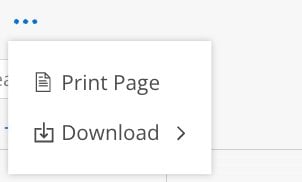
Print Page — generates a printable version of the current report view. Available on all reports.
Download — exports the report data as a CSV or other file format. Only available on certain reports (e.g., the Timesheet Report supports CSV download). If the Download option does not appear, that report only supports Print.
The filter icon (three horizontal lines, ≡) opens the advanced filter panel. Use it to narrow down the data beyond what the member or project selector provides.
Available filters depend on the report and your admin settings. Common filters include department, role, office, project status, project type, and portfolio. Filters stack — you can apply multiple at once.
Filtering by skill: When you filter members by Skills, each skill expands to show its proficiency levels. Select individual levels, or click Any Level at the bottom of a skill's proficiency list to select or deselect all levels for that skill in one click. Use Any Level when you want everyone who has a skill regardless of how advanced they are.
Note: Filters are not dynamic. If a member is added to a department after you set a filter, you need to reapply the filter to see the change.
The eye icon hides rows with nothing to show in the unit you are viewing. In an hours view it hides rows with 0h; in a currency view it hides rows worth $0, which includes a project whose planned time all comes from members with no bill rate. Switch the Currency / Hours toggle and the eye icon follows.
Exports follow the same rule: a download from the Planned Time report or the Planner uses the unit shown on screen, so an hours export keeps every row with hours even when those members have no rate.
This is especially useful in the Planned Time, Spent Time, and Timesheet reports where many projects may have no data for a given date range.
On reports organized by member, a three-dot menu appears on each member row. The options available depend on the report.
View Member Profile — opens the Member Modal to that member's Schedule page
Edit Work Schedule — opens the Member Modal to the yearly capacity calendar
View Timesheet — opens the Timesheet Report in a new tab, pre-filtered to that member and the current report's date range
View Timesheet is the fastest way to verify the time entries behind a number you are questioning — you do not have to re-select the member or rebuild the date range in the Timesheet Report.
The dollar sign icon ($) appears on reports that display project-level financial data. Clicking it takes you directly to that project's Budget space.

This shortcut appears on the Estimate at Completion, Spent Time, Planned Time, Time Budget Tracking, Backlog, and variance reports. It saves you from navigating out of the report space to check or adjust a project's budget.
Many reports display a summary gauge or donut chart in the top right corner. This gives you an at-a-glance aggregate of the data currently loaded in the report.
Depending on the report, the gauge may show:
% of Hours or % of Capacity — how much of total capacity is planned (Workload Report)
Planned vs. Capacity — total planned hours and total capacity hours
Billable vs. Not Billable — utilization breakdown (Utilization Report)
Entered vs. Total — timesheet completion status (Timesheet Status Report)
Planned and Tentative totals — with checkboxes to toggle each on or off (Planned Time Report)
The legend next to the gauge explains each color and value. Some gauges have toggles (checkboxes or switches) that let you include or exclude specific data types from the calculation — such as time off, holidays, tentative plans, or open role plans.
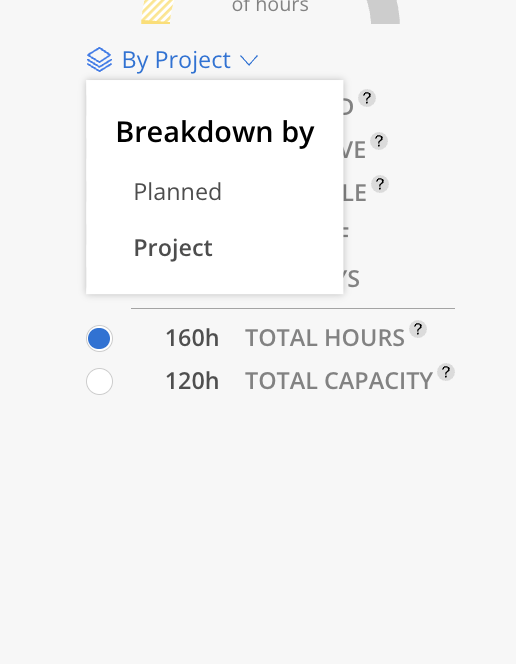
On the Workload and Utilization reports, the summary card includes a Breakdown by dropdown, marked with a layered icon.
By Planned (Workload) or By Billable (Utilization) — each row shows one bar split by the report's own series.
By Project — the bar splits into segments, one per project, using each project's assigned colour.
Use By Project to see quickly whether a member's time is concentrated on one project or spread across many. The dropdown appears on the Member view (and the Client view of Workload); it is not offered on the Project view or in the Bar and Line chart views.
Reports use red visual indicators to flag issues:
Red asterisk (*) — member is over capacity (Workload Report)
Red exclamation mark (!) — project or member is over budget, or a time entry is outside phase dates
Red percentage — spent exceeded planned, or actual exceeded original estimate (Variance and Schedule reports)
Red dollar amount — negative value, meaning over budget or over fee (Budget Tracking, Backlog, Profit Margin)
Red bar — project is in the negative / losing money (Profit Margin)
When you see bars with diagonal hatch lines instead of solid fill:
Hashed yellow — tentative planned time (not yet confirmed)
Hashed yellow/green — open role planned time (assigned to a placeholder, not a real member)
These appear in the Workload, Backlog, and Role Demand reports. You can often toggle tentative and open role data on or off using checkboxes in the summary area.
Most report rows have an expand arrow (>) on the left. Clicking it drills down one level:
Member view: Member → Projects → Phases
Project view: Project → Phases → Members
Client view: Client → Projects → Phases
Role view: Role → Individual Members
Each level shows the same data broken down further. Click the arrow again to collapse the row.
Learn these controls once — they work the same way across every report. Once you know how to filter, toggle, and export in one report, you can navigate all 17.
Use the eye icon aggressively — hiding zero rows makes reports dramatically cleaner, especially during planning sessions.
The budget link ($) is a shortcut — instead of navigating to a project and opening its budget, click the $ icon directly from any report to jump straight there.
Export limitations — not every report supports CSV download. If you only see "Print Page" in the three-dot menu, that report does not support data export.
