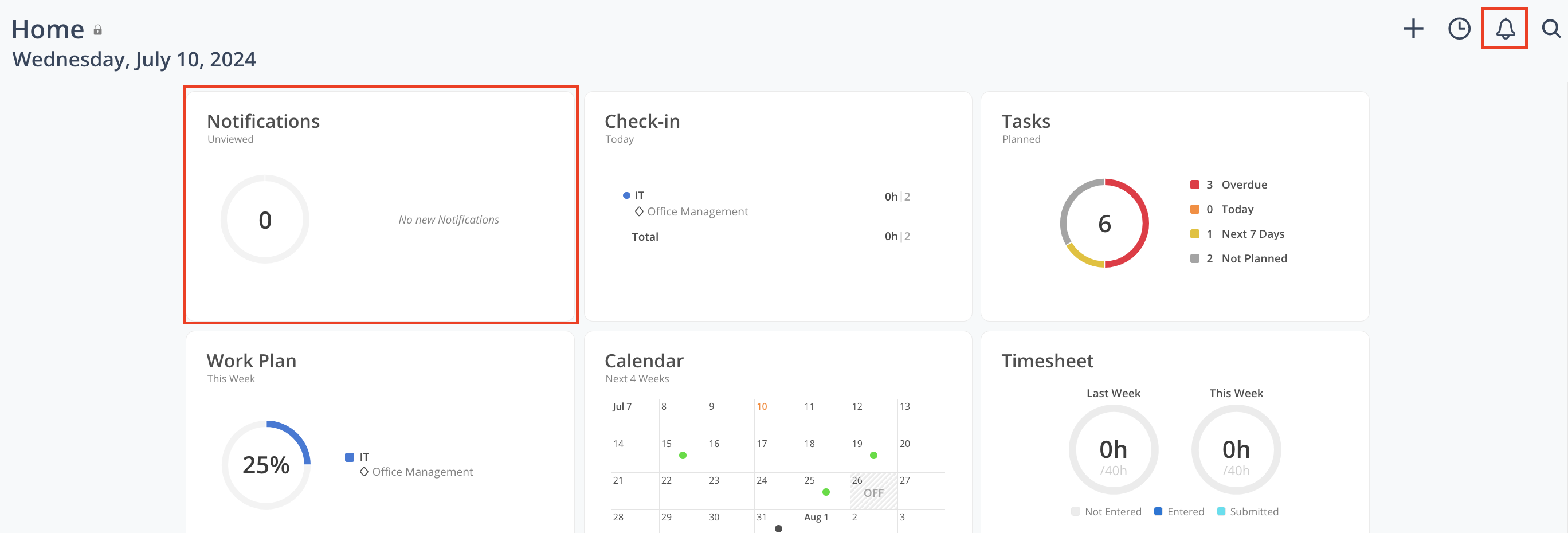
The Notifications widget provides a centralized view of updates relevant to your work in Mosaic. It helps you stay informed of changes across projects, tasks, time tracking, and system activity, enabling you to take timely action when needed.
Notifications can be accessed from the bell icon in the top right of your account or directly through the Notifications widget on the Home space. Updates are displayed in chronological order, with the most recent notifications shown first.
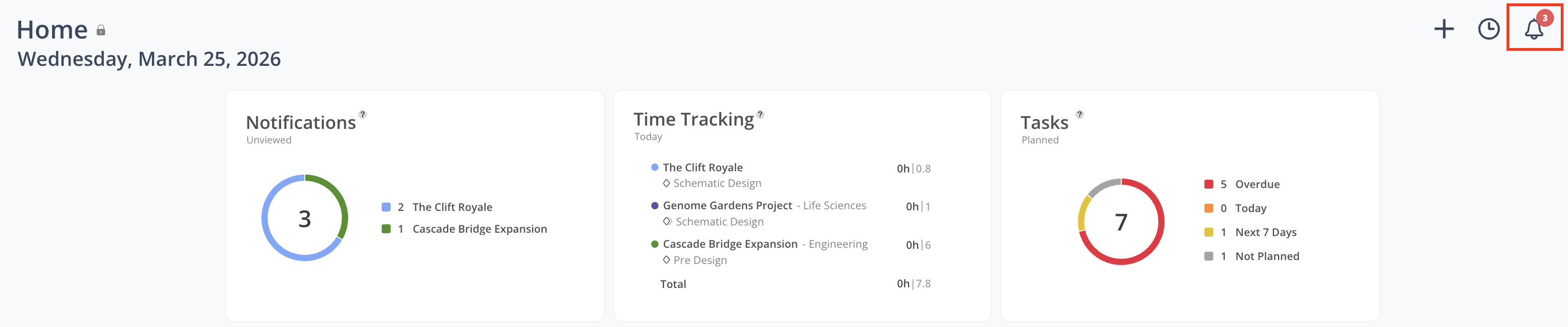
Click the bell icon on the Home page to open your notifications
A red dot will appear on the bell icon when you have new (unread) notifications
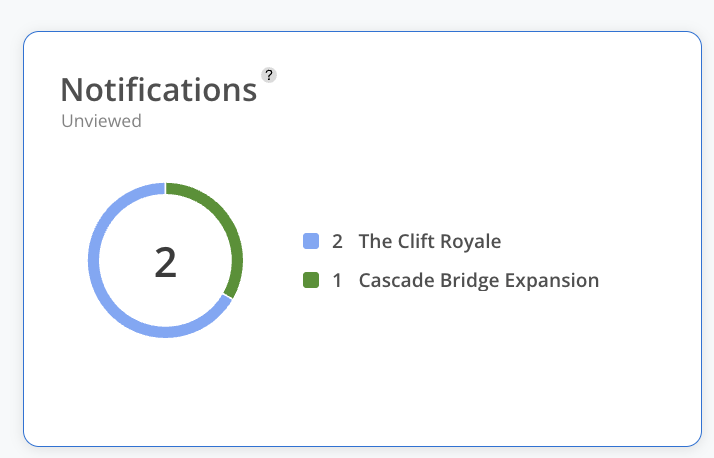
Or click the Notifications widget on the Home space to access the same view
Select a notification or click View to navigate to the relevant content
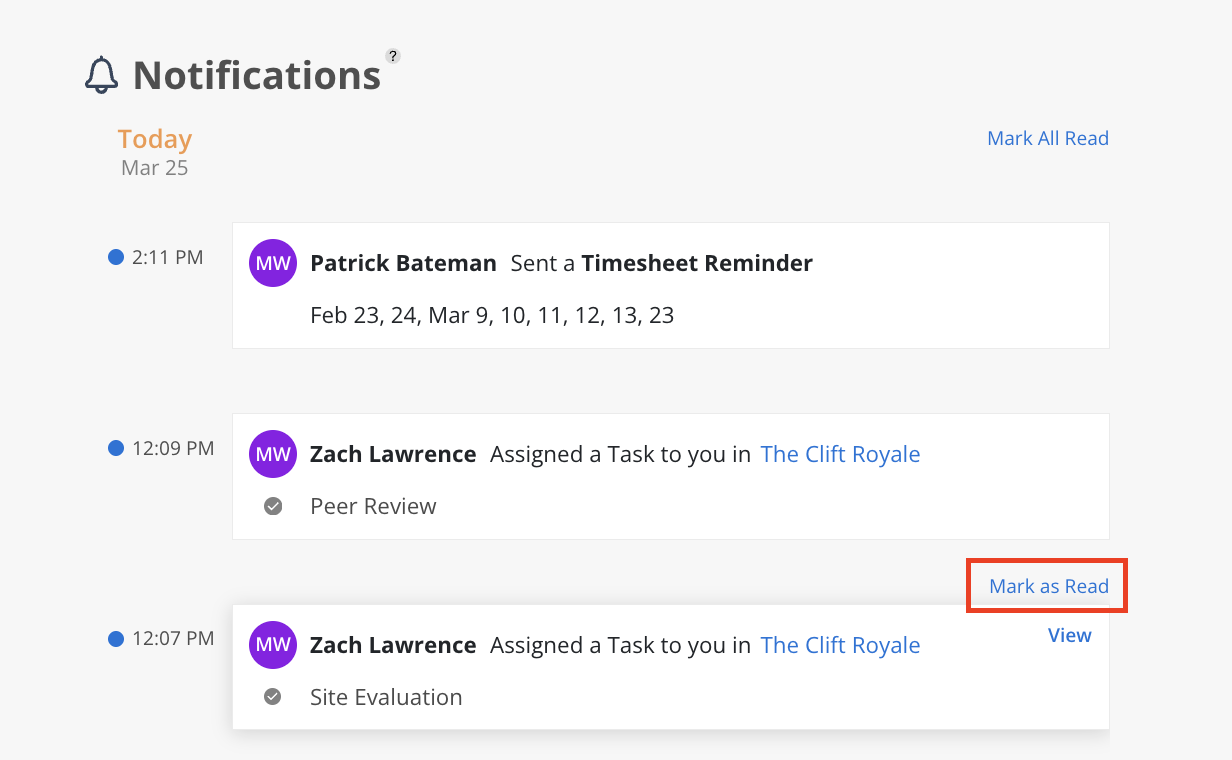
Use Mark all as read to clear unread notifications
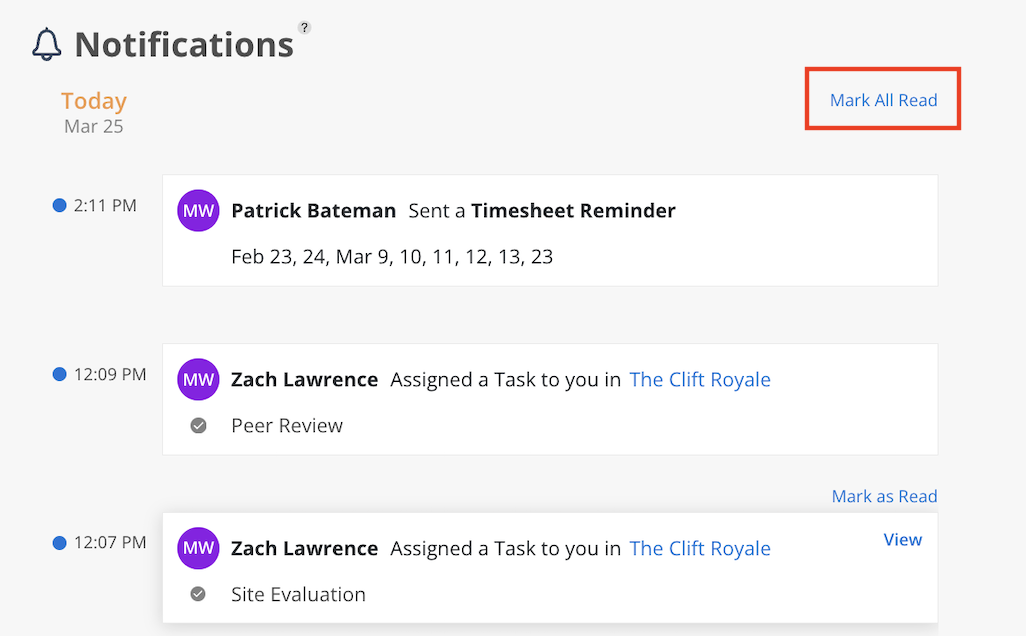
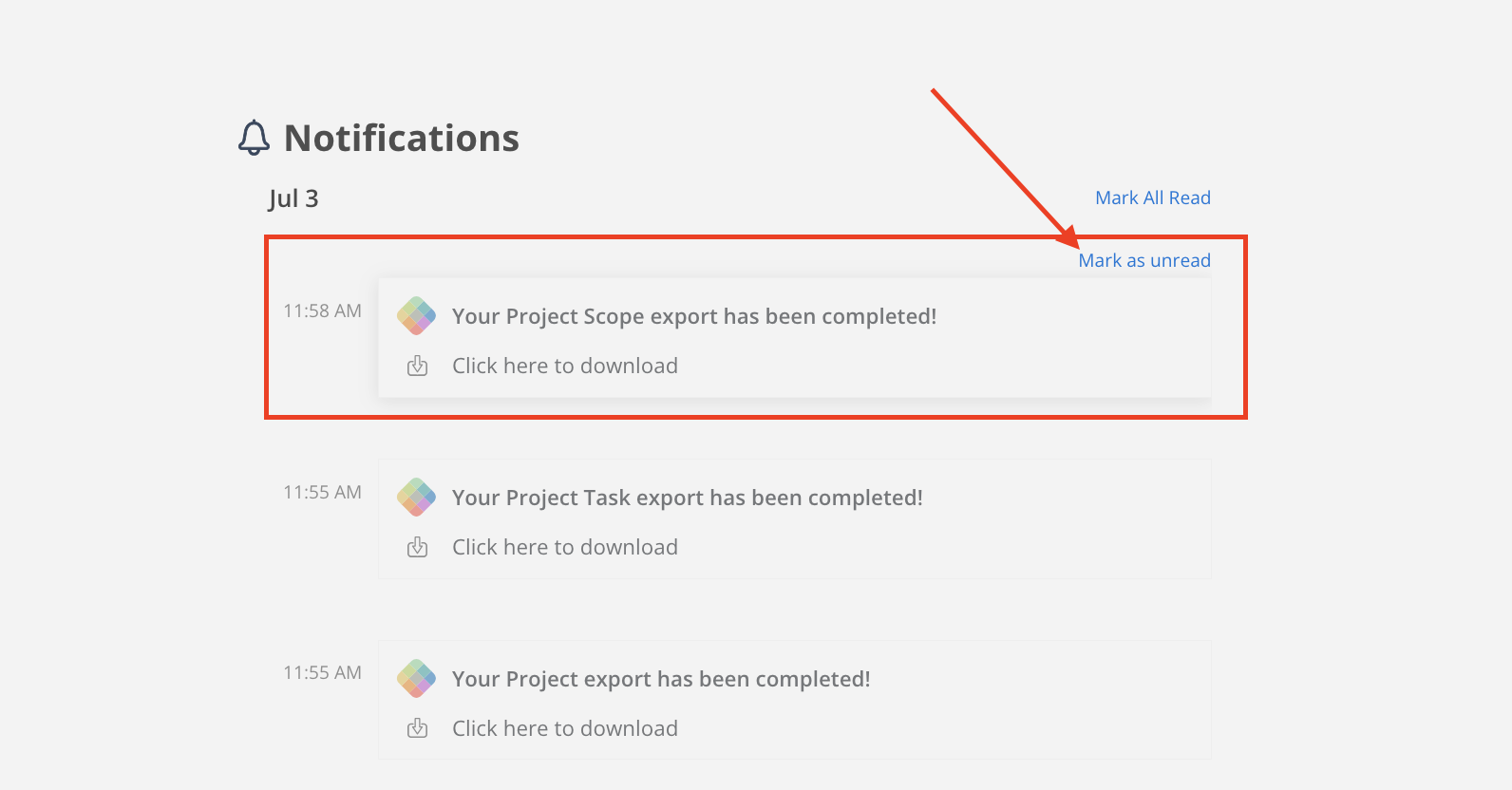
You can also manage individual notifications:
Hover over a notification
Click Mark as unread to revisit it later
The Notifications panel includes updates related to your activity and involvement in Mosaic, such as:
Project updates (e.g., added to a project, project archived)
Task activity (e.g., assigned tasks, completed tasks, comments, replies)
Notes and check-ins, including shared copies
Work plan updates and shared work plans
Time tracking activity
Export and report notifications
Timesheet reminders
Unread notifications are indicated by a blue dot, while read notifications no longer display the blue indicator.
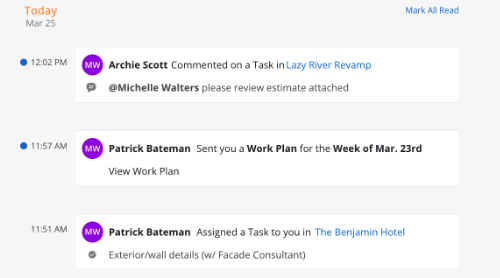
Each notification type directs you to a different location or view within Mosaic:
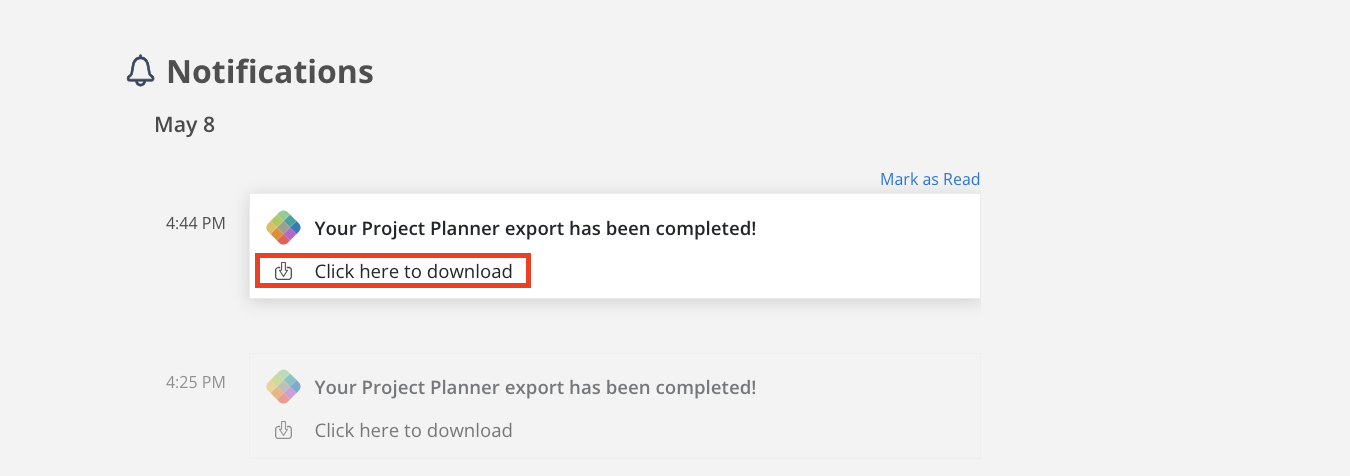
Select Click here to Download within the notification
The file will begin downloading automatically
Click the notification or View

This Opens the Task modal, displaying all task details, comments, and replies
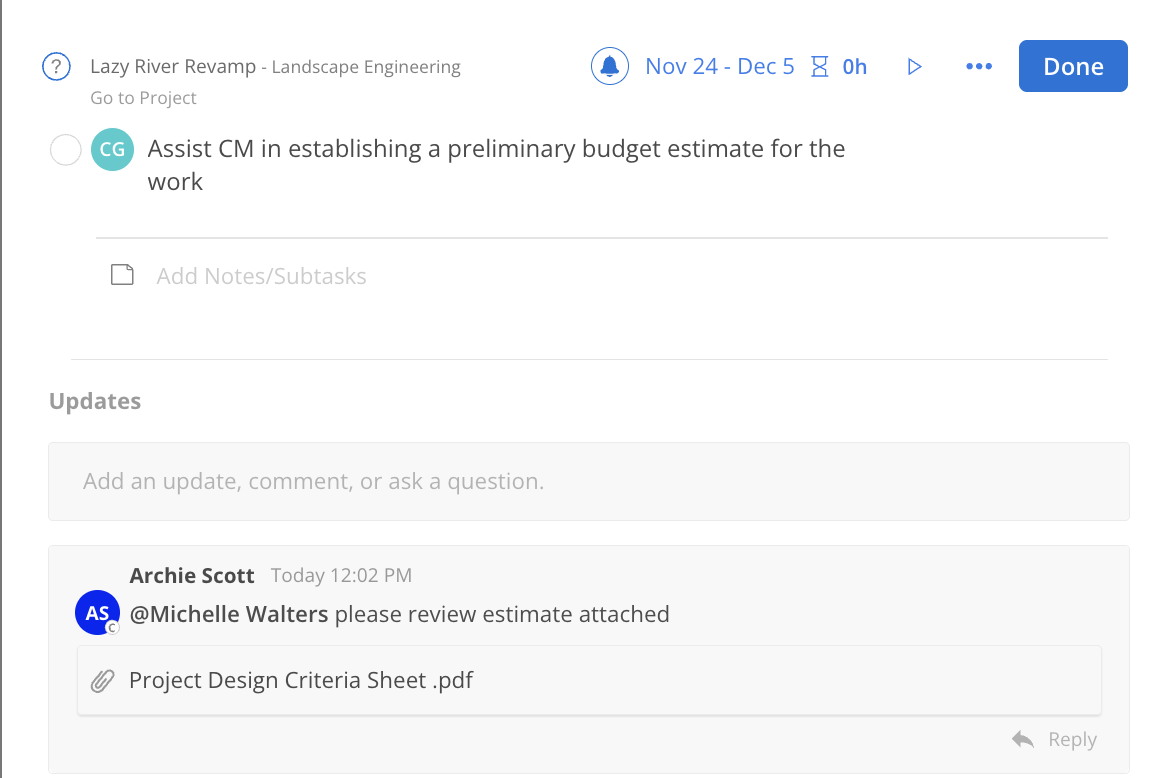
Click the notification or View
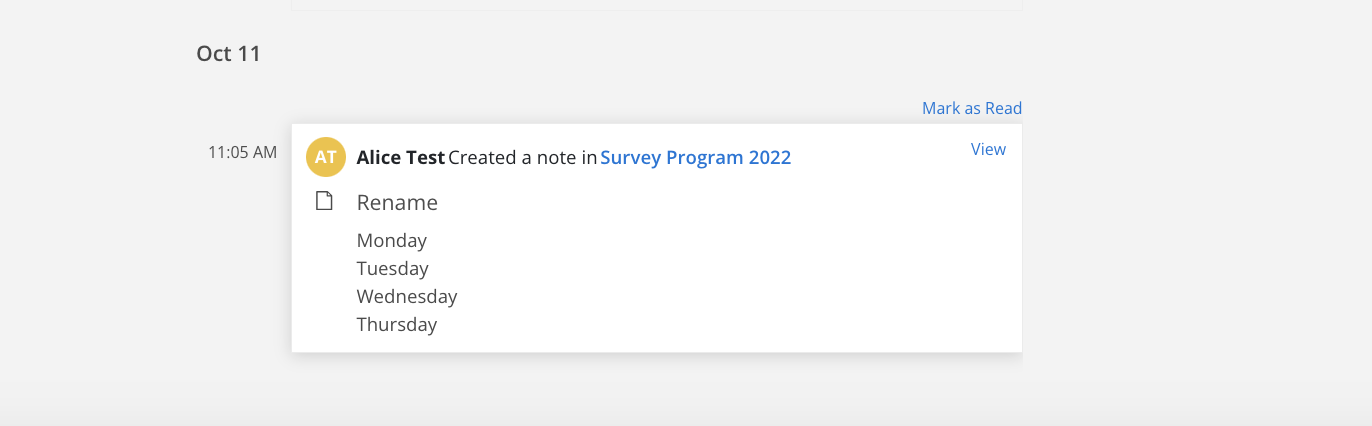
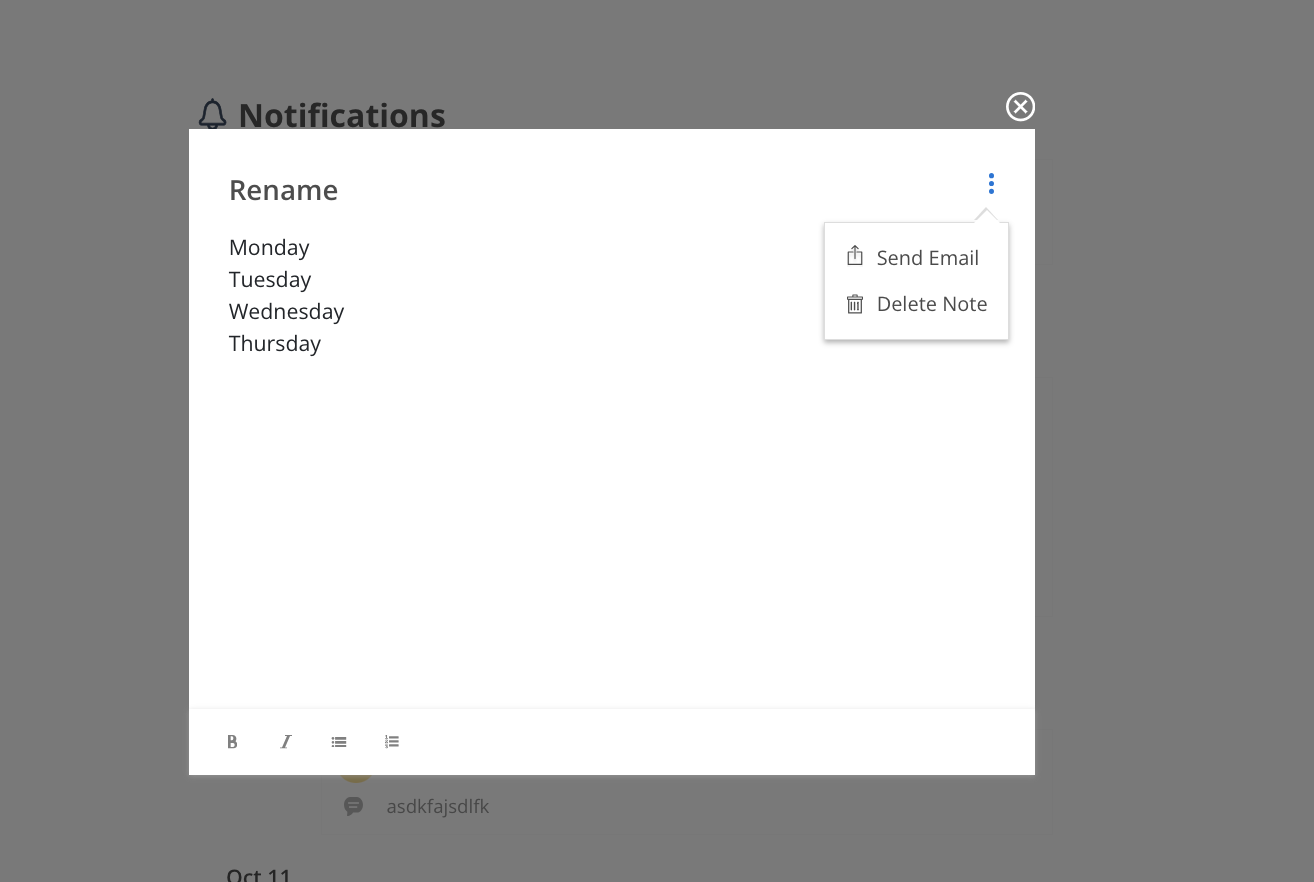
Opens the Note, where you can:
View or edit the note
Share the note via email
Delete the note
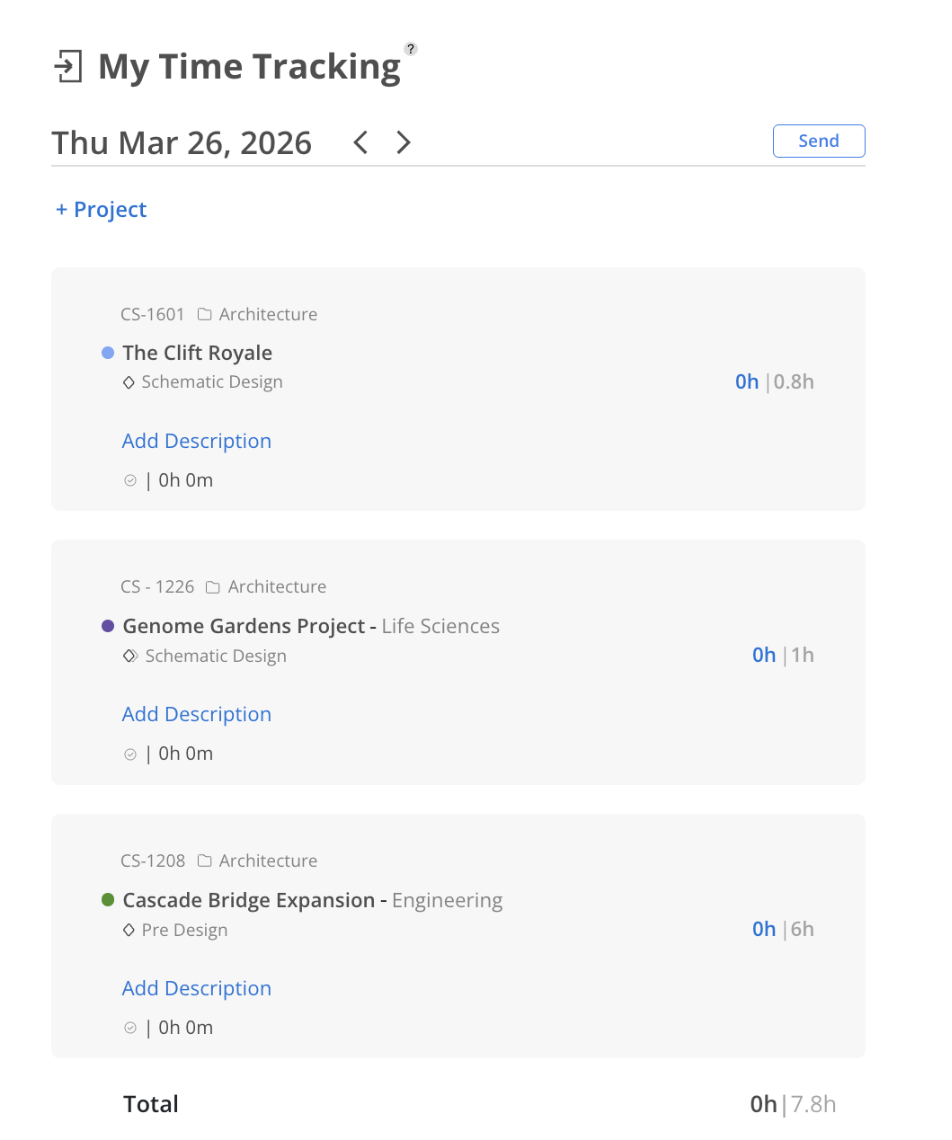
Opens a modal showing time tracked for the selected date

You will be redirected to the Project page

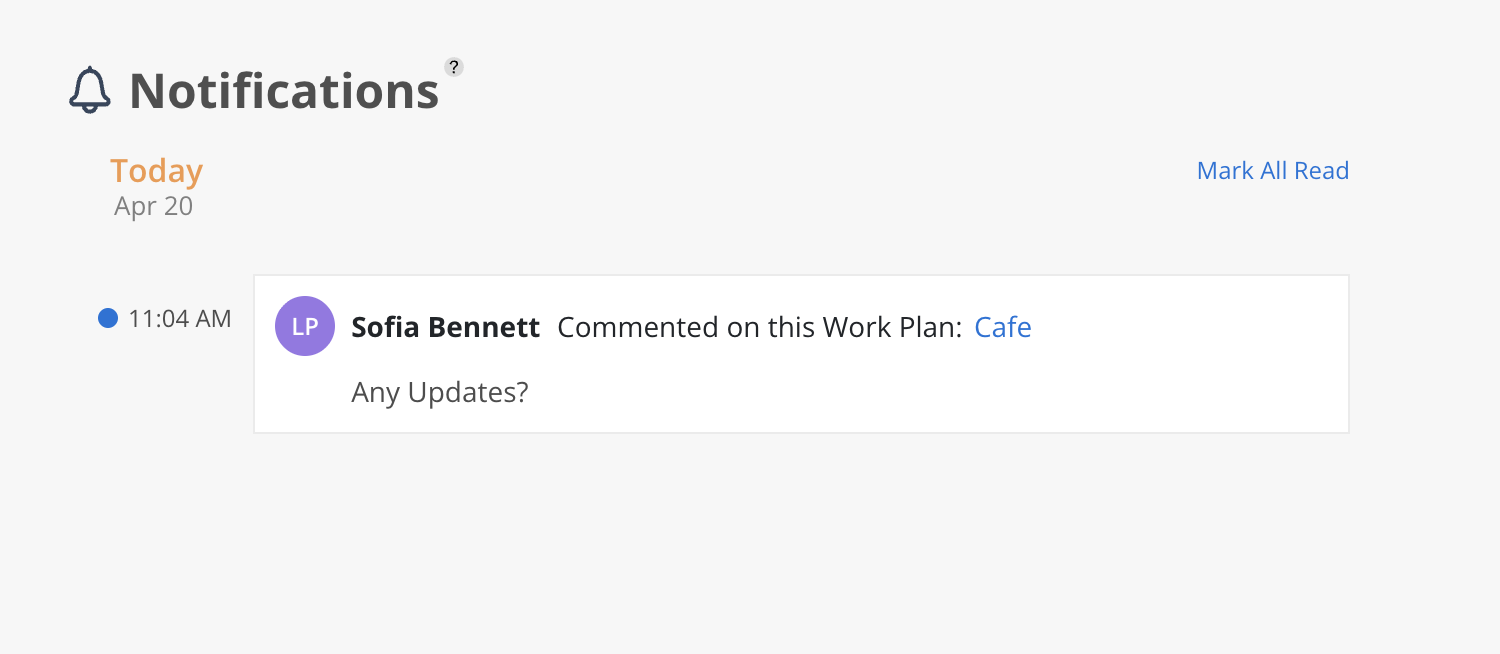
Work Plan Comments:
Click on the notification to open the work plan modal to quickly reply to the comment
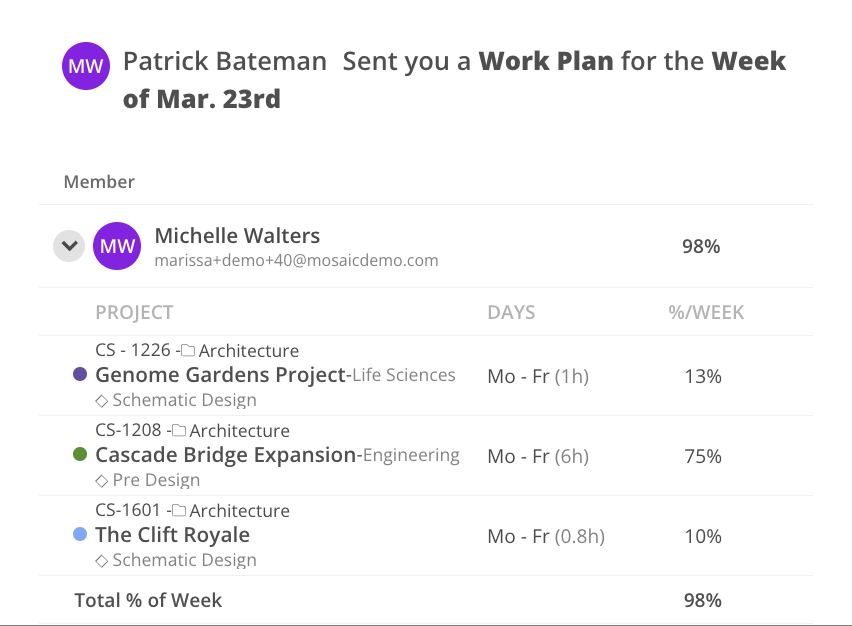
Opens a modal displaying:
Weekly capacity
Work plan allocations for the selected week

Click the notification

You will be redirected to the Timesheet page
Missing timesheet entries for the listed dates can be reviewed and completed
Notifications are generated based on your role and access within Mosaic. You will only receive notifications related to:
Projects you are assigned to
Tasks you are involved in
Data you have permission to view
💡 Certain notifications will respect project-level permissions and may display limited information based on your access.
For common questions about notifications, see the Home FAQ.
On the Home page, the bell icon brings you to your notifications. This space your notifications from most recent to oldest. Read notifications will appear in gray, while new notifications will be displayed in white.
Additionally, you can choose to mark all notifications as read using the option at the top.
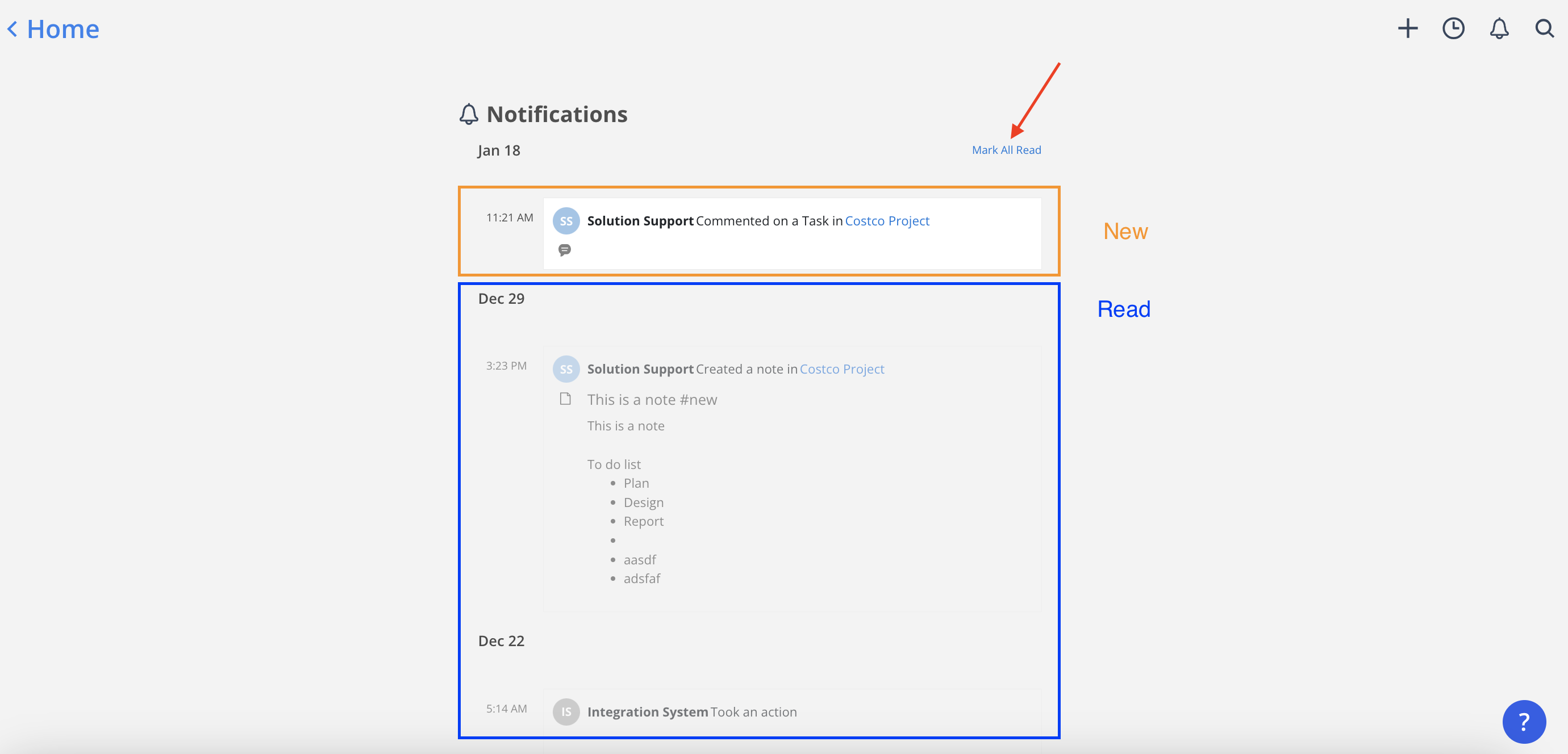
Some possible notifications are:
The export report is ready
You are added to a new project
A project is archived
A task in your project is assigned to you
A task in your project is marked as completed
A comment is made on the task in your project
A Member replies to the comment
A note is created in your project
A Member sends Check-ins or a copy of Check-ins to you
A Member sends Work Plans or a copy of Work Plans to you
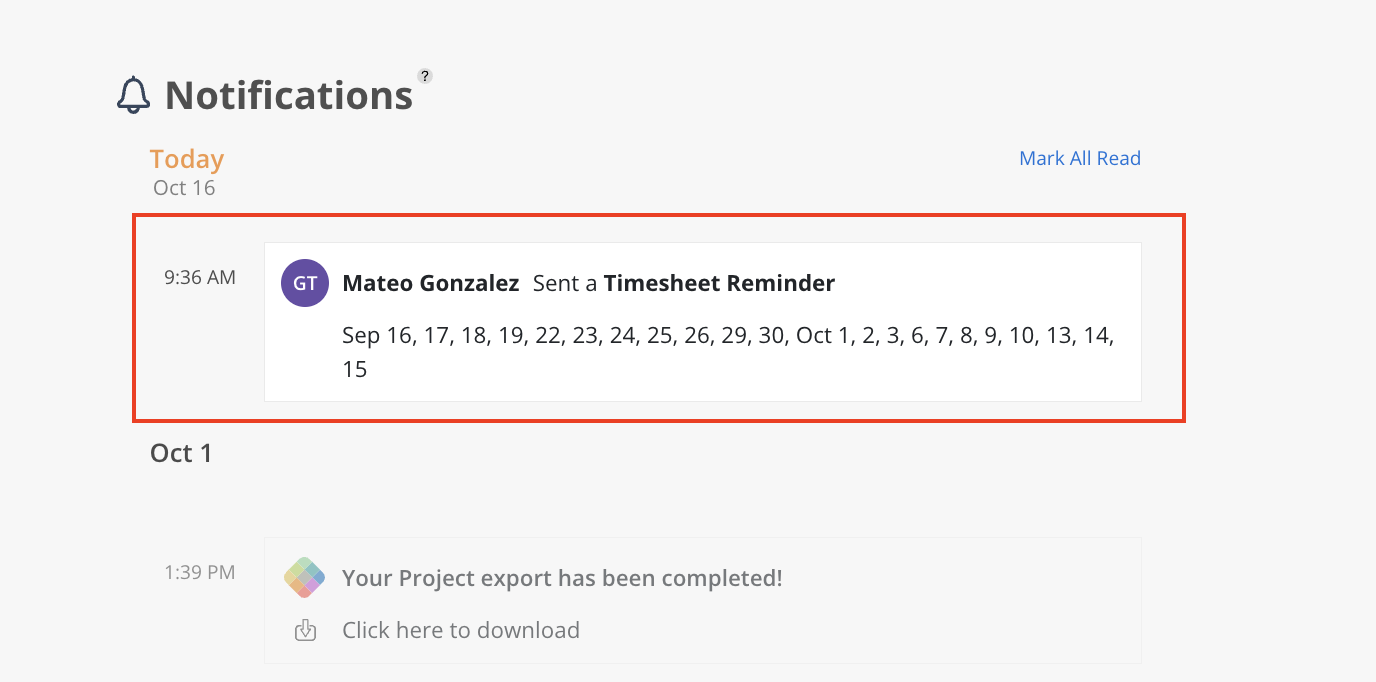
A Member sends Timesheet Reminder to you
Click on the button Click here to download on the notification
The file should start downloading automatically
Click on the notification or View button on the notification
Task Modal will open to show you all details of this Task and all the comments and replies on the Task.
Click on the notification or View button on the notification
Notes will open in a modal. You can edit the note, send note through email or delete the note.
Click on the notification or View button on the notification.
A modal will open showing all Time Tracking for that member on that date.
Click on the notification or View button on the notification.
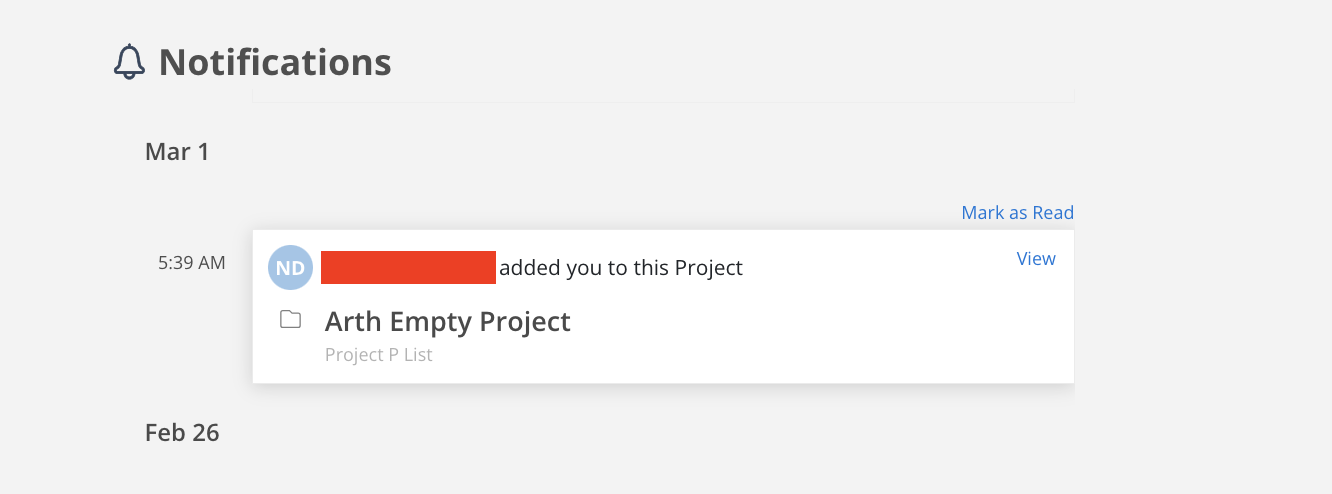
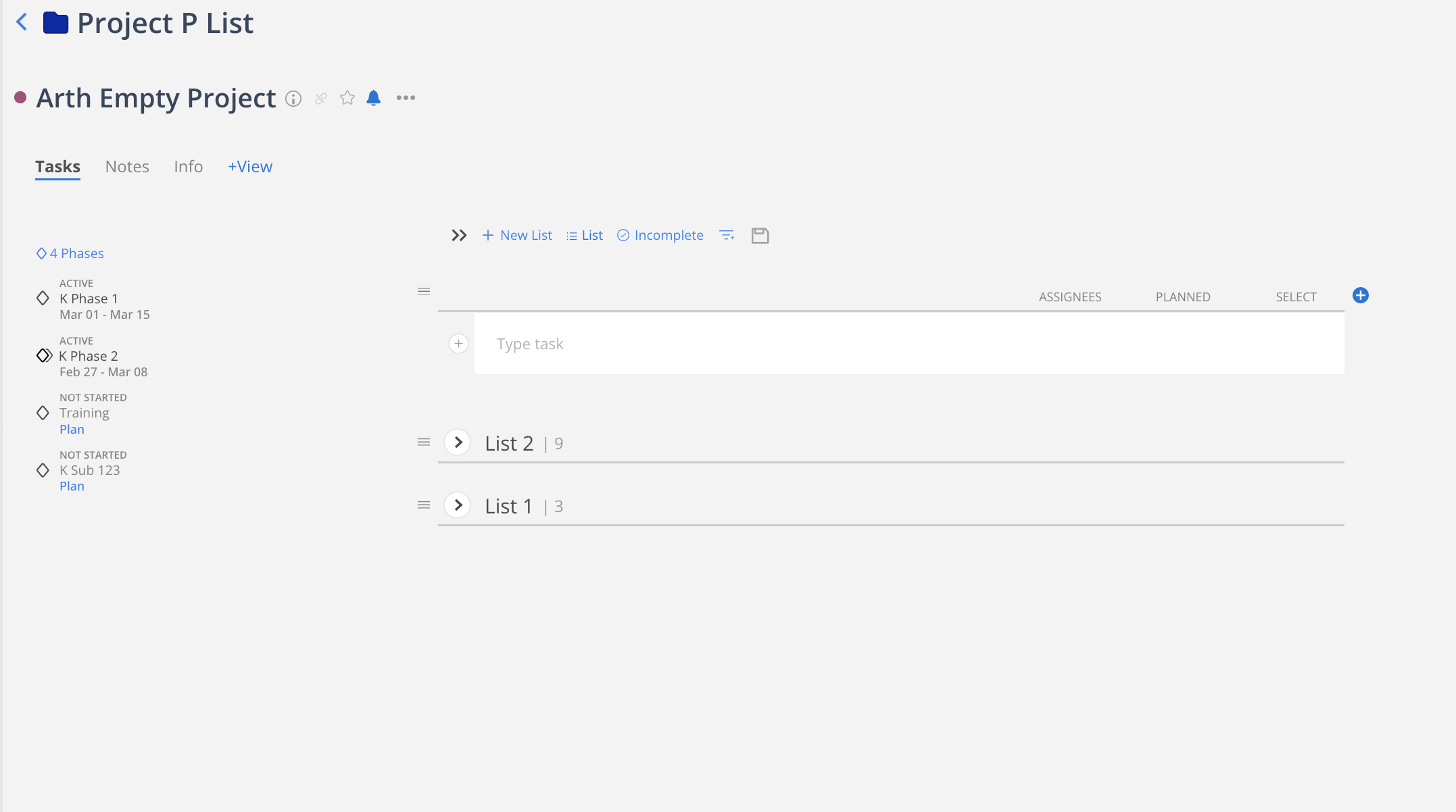
You will be redirected to the project page.
Click on the notification or View button on the notification.
A modal will open showing the Member's total capacity and Work Plans information of the week indicated.
For Members with the following permissions:
Work Planner > Can Edit > Projects they are a member of
Work Planner > Can Edit > Projects they are a Project Manager
Can only view projects they have access to (either as a member or as a Project Manager).

Click on the notification to be redirected to the Timesheet page. From there, the missing Timesheet entries for the listed dates can be reviewed and completed.
This feature allows you to reset the status of notifications, making them appear as if they haven't been read yet. This is useful for keeping track of important notifications you want to revisit later, ensuring you never miss any crucial updates.
Hover on the notification, and click the Mark as unread button.