Dependencies link one item on your project schedule to another so that when the first item moves, the dependent item moves with it. You can now create and manage those dependencies directly in the Plan (Gantt) tab, and see them drawn as connecting lines with directional arrows between phases and milestones.
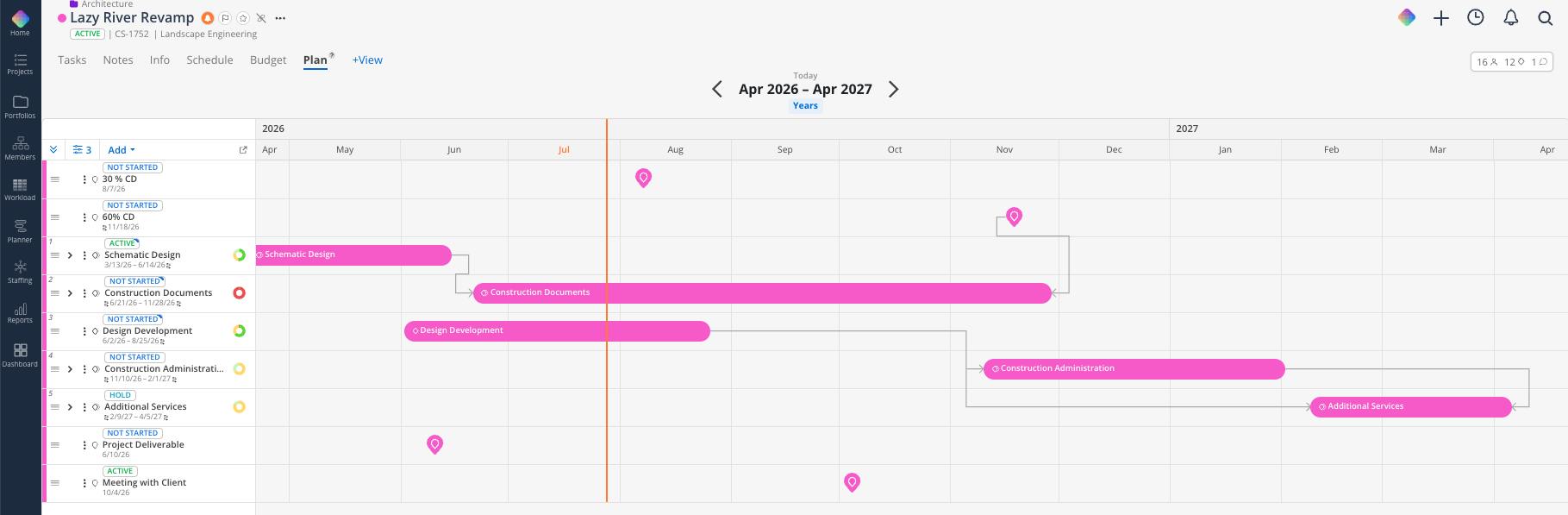
Previously, dependencies were indicated with hatch markers on the edge of a phase bar, which told you that a dependency existed but not what it was connected to. Dependency lines replace those markers with a visual connector so you can trace the relationship across the timeline.
Use dependency lines when you want to:
See at a glance how the phases on a project relate to one another
Create a dependency without leaving the Gantt view
Confirm which phase or milestone is driving a date before you move something
Understand why a phase or work plan shifted when an upstream date changed
Present a project timeline to a team or client and show the sequence of work
In the Plan tab of a project:
Dependency line — A connecting line drawn between two items on the timeline. Each line runs from the driving (predecessor) item to the dependent (successor) item.
Directional arrow — The arrowhead sits on the dependent end of the line, showing which direction the relationship flows.
Tooltip — Hovering a dependency line opens a tooltip that follows your cursor along the line, identifying the two linked items and the relationship between them.
Dependency lines appear between phases, between sub-phases, and between phases and milestones.
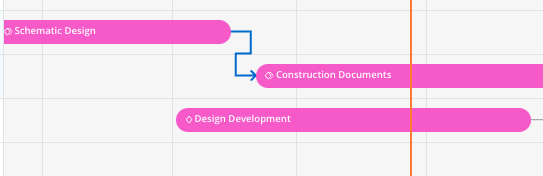
Open the project and click the Plan tab.
Hover over the phase or milestone that should come first — the item that will drive the date.
Click and drag from the connector point on the edge of that item toward the item that should depend on it.
Release on the target phase or milestone.
The dependency line draws between the two items with the arrow pointing at the dependent item.
Once the dependency is set, moving the driving item shifts the dependent item to match.
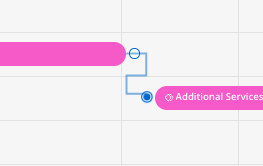
Hover over any dependency line in the Plan tab.
A tooltip appears and follows your cursor as you move along the line.
The tooltip identifies both linked items so you can confirm the relationship without clicking into either phase.
This is useful on dense schedules where several lines cross the same area of the timeline.
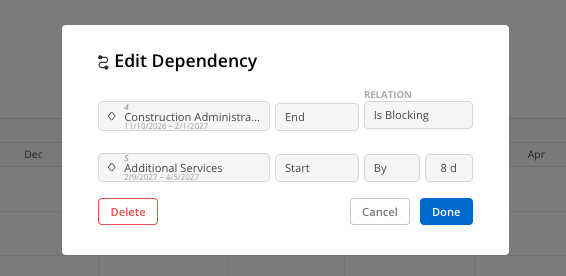
Hover over the dependency line you want to remove.
Select the option to delete or clear the dependency.
The line disappears and the previously dependent item is no longer tied to the upstream date. It stays where it currently sits — removing a dependency does not move the item back.
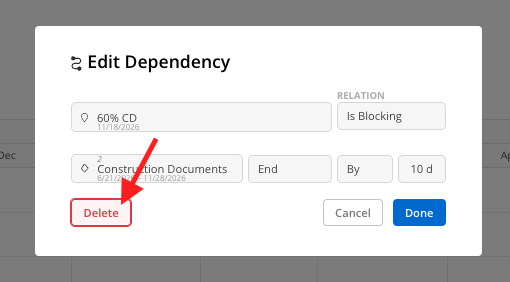
Dependencies do more than draw a line. When a dependency is in place:
Phase dates cascade. If the driving phase moves, the dependent phase updates automatically to preserve the relationship.
Work plans can follow phase dates. Work plans set as dependent on a phase shift when that phase shifts. In the Workload space and in the Home Space Work Plan widget, a dependent edge of a work plan is indicated with a gridded line rather than a solid one.
Time off does not override a dependency. If a member enters time off that overlaps a work plan with a phase dependency, that work plan stays anchored to the phase date instead of shifting out past the time off. Work plans with no dependency do shift.
Dependency lines replace the hatch markers in Plan View: If your team is used to reading hatch marks on the edge of a phase bar to spot a dependency, that indicator has been superseded by the line and arrow in Plan view.
The Plan tab is still expanding: Plan is Mosaic's Gantt view and continues to gain functionality. If there is dependency behavior you need that is not here yet, use the feature suggestion option in the Resources menu.
Editing the schedule depends on your access level: Viewing dependency lines is available to project members; creating and removing them follows the same permissions as editing phase dates.
Trace before you drag — Before moving a phase date, hover its dependency lines to see what else will move. It saves undoing a cascade you did not intend.
Set dependencies once, save time all quarter — Linked phases mean a single date change flows through the rest of the schedule and the work plans attached to it, instead of you updating each one by hand.
Turn lines off for a clean read — On a project with many phases, hide the lines when you just want to read dates and durations, then turn them back on when you are restructuring the sequence.
Use milestones as anchors — Linking a phase to a milestone (permit submission, client review) keeps the schedule tied to the dates your team actually tracks.
