This is a true comparison report. Unlike other reports that show plans from today forward, the Time Variance Report looks at the entire duration — all planned time and all spent time for the selected window.
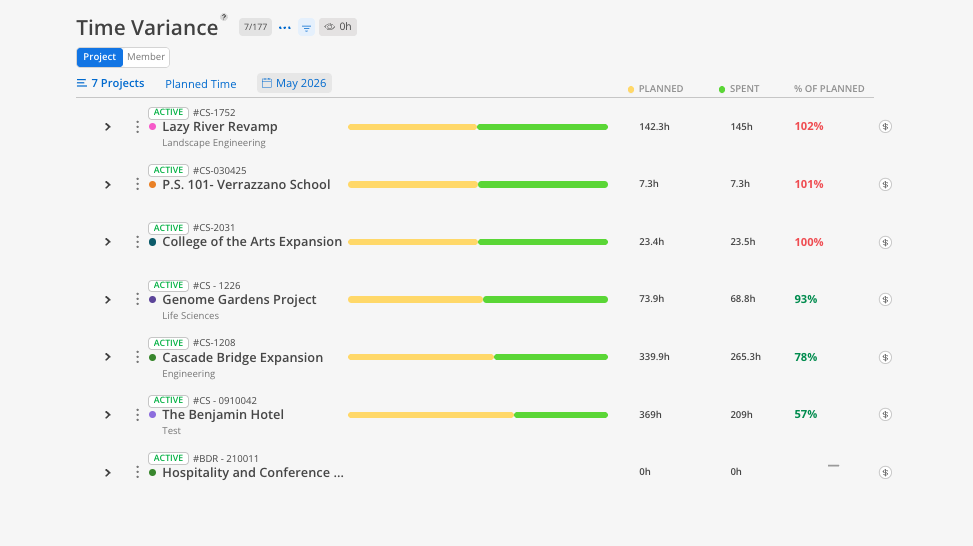
Use the Time Variance Report when you need to answer: "How closely did our actual time match what we planned?" This is the report for retrospective analysis. Use it weekly to check if members or projects are consistently spending more or less time than planned. Over time, it reveals whether your team is planning accurately or whether estimates need adjusting.
The Bars
Yellow = total planned hours for the selected time range
Green = total spent hours, overlaid on the planned bar
Columns & Indicators
Planned column = exact planned hours
Spent column = exact spent hours
% of Planned column = the variance percentage. Red = spent exceeded planned. Green = spent was under planned.
Controls
Date range selector — specific months, Today Backward, or custom ranges
Eye icon — hide rows with zero values
Budget link ($) — jump to the Budget space for any project
Within the Time Variance Report, you can toggle from planned vs. spent to member budget vs. spent.
When toggled to Member Budget, the report shows the member-level budget (blue) compared to spent time (green) instead of planned vs. spent.
This view does not have a date range — it shows the overall budget vs. total spent for the member on that phase.
Useful for identifying individual members who are exceeding their budgeted hours on a project, even if the overall phase is still within budget.
This report has 2 views: Member, Project. Each view shows the same underlying data organized from a different starting point.
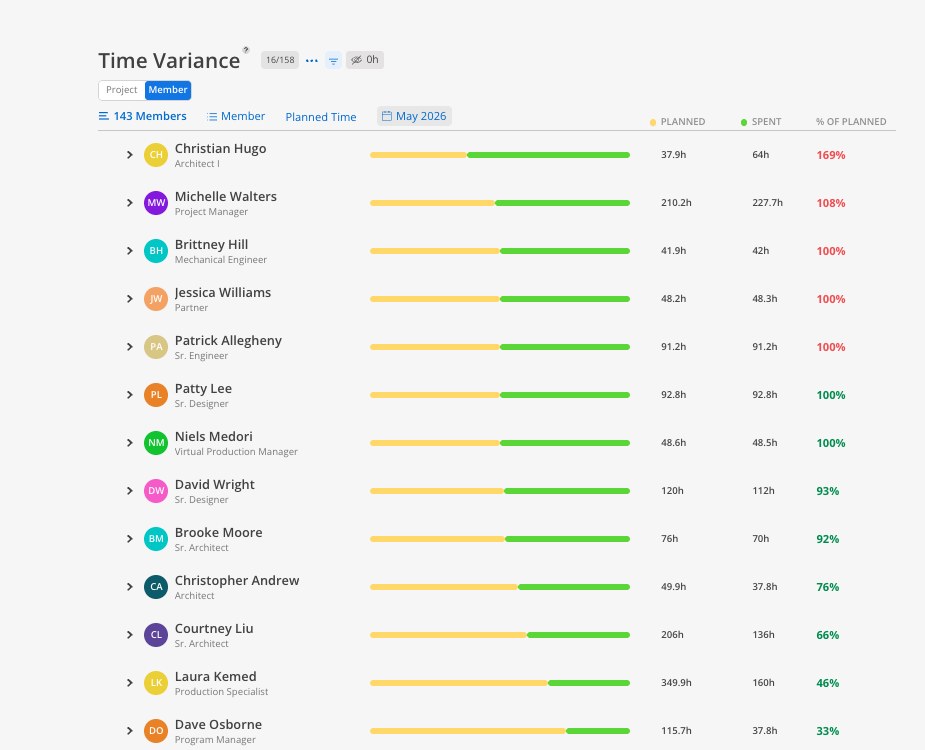
The Member view shows variance per team member.
Click the Member tab at the top.
Select members.
Choose a date range (e.g., last week, last month, custom).
Review each member's planned vs. spent hours and variance percentage.
Expand a member to see which projects and phases are driving the variance. This view is useful for identifying individuals who consistently over- or under-spend relative to their plans.
The Project view shows variance per project.
Click the Project tab at the top.
Select projects.
Choose a date range.
Review each project's planned vs. spent hours.
Expand a project to see phase-level and member-level breakdowns. This view is useful for identifying projects where the overall plan-to-actual ratio is off.
Compare week to week — Check if the same members are consistently over or under their plans.
New teams will show high variance — When a team is new to Mosaic and not yet fully planning, spent time will far exceed planned time. This normalizes as planning habits develop.
Use for retrospectives — This report is ideal for reviewing whether project estimates were accurate after the fact.
