You'll get an invite email when your admin adds you to Mosaic. Activation is a one-time setup.
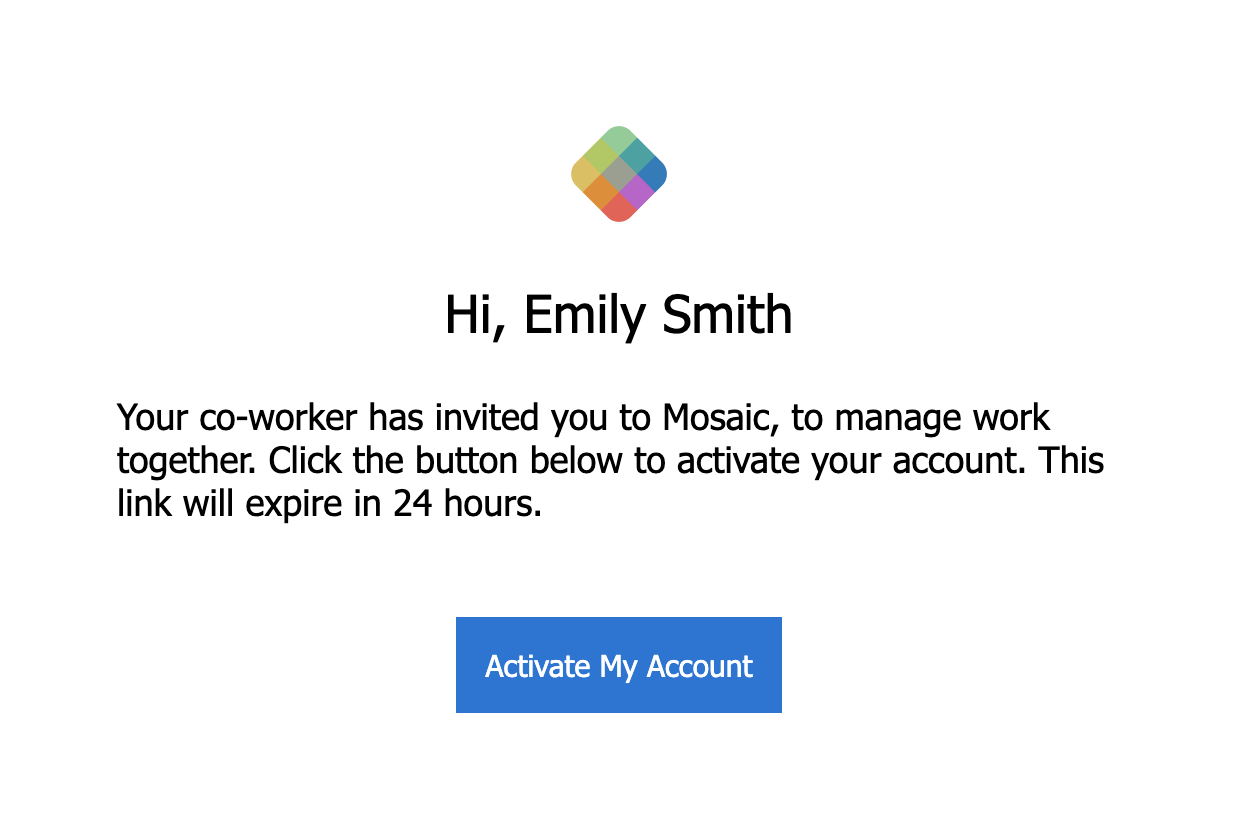
Open the invite email and click Activate My Account (or the link below the button).
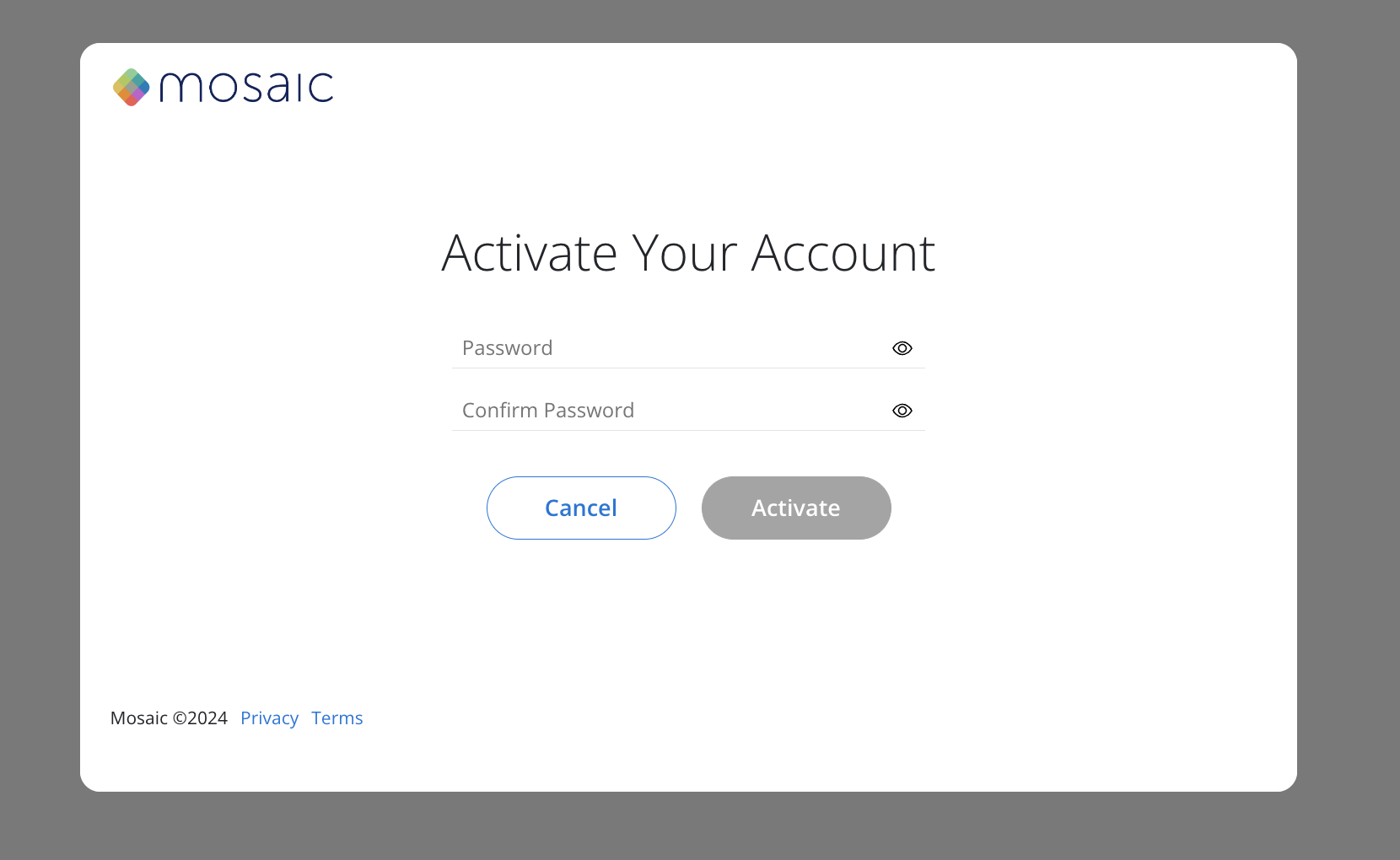
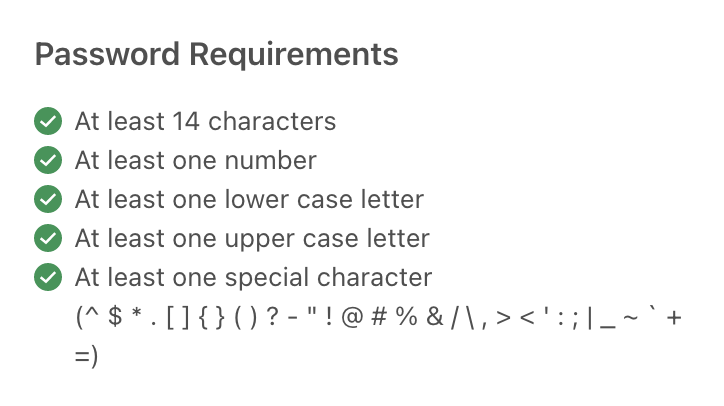
Enter a password and confirm it. Your password must meet every requirement listed on the page — the checklist updates as you type.
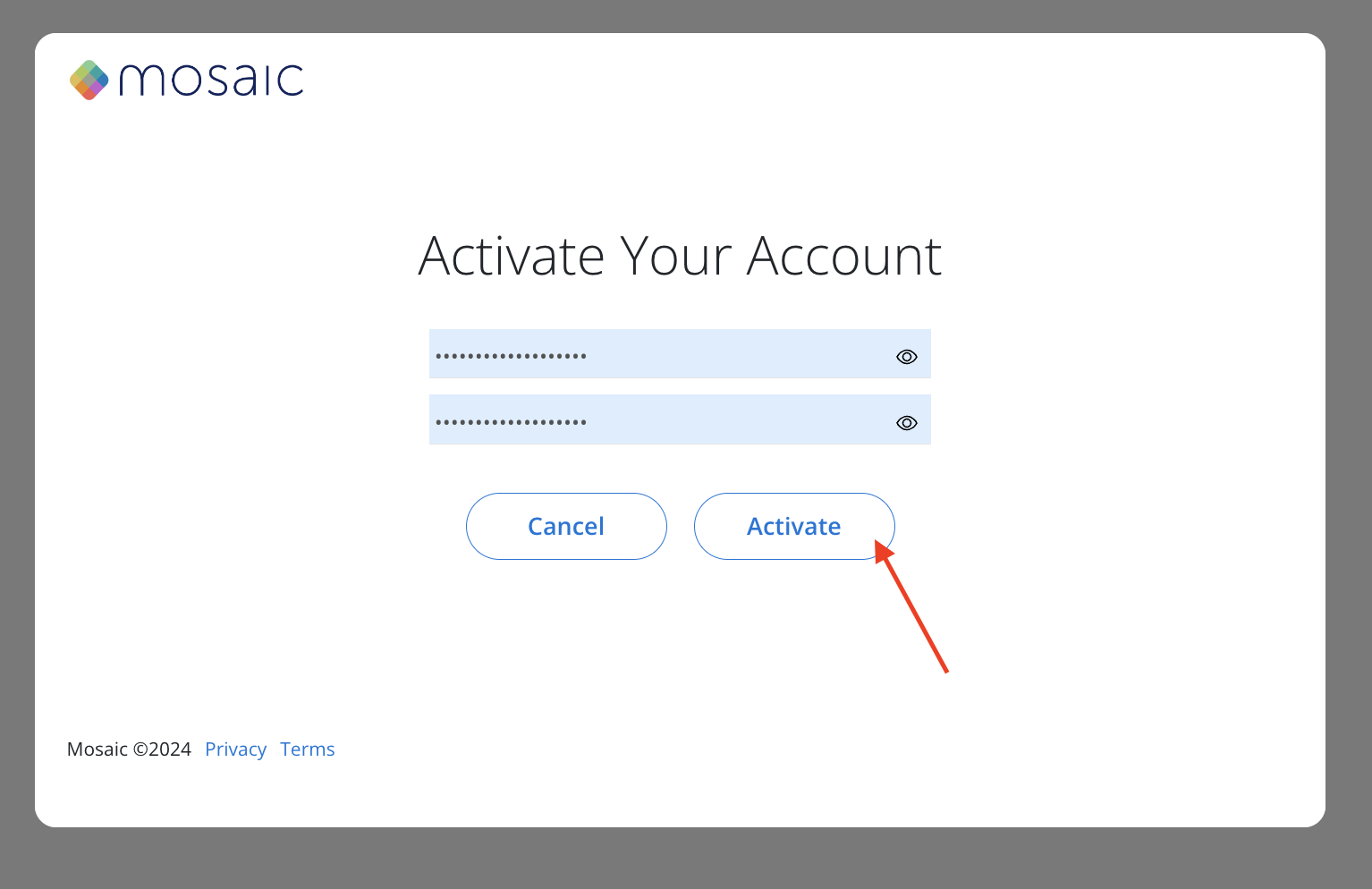
Click Activate. You'll land in Mosaic, on your Home space.
Didn't get the invite? Check your spam or junk folder first, then ask your admin to resend it. Invite links can expire, so if yours doesn't work, request a fresh one rather than reusing the old email.
Once your account is active, go to your Mosaic login page, enter your email and password, and you're in. Mosaic opens to your Home space every time.
If your company uses Single Sign-On, you may not need a Mosaic password at all — you'll authenticate through your company's identity provider instead. Your admin controls whether SSO is enabled and which email domains it covers. Some organizations also require two-factor authentication at sign-in.
You can change your password any time from inside Mosaic:
Click your initials orb in the bottom-left corner.
Select Personal Account.
Update your password from your account settings.
If you're locked out and can't get in, use the Forgot Password link on the login page to have a reset link emailed to you.
Mosaic has companion iOS and Android apps for checking your schedule, tasks, and time on the go. Sign in with the same credentials you use on the web.
Password rejected on setup — check the requirements list on the page; every item has to be satisfied
Invite link doesn't load — it may have expired; ask your admin to resend
SSO error — your email domain may not be verified yet on your company's SSO configuration. Your admin can check this in Settings → Authentication.
Still stuck — use the chat icon in the bottom-right of Mosaic, or reach out to your customer success manager
Now that you're in, get oriented before you start planning.
