Time Off Categories replace the Phases and the second Work Category choice that used to live inside the Time Off project. Admins manage one flat list in Settings > Standards > Time Off Categories. Once added, everyone on the team picks straight from that list whenever they log time off on a Timesheet or schedule it in a Work Plan.
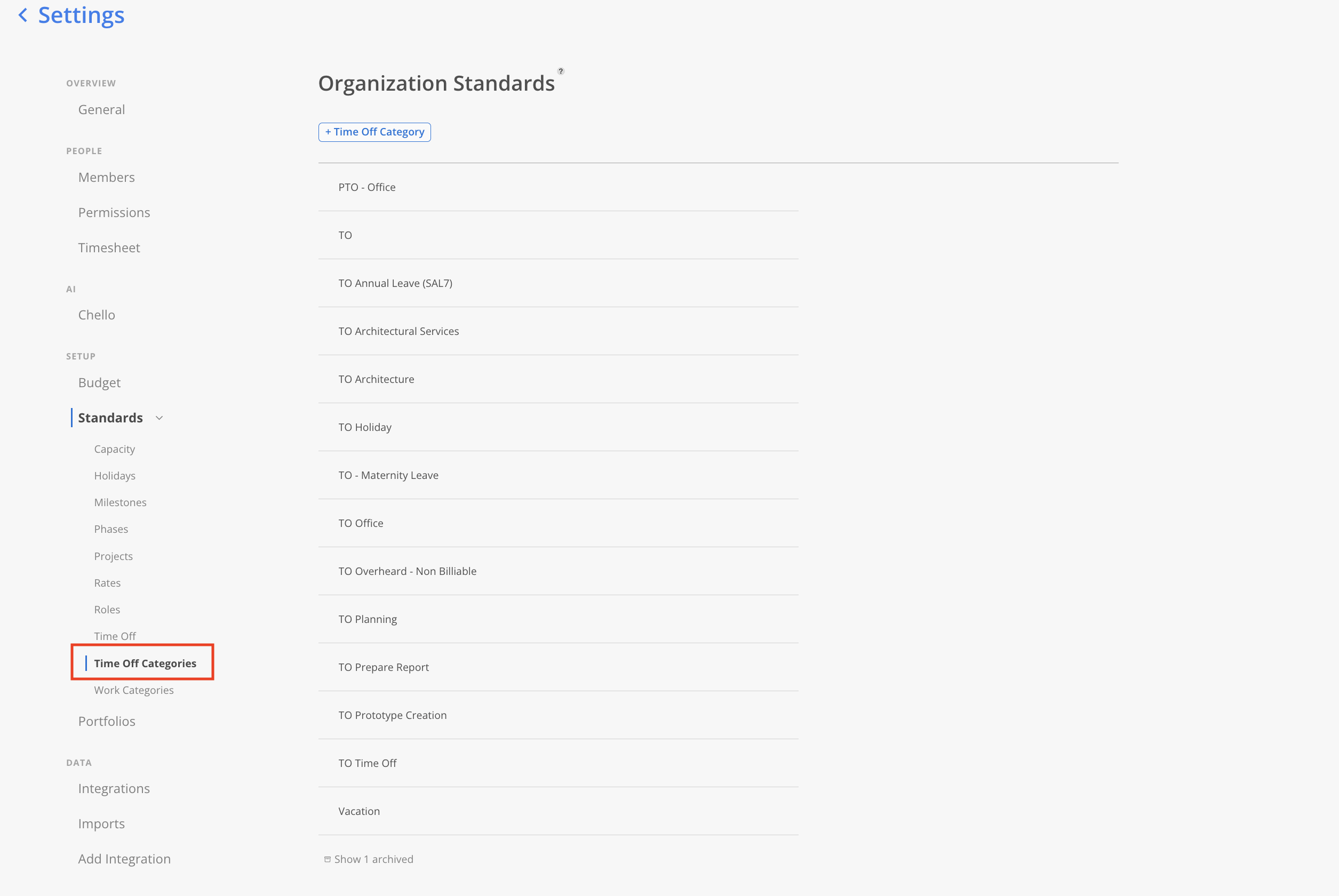
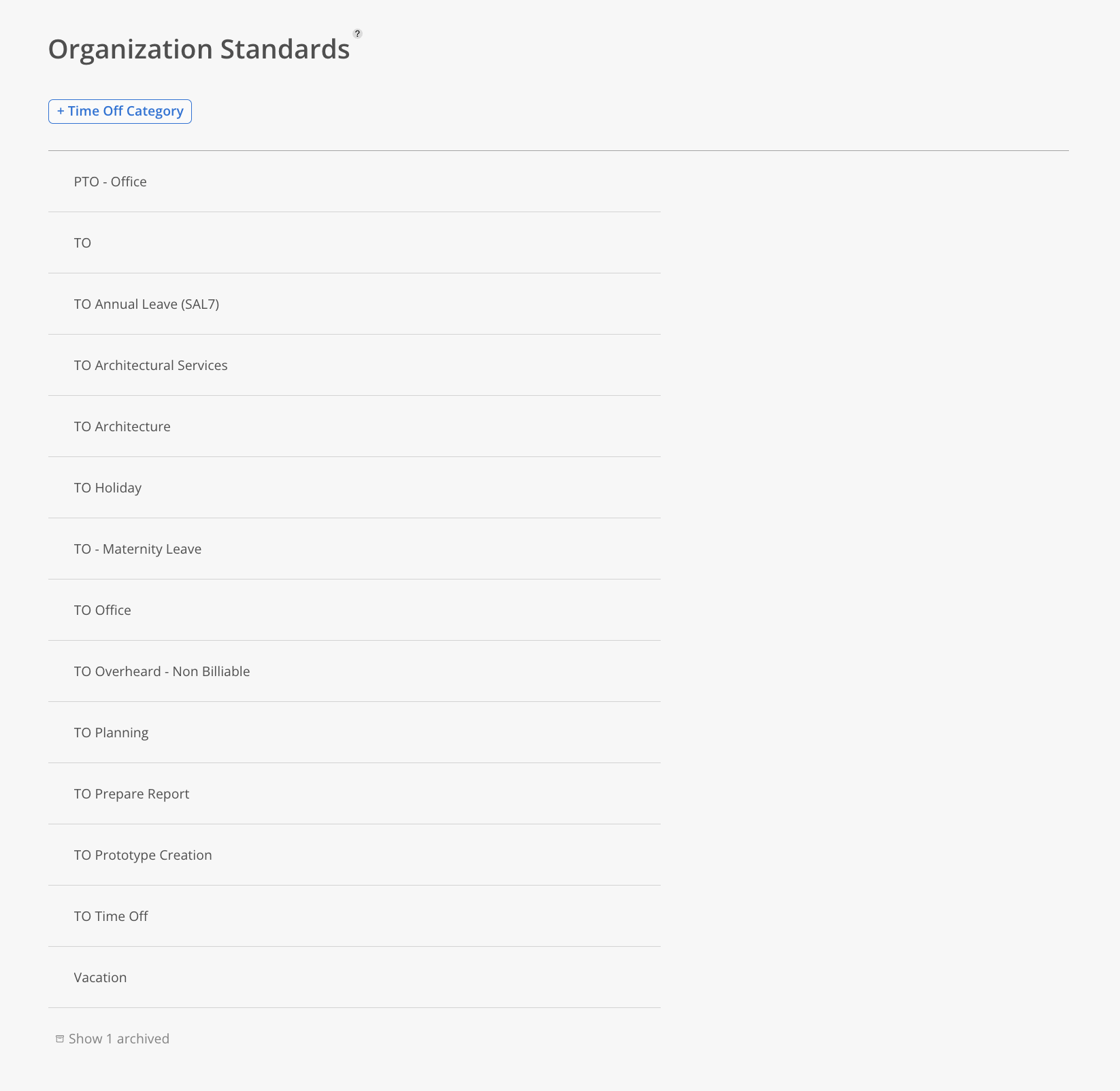
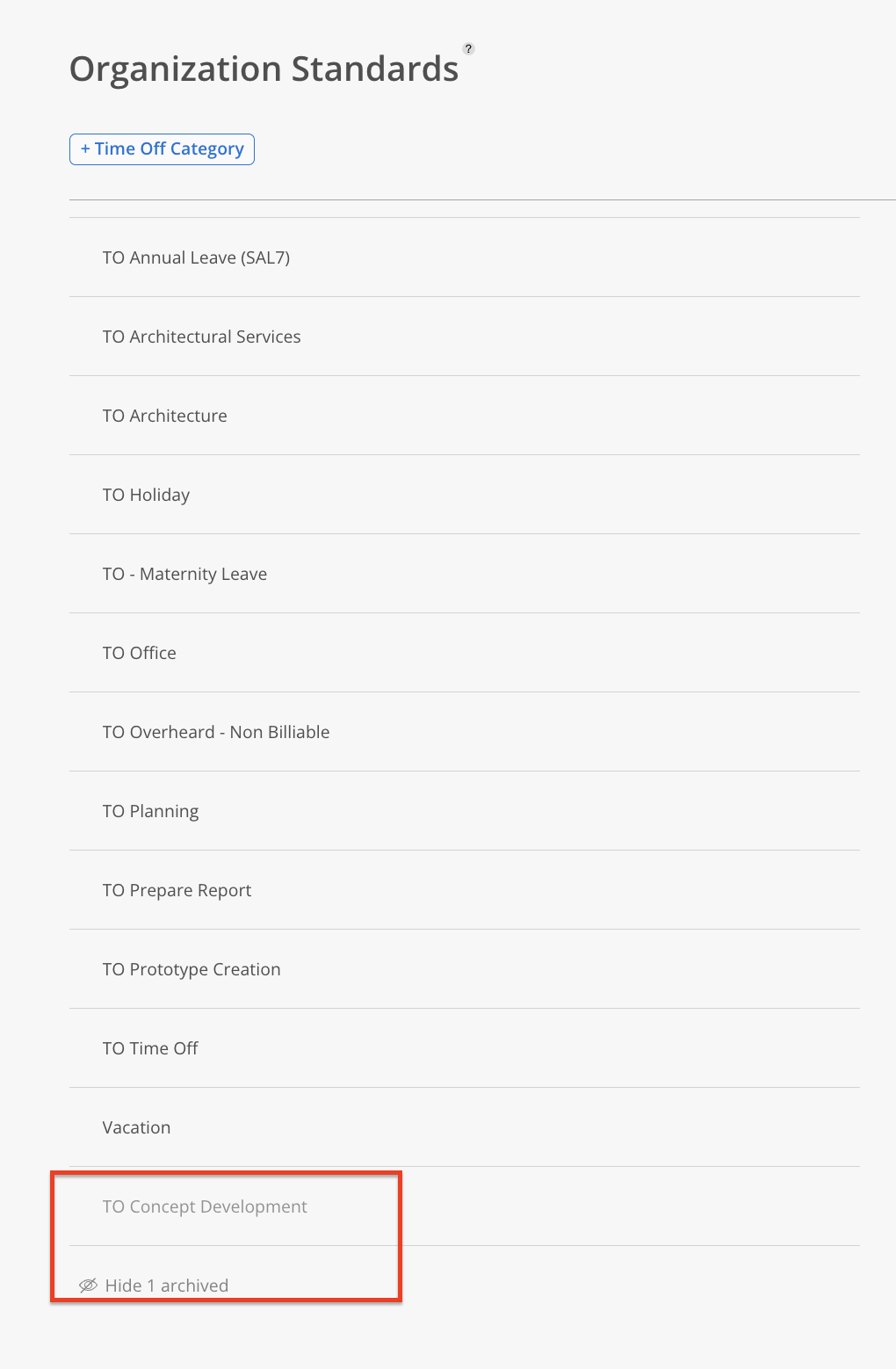
Time Off Categories list. Every category available for logging and scheduling time off, with no Phase structure underneath it.
Add, rename, archive, and unarchive controls. Available to admins only.
Non-billable by default. Every Time Off Category logs as non-billable, with no toggle to change it.
Unique naming requirement. A Time Off Category name has to be different from every existing Work Category name.
Go to Settings > Standards > Time Off Categories.
Click + Time Off Category.
Enter a name that isn't already used by a Work Category.
Click Create.
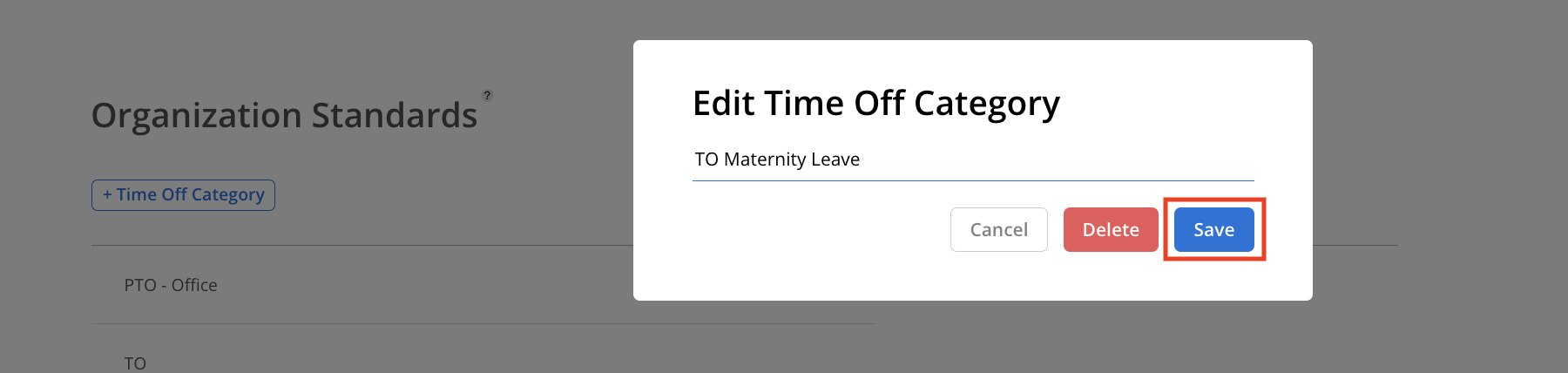
Hover over the category and click the pencil icon.
Update the name.
Click Save.
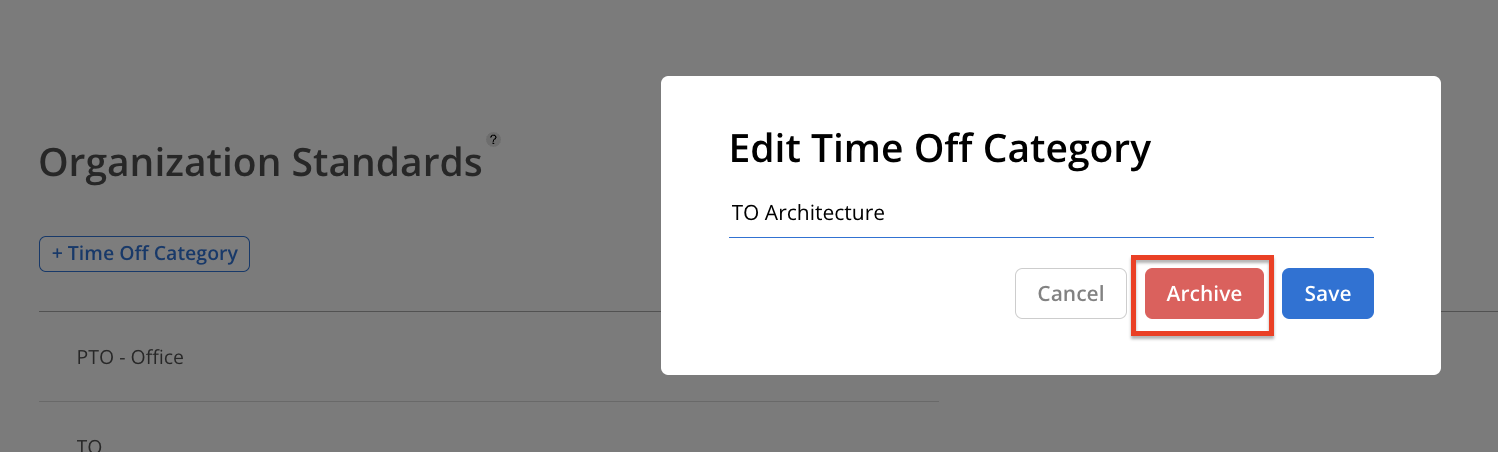
Hover over the category and click Archive.
Click Confirm.
The category moves to the Archived section at the bottom of the list.
Scroll to the Archived section at the bottom of the Time Off Categories page.
Expand the archived list and click the pencil icon
Click Unarchive.
The category moves back into the active list.
The Time Off project itself becomes read-only once Time Off Categories are turned on. Nobody can open it, view its project info, or add and edit Phases there, whether they're working in the app or running an import. Anything already attached to the project, such as Tasks, Scopes, or check-ins, stays exactly where it is, though it can no longer be viewed or added to from inside the project. Settings > General is the only place the list is managed from this point forward, and any admin can add, rename, archive, or unarchive a category whenever the team needs one.
Time Off Categories appear everywhere Phases used to.
Timesheets. The category a member picks shows in place of the old Phase.
Work Plans. Scheduling time off uses the same category list.
Timesheet exports. The Work Category column reflects the Time Off Category instead of the old Phase and Work Category combination.
Budget and Workload reports. Time off breaks down by category in both reports.
Check for naming collisions before adding a category. A Time Off Category name has to differ from every Work Category name, so check the list first if you're reusing a familiar term.
Archive instead of renaming to "unused." Archiving takes a category out of the picker while keeping it intact for historical reporting.
Review your current Phase list before the switch. Every Phase becomes a category automatically with the same name, so clean up anything you don't want carried over as-is beforehand.
