Standard roles give your organization a consistent list of roles to assign as a member's default role and as open roles on projects. Attach one or more departments to any role, so a role like Architect can belong to Civil, Hospitality, or both. Mosaic uses that association to group open roles by department in Planner, Budget, and Reports, and to keep department-based staffing reports accurate. Manage roles from organization settings, under Standards, in the Roles section.
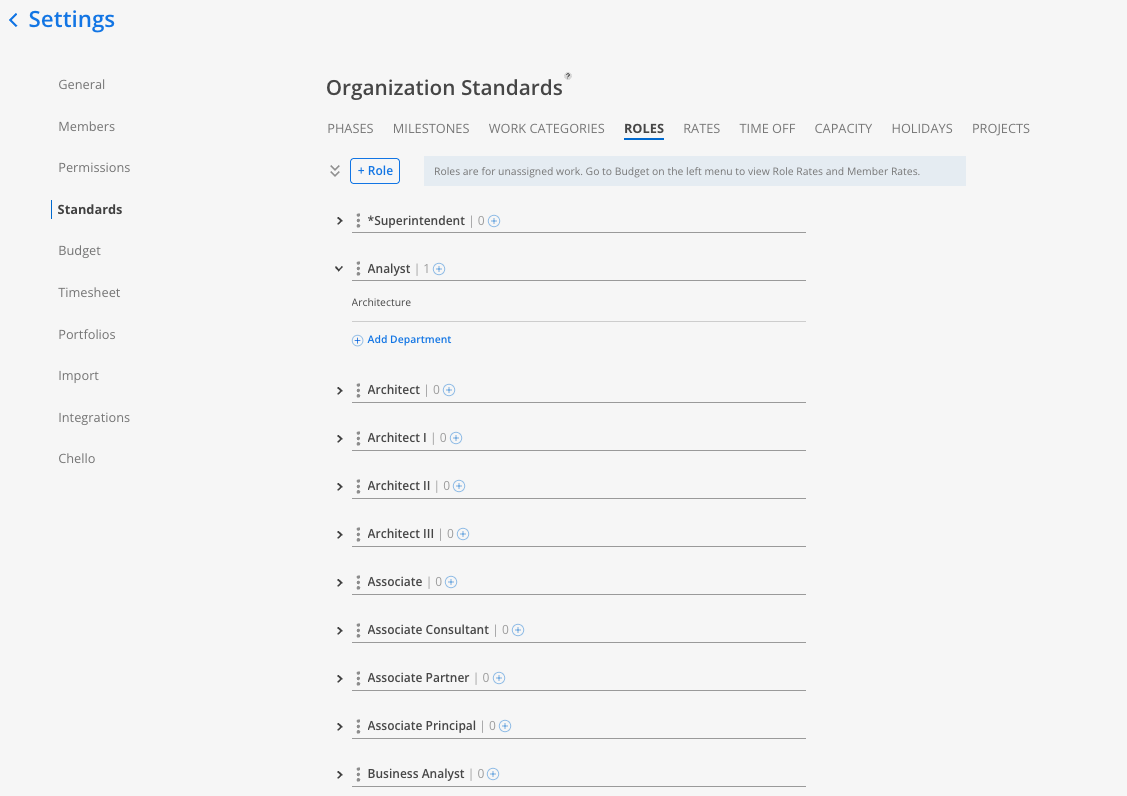
Standards. Found in organization settings, under Standards, in the Roles section. This is where every role in your organization lives, and where you attach departments to a role.
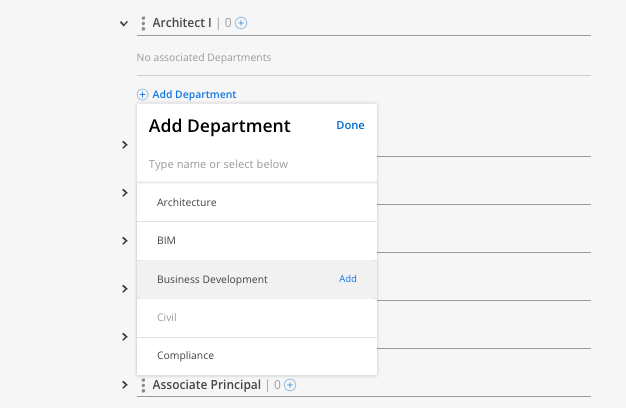
Department tags on a role. Each role can carry one or more departments.
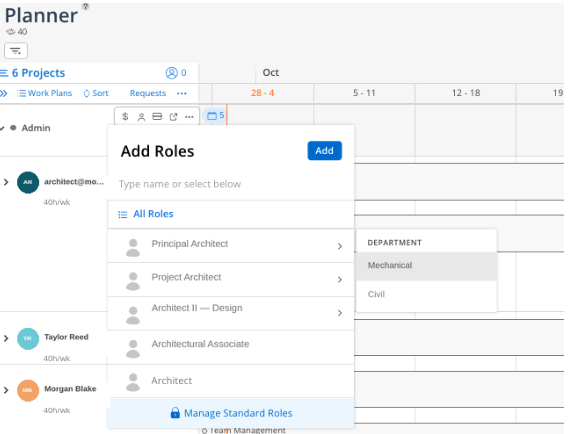
Department selector on open roles. When you add an open role to a project, you choose which department's version of that role you are adding.
Archived roles. Roles you archive stay on record and can be unarchived later.
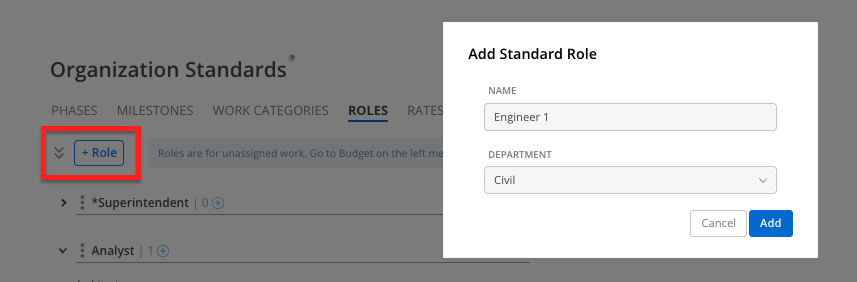
Click +Role in the top left.
Enter the new role name.
Select the Department the role sits under, select add.
Click the role you want to edit.
Edit the name of the role, or click archive on the modal to archive it.
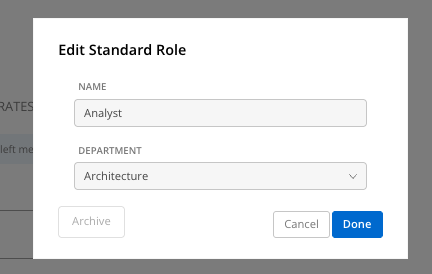
Changing a role's name updates every member currently assigned to that role. Archiving a role removes it from assignment and from the role rate group, but a member already assigned to it keeps that role.
Scroll down to see archived roles.
Click the role you want to unarchive.
Click Unarchive on the modal.
Click the role you want to tag.
Add one or more departments to the role.
Repeat for any other roles you want associated with a department.
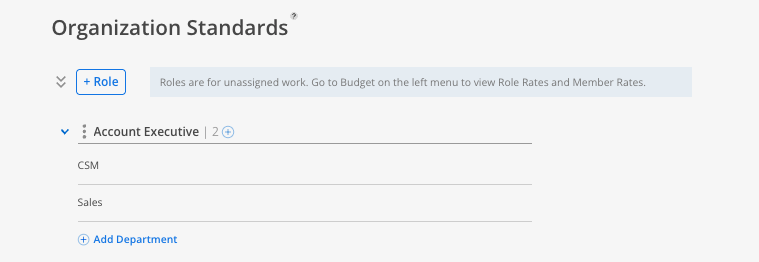
Roles created directly in Mosaic require at least one department. Roles that sync in through an ERP integration do not, and your integration keeps syncing exactly as it does today whether or not those roles carry a department.
Open the project in Planner and add an open role.
Select the role, then choose which department's version of that role you want.
Save the open role. It now carries that department for grouping and reporting.
Group your open roles by department in the Role Demand Report to see staffing needs organized the way your organization is structured. Members already assigned to both a role and a department show up correctly here with no extra setup required. Open roles that have not been tagged with a department appear under a No Department group until you assign one.
A member's own department, used for department-level reporting on named staff, comes from that member's profile rather than from the department tagged on their role. Tagging a role with a department is for staffing and planning on generic, unassigned roles, and for the group-by-department view in the Role Demand Report. It has no effect on how a member's department is determined, and it has no effect on how member roles come in through a CSV import.
Tag your most-used roles first. You do not have to tag every role in your organization before this is useful. Start with the roles you actively staff and expand from there.
ERP-synced roles keep working as they are. Adding a department to a synced role only adds the tag. It does not change how that role syncs.
Handle existing projects separately. A role's department tag applies going forward. Open roles already sitting on active projects need to be updated one by one. 👉 See Mosaic Workflows: Assign Departments to Existing Open Roles
Mosaic Workflows: Assign Departments to Existing Open Roles
