A Brief turns a question you ask Chello regularly into a scheduled report. You give it a title and a schedule, choose the topics it covers, and review a preview before Chello creates it. When that day and time arrives, the finished Brief is waiting for you in Mosaic, so you can walk into a planning meeting with the numbers already pulled.
👉 Learn more about Chello AI Assistant
Open Chello, then click Briefs in the left panel underneath the New Chat button. Chello has two sides. Chats are the questions you ask in the moment, and briefs are the reports you schedule.
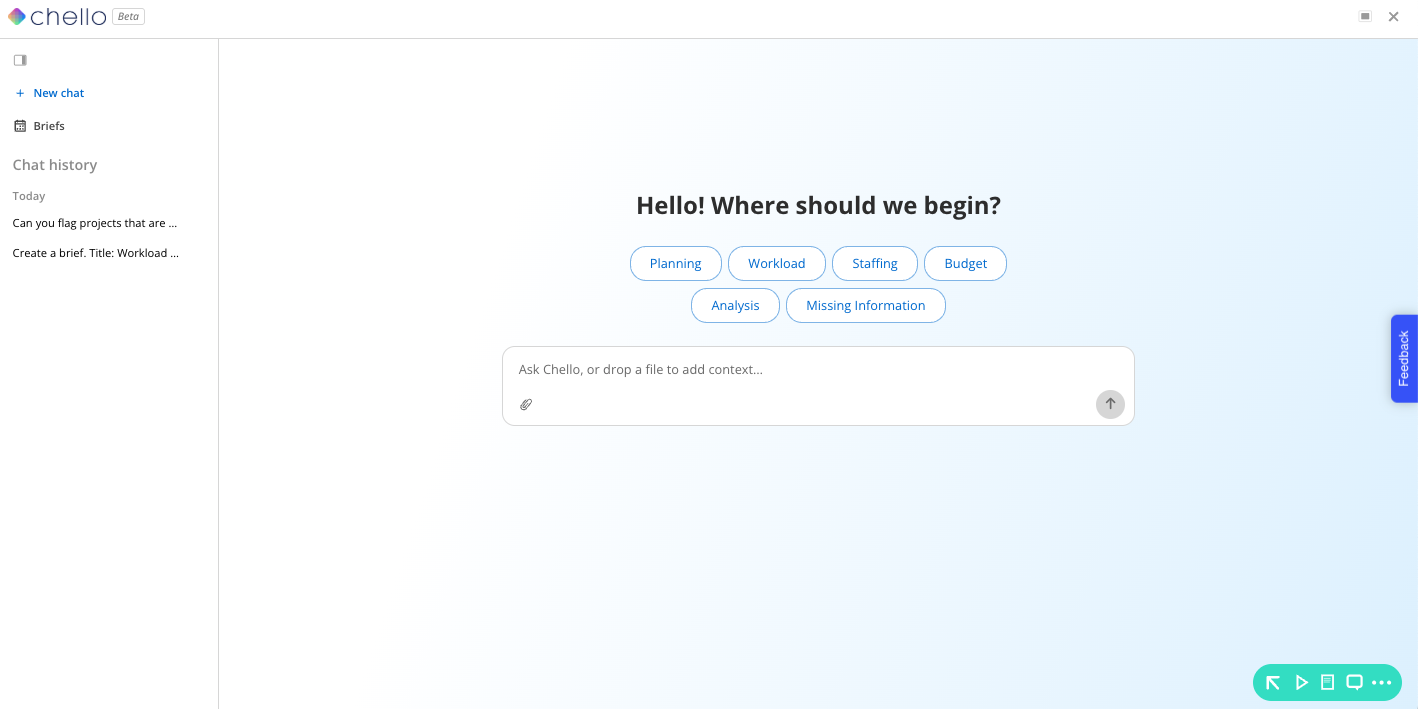
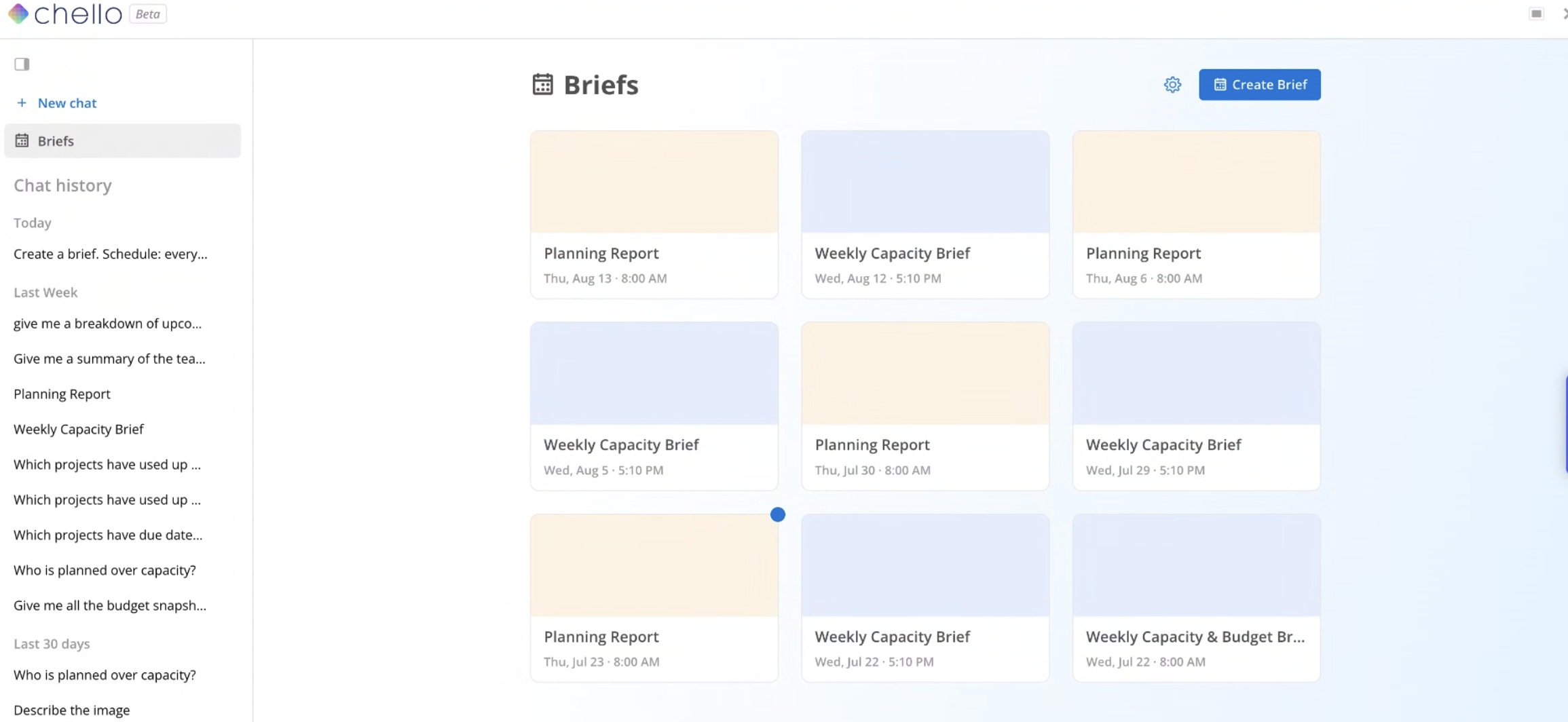
The briefs page displays all your briefs that have been generated.
Brief rows. Each brief you have created. A blue dot marks one you have not opened yet.
Next brief available. Before a brief runs for the first time, the page shows when it is next scheduled.
Create Brief. Opens the setup screen, in the top right.
Settings icon. Opens the edit and delete actions for a brief.
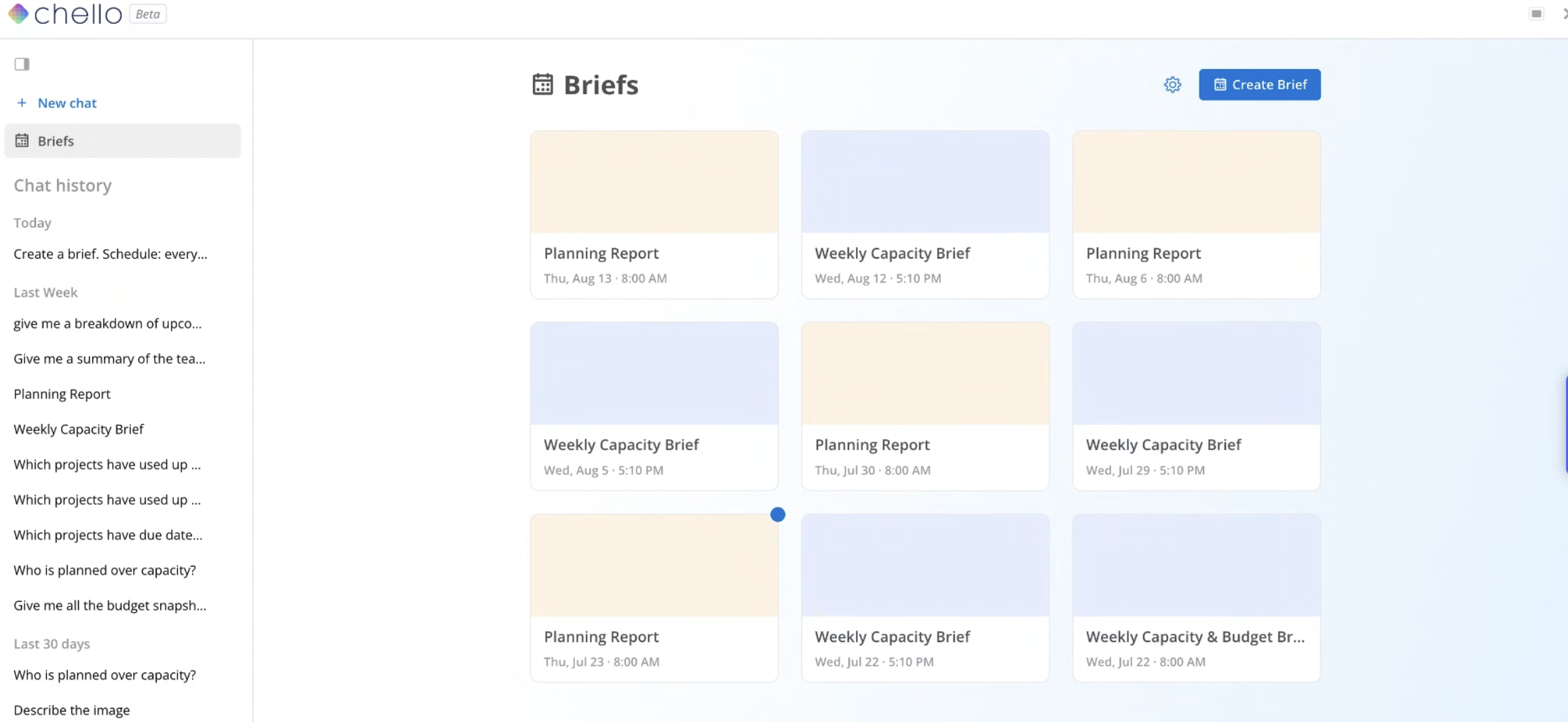
On the setup screen for a new brief.
Title. The name the brief appears under in your list.
Schedule. The day and time the brief is generated, for example Thursday at 9:30. Times follow your time zone.
Description. Context for Chello to keep in mind when it builds the brief.
Topic toggles. Topics are grouped into buckets. Open a bucket and toggle on the topics you want. Buckets labeled coming soon become selectable in a later release.
Executive summary. Adds a summary at the top of the brief.
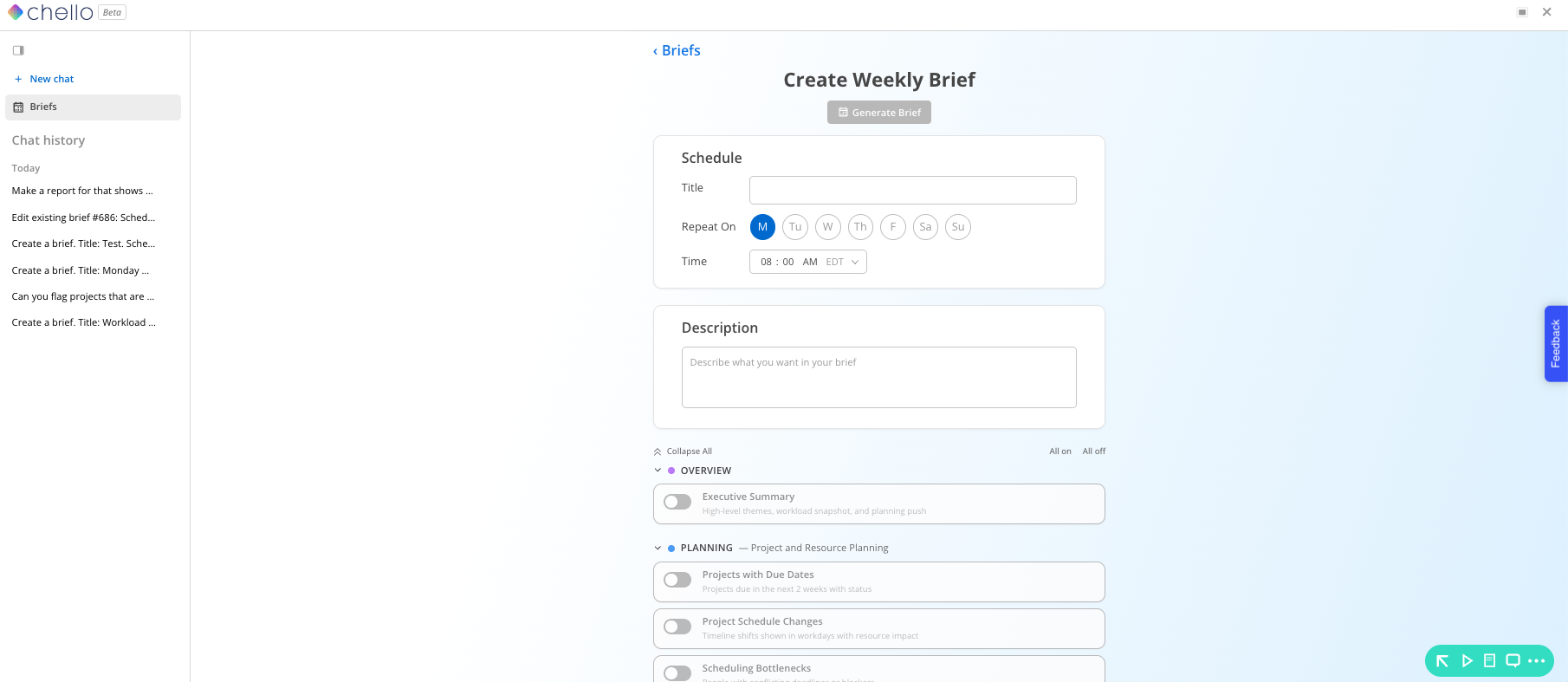
Open Chello and click Briefs.
Click Create Brief in the top right.
Enter a title, set the schedule, and add a description.
Open the buckets you want and toggle on the topics. Turn on Executive summary if you want one.
Click Generate Brief. Chello builds a preview of what the brief will contain.
Review the preview. Tell Chello to create it as is, or ask for adjustments and it will revise the preview before creating anything.

The toggle screen closes once you generate. To add a topic you did not toggle on, ask Chello for it during the preview conversation, or add it later through the edit workflow below.
Once you have shaped a Chello answer the way you want it, you can schedule that report as a brief. This route covers questions the setup screen has no topic for.
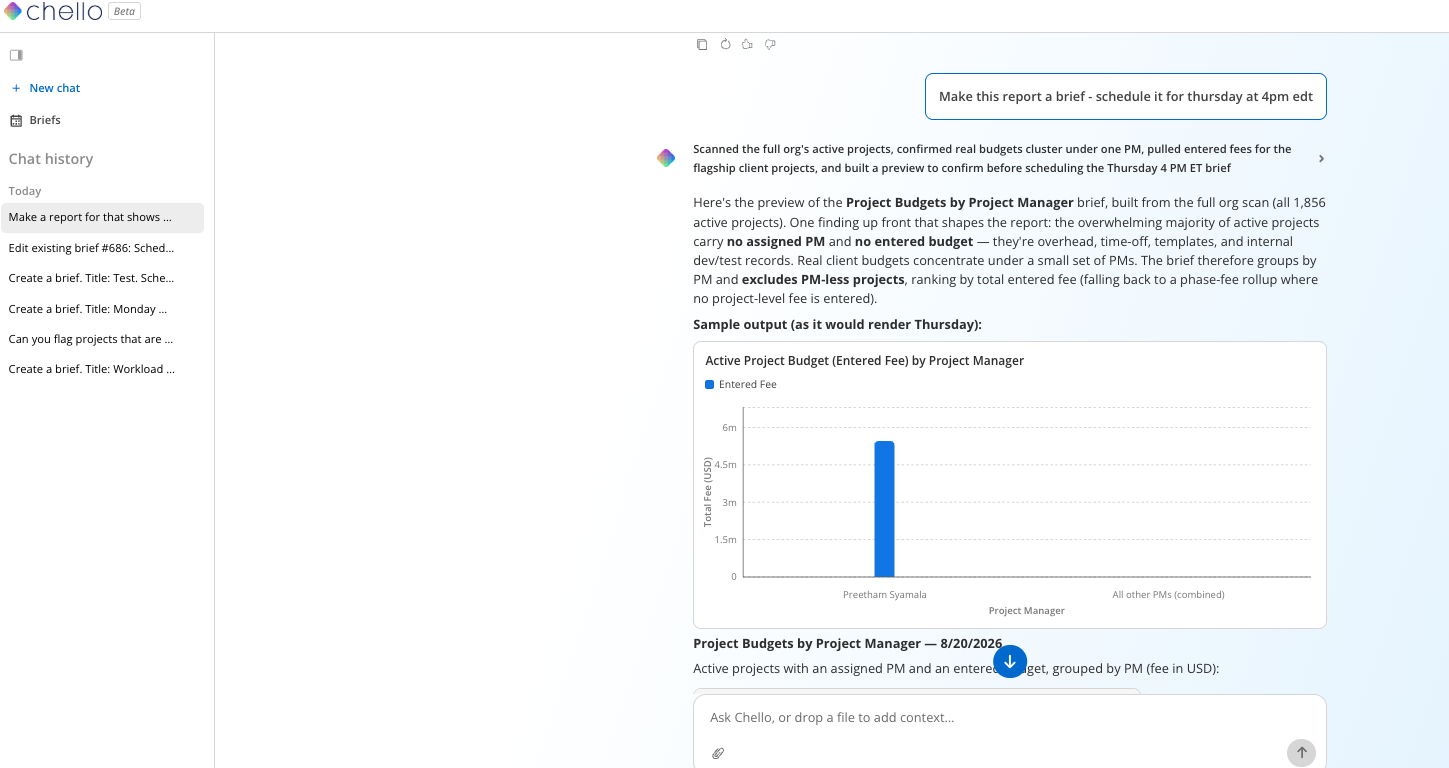
Ask your question in Chello and refine the response until it looks right. For example, make me a report of project budgets distributed by project manager.
Ask Chello to make the report into a brief and give it a schedule. For example, make this report a brief and schedule it for Thursday at 4 PM.
Chello creates the brief and it appears on your briefs page.
Open Chello and click Briefs.
Click the brief you want to read.
A brief opens with summary widgets at the top, followed by a section for each topic you selected. Topics appear as tables or charts depending on which format fits the data. A two-topic brief is short and a thirty-topic brief is long, so length reflects what you included.
Every scheduled run creates its own brief, so past weeks stay in the list alongside the newest one.

You can change a brief after it has been created, including its topic selections.
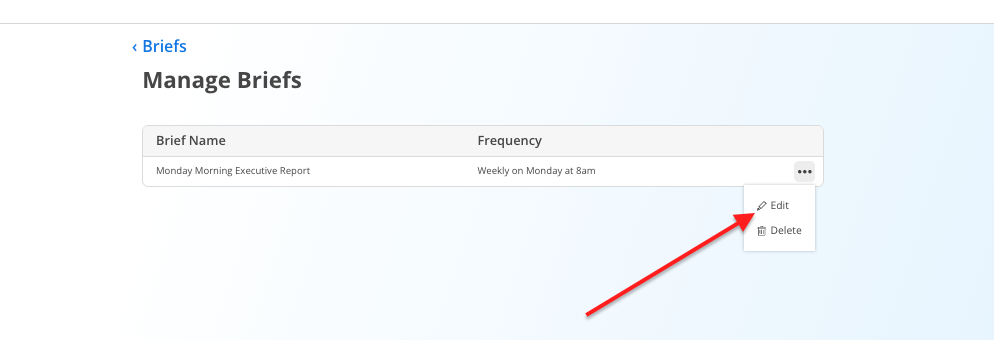
On the briefs page, click the settings icon next to the brief.
Select Edit.
Update the title, schedule, description, or topic toggles.
Complete the edit workflow to apply your changes.
Delete sits in the same settings icon, and both actions are also available inside an open brief.
Briefs follow the same access rules as the rest of Chello.
Briefs are available to account admins first, with access opening to Budget Managers, Work Planners, and then base members over the following months.
Every brief respects the permissions already set in your account and only reports data its creator can already see in Mosaic.
Ask the question in chat first. Run a topic as a one-off question in Chello before building a brief around it. If Chello answers it well, it will report on it well.
Each brief is your own. Briefs generate in your own account and are not shared with other members, which keeps every brief inside the permissions of the person who created it.
Fill in your member and project details. Chello filters by department, discipline, office, and portfolio using what is already recorded in Mosaic, so briefs get sharper as that data gets more complete.
Build one brief per meeting. Set separate briefs for what you need before a meeting and after it, each on its own schedule.
