The Plan space in Mosaic gives you a visual, Gantt-style view of your project schedule so you can plan, organize, and manage phases, subphases, and milestones over time.
From the Planner Space:
Navigate to a project in Mosaic.
Navigate to a project in planner space.
Click anywhere in the background row of a project timeline. The area shown in light blue when you move your mouse over the space.
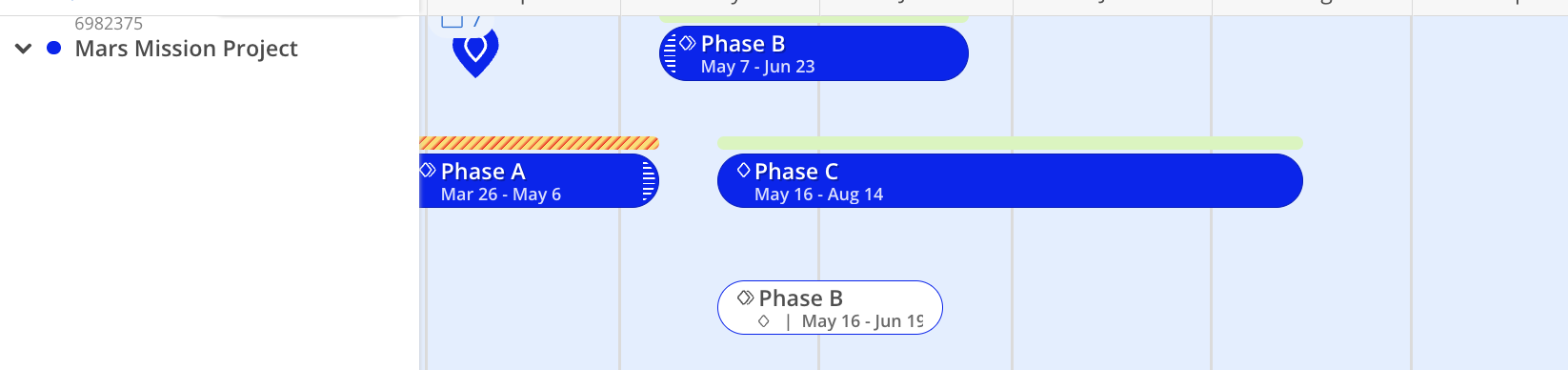
From the Project Space:
Navigate to a project in Mosaic.
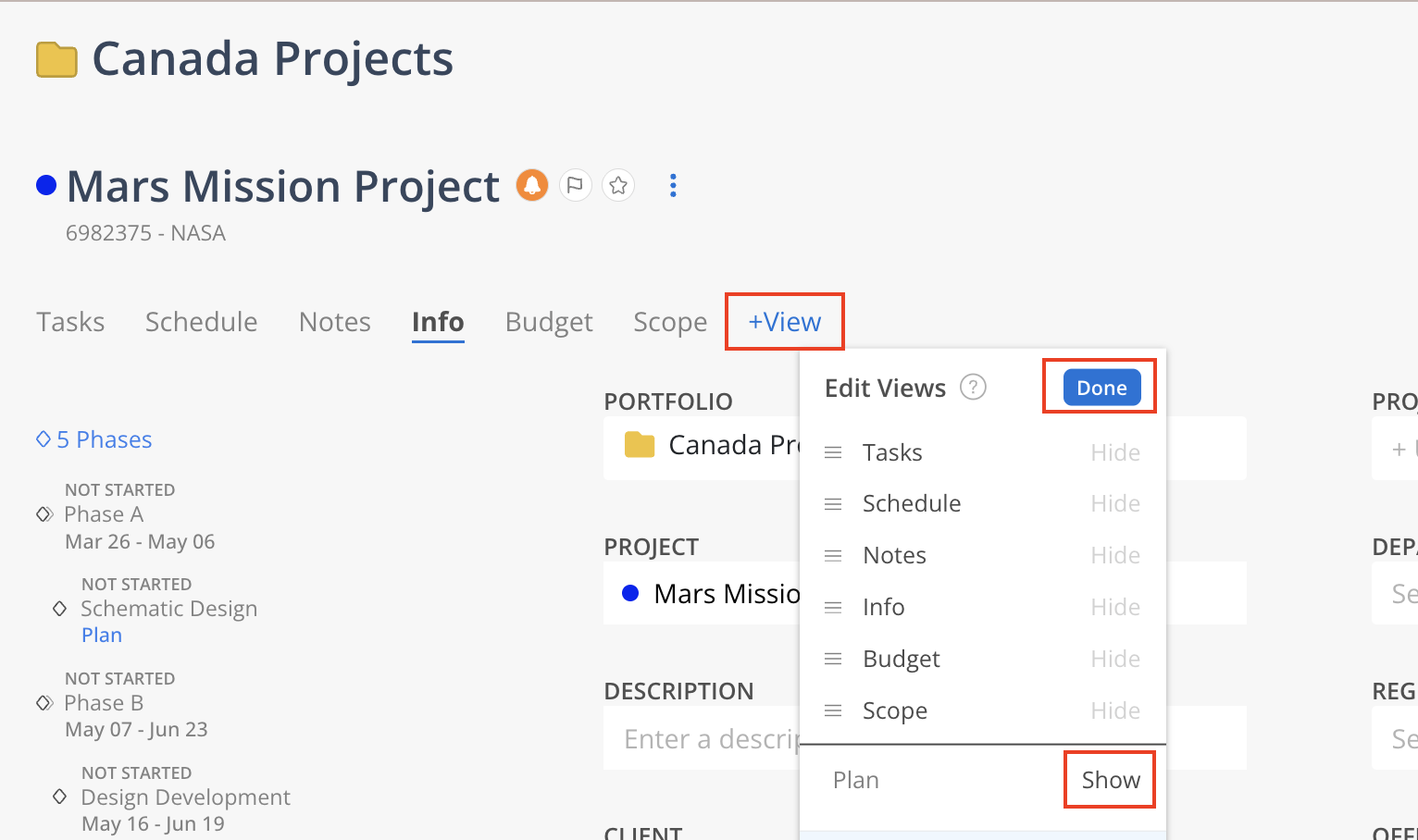
Click “+ View”.
Select Show next to the Plan view.
Click Done
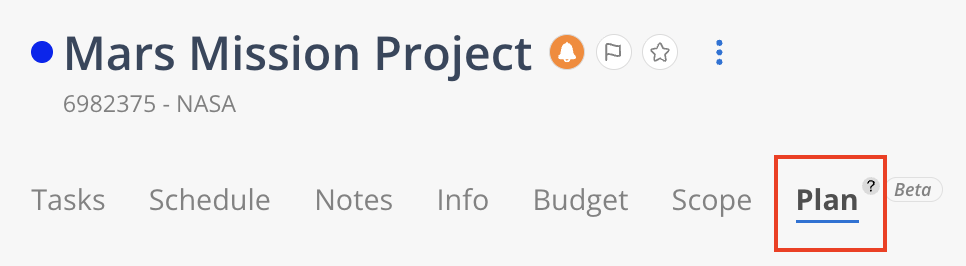
Click the Plan header to open the Plan space.
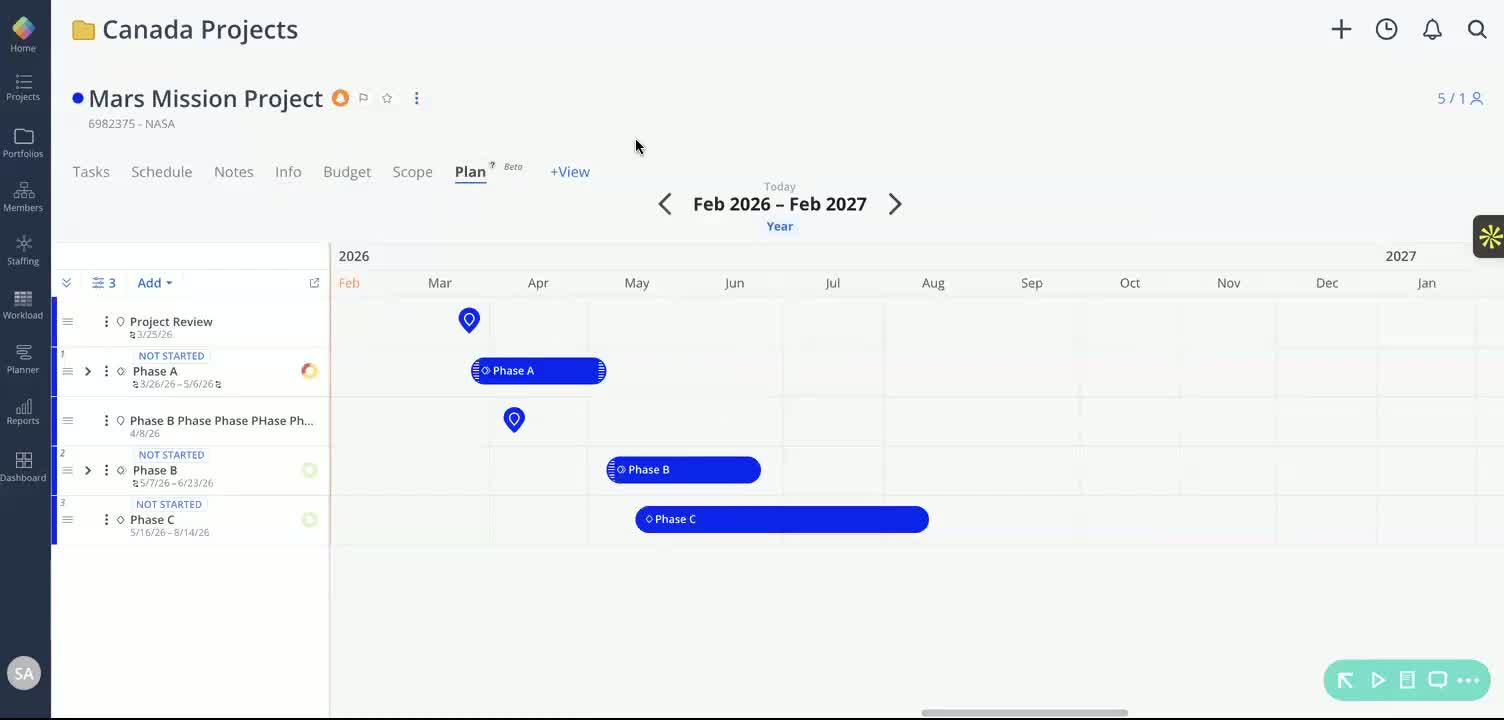
Once inside the Plan view, you’ll see your full project schedule displayed in a Gantt-style timeline, including:
Phases
Subphases
Milestones
All schedule items are organized visually to help you better understand timing and structure across the project.
Dependencies link one item on your project schedule to another so that when the first item moves, the dependent item moves with it. You can now create and manage those dependencies directly in the Plan (Gantt) tab, and see them drawn as connecting lines with directional arrows between phases and milestones.
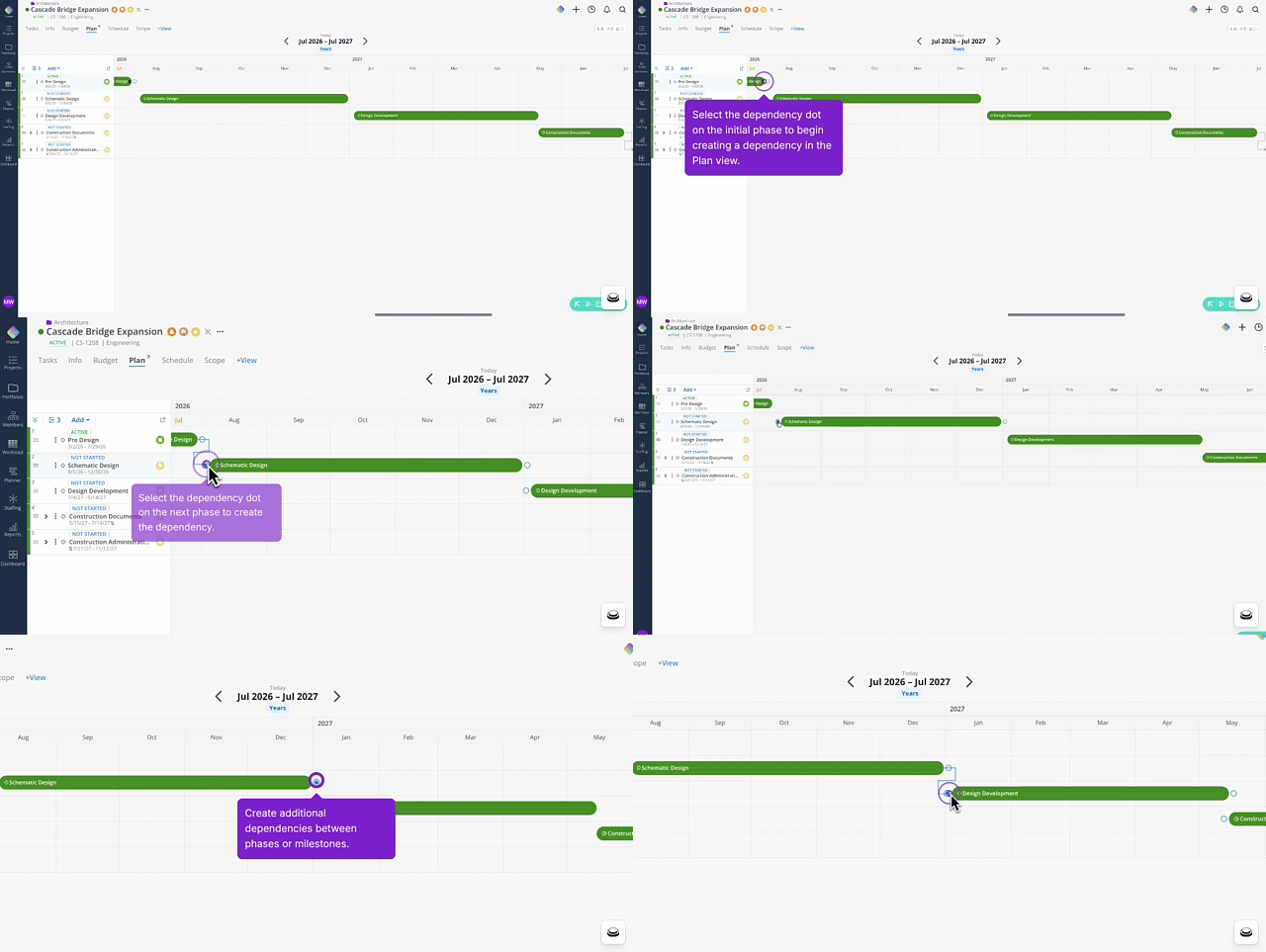
Hover over the phase or milestone that should come first — the item that will drive the date.
Click and drag from the connector point on the edge of that item toward the item that should depend on it.
Release on the target phase or milestone.
The dependency line draws between the two items with the arrow pointing at the dependent item.
Once the dependency is set, moving the driving item shifts the dependent item to match.
In the top-left corner of the Plan view, you’ll find controls that help you manage how your project schedule is displayed.
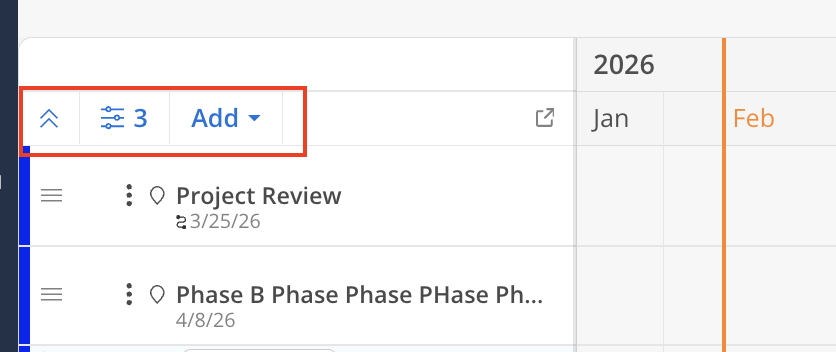
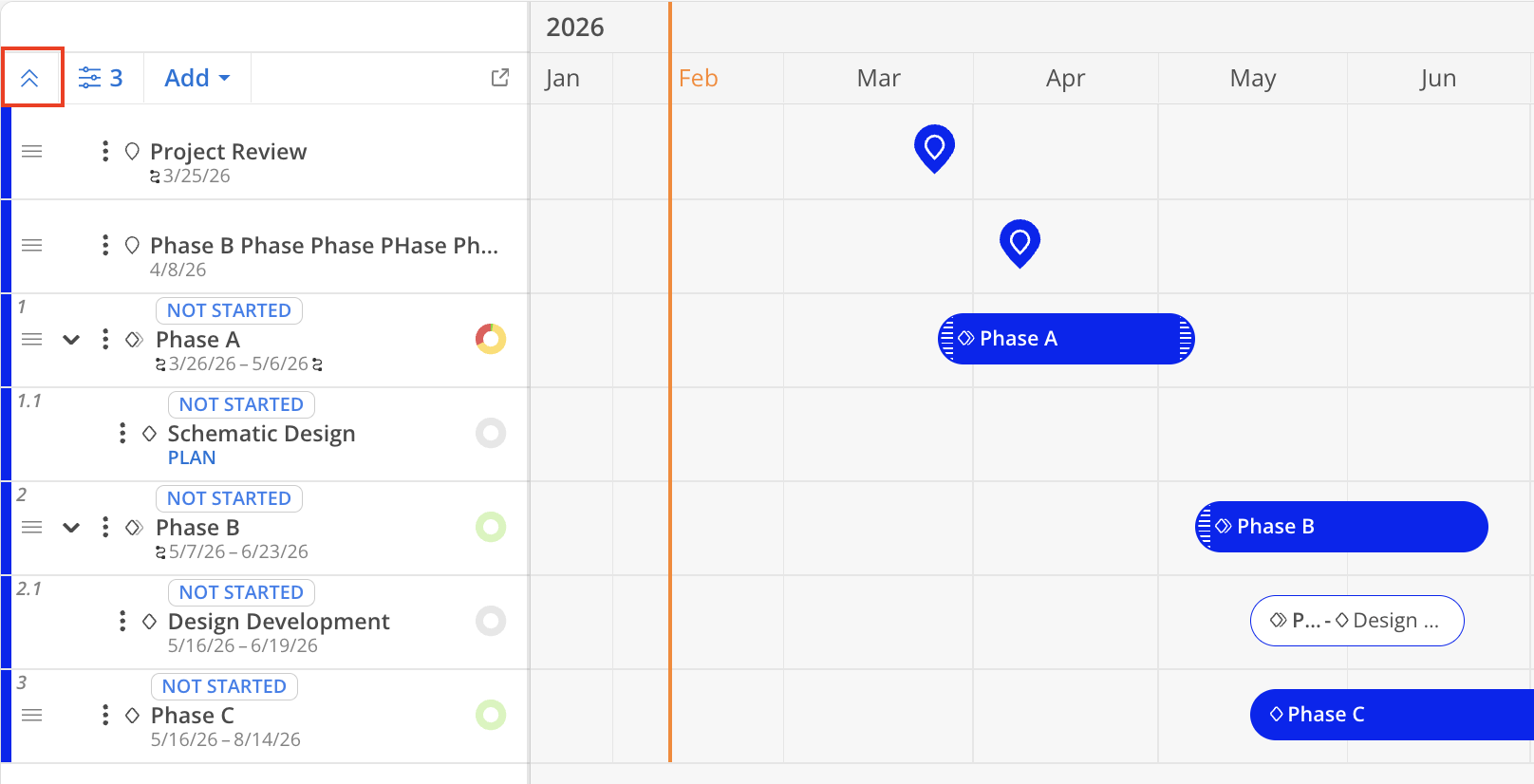
The double-caret icon allows you to expand or collapse the entire project schedule. This makes it easy to switch between:
A high-level overview of the project
A detailed planning view with all schedule items visible
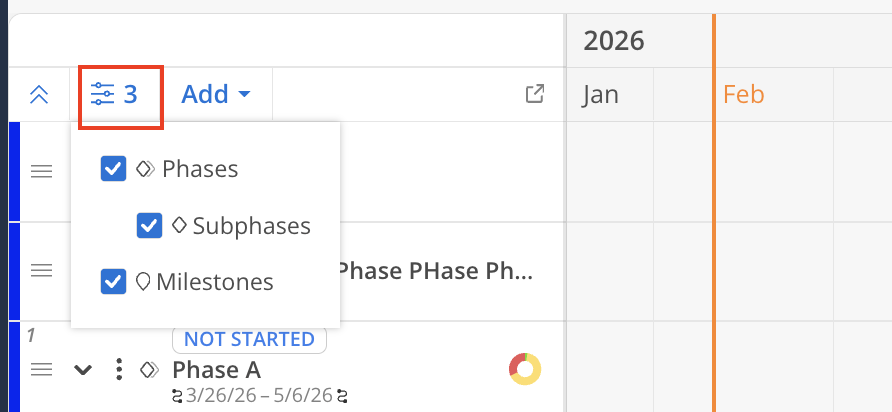
The schedule filter lets you control which items appear in the timeline. For example, you can:
View only parent phases
Focus specifically on milestones when reviewing key dates
This is helpful when reviewing schedules at different levels of detail.
You can continue building out your project schedule directly within the Plan space.
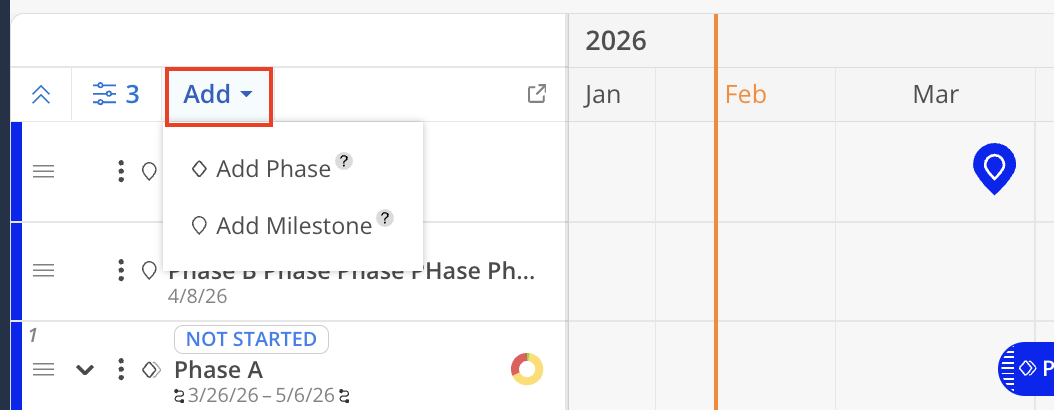
Click the Add icon to:
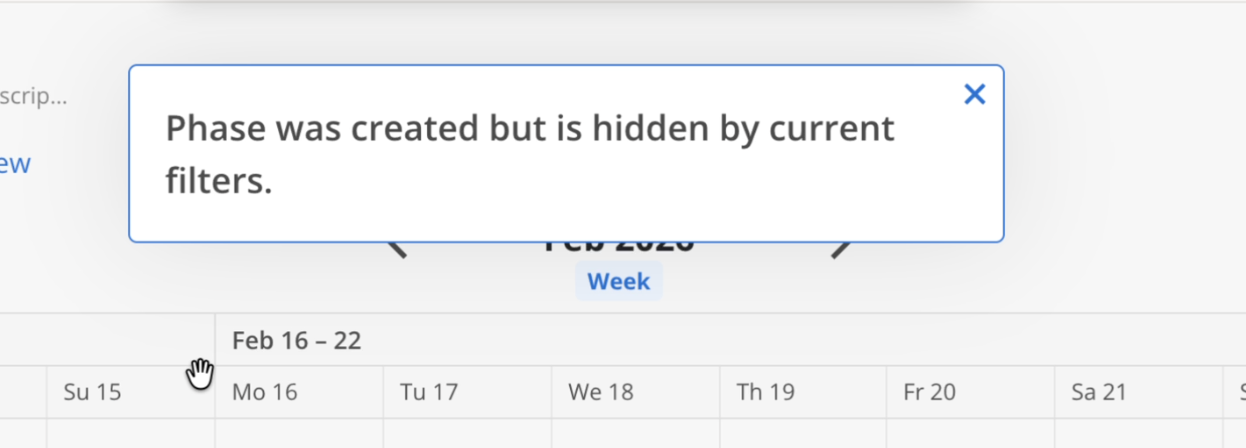
Add phases and/or subphases
Add milestones

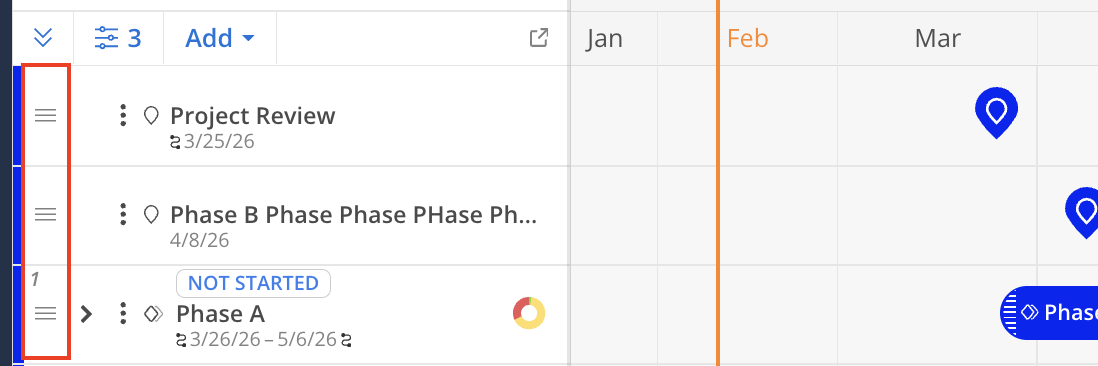
Each phase, subphase, and milestone includes a three-line icon on the left side of the schedule.
To reorder items:
Click and hold the three-line icon.
Drag the item to a new position.
Drop it to update the schedule order.
For phases and subphases, a number appears above the three-line icon indicating their current order in the project schedule.
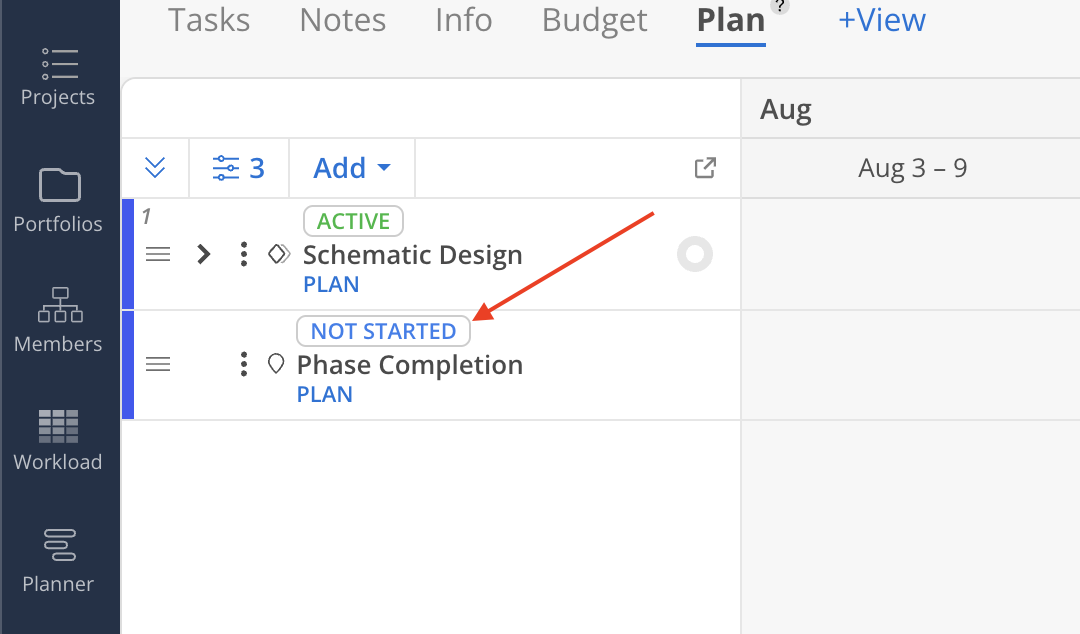
Find the Milestone row — its status tag sits beside the Milestone name.
Click the tag and choose Not Started, Active, Hold or Completed.
Additional enhancements to Gantt chart functionality are coming soon, providing more flexibility and control over project timelines.
