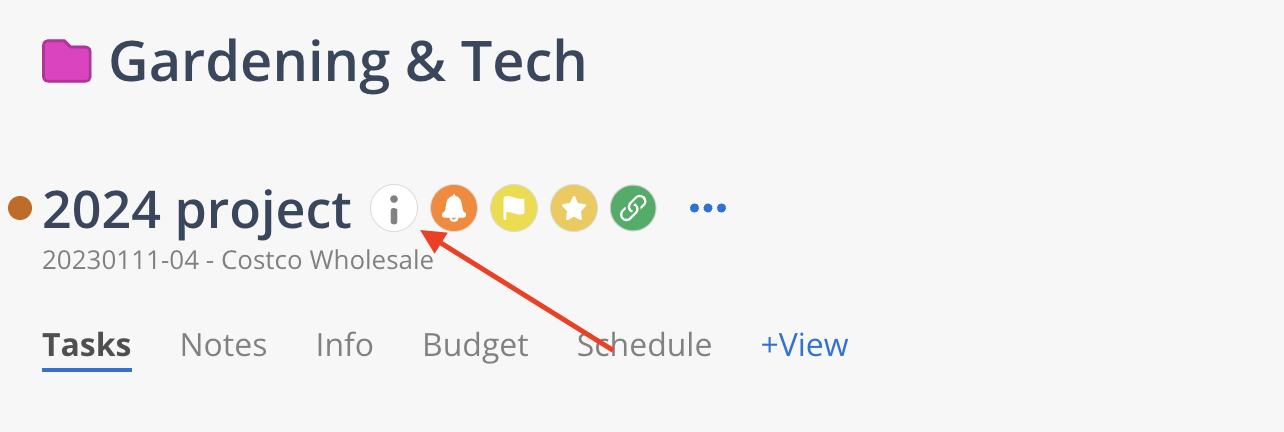
Click the Info icon on the Project page to open Project Info Modal
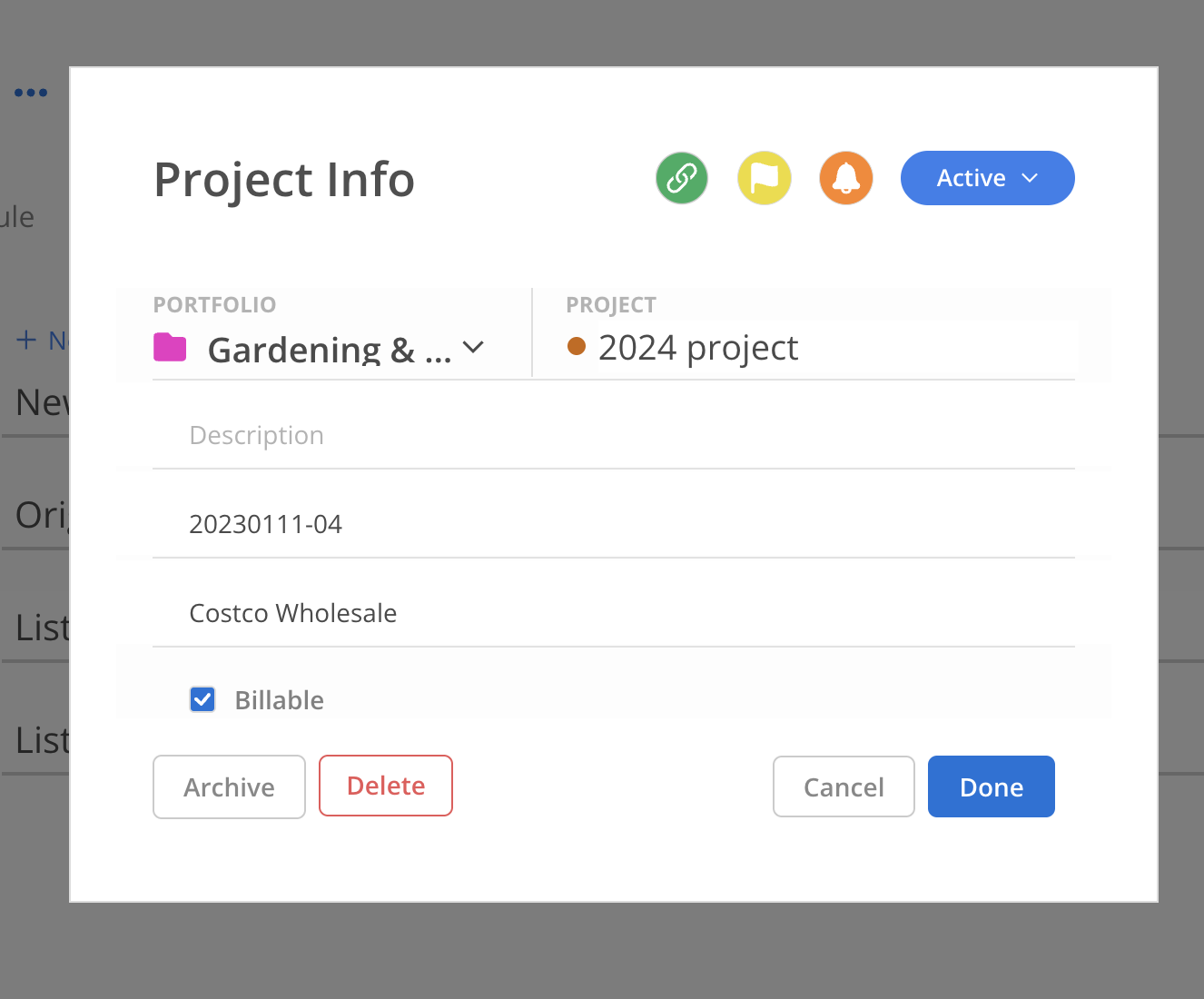
The modal include the following Project information:
Project syncing status
Project priority
Project notification settings
Project status
Portfolio name
Project name
Project description
Project number
Project client
Project billable status
The linking icon tells you if this Project is linked to an integration or not.
Project that is linked
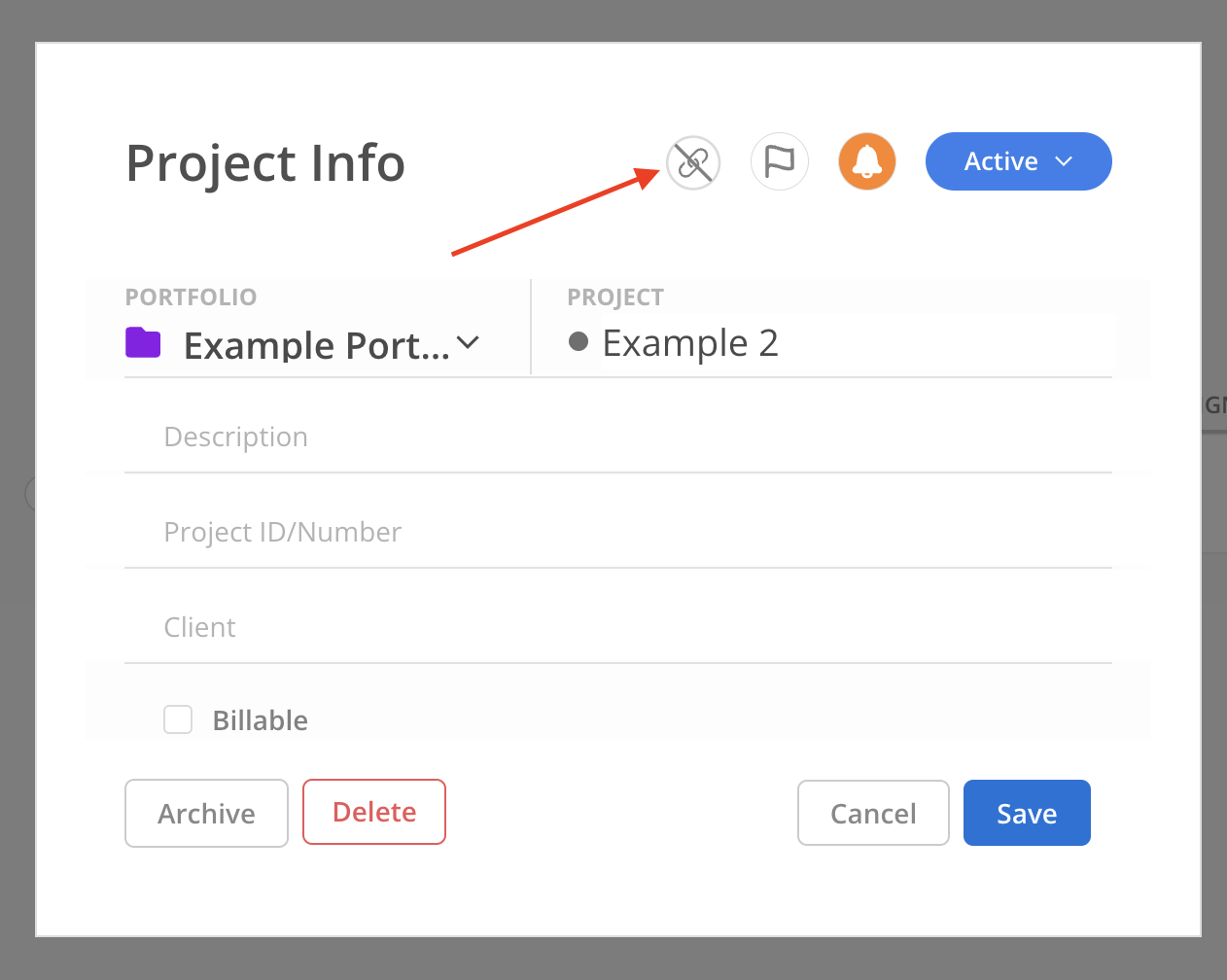
Project that is linked
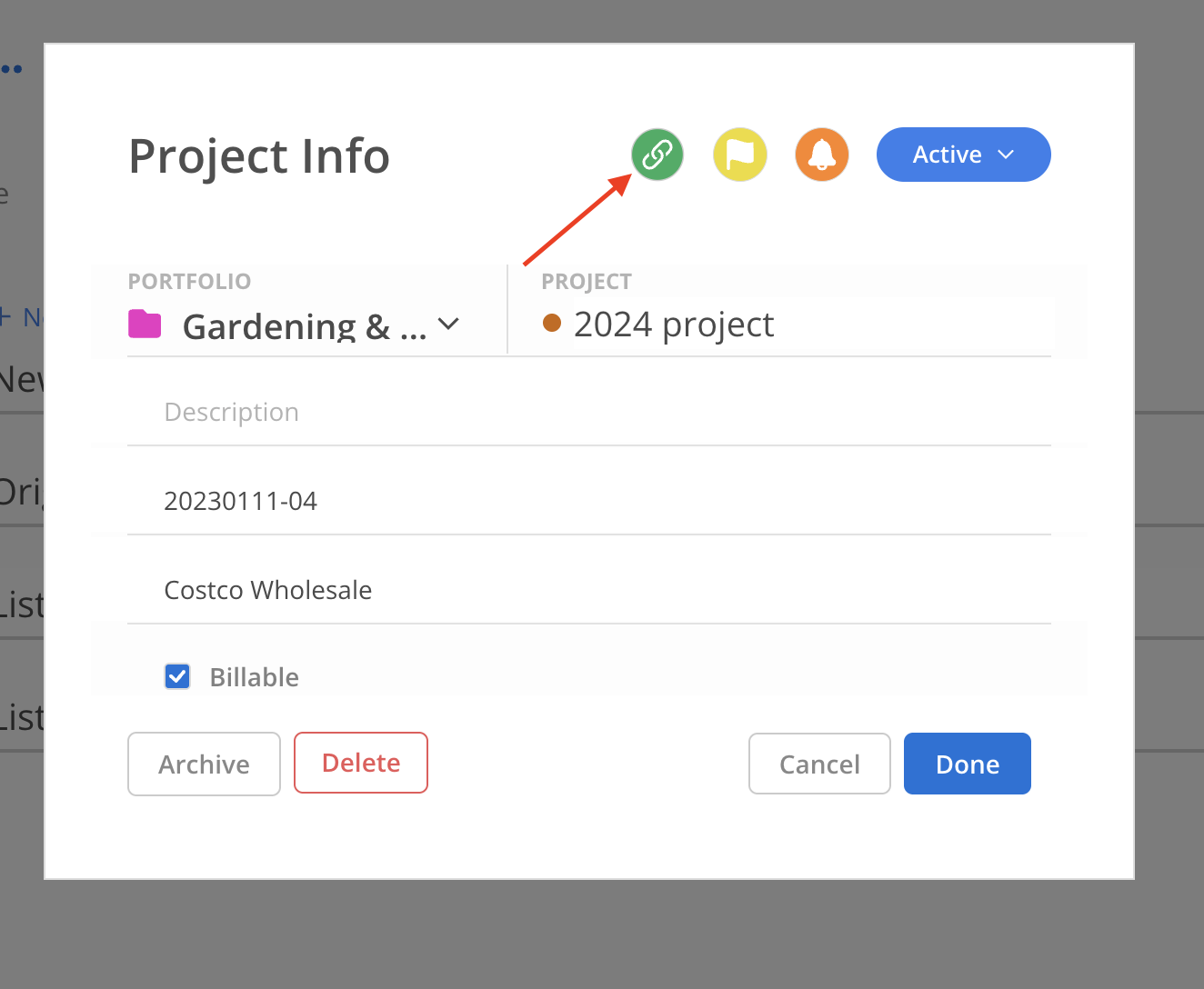
Click the icon will take you to Org Settings > Integrations > Sync Log tab or Org Settings > Import tab if it's linked to CSV import. Only admins have access to these pages.

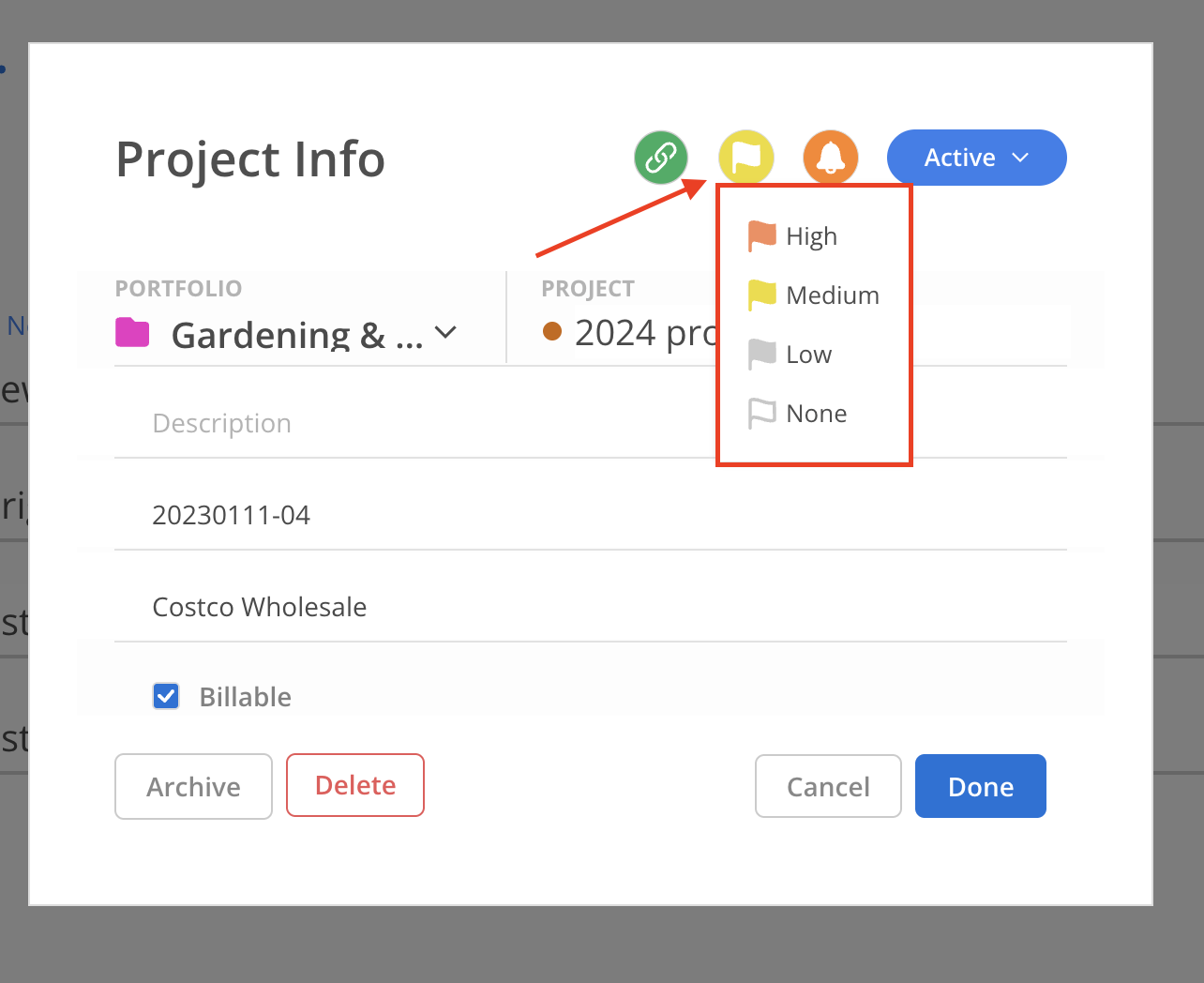
Edit the project priority by clicking the flag icon. This update will apply organization-wide and can also be used for sorting and filtering.
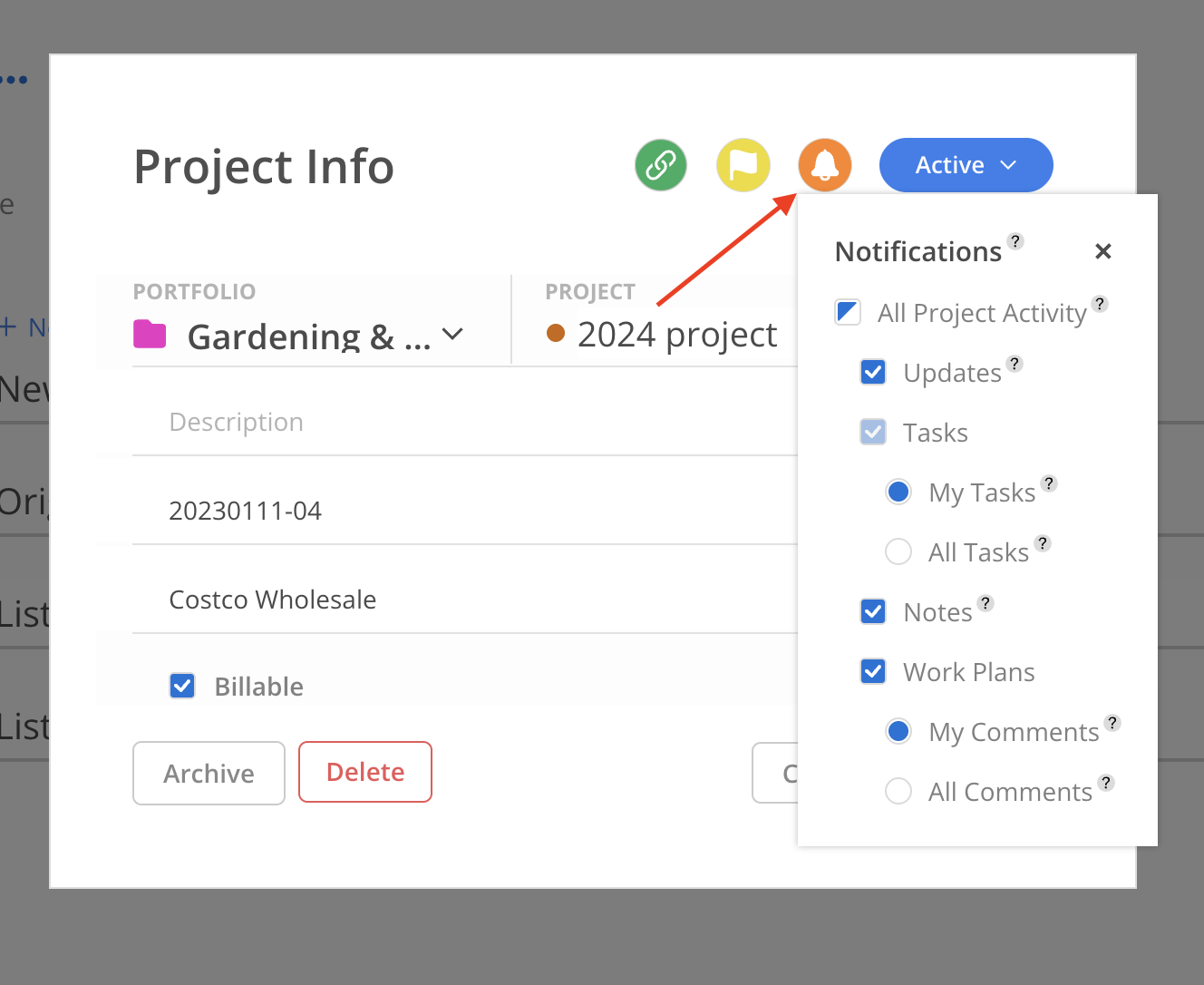
Edit Project notification setting by clicking the bell icon to receive only notifications on Project Updates, Tasks, Notes, and/or Work Plan comments.

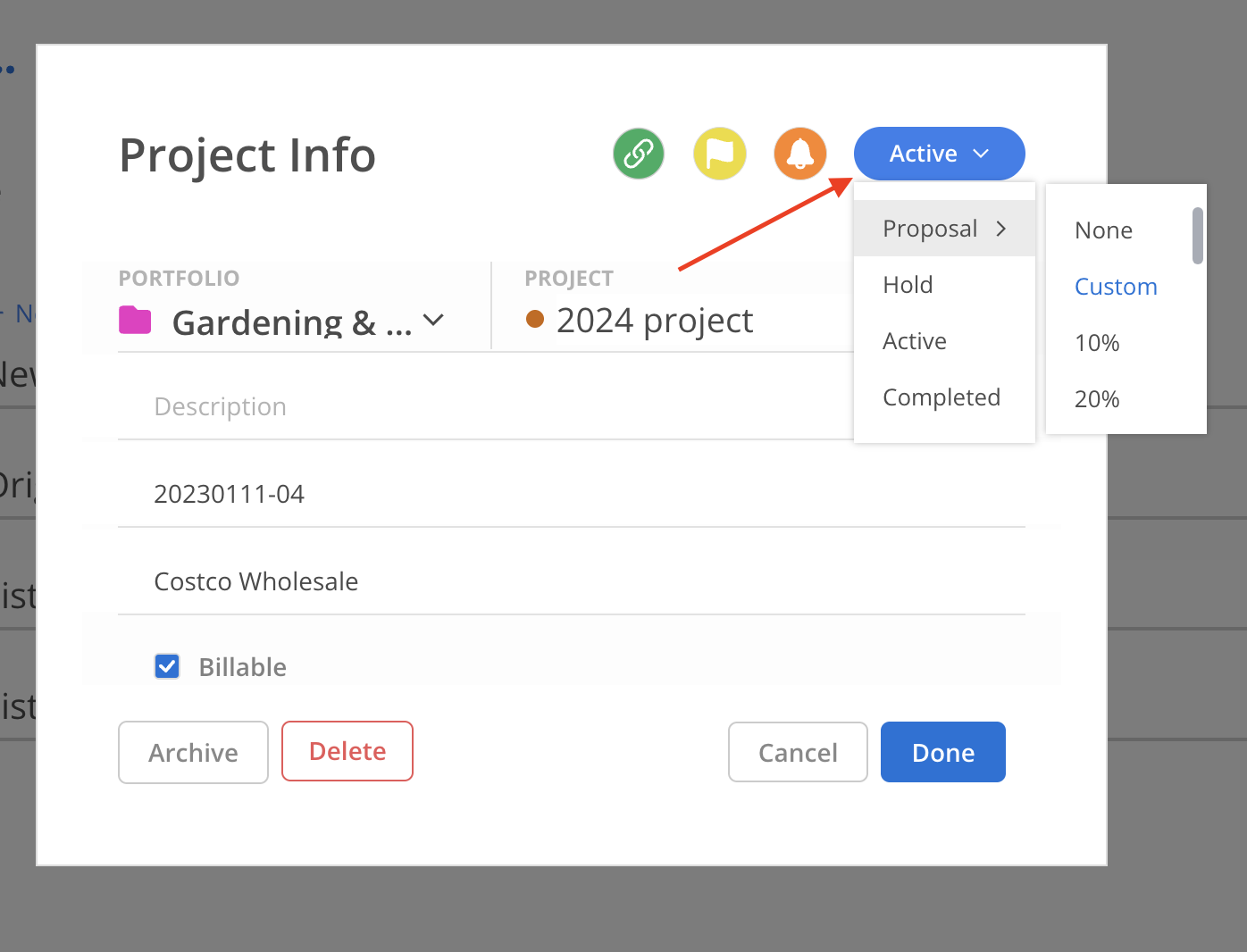
Project Status helps you track the progress of your projects with precision. Monitor key stages such as proposal advancement with detailed percentages, seamlessly manage active projects, identify those on hold, and celebrate successful completions.
Proposal: The project is in the proposal phase, indicating that it is being planned or suggested, but not yet approved or active.
Hold: The project is currently paused or on hold, meaning no active work is being conducted until further notice.
Active: The project is currently active, with ongoing work and tasks being carried out.
Completed: The project has been finished, and all tasks and objectives have been completed.
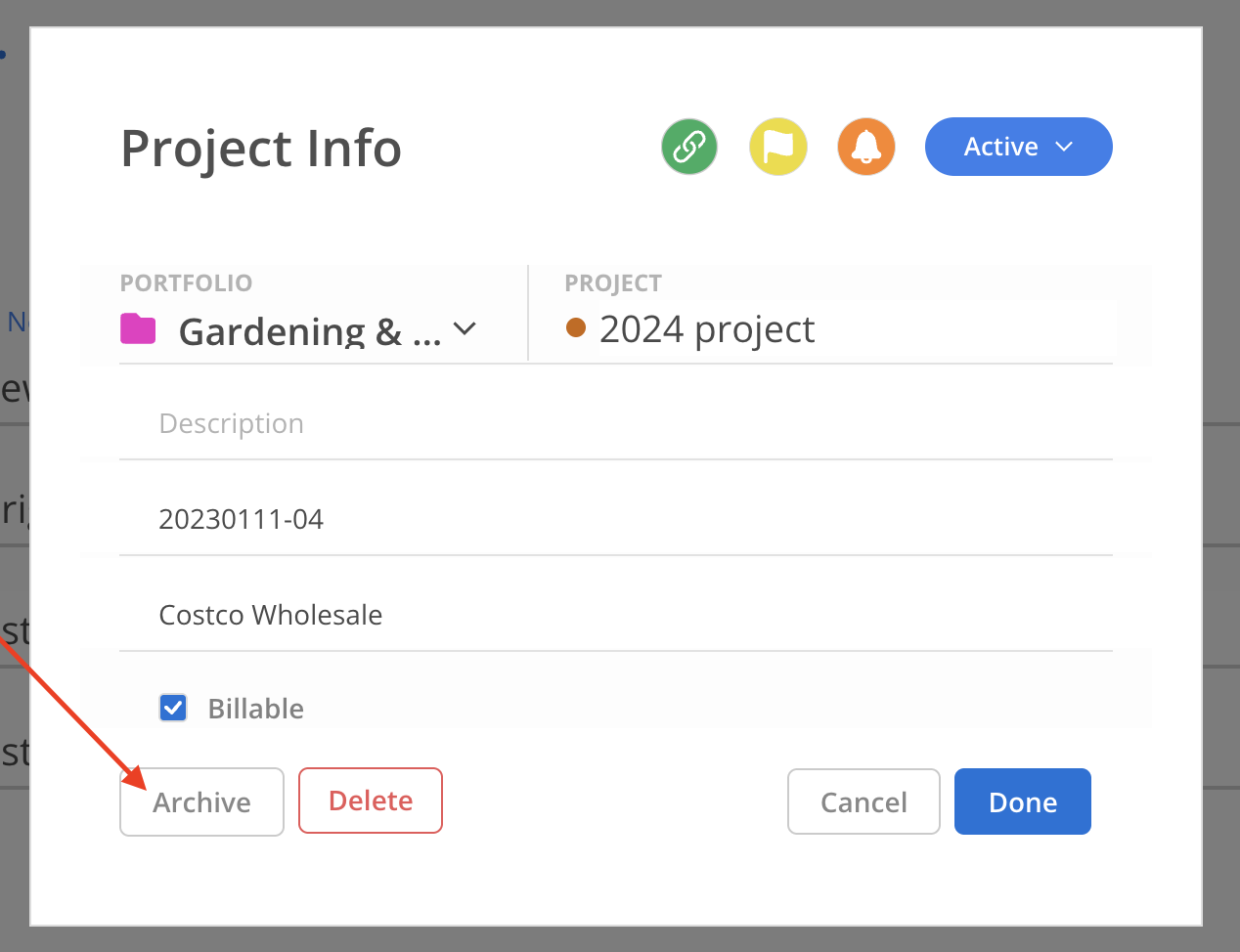
Click the Archive button on an Active Project to archive it.
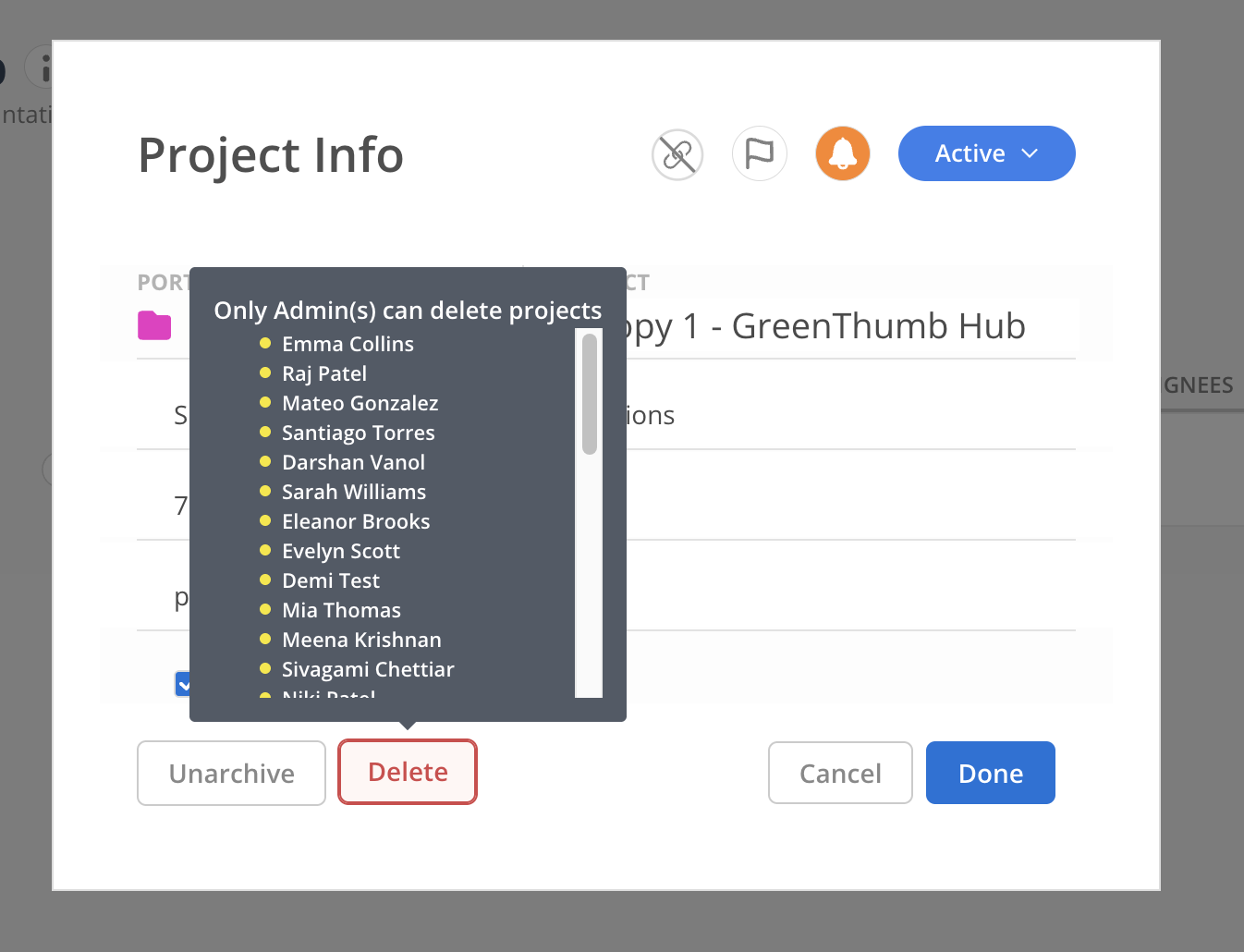
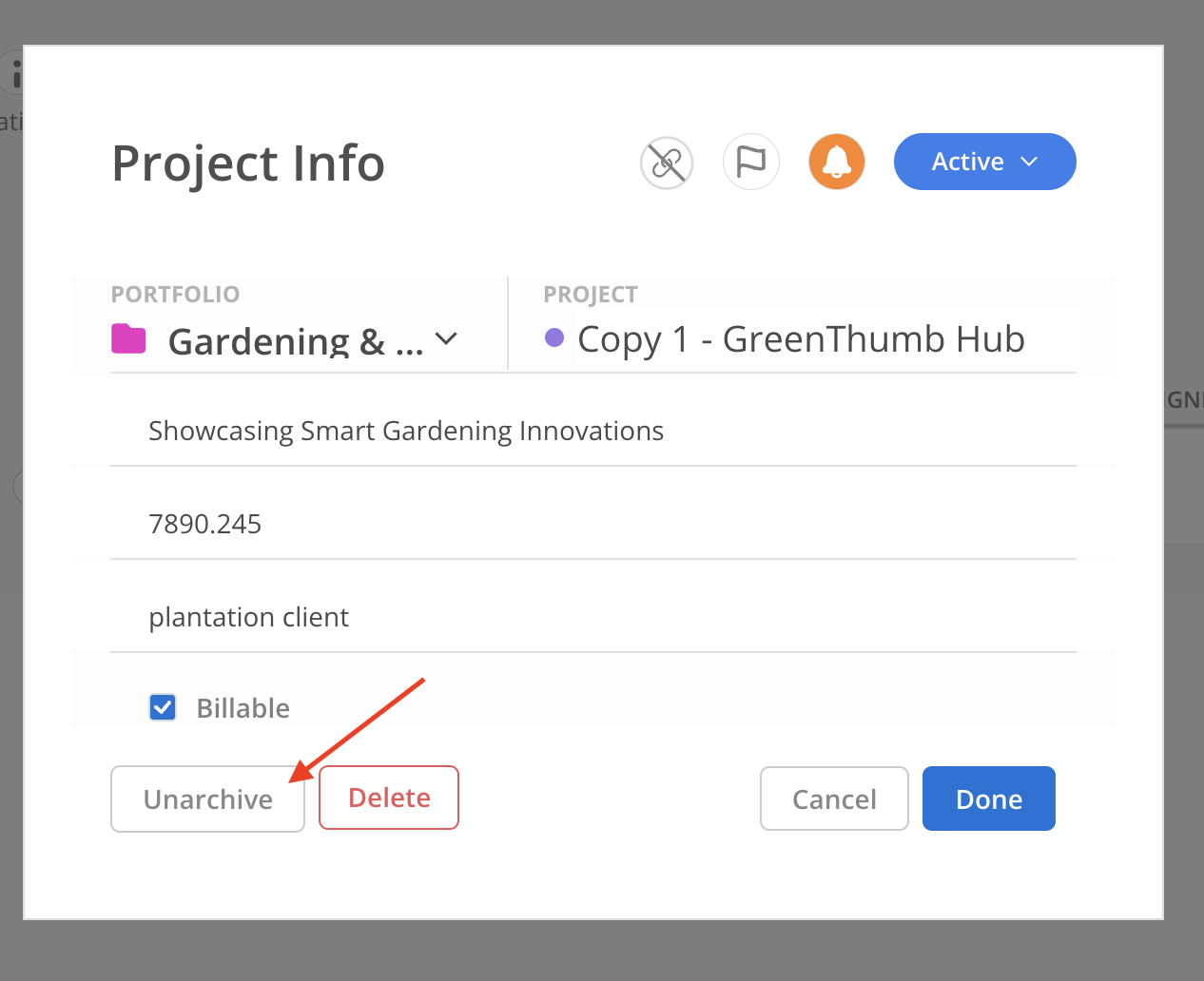
Click the Unarchive button on an Archived Project to make it active again.
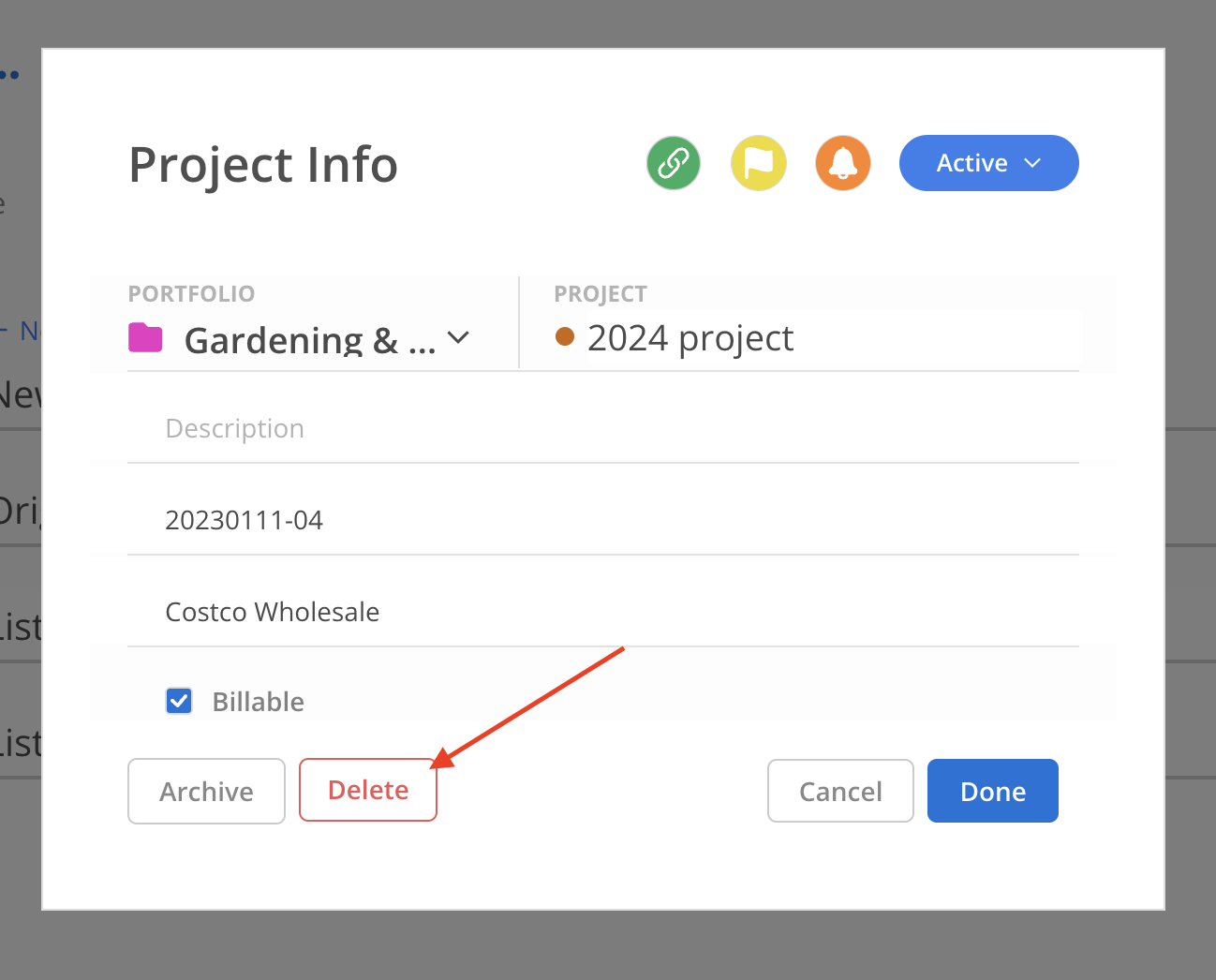
To delete a project, click on the Delete button.
If the button appears active, you have permission to delete the project.
If the button appears greyed out, it means you don’t have permission.
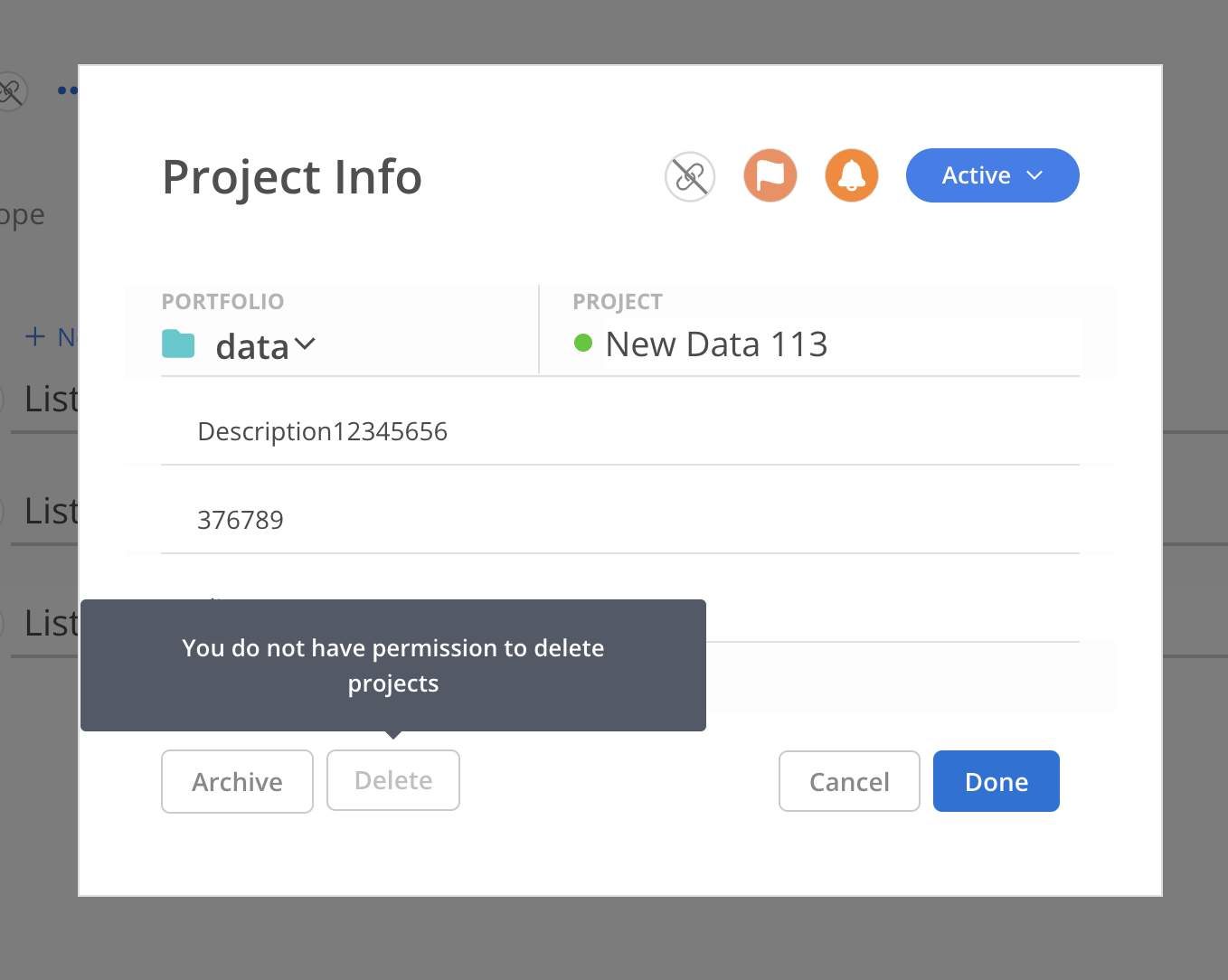
For projects that are already archived, the Delete button will appear in the Project Info Modal. Only Admins are allowed to delete projects. Hover over the button to see a list of Admins.