The views selector adds quick shortcuts to other ways of looking at your Mosaic data, then lets you switch between them from a single menu at the top of the Workload space. Add the views you use most and flip between them with one click instead of navigating back to the main menu each time.
Workload and Project Planner come added by default, so the menu works right away even before you add anything of your own.
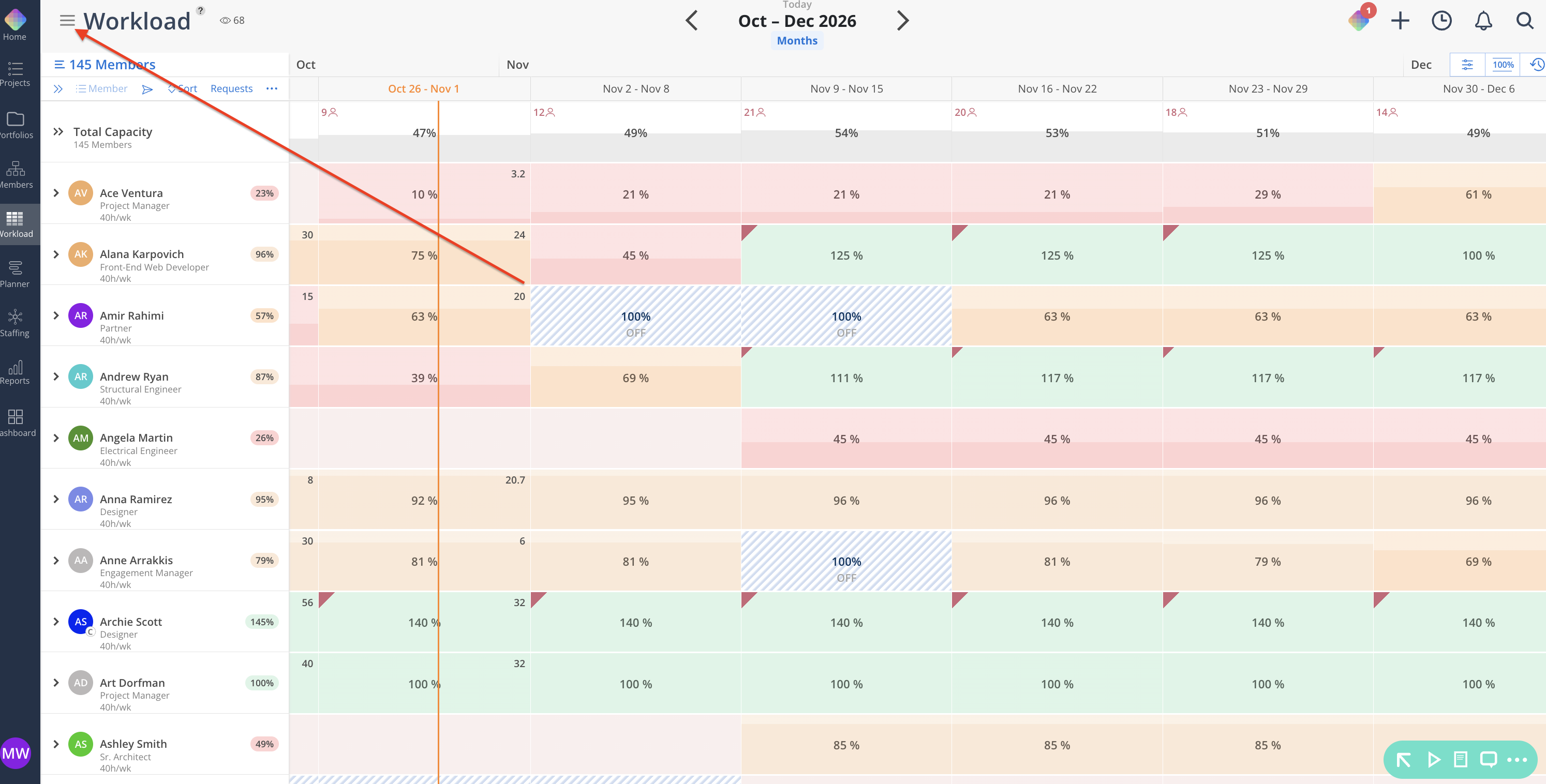
Menu icon. Sits to the left of the space name at the top of Workload. Opens your added views.
Views panel. Lists every view you have added, with an + Add view link at the top for bringing in more.
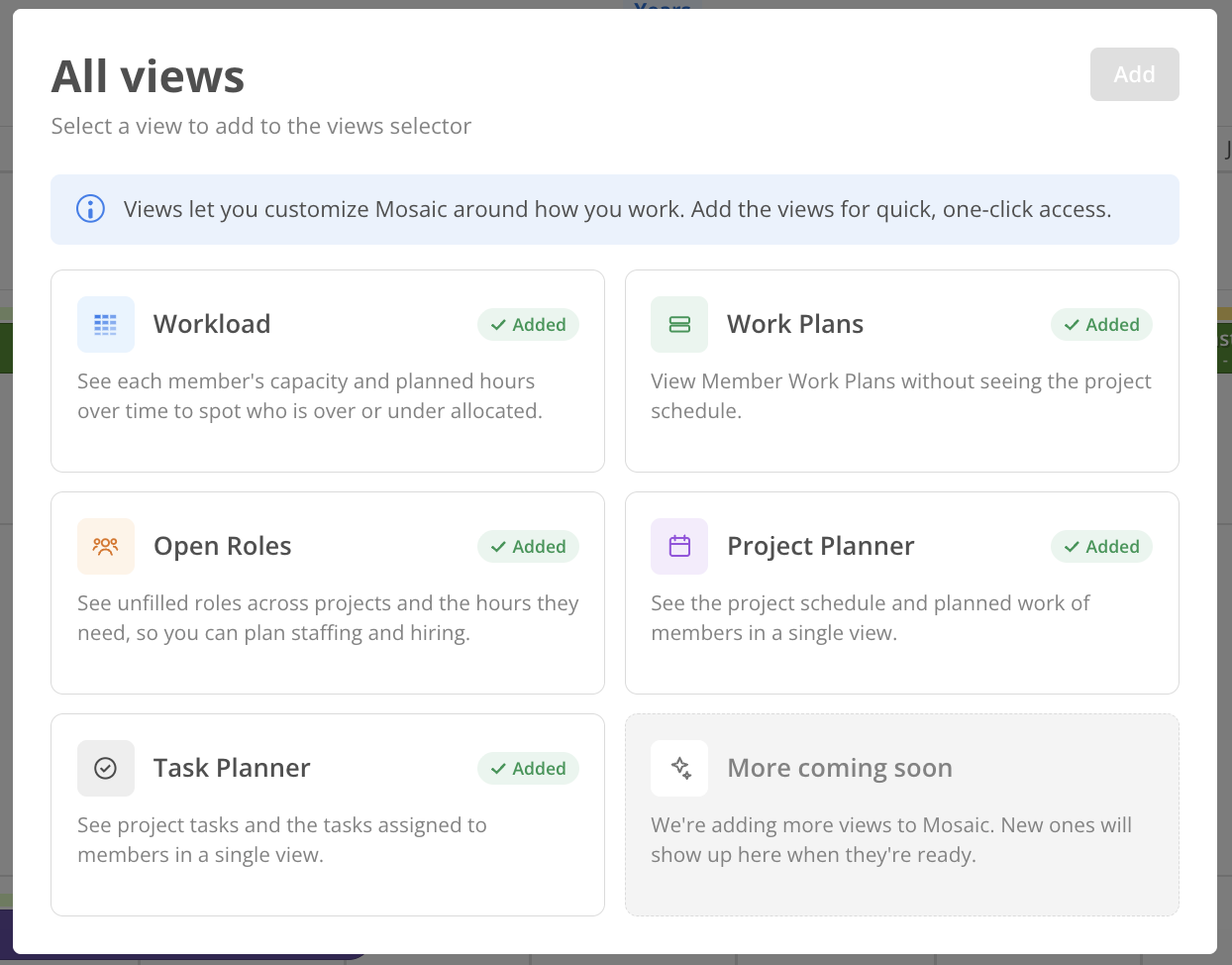
All views picker. A card for each view Mosaic offers, with a short description and an Added tag on any you already have.
Options menu on each added view. A three-dot icon next to a view in the panel, used to remove it.
Space name in the header. Updates to match whichever view is currently selected, so the page always shows what you're looking at.
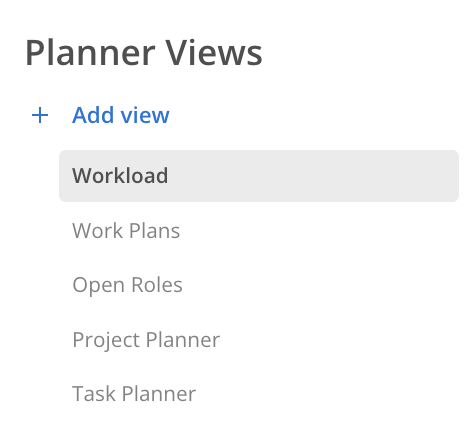
Project Planner. See the project schedule and planned work of members in a single view. \
Workload. See each member's capacity and planned hours over time to spot who is over or under allocated.
Work Plans. See a streamlined overview of each team member's assigned work without the surrounding project schedule.
Open Roles. Review which positions need filling and the hours they need, so you can plan staffing and ensure balanced project coverage.
Task Planner. See project tasks and the tasks assigned to members in a single view.
More Coming Soon! We’re adding more views to Mosaic. New ones will be flagged in the View-Selector once added.
Click the three-line menu icon next to the space name at the top of View.
Click + Add view.
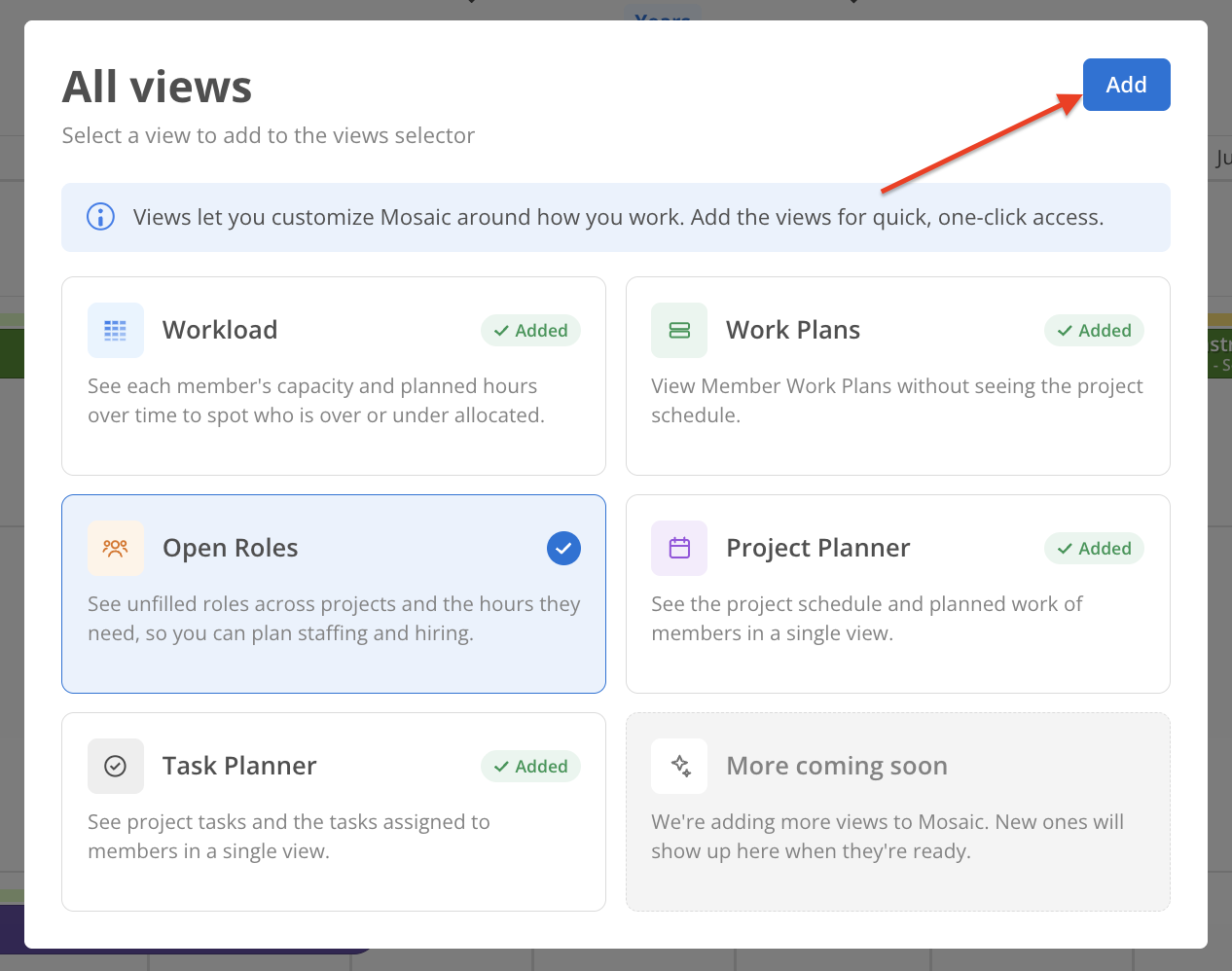
In the All views picker, select the card for each view you want. A selected card shows a checkmark.
Click Add to bring your selections into the views panel.
Click the three-line menu icon next to the space name.
Select a view from the list, such as Workload or Work Plans.
The page updates to that view right away.
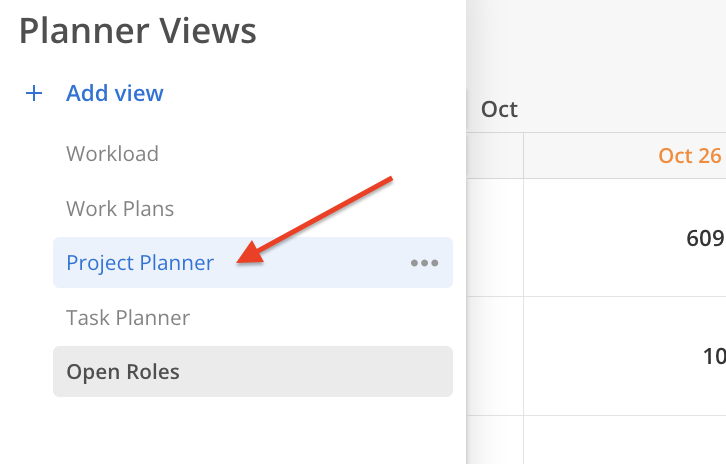

Click the three-line menu icon next to the space name to open the views panel.
Hover over the view you want to remove and click the three-dot icon next to it.
Click Delete. The view is removed from the panel, and you can add it back later from the All views picker.
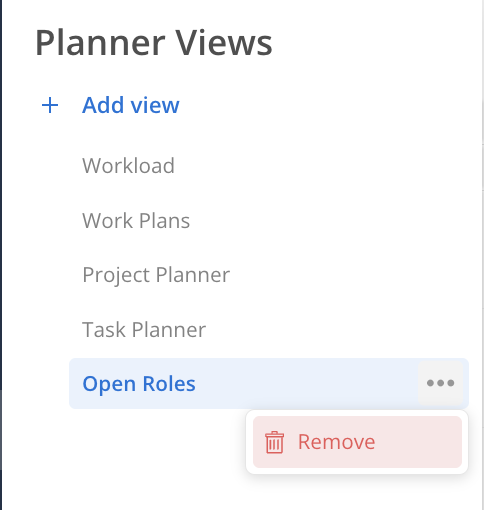
The same menu, the same All views picker, and the same five views are available from the Planner space too, and the views panel is labeled "Planner Views" no matter which space you open it from.
👉 Learn more about Views in Planner
Add the views you check daily. Workload and Open Roles together cover both staffed and unstaffed demand without leaving the space.
Switching views keeps your place. You do not need to reopen a view from the main menu once it is in your panel.
Remove views you've stopped using. Nothing is lost since you can add a view back from the All views picker at any time.
Start from either space. Since the same views are available from both Workload and Planner, add them from whichever space you already have open.
