The Workload Space gives you a real-time view of who is working on what, when, and how much availability they have. It brings together work plans, time off, and team capacity - all into a single heat map so you can make informed staffing decisions.
This space works hand-in-hand with the Planner space. Workload shows the member-level view (think "W" flipped upside down = "M" for Members). Planner shows the project-level view. Both are composed of the same work plans — just viewed through a different lens.
This is the best place to go when you want to answer questions like:
Who is available to take on new work this week or next?
Who is overbooked and needs help?
When is someone going on PTO?
How much of the team's capacity is planned out for the next 30 days?
What projects is a specific person working on?
Can we redistribute work to balance the team?
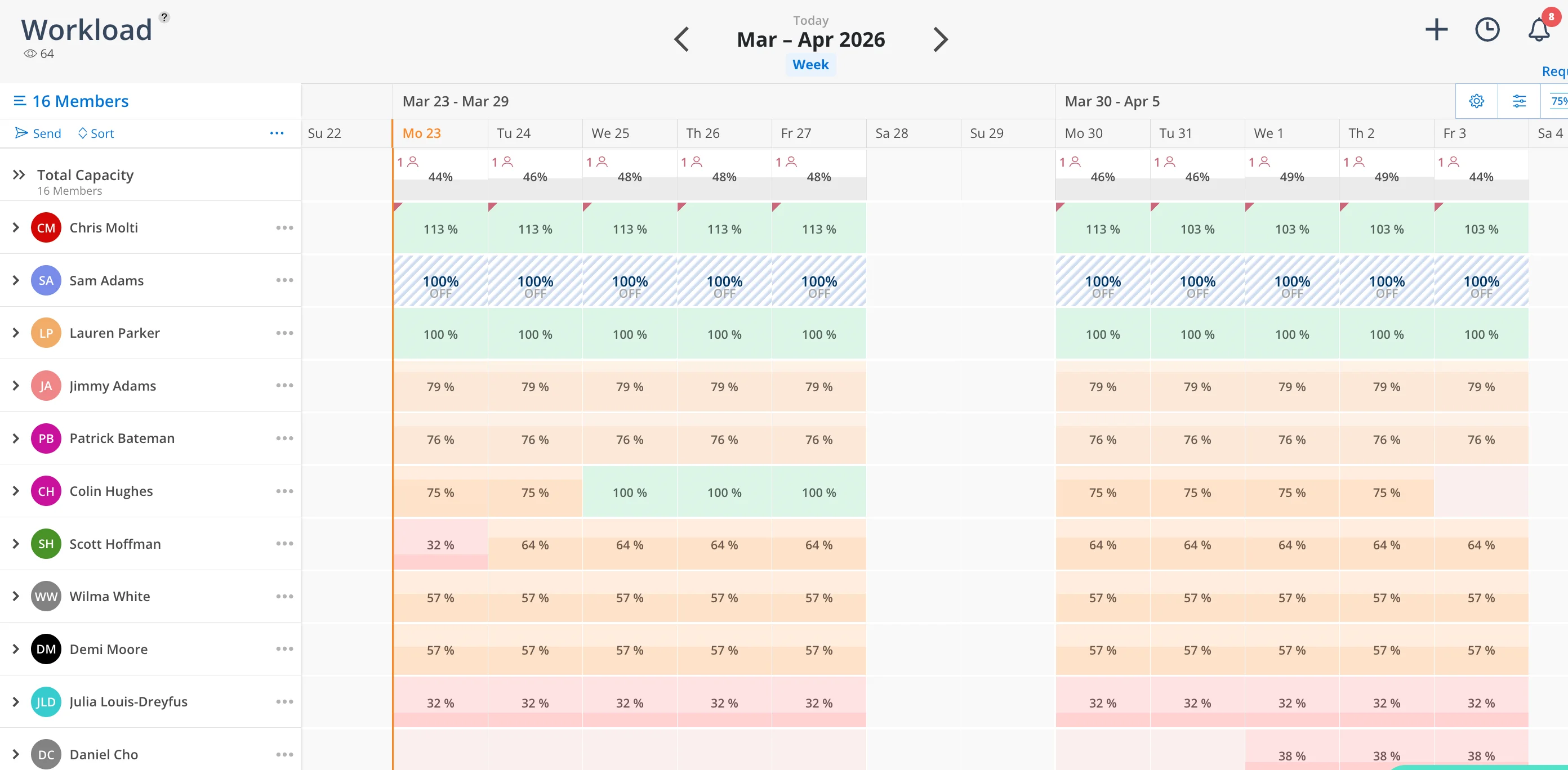
The Workload space displays team members in rows on the left, with a timeline calendar stretching to the right. A color-coded heat map fills each cell to show capacity at a glance.
The heat map provides an instant visual of team capacity. Each cell is color-coded to show how much of a member's time is planned for a given period
By default, green means low utilization, yellow means over 50%, and red means at or near full capacity
A red triangle chip appears when a member exceeds 100% capacity
Color coding and ranges are customizable per user
👉 Learn more about Heat Map & Settings
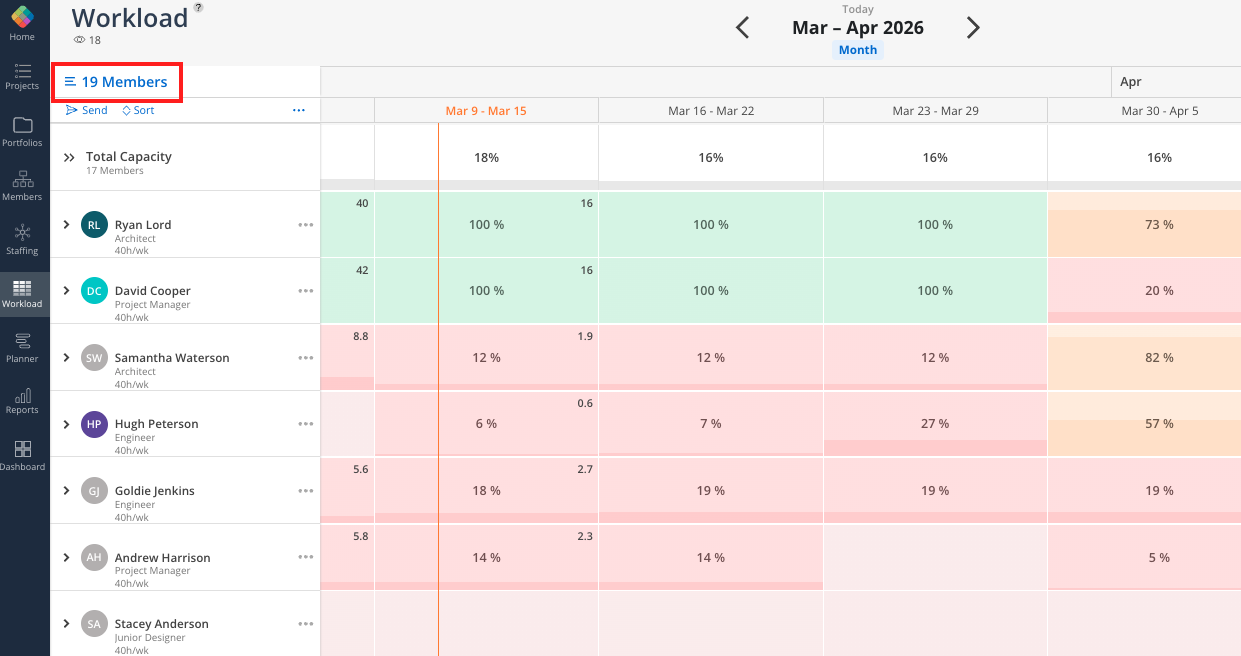
Select which team members appear in your workload view. Filter by department, role, office, skills, and more to focus on the people you need to see.
Search by name or use the Select All option
Layer multiple filters (e.g., department + skill level)
Group members by department, role, office, or other attributes
👉 Learn more about Member Selection & Filtering
A work plan is a scheduled amount of time assigned to a member for a specific project or phase. Work plans are the building blocks of both Workload and Planner.
Create plans by percentage of day/week, hours per day/week, or total hours
Lock in your constant (hours, percentage, or total) and adjust dates freely
Add descriptions, mark plans as tentative, and leave comments with @mentions
👉 Learn more about Work Plans
Once work plans are created, they are easy to adjust on the fly. Drag, drop, split, copy, and reassign plans - with a few simple clicks.
Drag and drop to move plans across the timeline or to other members
Extend or condense plans by dragging the edges
Split a plan into two, copy it for another member, or delete it
👉 Learn more about Managing Work Plans
Log PTO and vacation time so the team can see when members are unavailable. Company-wide holidays are set by Account Admins and will display automatically.
Time off plans reduce capacity and shift non-dependent work plans
Company holidays appear as gray lines across all members
👉 Learn more about Time Off & Holidays
Customize what information appears in your workload view. Toggle member details, timesheet data, tentative plans, and row height — all personal to your account.
Show or hide role, capacity, bill rate, and timesheet numbers
Condense row height to see more members at once
Toggle tentative plans and archived work plans on or off
👉 Learn more about Display Settings
Track every change made to work plans. See who created, edited, or moved a plan, and when.
Filter by project, editor, or date range
Available at the space level and within individual work plans
👉 Learn more about Activity Log
Start planning early — Get to 75% planned capacity for the next 30 days as your onboarding goal
Use weekly meetings — Pull up the workload space during capacity meetings to make real-time adjustments
Remember it's a plan — Plans are not set in stone. Move, split, and adjust as priorities change
Condense your view — Use the row height toggle to see more team members at once during meetings
Sort by availability — Use sorting to quickly identify who can take on new work
