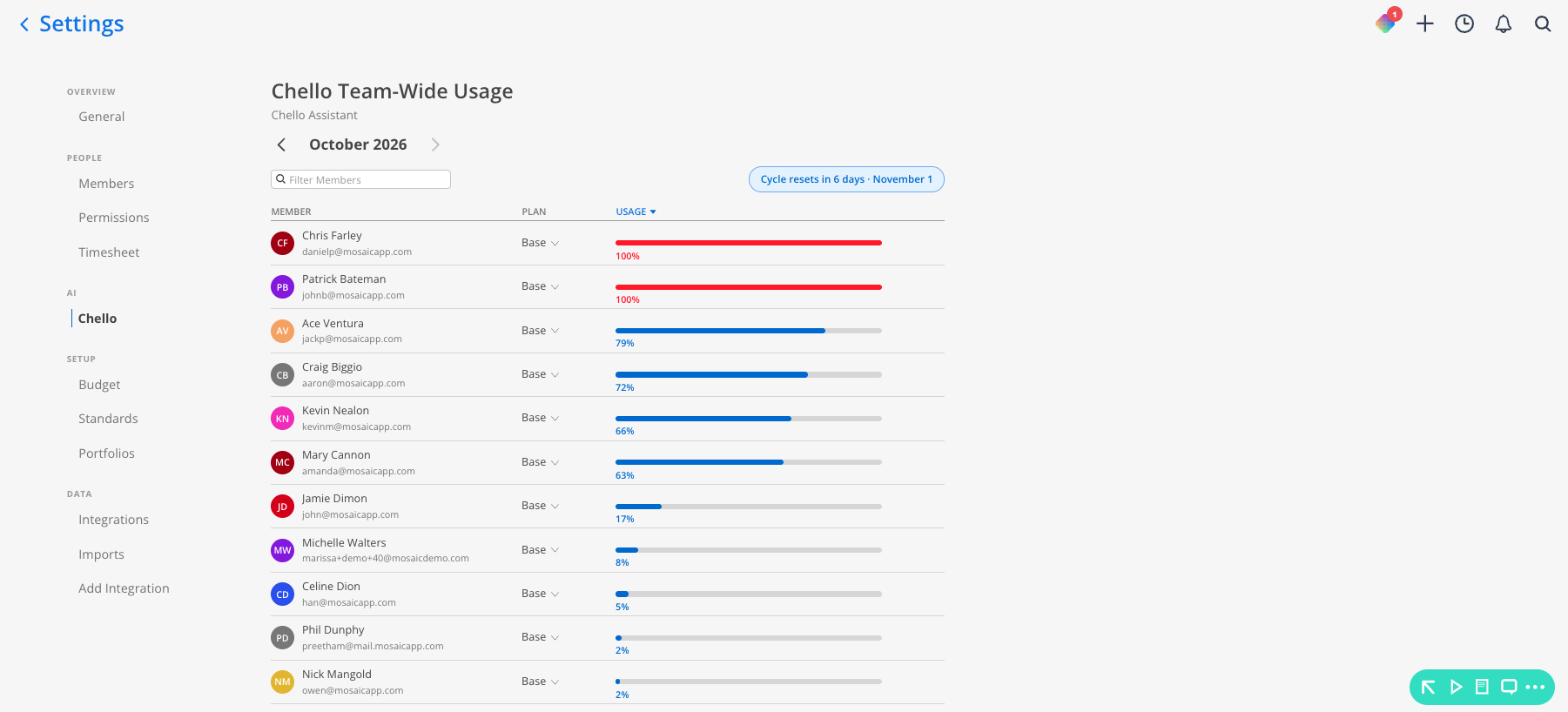
The Chello Team-Wide Usage page gives admins a single view of every member's Chello plan and how much of their monthly credit allowance they've used. Changing a member's plan takes just a few clicks, and because Chello runs month to month, there's no long-term commitment tying your organization to a plan.
Month selector. Arrows next to the month name move between usage periods.
Filter Members search. Narrows the list to a specific member by name.
Member list. Each row shows a member's avatar, name, and email.
Plan column. The member's current plan, shown as a dropdown you can open to change it.
Usage column. A progress bar showing the percentage of the member's monthly credit allowance used. The bar turns red once a member reaches 100%.
Cycle reset badge. Shows how many days remain until usage resets and the date of the next reset.
Select the settings icon in the bottom left corner, then select Organization Settings.
Under AI in the left sidebar, select Chello.
Find the member you want to update, using the Filter Members search if needed.
Select the Plan dropdown next to their name and choose Base, Pro, or Max.
Confirm the change in the dialog that appears. It names the member and the plan they're moving to.
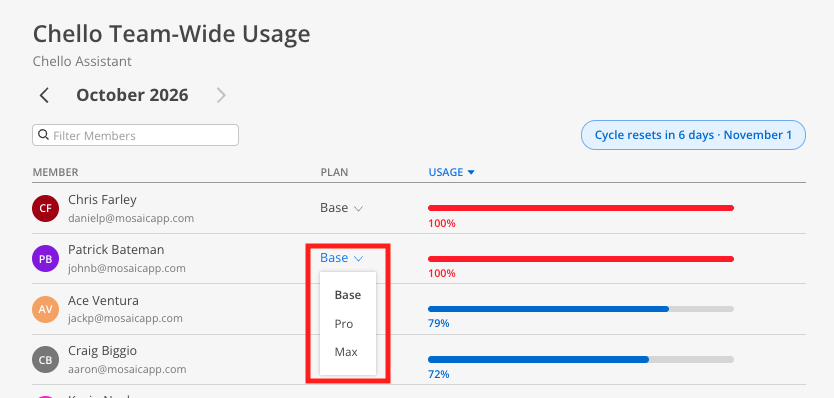

Check usage before upgrading someone. The Usage column flags anyone at 100% in red, which is the fastest way to spot who needs more credits.
Changes apply right away. Moving a member to a new plan isn't something you schedule. It takes effect as soon as you confirm it in the dialog.
