Standing a pursuit up in Mosaic before the win tells you whether you have the people to deliver it. Tentative work plans are what make that possible. A tentative plan shows the complete staffing impact of the pursuit and holds those hours outside your team's committed capacity, so you can plan in full detail and still trust the numbers on the work you have already won.
Figuring out whether you have the capacity to deliver a project you are pursuing
Building a staffing plan to support a fee proposal
Holding specific people or roles for a project that has not yet been awarded.
Creating projects requires elevated access. If New Project does not appear in the Add menu, contact your Mosaic admin.
Decide which portfolio the pursuit belongs in. A project lives in one portfolio. Many firms keep a dedicated Proposals portfolio so pursuits stay separate from active work. 👉 See Portfolios
Click Add and select New Project.
Enter the project name.
Choose the portfolio the project should live in.
Enter a unique Project ID.
Set the Status to Proposal.
Click Create.
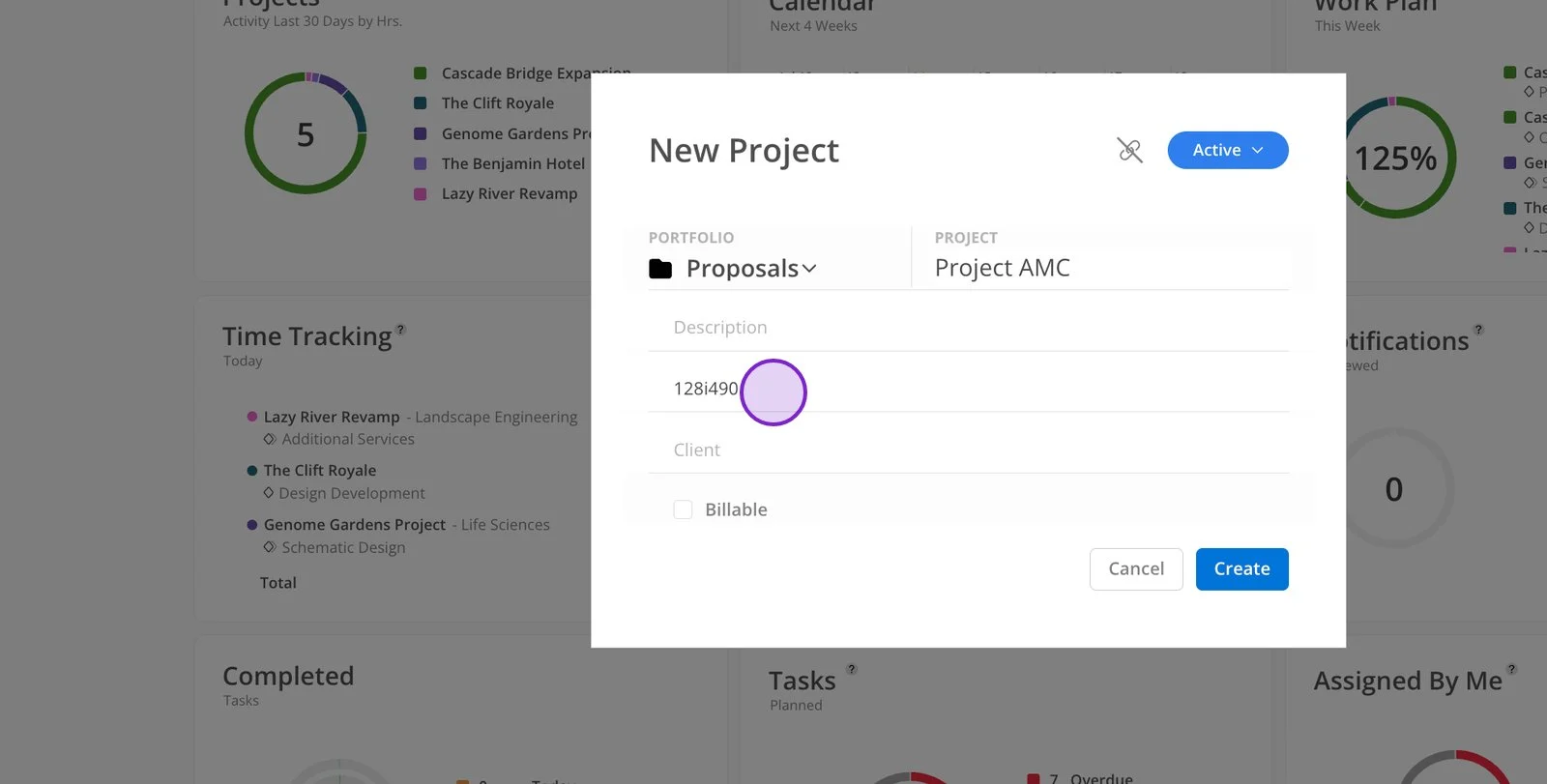
Set the status before you build anything. Changing a project's status later leaves existing work plans exactly as they are, so a project switched to Proposal after planning keeps whatever plans were already created.
Go to the Planner space and find your new project.
Click the calendar icon to open the project schedule.
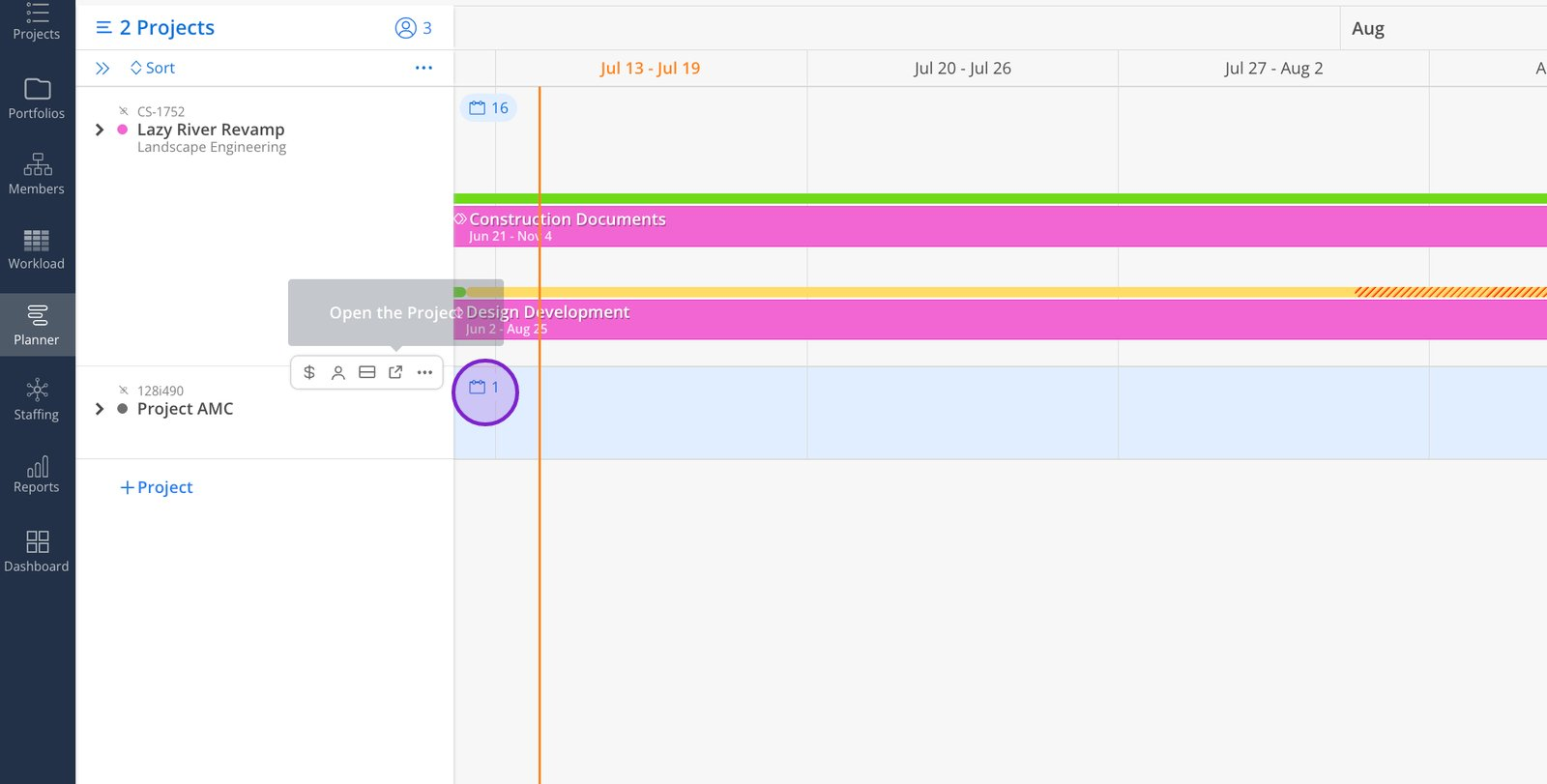
Add your phases and any milestones. An estimate is enough at this stage, since these dates will move.
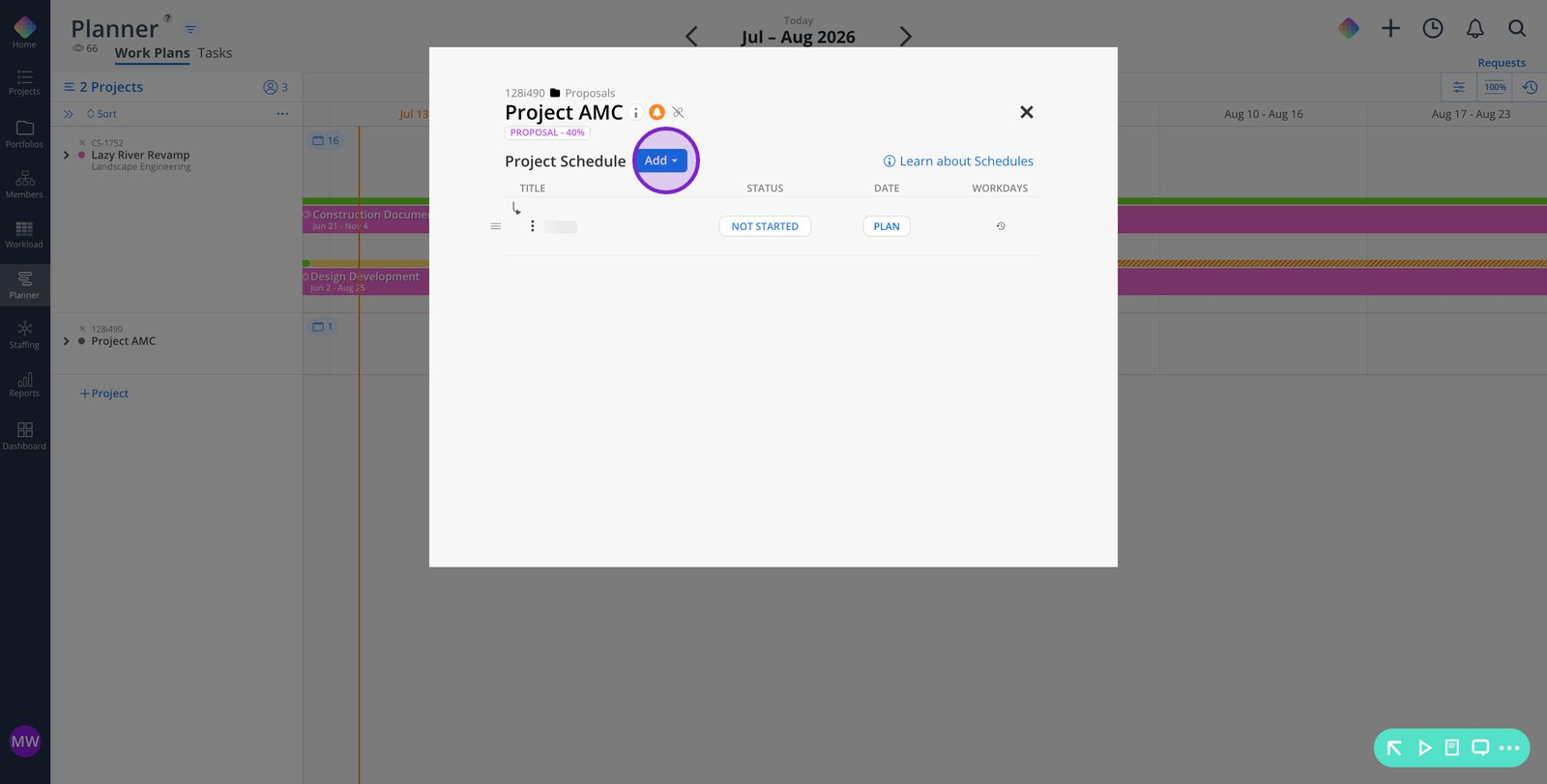
Click into a phase, set the start date, then set the end date with the calendar picker.
Click Done, then repeat for each remaining phase.
Set phase dependencies while you are in here. Proposal timelines shift often, and linked phases carry a date change through the rest of the schedule and through any dependent work plans in a single move.
Expand the project row in the Planner to reveal the member area.
Add the members you want to staff on the project. Mosaic prompts you to confirm anyone who is not already on the project.
Check availability first. Use the view availability split screen, or sort by availability, to confirm the person could realistically take the work.
Hover over a blank cell in the member's row and click the plus (+) icon.
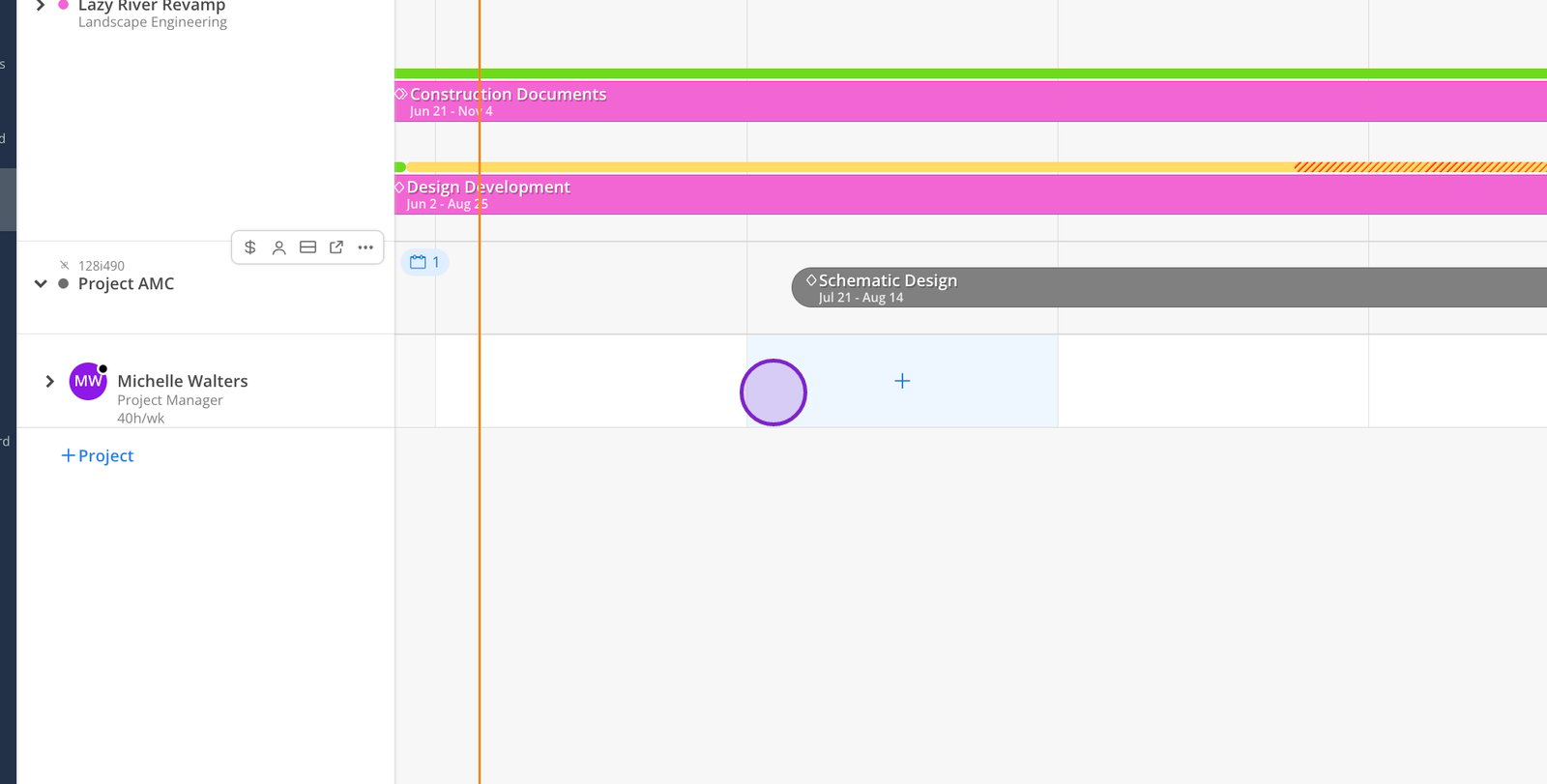
Select the phase this work plan belongs to.
Enter total planned hours, hours per week, or a percentage, depending on how you are estimating the effort.
Set the work plan's start and end dates.
Confirm the Tentative box is checked. This is what keeps pursuit hours out of your team's committed capacity.

Click Create, then repeat for each member you want to staff.
Use an open role when the team is not decided yet. A generic resource holds the hours in the project's staffing plan while individual capacity stays untouched, and you can swap in a named member once the project is awarded.
Open the display toggles at the top right of the Workload or Planner space.
Turn Tentative Plans on to see committed and tentative work together.
Turn it off to see committed work only.
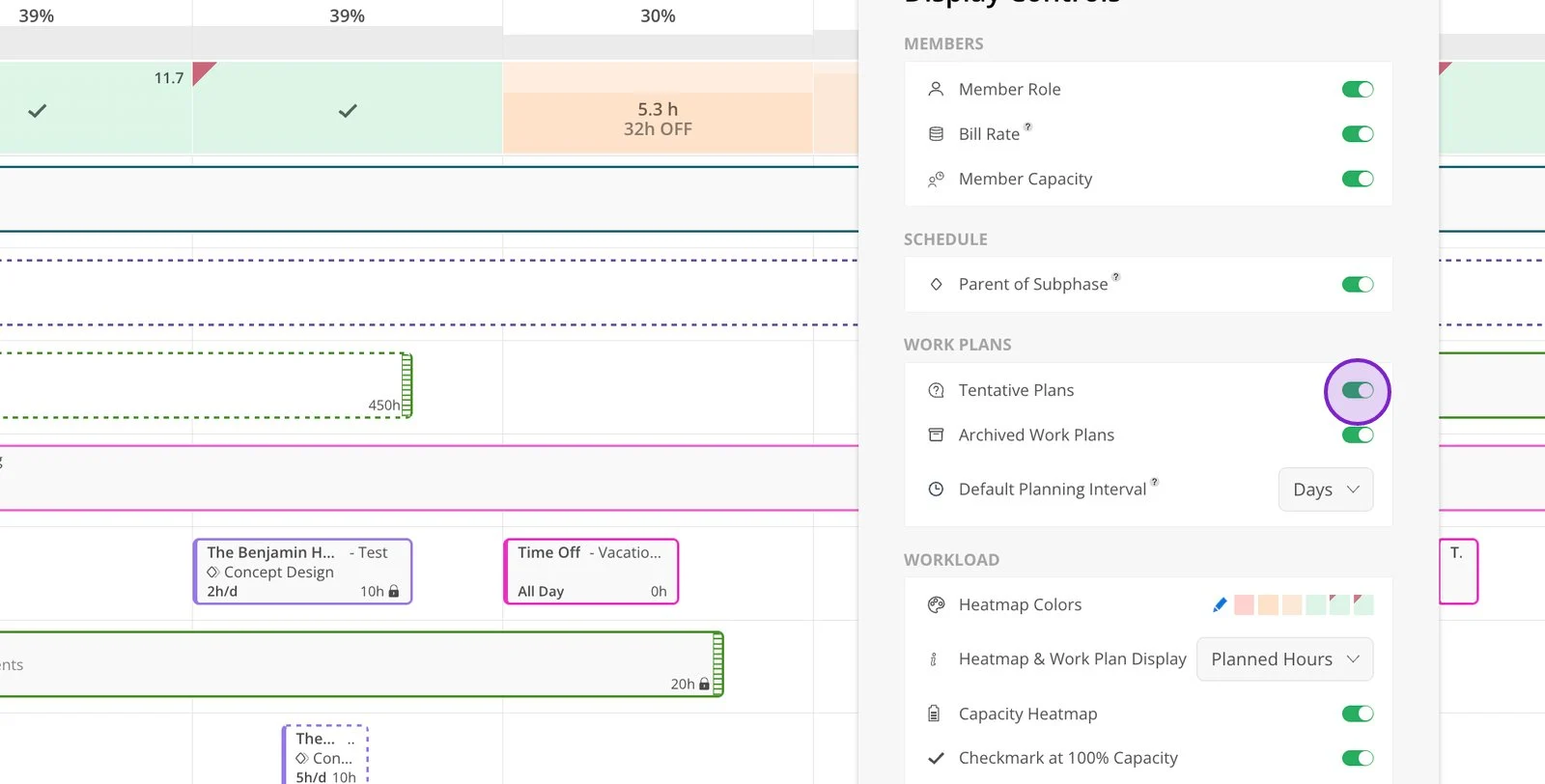
The toggle applies to your own view. Flipping between the two is the fastest way to answer "can we take this on" in a staffing meeting.
Plan proposals broadly. Use total hours across a phase rather than detailed weekly plans. You are testing feasibility, and you can refine after the win.
Reach for open roles early. Holding a generic role reflects the pursuit more accurately than assigning your best person by default.
Set a review cadence. Look at your proposal projects once a month and close out anything that has been decided.
