
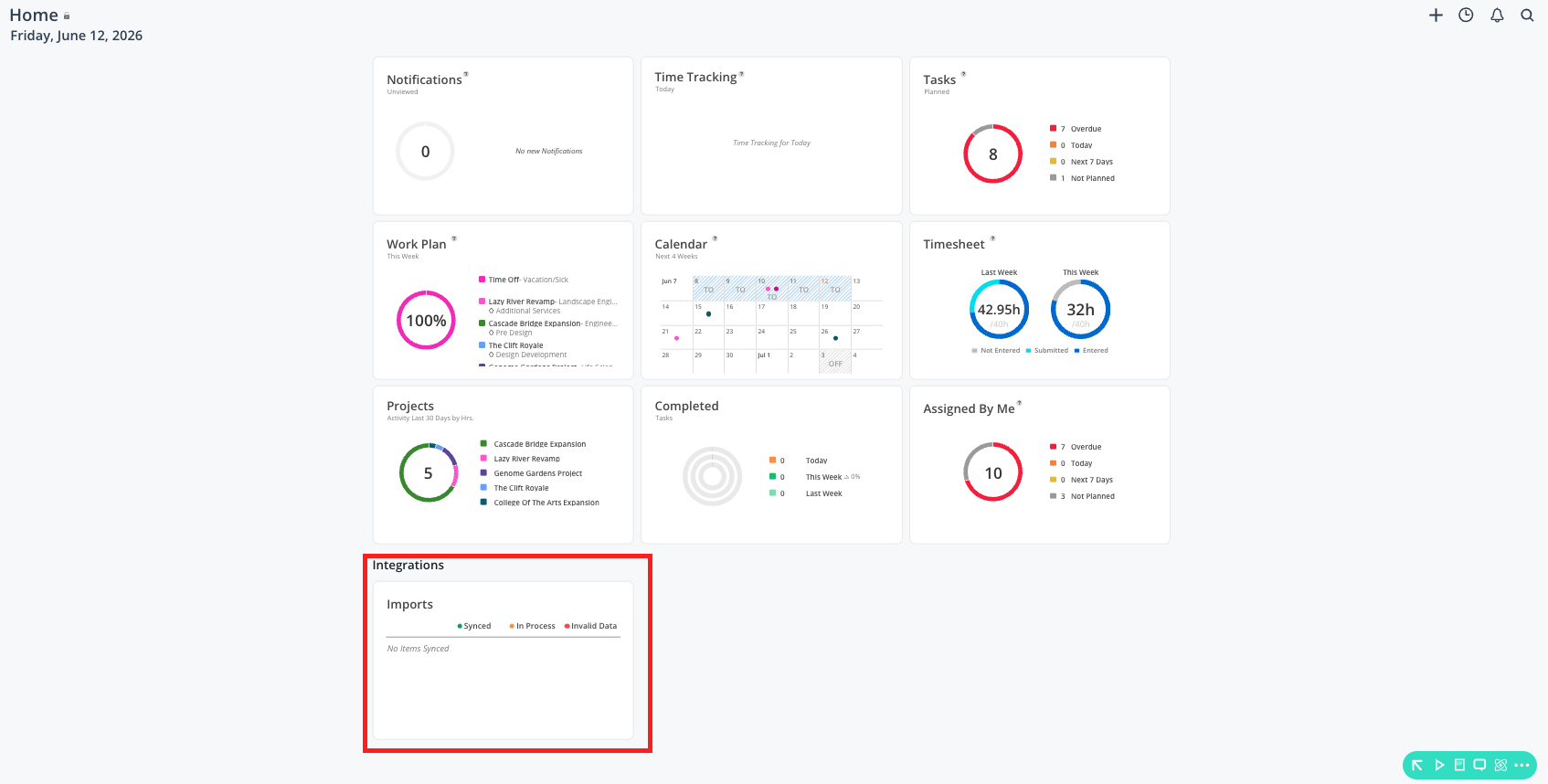
The Integration Sync Log widget shows a log of the data that has come into Mosaic from your connected ERP integration. It is only accessible by Admins within your Mosaic account.
This is the best place to go when you want to:
Verify that a new project has synced in from your ERP
Check when the last sync ran
Investigate whether a missing project, phase, or time entry is a sync issue
Confirm that time entries from your ERP are appearing in Mosaic
What you see
The Integration Sync Log shows a timestamped list of recent sync activity, including:
What was synced — projects, phases, members, time entries, or other data types
When it synced — date and time of each sync event
Sync status — whether the sync completed successfully or encountered an issue
Important notes
This widget shows incoming data only — Mosaic does not push data back to your ERP, so you will not see outgoing sync events
If data you expect to see in Mosaic is not showing up, check this log first to see whether a sync has run recently
For persistent sync issues, contact your admin or Mosaic Support
Best practices
Check this first when something is missing — Before assuming a project or time entry does not exist in Mosaic, verify in the sync log whether the data has had a chance to come through
Admins should review this periodically — Regular check-ins on the sync log help catch integration issues early before they affect planning or reporting