
The Completed Tasks widget shows every task you have marked as complete, whether it was a personal task or a project-level task assigned to you. It stays populated indefinitely, giving you a running history of finished work.
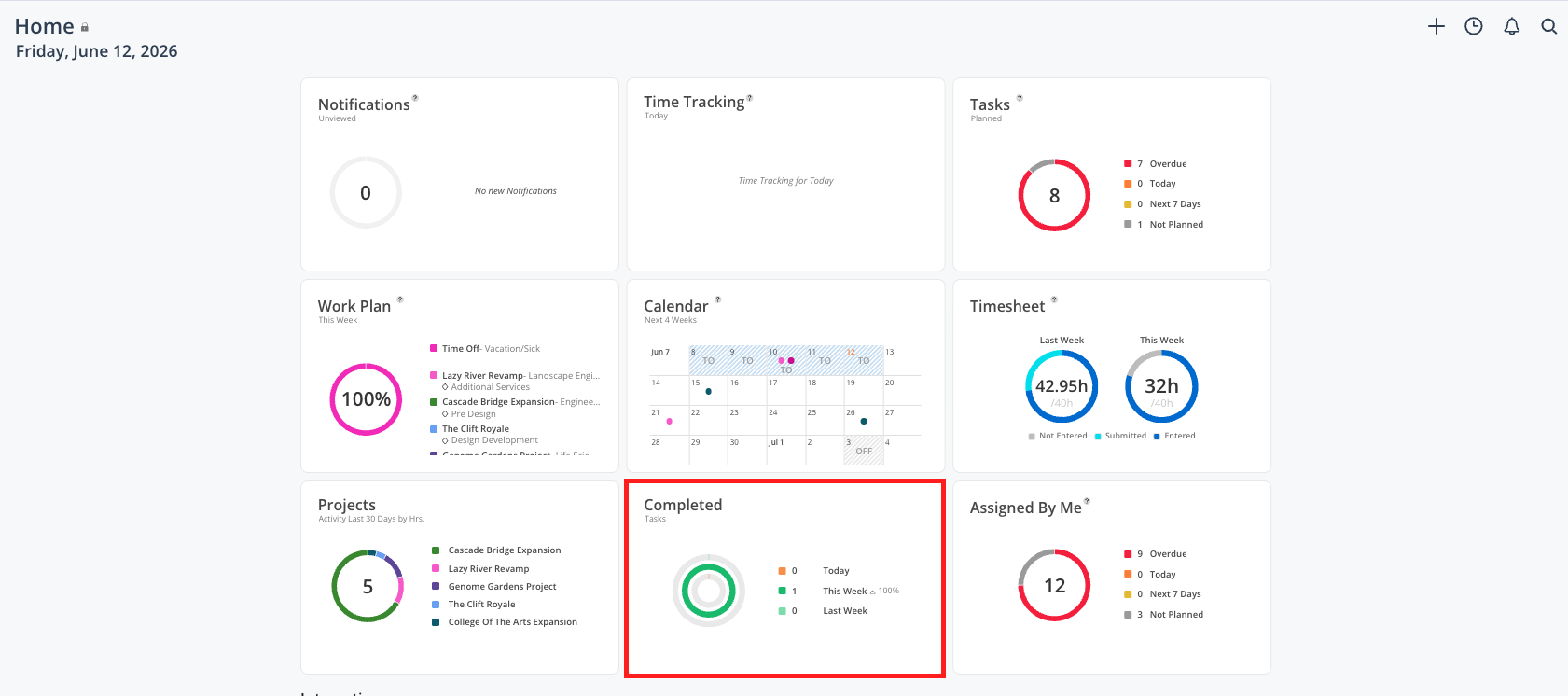
This is the best place to go when you want to:
Review everything you have accomplished over a period of time
Reactivate a task that was marked complete but needs to be reopened
Confirm that a specific task was completed and when
What you see
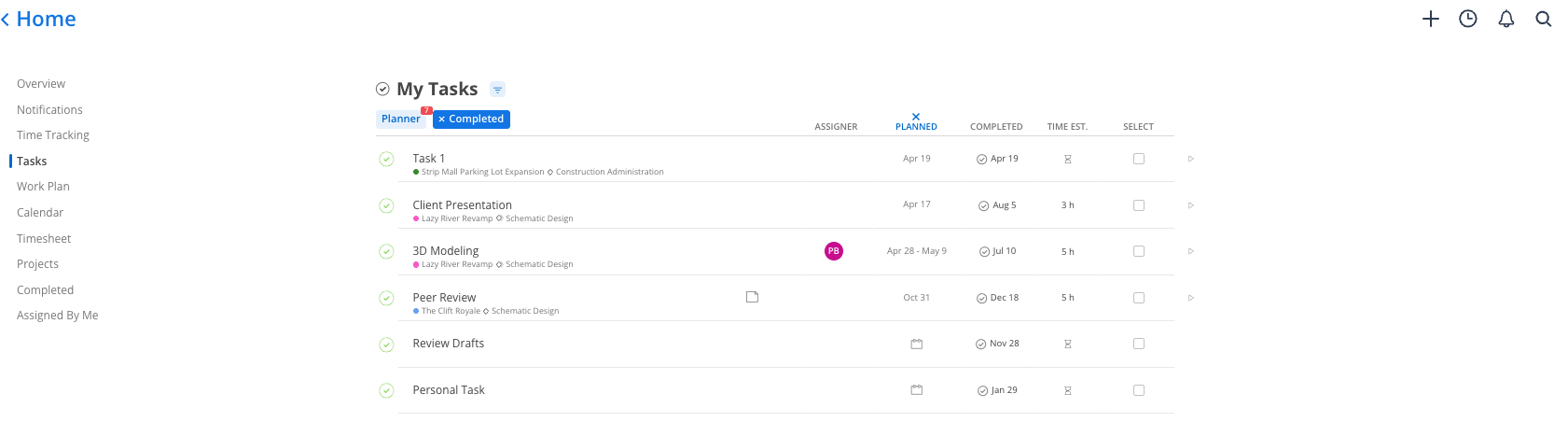
The Completed Tasks widget mirrors the layout of the Tasks widget but shows only tasks with a completed status. Each row shows:
Task name
Project and phase (or "Personal" for private tasks)
Date range the task was scheduled for
Sticky-note icon if notes or comments are attached
How to reactivate a completed task
Click the task in the Completed Tasks widget to open it.
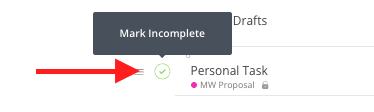
Uncheck the completion checkbox, or use the option to mark it as incomplete.
The task moves back to your active Tasks widget.
Best practices
Use it for end-of-week or end-of-month reflection — Some people like to open the Completed Tasks widget on Fridays to see a concrete list of what they finished. It is a quick way to gauge productivity and close the week.
Reactivate rather than recreate — If a completed task comes back into scope, reactivate it instead of creating a duplicate