
The Timesheet widget shows the time entries that have synced into Mosaic from your ERP. You cannot edit anything here. Its purpose is to give you visibility into what has been logged — so you can verify that your ERP time entries are syncing correctly, review what you recorded in a prior week, and check your budget allocation if you have phase member budget access.
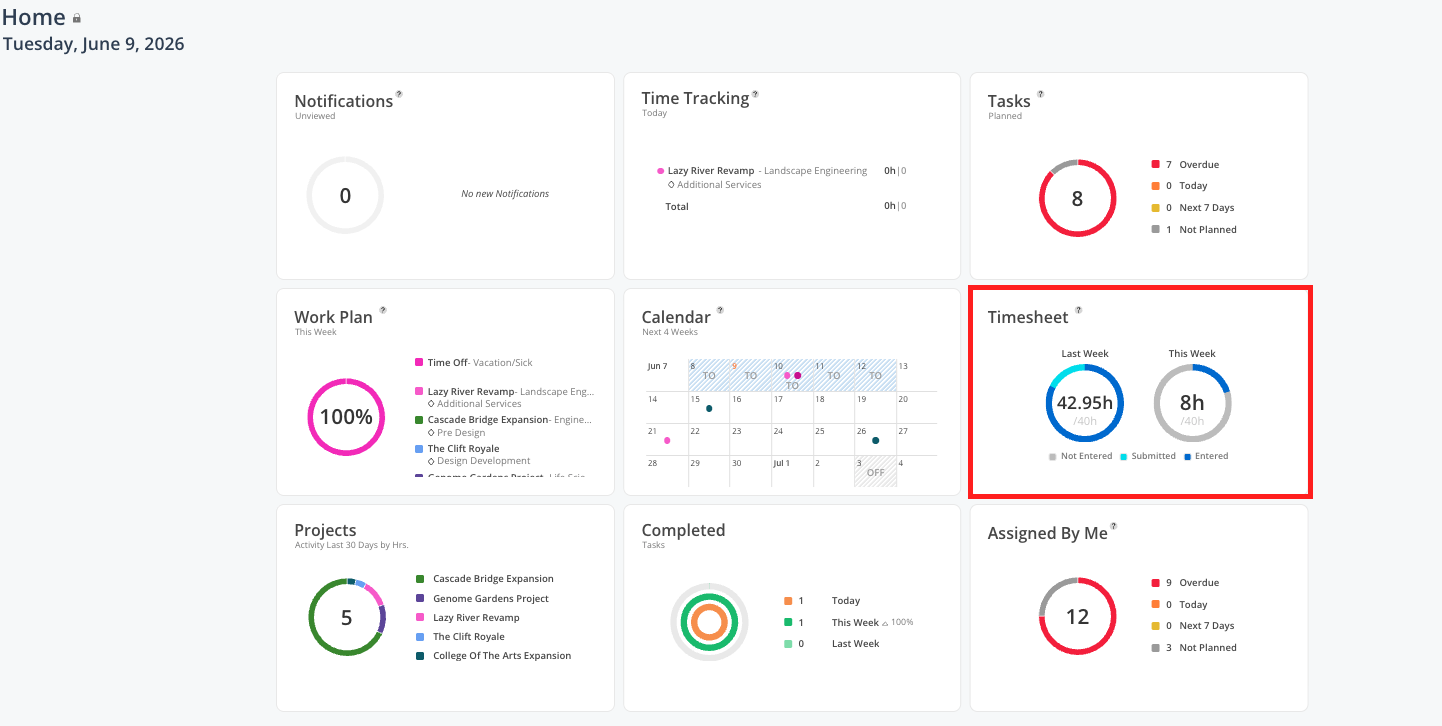
This is the best place to go when you want to:
Confirm that your ERP time entries are showing up in Mosaic correctly
Review what you logged last week before entering this week's time
See how much time you have spent vs. planned on a phase (if you have phase budget access)
Check your budget allocation per phase (for users with phase member budget access)
What you see
The Timesheet widget shows a summary of your recent time entries synced from your ERP, organized by project and phase.
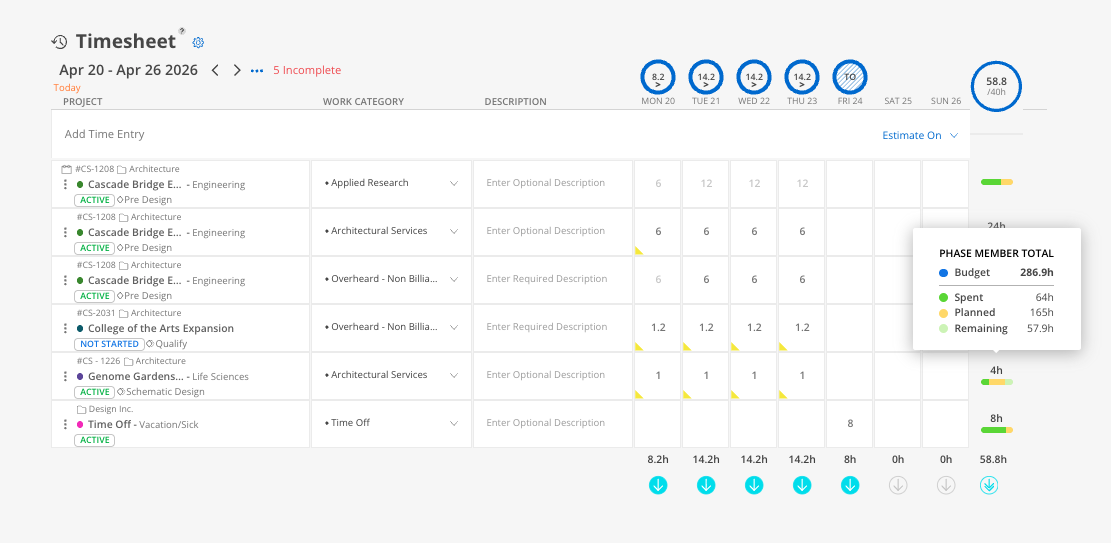
When you click into the full timesheet view:
Each row shows a project and phase with the time entries synced for that period
The right side shows how much time has been spent on that phase and how many future work plans are scheduled
Users with phase member budget access also see their budget allocation and remaining hours per phase in this view
Important notes
This is read-only — you cannot add, edit, or delete time entries here. All time entry is done in your ERP.
Timesheets sync from your ERP automatically — If entries are not appearing, contact your admin.
If you see a discrepancy, compare what is showing here against your ERP records and contact your admin if something does not match.
Best practices
Use it as a verification step, not a data-entry tool — Think of the Timesheet widget as a mirror of your ERP. If it matches what you entered, you are good. If it does not, there may be a sync issue worth flagging.
Check it before entering time each week — Some people review the prior week's synced entries before opening their ERP to make sure everything carried over correctly