The Calendar widget gives you a high-level view of the important dates across all your projects — phase start and end dates, milestones, your personal time off, and company-wide holidays — all in one monthly calendar. It is the fastest way to spot upcoming deadlines before they become urgent.
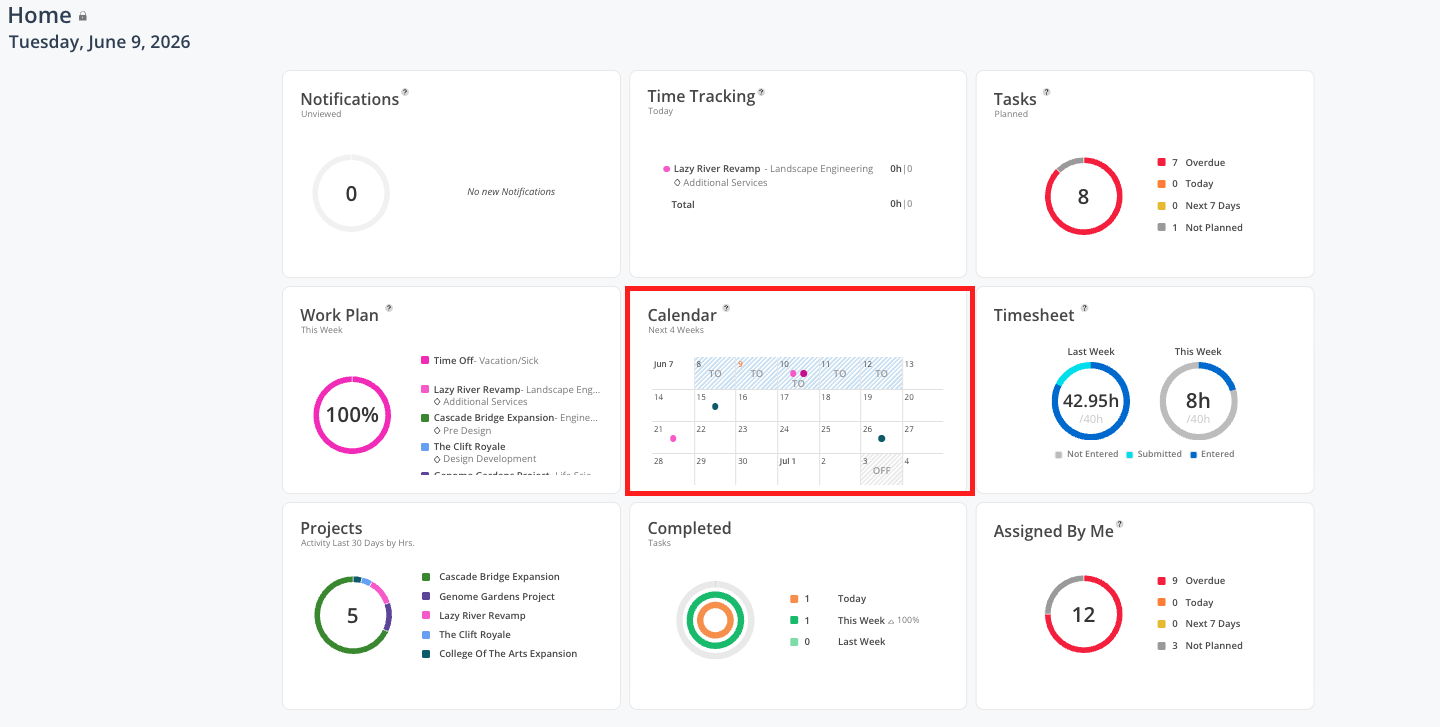
The calendar is personal to your account. It only shows dates from projects you are a member of.
See what project deadlines are coming up this month or next
Check when a phase is ending across your active projects
See upcoming milestones your PM has added to a project
Verify your time off is showing as expected
Check company holidays for the current or upcoming month
The calendar displays a standard monthly grid. Each date can have one or more dots or indicators:
Diamond icon — a phase starting or ending on that date
Teardrop / map-pin icon — a milestone on that date
Blue hash marks — your time off (entered by you or by a PM)
Gray shading — a company-wide holiday configured by your admin
Hover over any indicator on a calendar date to see a tooltip with more detail, or scroll below the calendar grid to see the full chronological list of events for the month. The list shows each item with its date range, project name, and phase name.
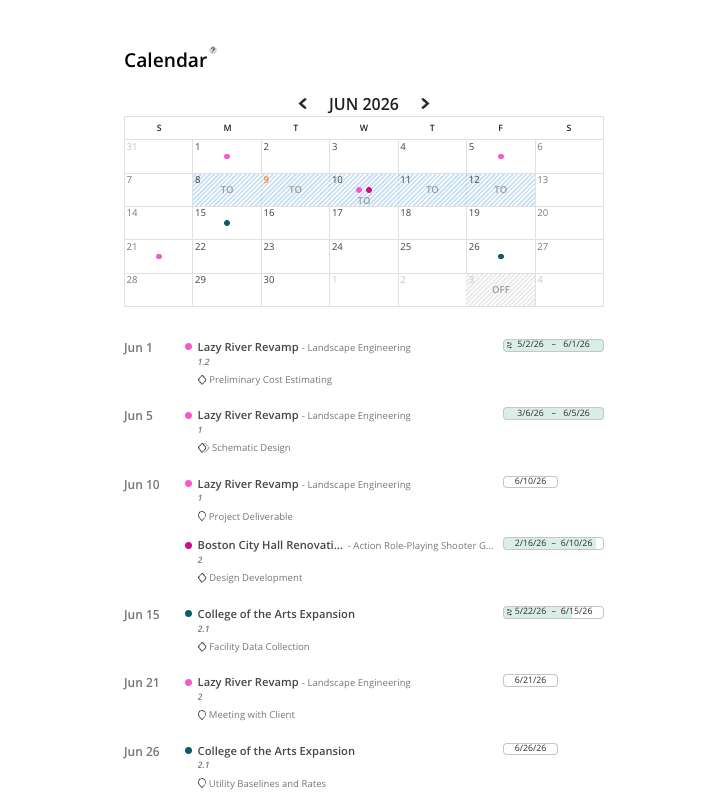
Click the left and right arrows to move between months
The current month loads by default when you open the Home Space
The calendar cannot be exported to Outlook or synced to an external calendar application. It is for reference within Mosaic only.
Phase dates and milestones appear automatically based on the project schedule — you do not need to add them manually
Company holidays are added by your admin and appear for all members automatically
To add time off, use the Work Plan widget — click the + icon on any day and select Time Off
Check the calendar at the start of each month — Scan the upcoming 4–6 weeks for phase end dates and milestones so nothing catches you off guard
Use it alongside the work plan widget — The calendar tells you what project events are coming up; the work plan widget tells you what you are actually scheduled to work on. Together they give you a complete picture of your near-term workload.
If a phase date is missing, check with your PM — Phases only appear on the calendar once dates have been entered in the project schedule. If you expect a phase to show and it is not there, the dates may not have been set yet.
