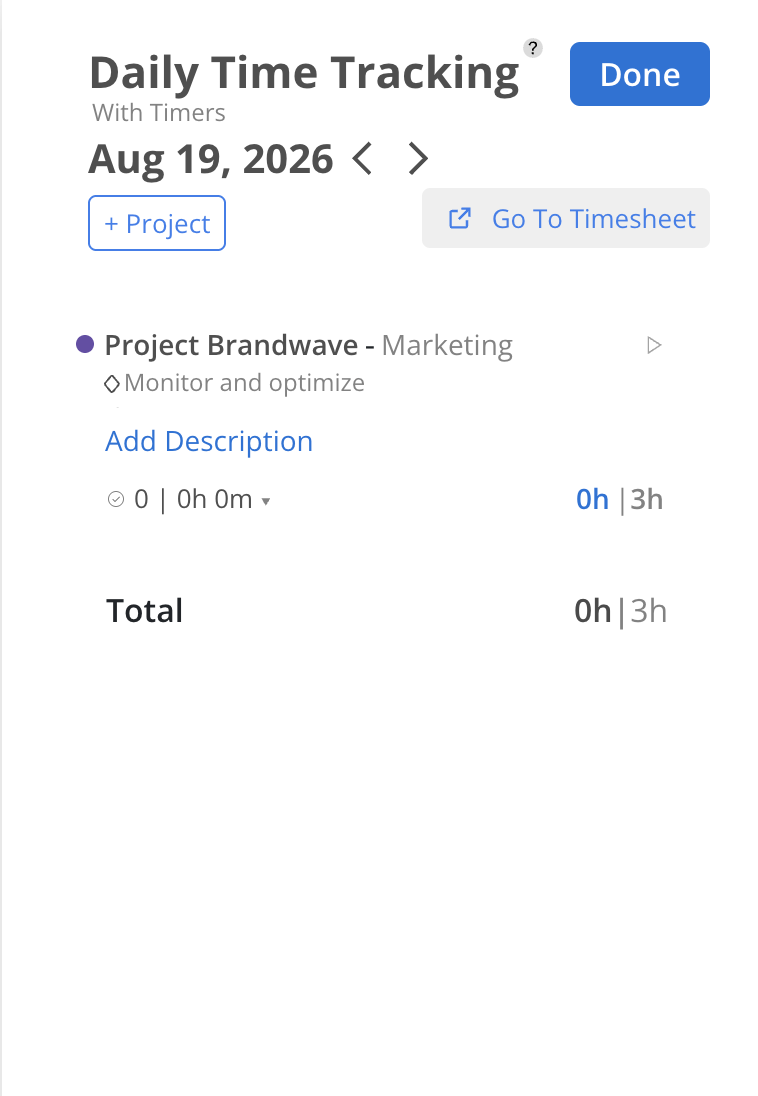
The Time Tracking widget shows you a breakdown of what is on your schedule for today, drawn from your active work plans. It is a personal drafting tool — not a time entry system and not connected to your ERP. Use it to record actual hours as you go through the day so entering time in your ERP at the end of the week is easier.
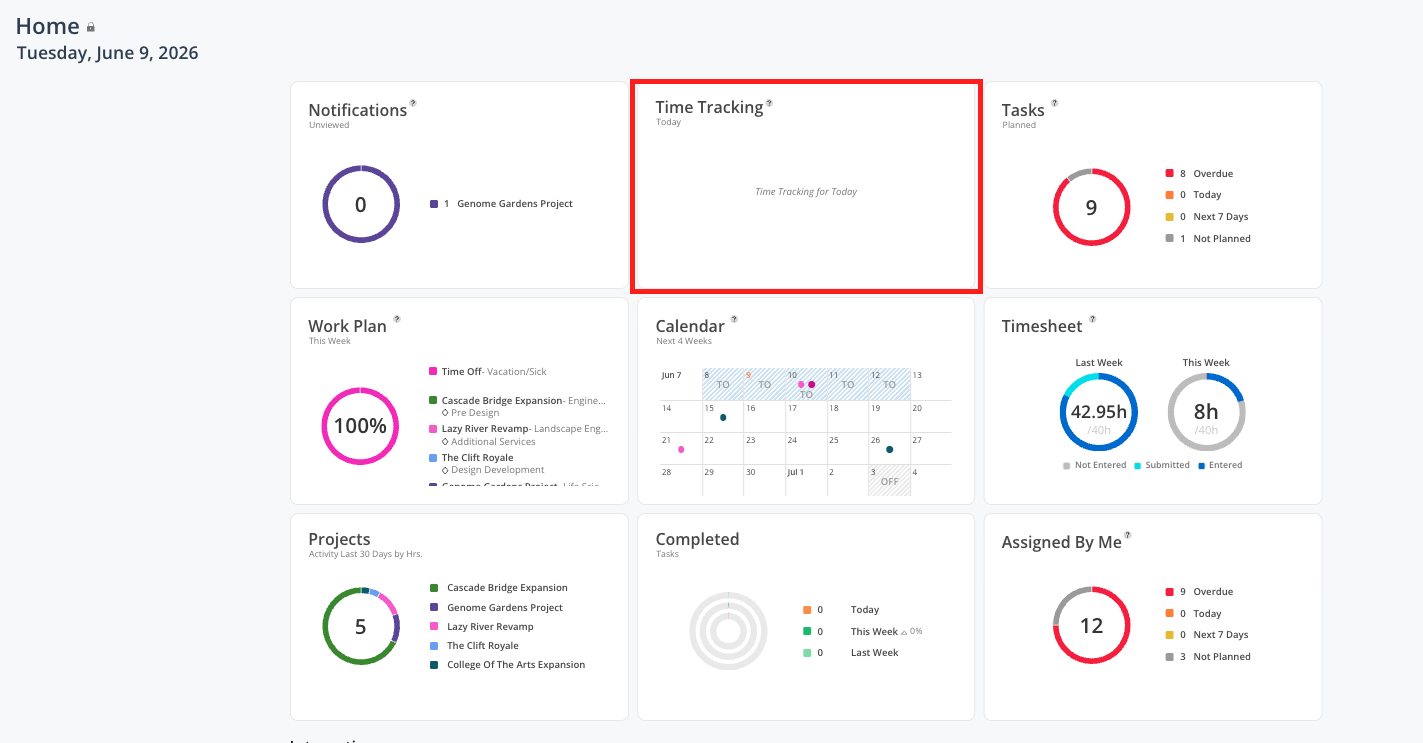
See how many hours are planned for you today across your projects
Track how many hours you actually worked on something
Record time on a project you worked on even if you were not formally scheduled
Start a timer so Mosaic tracks your time automatically while you work
Draft your time before entering it in your ERP (or in Mosaic)
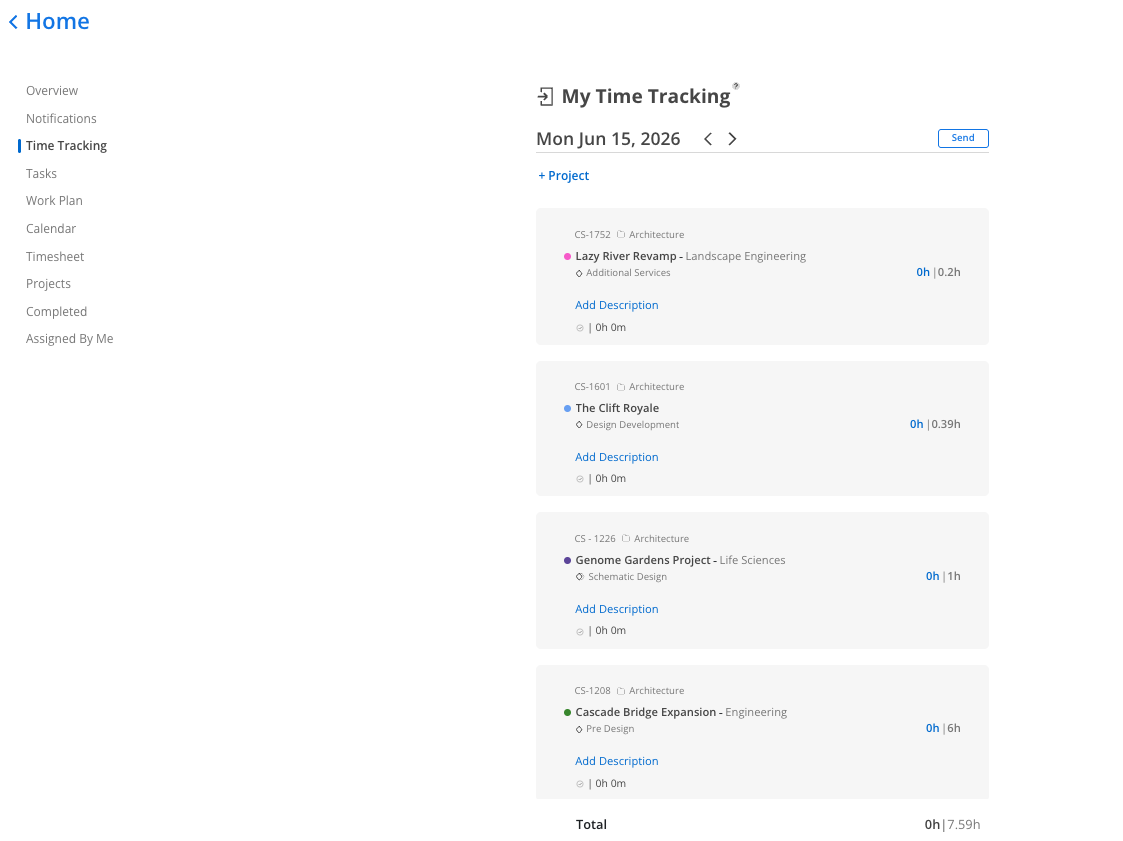
Click the blue 0h field next to the project you worked on.
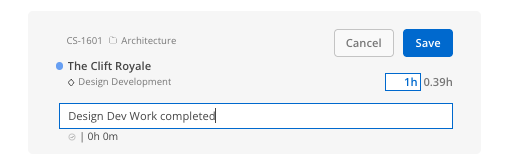
Type the number of hours you actually worked and add a description or note if needed.
Click Save to confirm. Click Cancel to discard.
Note: Negative hours are not allowed.
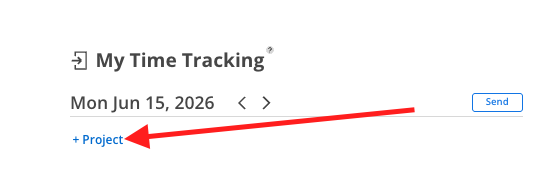
Click + Project at the top of the Time Tracking page.
Select the Project, Phase, and Work Category (if applicable).
The row appears and you can enter your actual hours.
Hover over a project row and click the play button to start the timer.
The clock icon in the top-right corner of Mosaic turns green to indicate the timer is running.
To stop the timer, click the play button again on the Time Tracking page, or click the green clock icon from any space in Mosaic.
Important: The timer tracks elapsed time but does not automatically fill in your hours. After stopping the timer, you still need to manually enter the hours in the blue field.
Hover over the row to reveal the x button.
Click x.
Confirm the deletion in the modal that appears.
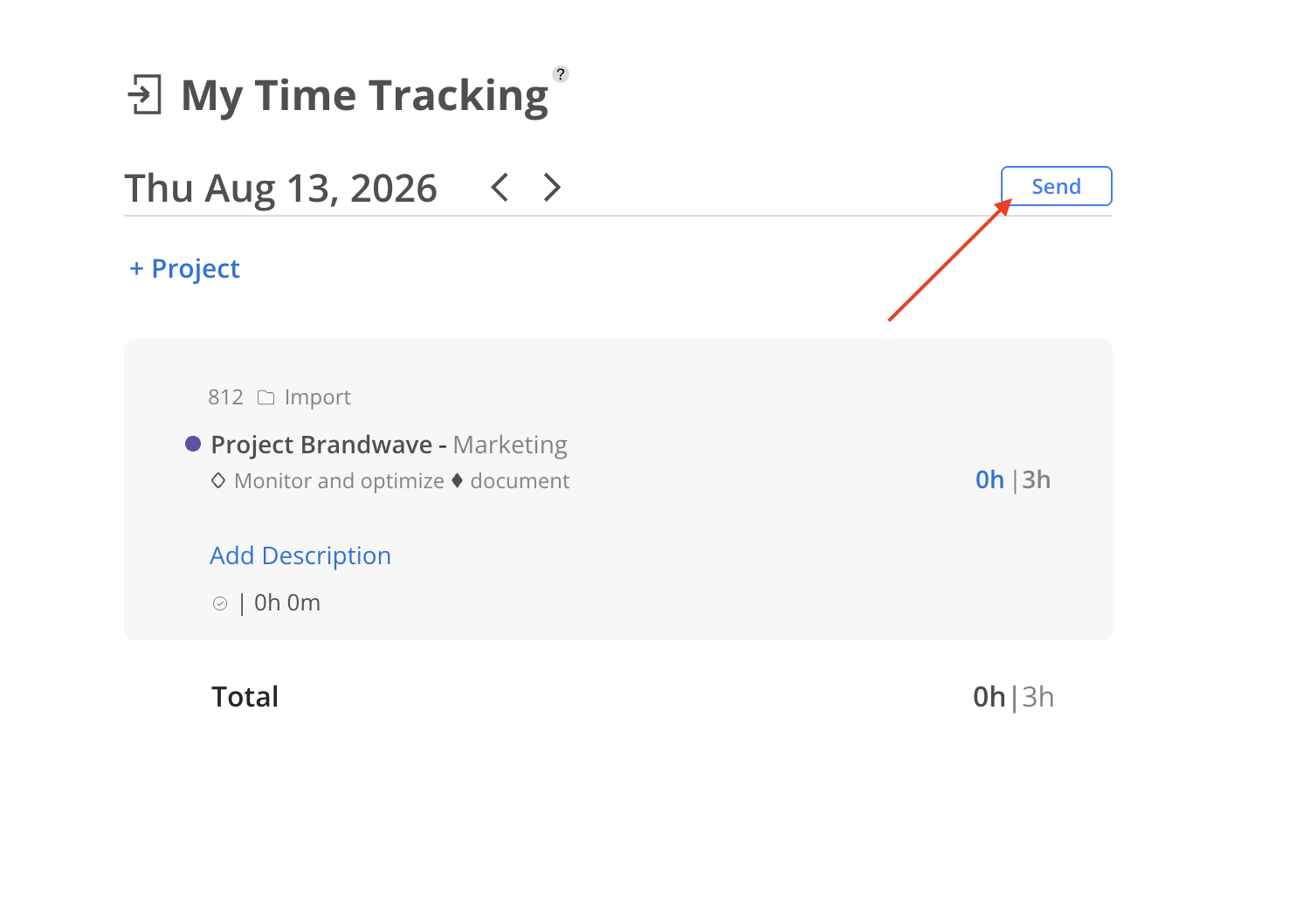
Click Send at the top of the Time Tracking page.
Click the people selector to choose which members receive the summary. Click Done.
Click Send in the confirmation modal.
The selected members receive a notification they can click to see your time tracking for that day.
Use it as a scratch pad, not a system of record — This data does not go to your ERP. Enter your actual hours here throughout the day, then use those notes to fill in your ERP timesheet at the end of the week
The timer is optional — Some people prefer to run the timer while working on a task; others prefer to enter hours manually at the end of the day. Both work great!
The clock icon in the top-right corner is always available — You can access the same Time Tracking drawer from any space in Mosaic without navigating back to the Home Space
