The Team Builder is the second tab in the Staffing space. It takes a project-first approach: select projects, view their open roles, and find the best candidates across your organization. Team Builder is especially useful when projects have defined open roles and you need to identify who is available and qualified to fill them.
You can access the Team Builder directly from the Staffing space or by clicking the people icon in the Planner space on a specific project.
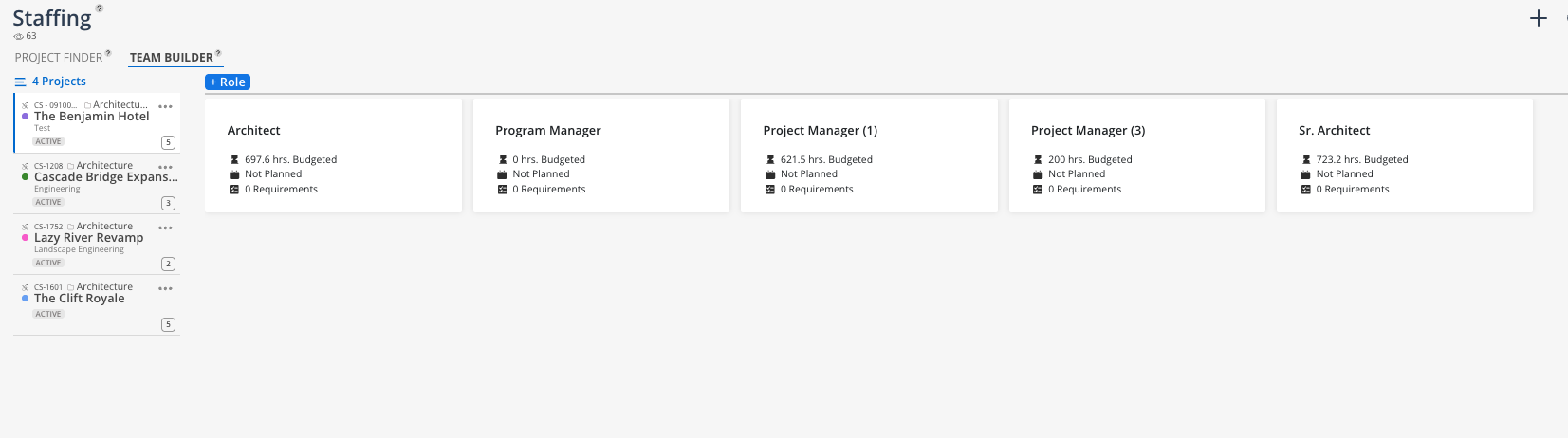
Project selection panel — Top-left area where you select which projects to view. Uses the same filters as the Planner space
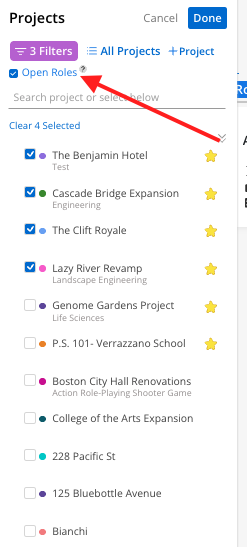
Open Role Checkbox — Select the checkbox to quickly sort to only projects with Open Roles available to plan
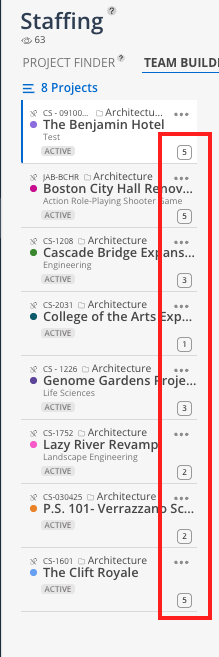
Project cards — Each selected project appears on the left with the number of open roles shown in the bottom-right corner
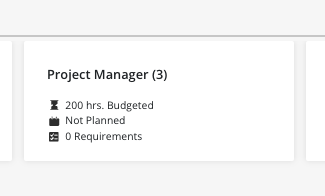
Open role cards — Expanding a project shows the individual open roles with dates and requirements if configured
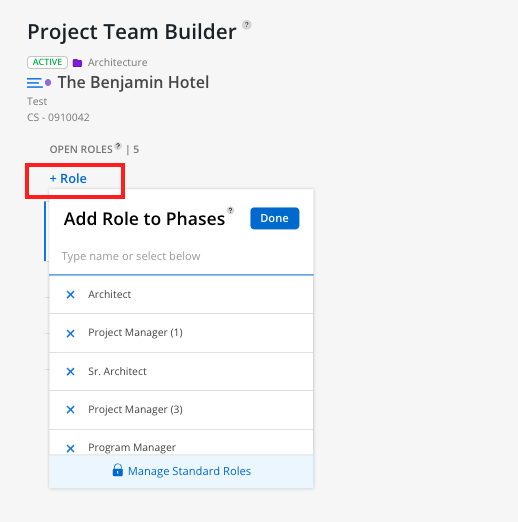
+ Role button — Add a new open role to a project
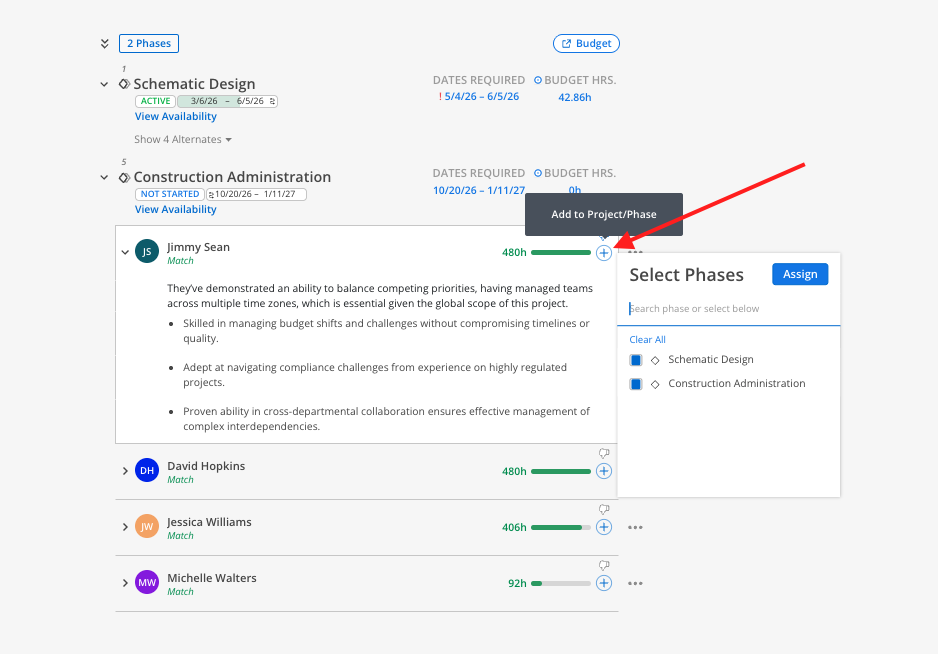
Suggested members panel — When a role is selected, recommended candidates appear on the right
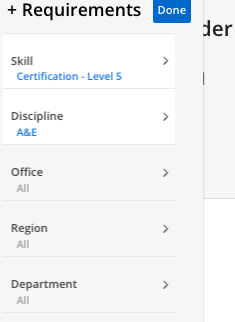
Requirements filters — Set skill and proficiency requirements to narrow candidate recommendations
Click the project selection area in the top left of the Team Builder tab.
Select the projects you want to view. Use the same filters available in the Planner space to narrow by portfolio, status, or other attributes.
Selected projects populate on the left-hand side as project cards.
Click on a project card to expand it and view its open roles.
Click on an open role card to see its details and view suggested members on the right.
Review the suggested candidates and their qualifications.
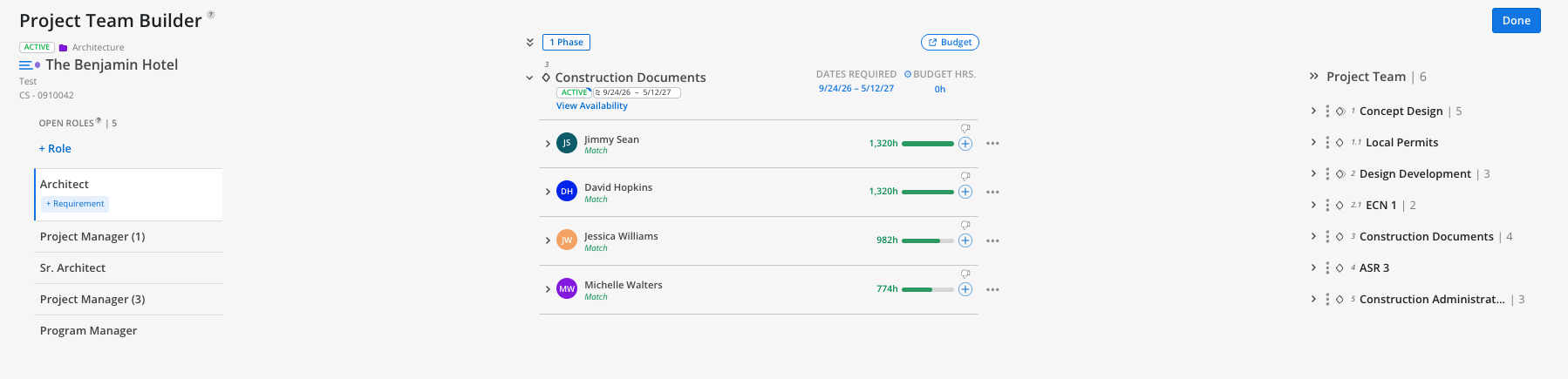
Click the + Role button on a project card.
Configure the role details including dates and requirements.
The new role appears as a card within the project.
Each open role card displays key information at a glance:
Dates required — The time period when the role needs to be filled, if configured
Requirements — Skills or other qualifications needed for the role, if configured
Click on a role card to view or edit the full details of the open role.
When skills are entered for team members, the Team Builder can match candidates based on specific qualifications. For example, you can search for a member with expert-level CAD proficiency to fill an open role that requires that skill.
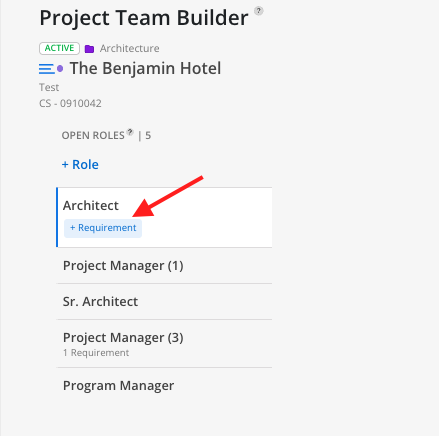
Set skill requirements on the open role
The system filters candidates who match those requirements
Proficiency levels allow you to specify not just the skill but the level of expertise needed
When you assign an open role to a member, it assigns to one person. You can do this from within the Team Builder or from the Planner space.
Set up skills early — The more skills data entered for your members, the better the Team Builder can recommend candidates
Use the project filters strategically — Filter to a specific portfolio or project type to focus on the roles most relevant to your planning
Check open role counts on project cards — The number badge on each card gives you a quick sense of which projects need the most staffing attention
Access from Planner too — You can reach the Staffing space by clicking the people icon on any project in the Planner space
