The Project Finder is the first tab in the Staffing space. It takes a member-first approach: select a person, set a time range, and see which projects they could contribute to. The system recommends projects based on the member's availability, whether they have previously worked on the project, and whether they have worked with people currently assigned to the project.
This is useful when a team member has upcoming availability and you want to find the best fit for their time rather than waiting for a specific project request.
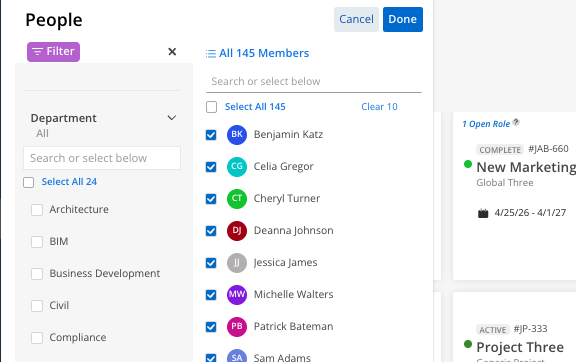
Members button — Opens the member selection panel at the top of the space (this opens the same filtering you’ll see in the Workload Space)
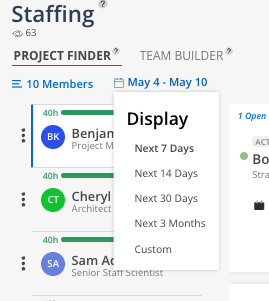
Date range selector — Choose 7, 14, 30, or 90 days, or set a custom date range to define the availability window
Member list — Selected members appear on the left with their capacity information
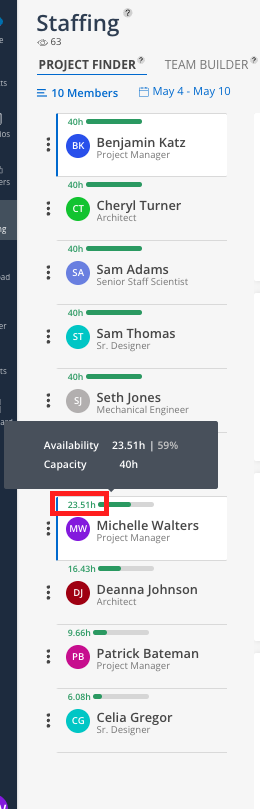
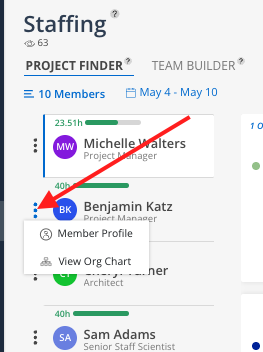
Three-dot menu — Next to each member's name, provides access to Member Profile and View Org Chart
Suggested projects panel — When a member is selected, recommended projects appear on the right with planned dates and office location
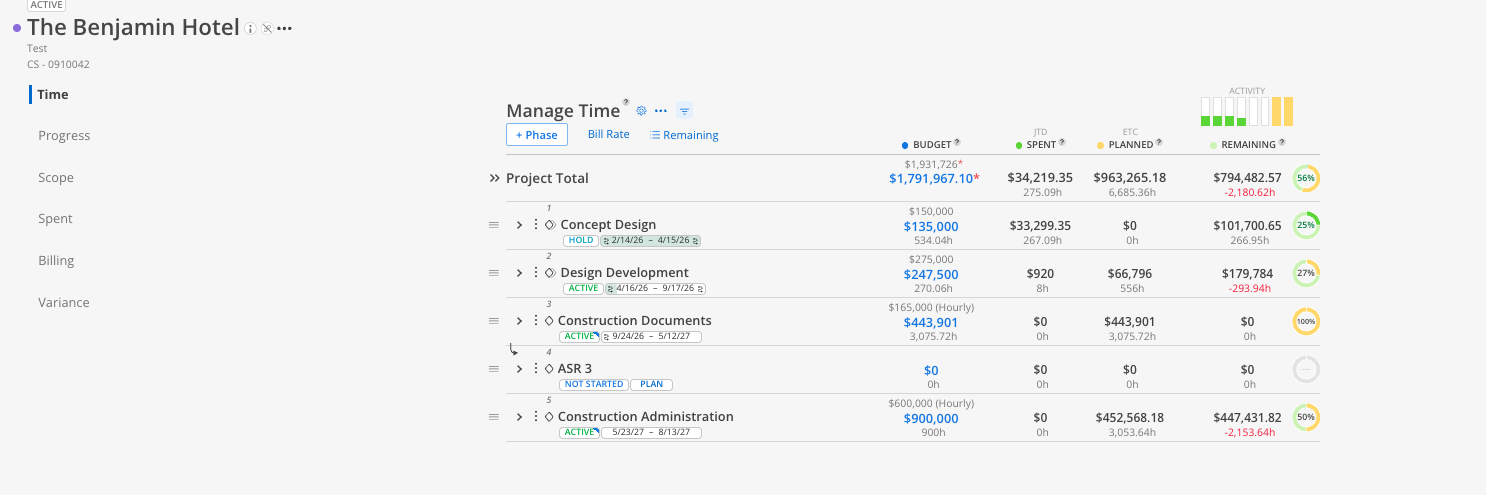
Budget preview — Click into any suggested project to view its budget information
Click the Members button at the top of the Staffing space.
Select the members you want to evaluate.
Click the date range selector to set the time window — choose 7, 14, 30, or 90 days, or enter a custom range.
Click on a member's name in the left panel.
Review the suggested projects that populate on the right side.
Click on any project to access its budget information directly.
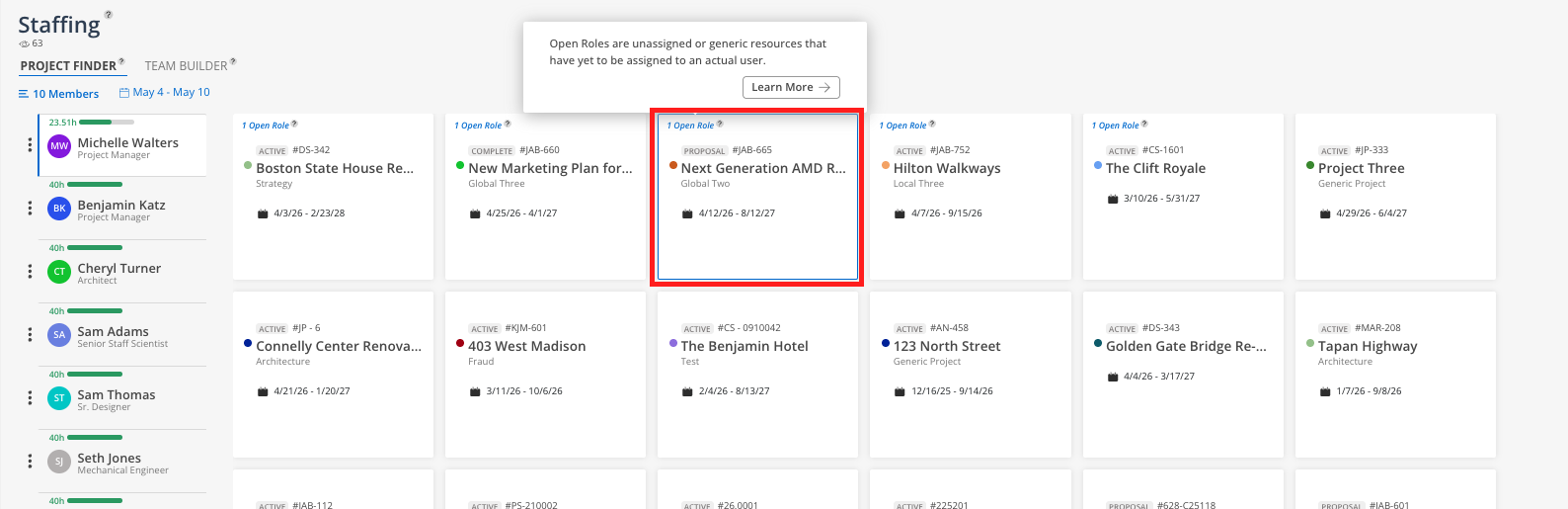
The Project Finder suggests projects based on several parameters:
Availability — The member has capacity during the project's timeline
Previous project work — The member has previously worked on the project or a related phase
Team familiarity — The member has worked with people who are currently assigned to the project
These factors combine to surface the most relevant project matches for each member.
Click on any suggested project to view its budget details directly within the Staffing space. This allows you to confirm budget availability before assigning a member to the project.
Click the three dots next to a member's name to access additional options:
Member Profile — View the member's full profile information
View Org Chart — See the member's position within the organization hierarchy. This option is available to Budget Managers and above. If the required permissions are not granted, the button is disabled.
Use longer date ranges for strategic planning — The 90-day view helps identify upcoming availability before it becomes urgent
Check the budget before assigning — Click into the suggested project to confirm there is budget and open work available
Combine with Workload — After identifying a match in Project Finder, switch to the Workload space to create the work plan
