Staffing brings together member availability, open roles, and project needs into one space so you can make informed staffing decisions. It has two main tools: the Project Finder, which recommends projects for available members, and the Team Builder, which helps you find the right candidates to fill open roles on your projects.
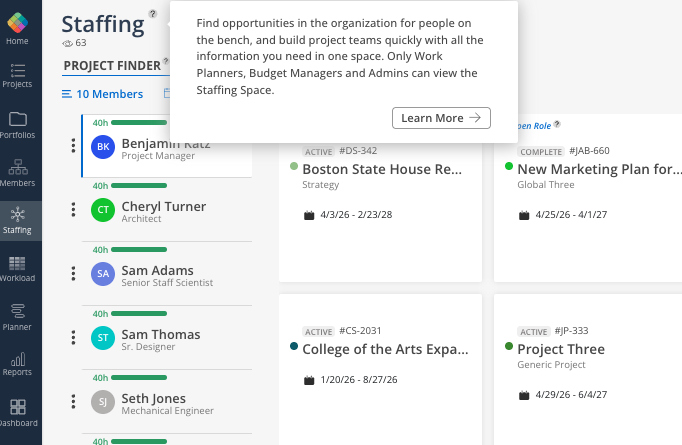
This space works alongside Workload and Planner. Workload shows member-level capacity. Planner shows project-level schedules. Staffing connects the two by helping you answer the question: who should work on what next?
In addition, this is the best place to go when you want to answer questions like:
Which projects have open roles that need to be filled?
Who on the team has availability to take on new work?
Which members are the best fit for a specific open role based on skills and experience?
What projects could a specific person contribute to based on their availability?
How do I find someone with a specific skill set to fill a role?
The Staffing space is organized into two tabs: Project Finder and Team Builder. Project Finder starts with members and recommends projects. Team Builder starts with projects and recommends members for open roles.
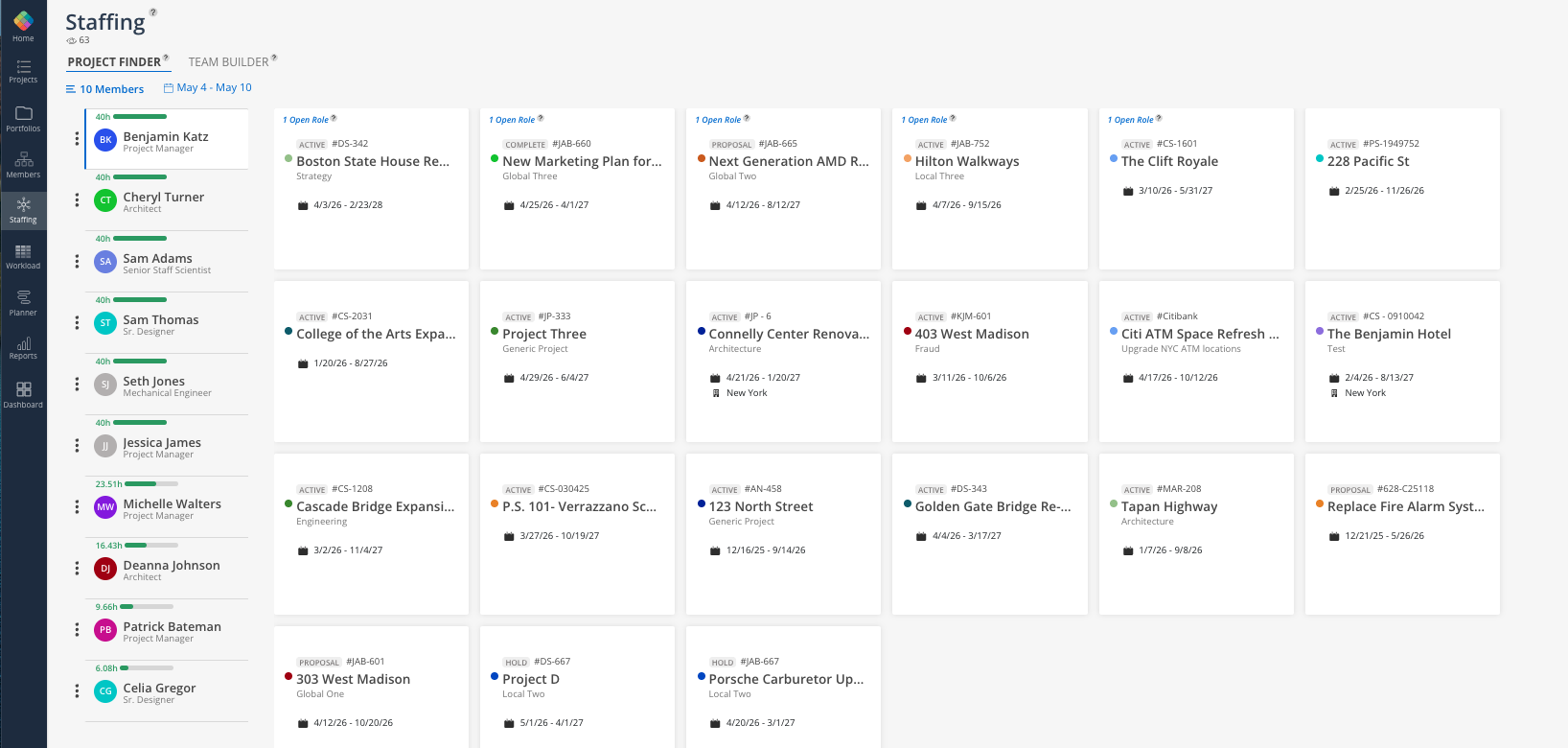
Project Finder provides visibility into each member's capacity and suggests projects that align with their availability. It recommends projects based on whether the member has previously worked on the project, has availability during the project's timeline, or has worked with people currently on the project.
Select members and choose a date range to see their capacity
View suggested projects for each member based on multiple parameters
Click into a project to access its budget information
👉 Learn more about Project Finder
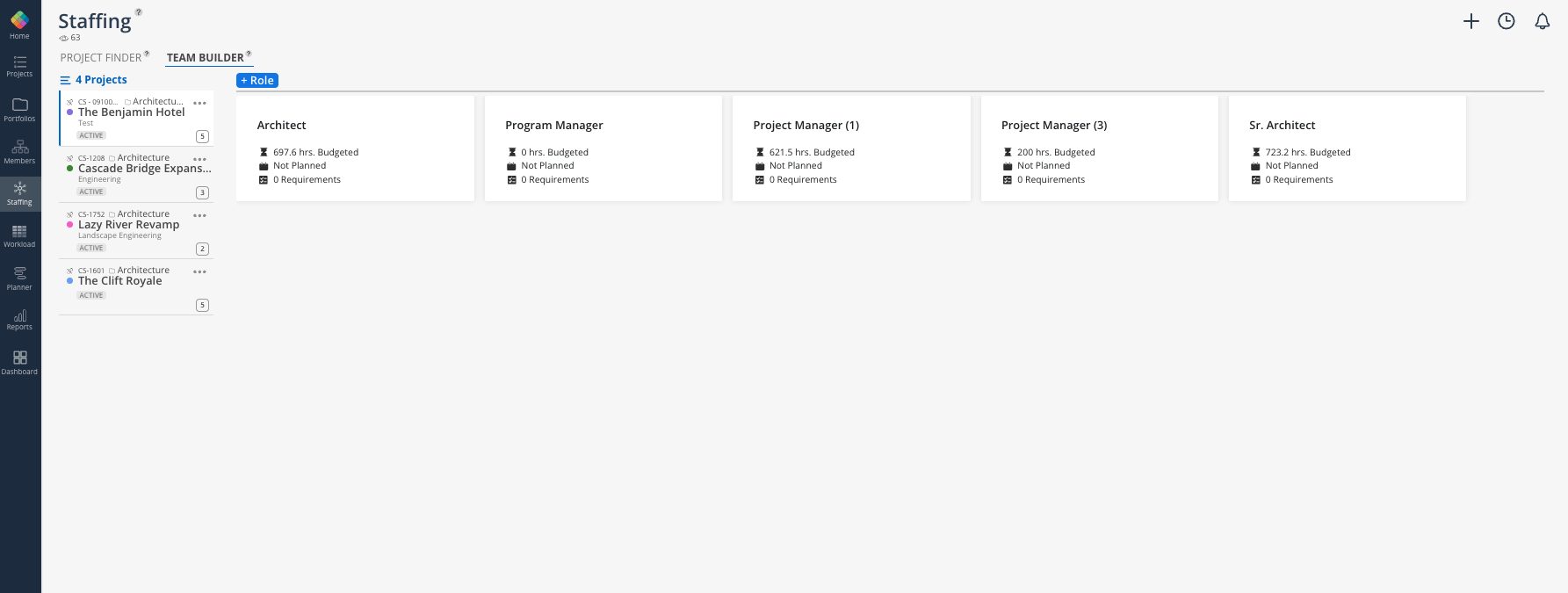
Team Builder lets you explore open roles across your projects and find the best candidates to fill them. Filter projects, view open role details, and see suggested members who match the role's requirements.
View all projects with open roles in one place
Add new roles and set requirements including skills and proficiency levels
See suggested candidates for each role based on availability and qualifications
👉 Learn more about Team Builder
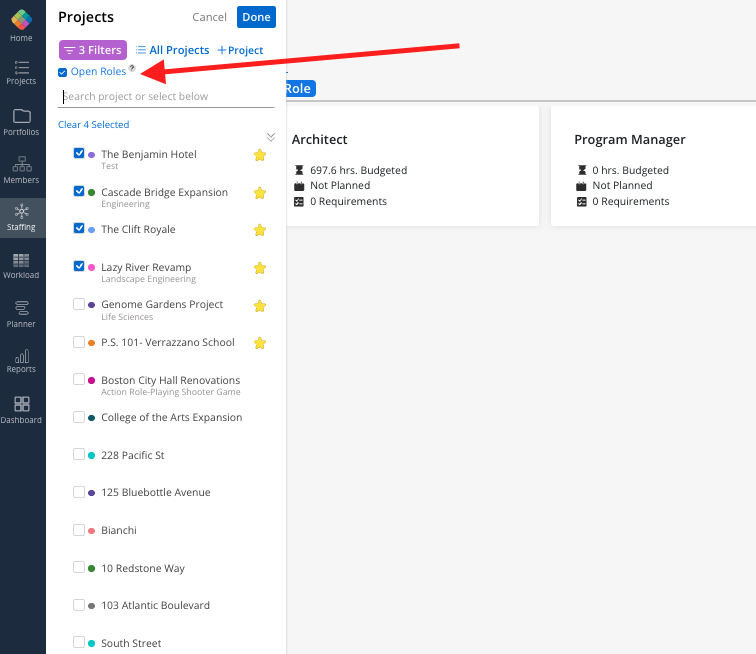
Open roles are visible in the Staffing space and in Reports, but they do not currently appear in the Workload space. Workload only displays confirmed members with active seats. Some teams create placeholder member accounts as a workaround to visualize open role capacity in Workload.
Open roles appear in Staffing and in the Role Demand and Plan Time reports
Workload currently shows only confirmed members, not open roles
Adding open roles to Workload is on the product roadmap
👉 Learn more about Open Roles & Workload
Start in the space that matches your question — Use Project Finder when you have a person and need a project. Use Team Builder when you have a project and need a person
Leverage skills for better matches — Enter skills and proficiency levels for team members so the Team Builder can recommend the best candidates
Use member filters to narrow results — Filter by department, role, or office to focus on the group most relevant to the open role
Check both Staffing and Reports — The Role Demand report gives a complementary view of open roles by role type, which can help with longer-term planning
Plan ahead with date ranges — Use the Project Finder date range to look 30, 60, or 90 days out and proactively match available members before they become overbooked
