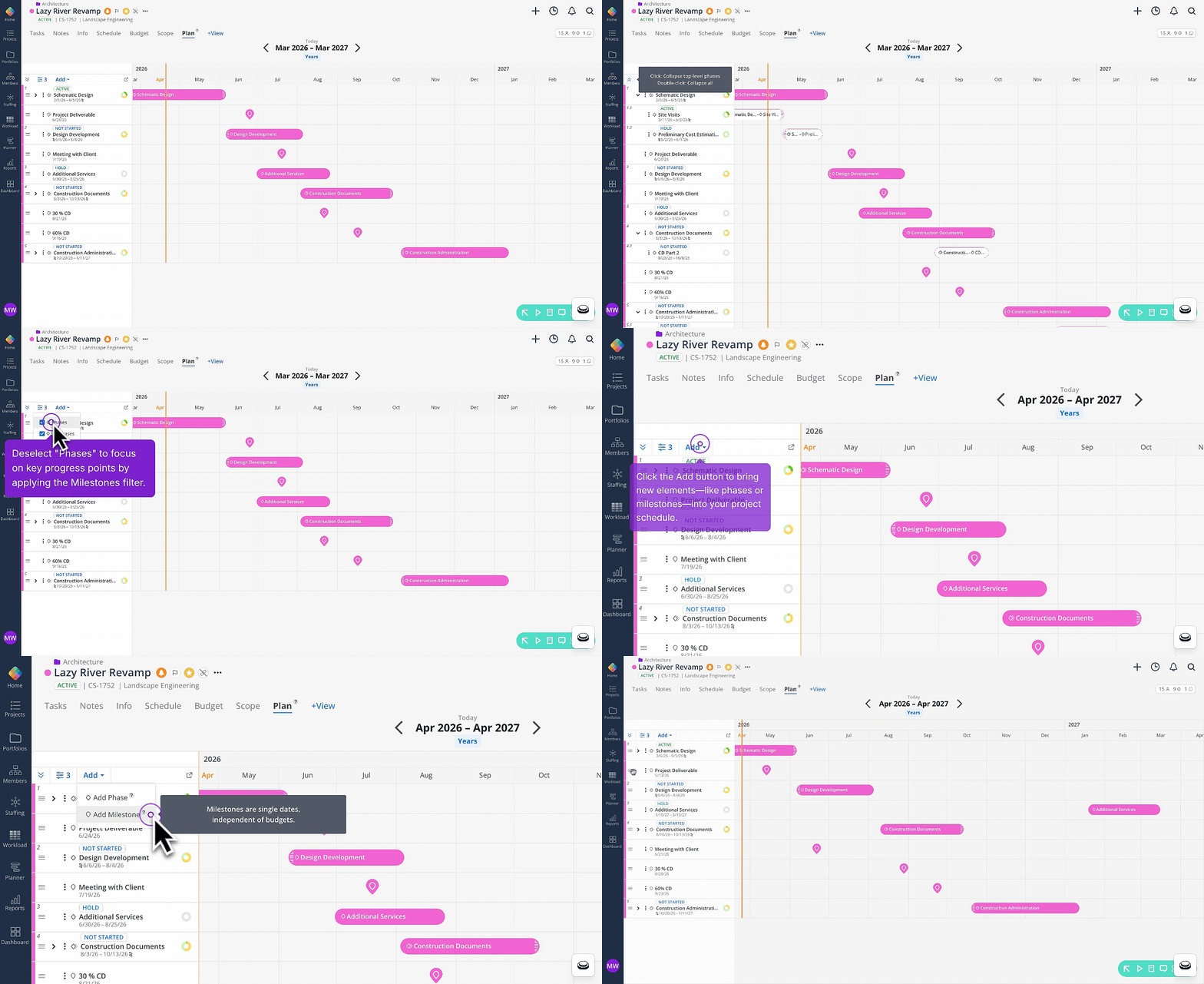
🔷 Gantt-Style Project View
The Plan tab is now available in every project, giving you a visual timeline to plan and manage phases, subphases, and milestones. You can filter, add, and re-order phases, subphases, and milestones from this space. The Plan view allows you to see your full project schedule at a glance and keep your team aligned on what's happening and when.
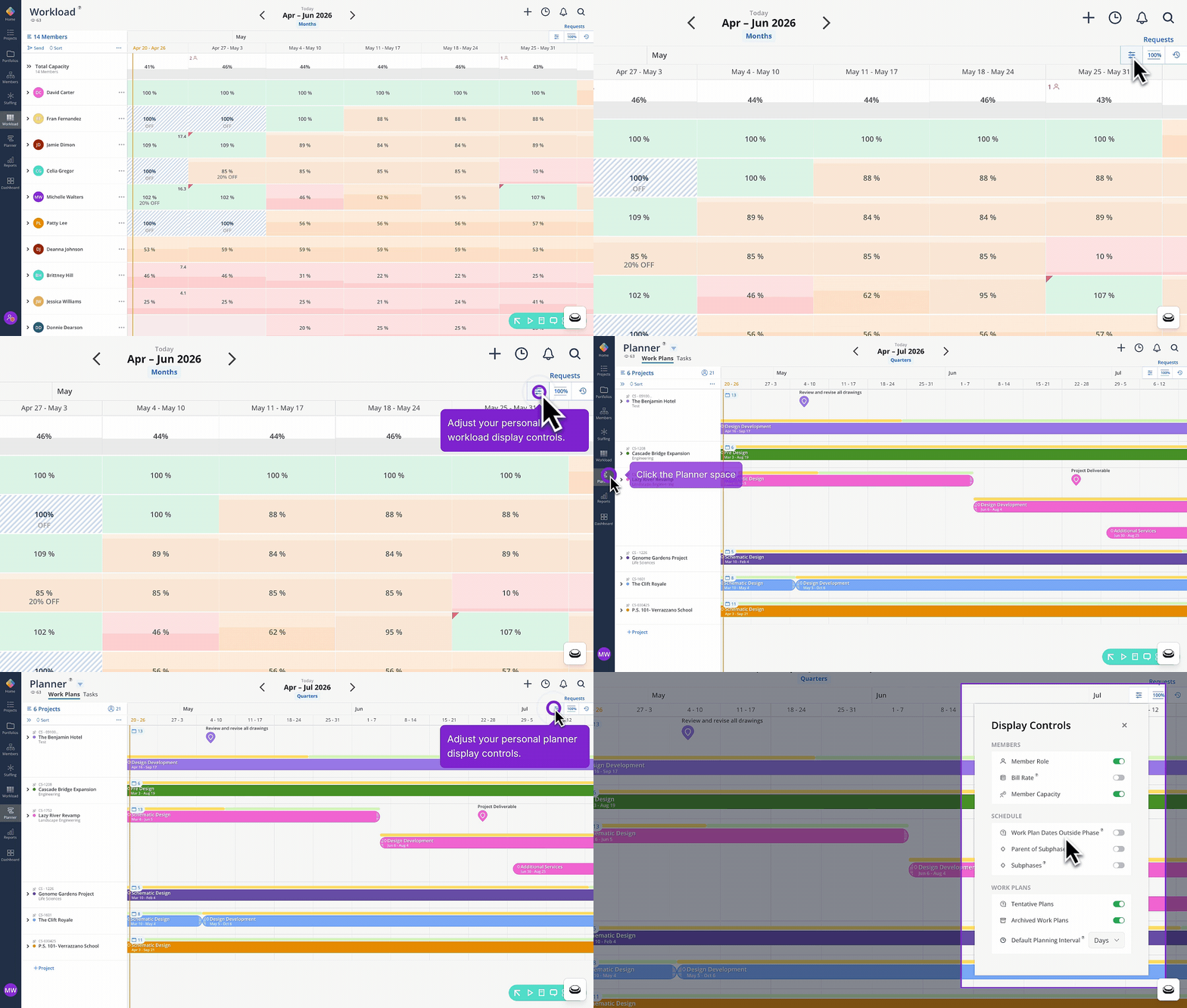
🔷 Display Controls in One Unified Panel
Settings and display controls in the Planner and Workload spaces have been combined into a single panel, accessible with one click. So you can manage all your display preferences — members, schedule, and work plans — without jumping between separate menus.
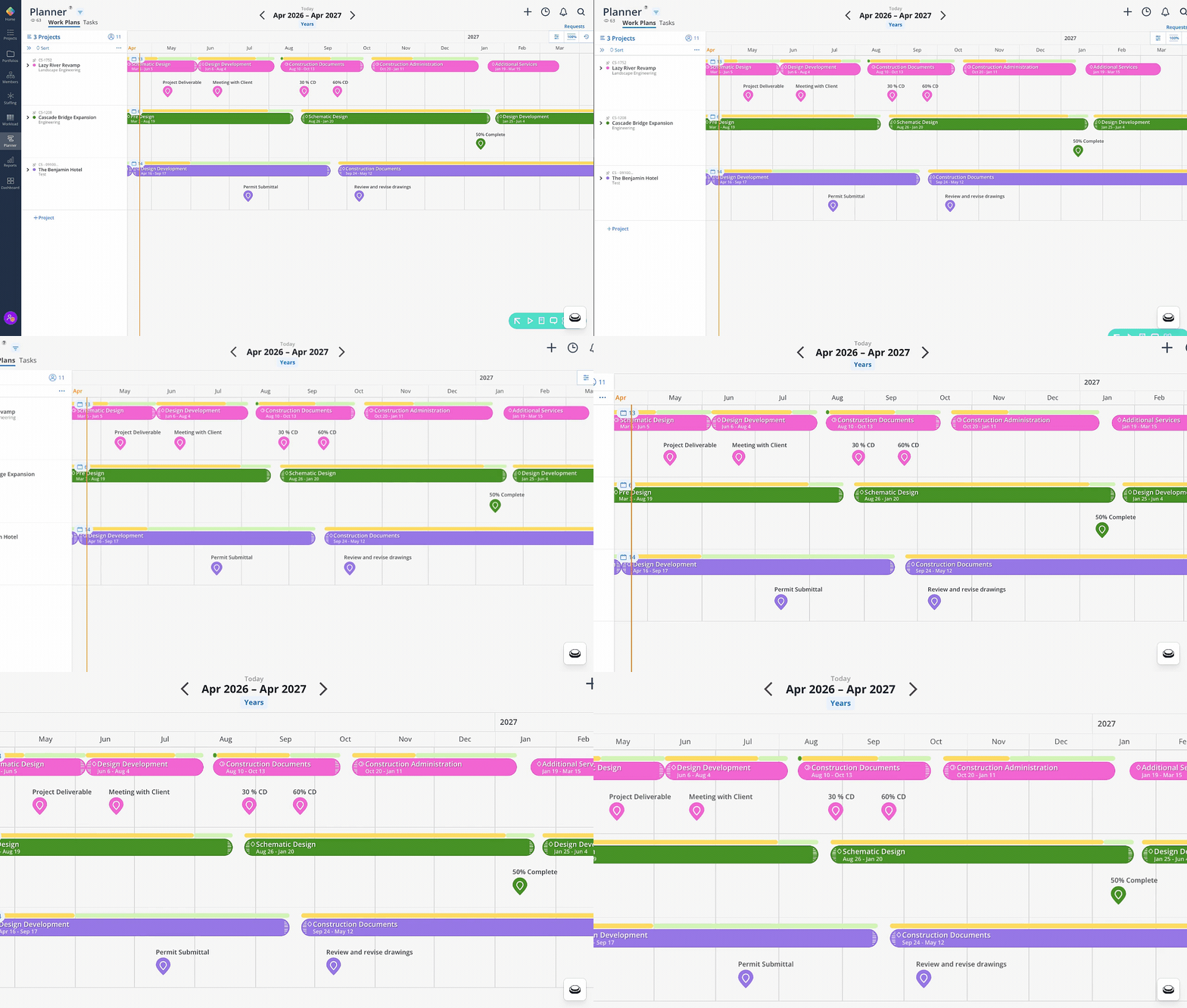
🔷 Milestone Names Pinned in the Planner Calendar
Milestone names are now automatically pinned above the milestone marker in the Planner space when viewed at 100% or 75% row height. This makes it easier to identify key dates across projects without opening each project schedule individually.
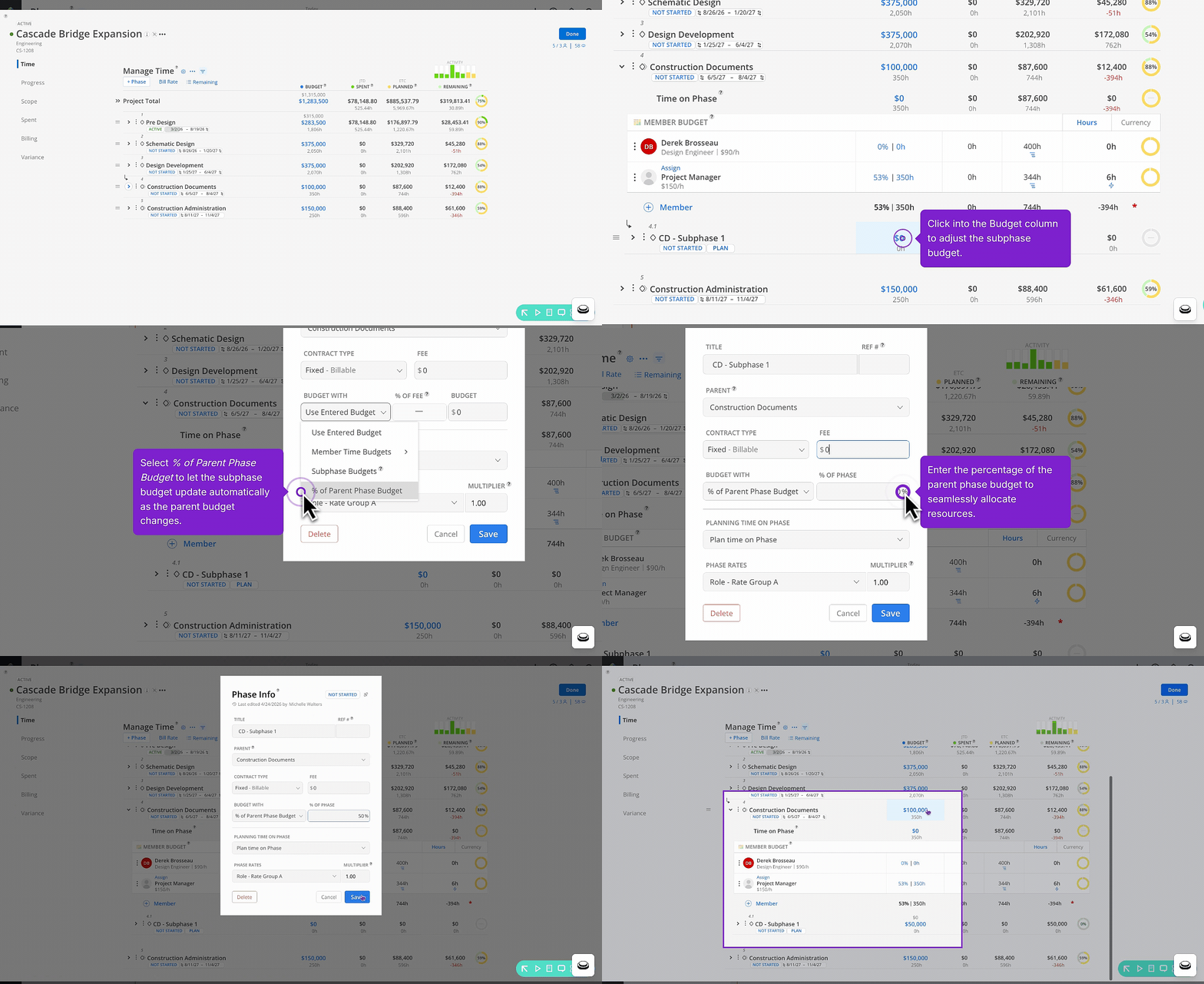
🔷 Budget Subphases Based on Their Parent Phase
You can now budget subphases as a percentage of their parent phase budget. Making it easier to allocate work proportionally and keep subphase budgets aligned with the overall phase.
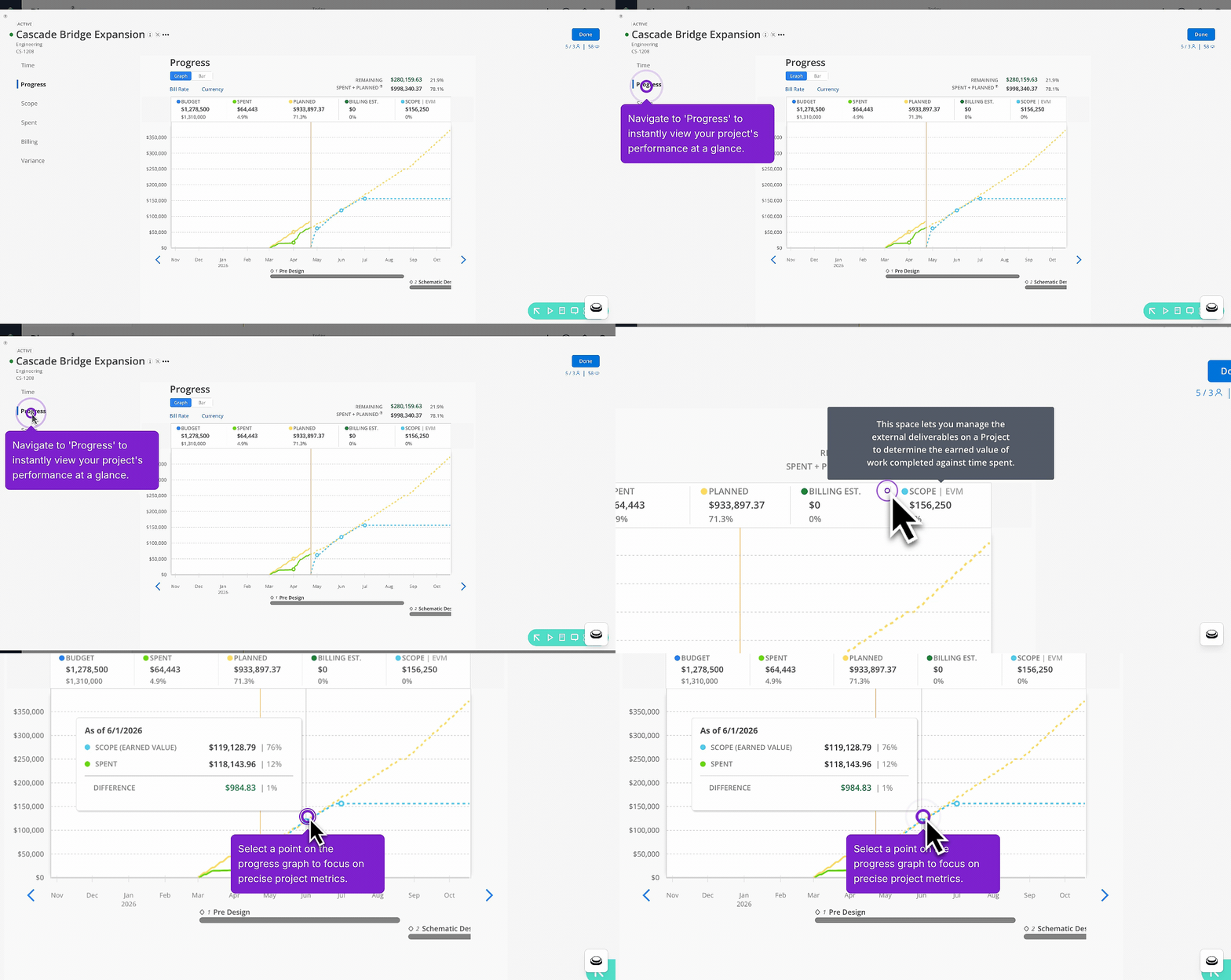
🔷 Visually See Scope Dollars on Your Budget Progress
The Progress tab now includes a Scope category in the budget graph. Giving you a more complete picture of how scope factors into your overall budget tracking.
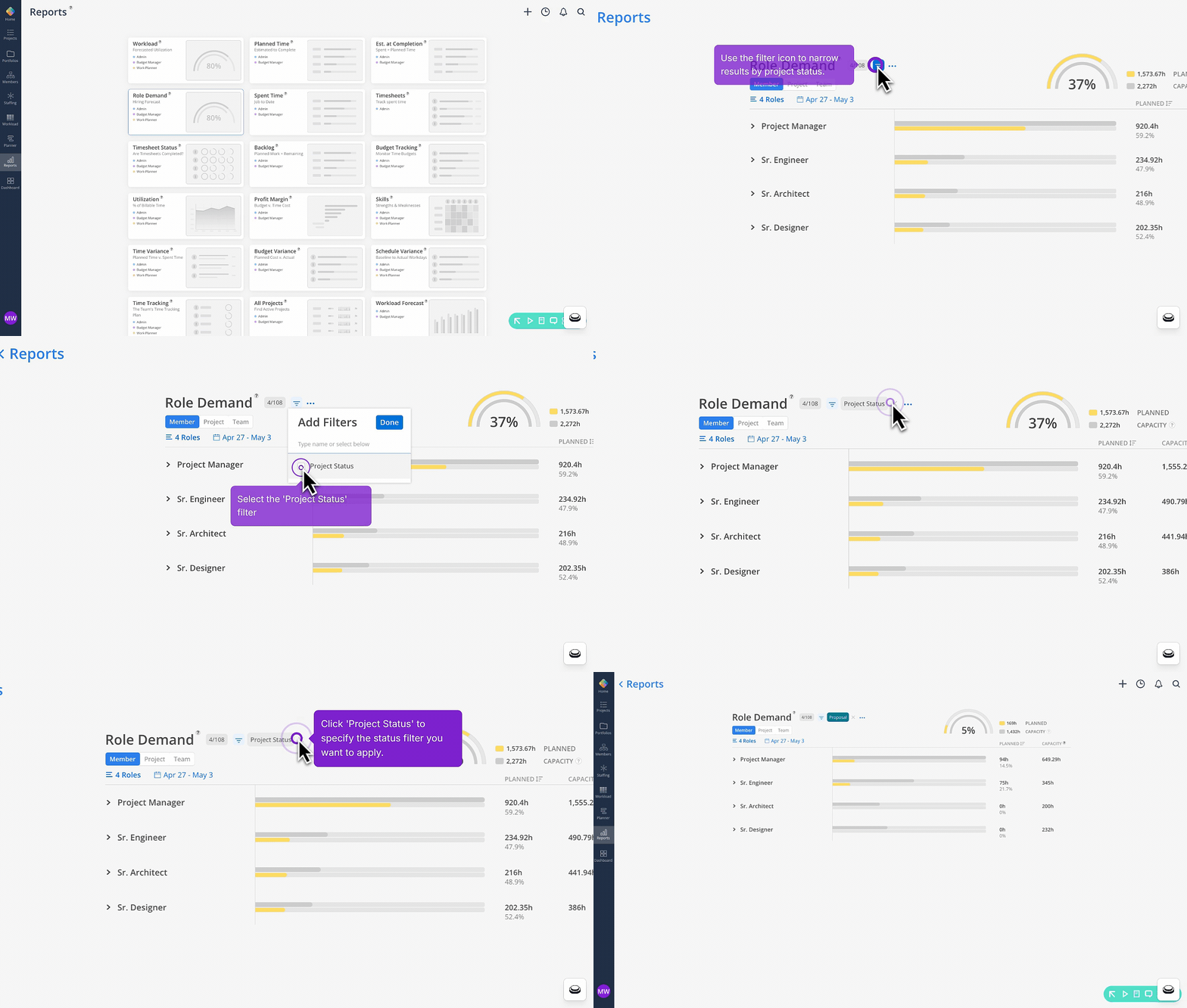
🔷 Role Demand Report - Filter by Project Status and Probability
The Role Demand report now includes a project status filter, letting you narrow results by status — Proposal, Hold, Active, or Completed — and by proposal probability percentage. Giving you a more focused view of demand based on where projects actually stand.
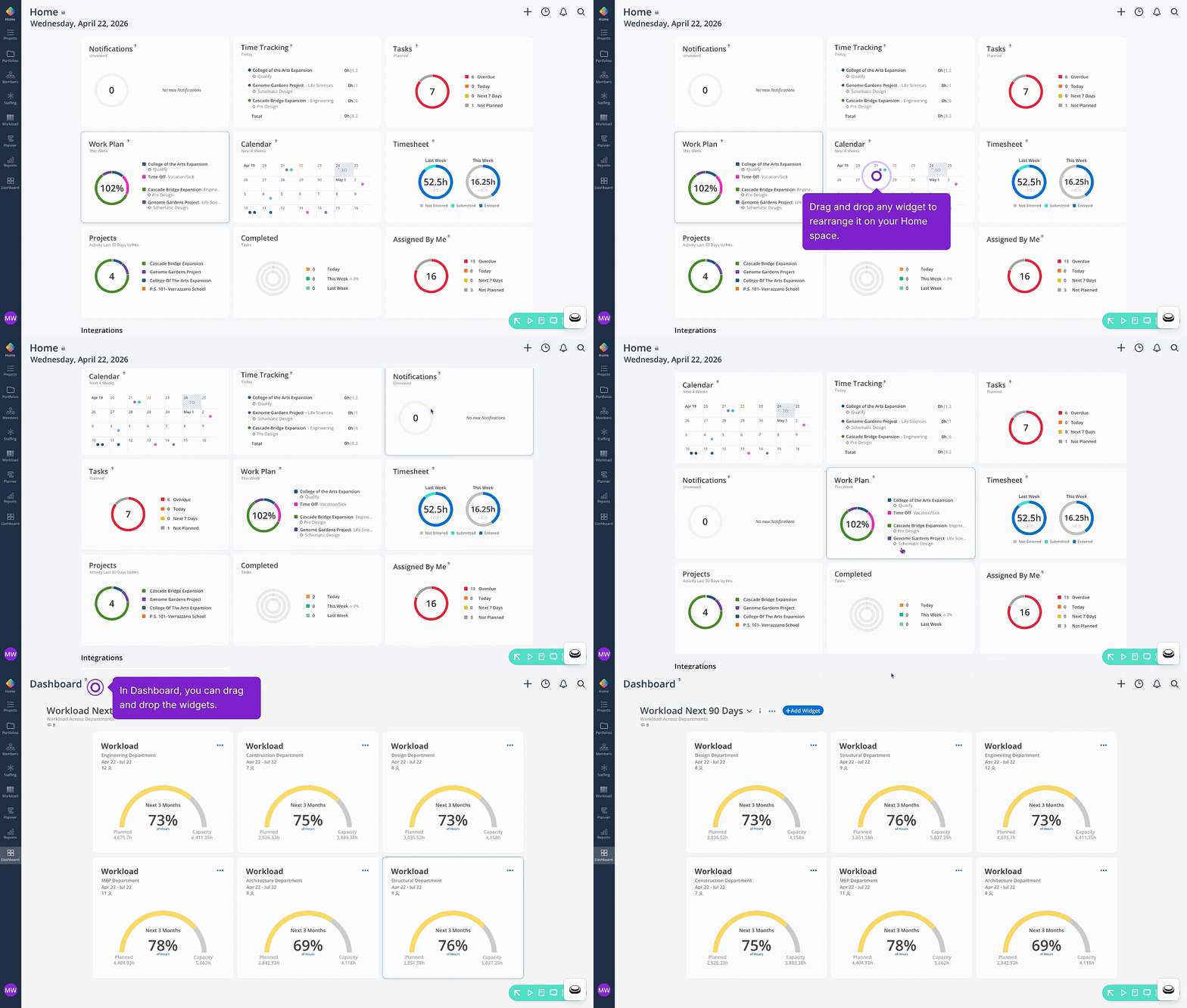
🔷 Reorder your Home Space & Dashboard Widgets
Widgets in Home and Dashboard spaces can now be reordered via drag-and-drop. On shared dashboards, the order is consistent for all viewers — while Home space widget order is set per member, so each person can arrange their own view.
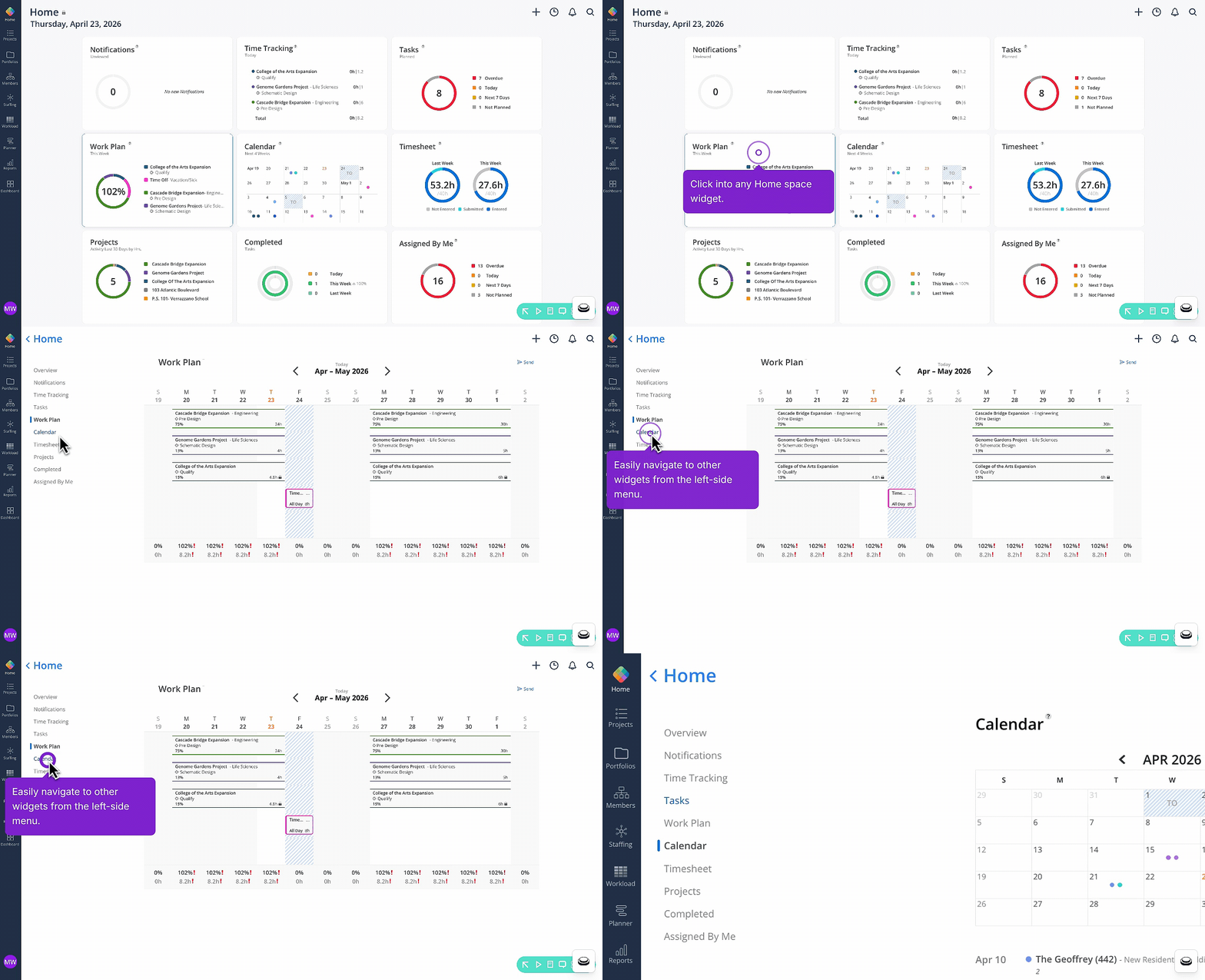
🔷 New: Navigation Menu for Home Space
A new navigation menu on the left side of the Home space lets you jump directly between different areas of the Home Space. Making it easier and faster to get to the information you need.
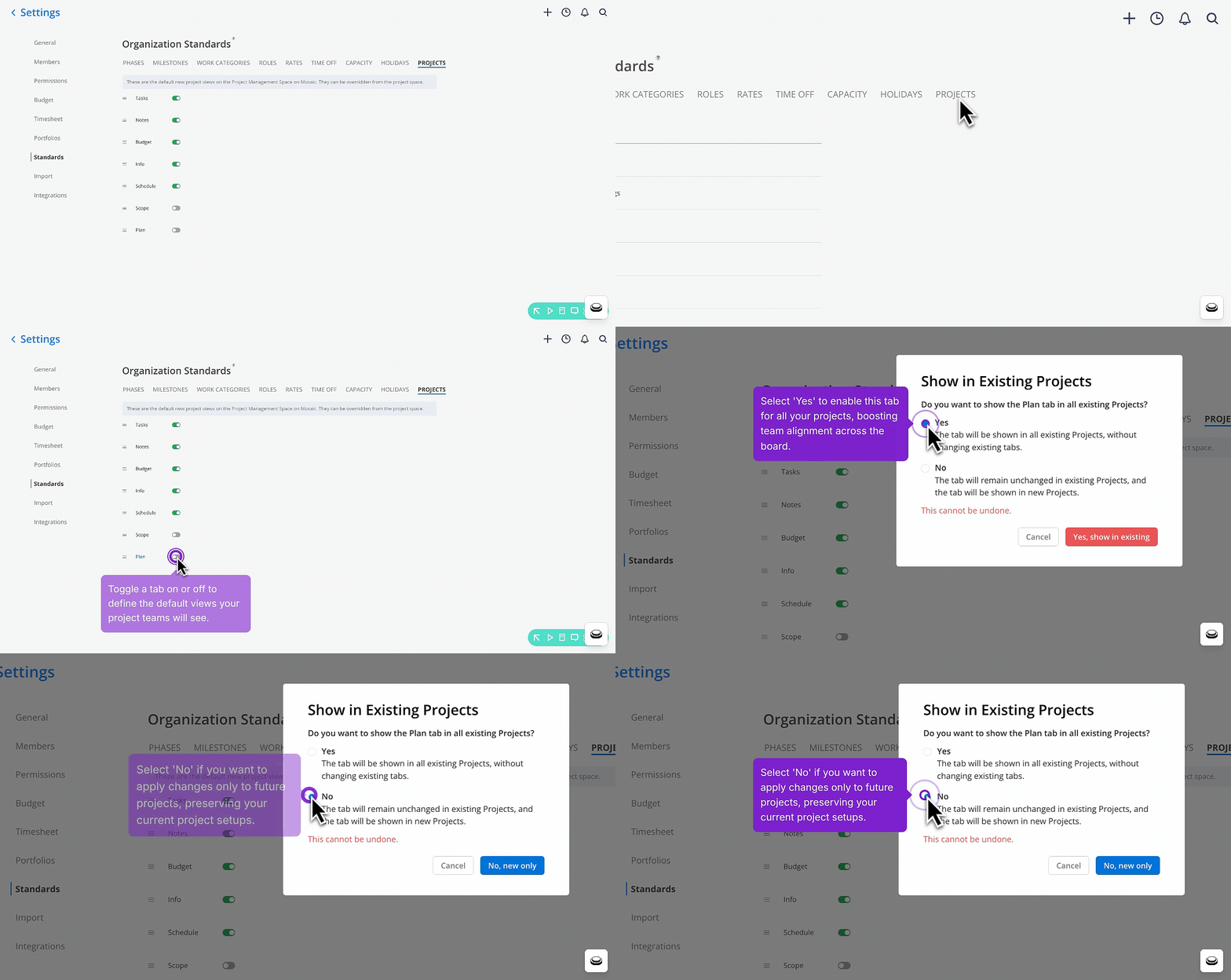
🔷 Update Project Views Across All Projects or Just New Projects
When updating project view standards, you can now choose whether to apply them to all existing projects, only projects still using the default setup, or just new projects going forward. If you select “Yes” the view will be updated across all existing projects. This gives you precise control over how standard views roll out across your organization.