It gives you a real-time view of how your project budget is being impacted by both time already spent and work planned for the future.
This is where you will actively manage budgets, adjust plans, and make day-to-day decisions to keep projects financially on track.
[Add image: Full Time tab showing project total, expanded phases, and member rows]
Understand where a project stands financially today
Identify which phases or team members are over or under budget
Create and adjust work plans based on available budget
Reallocate work to stay within budget
The Time tab is structured in layers:
Project total → overall budget health
Phases → how budget is distributed across the project
Members → who is contributing to the work
And includes four key columns:
Budget (blue) → the starting budget or fee
Spent (green) → time already logged
Planned (yellow) → future scheduled work
Remaining → what is left
👉 Remaining = Budget – Spent – Planned
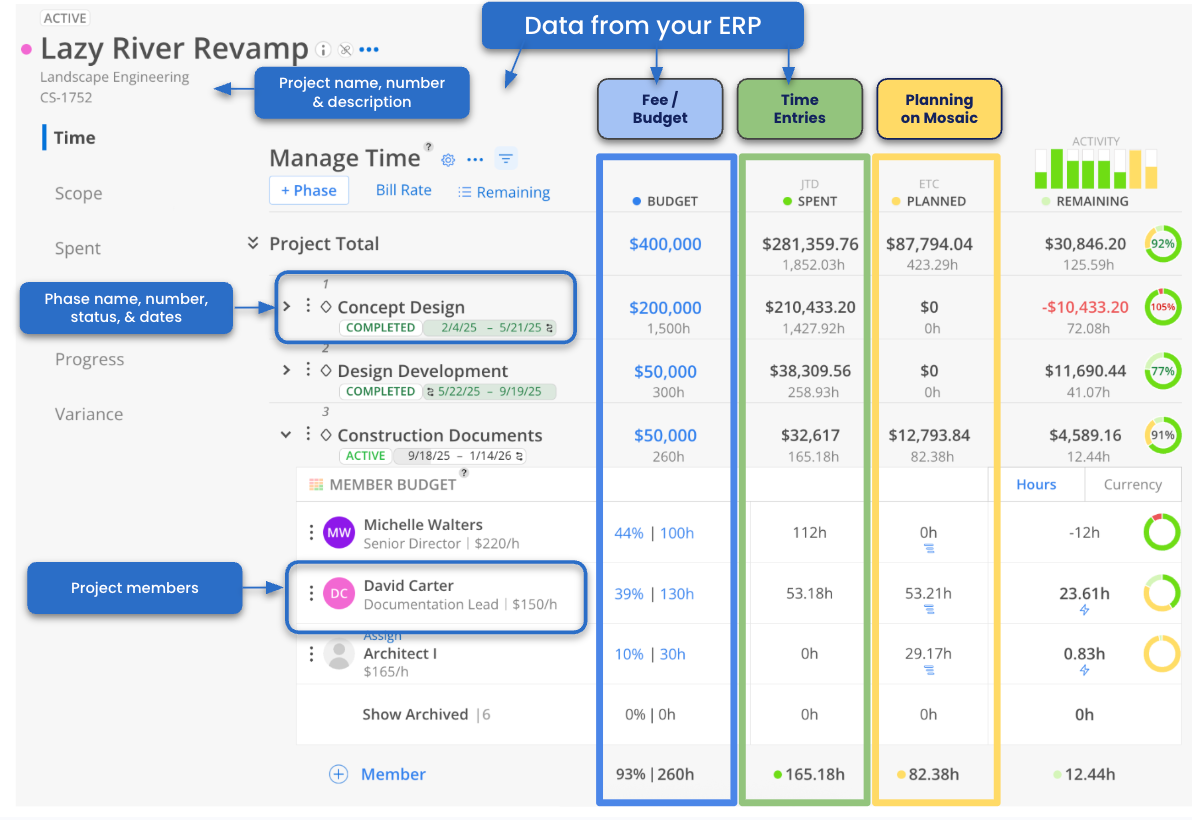
The Time tab reflects your current budget position.
Time logged in the past appears as Spent
Work scheduled in the future appears as Planned
As time passes, planned hours move into spent
This means the numbers in this view are always updating to reflect where the project stands today.
Begin by reviewing the top row.
This gives you a quick answer to:
Are we on track or over budget?
How much of the budget is already committed?
Expand phases to understand:
Where budget is being used
Which phases are trending over
Where adjustments may be needed
Look for:
Negative remaining values
Large planned hours
Red indicators
At the lowest level, you can see:
Who has contributed time
Who has planned work
Who still has budget remaining
This is where you make decisions about reallocating work.
You can assign budgets directly to team members.
Budgets can be entered as:
Hours
Percentage
Currency
Once set, you can track:
How much each person has spent
How much they are planned for
Whether they are staying within budget

If there is remaining budget, Mosaic will display a ⚡ lightning bolt.
Clicking it will:
Create a work plan
Automatically use remaining hours
Allow you to select dates

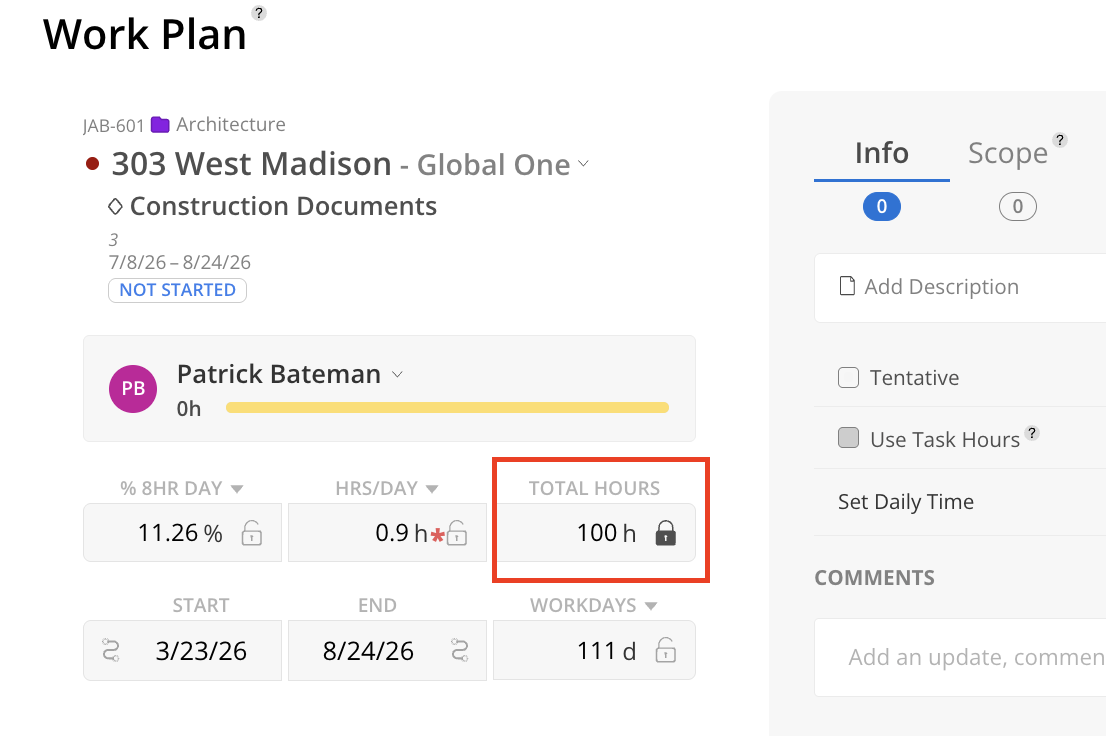
If no budget remains or you need to add more work:
Use the Planned column
Enter hours manually
Set dates
This will create a new plan and immediately update the budget.
If you don’t yet know who will do the work:
Add an open role (e.g., Designer, Engineer)
Assign budget or planned hours
Reassign later when staffing is confirmed
[Add image: Open role added under a phase with planned hours]
The heat map helps you understand team availability.
You can:
View how booked each team member is
Identify who has capacity
Assign work more effectively
[Add image: Heat map view showing team capacity and availability]
Always start with the project total
Use remaining budget to guide planning decisions
Plan work directly from the Budget space
Use open roles early, assign later
Adjust plans early to avoid overruns
