Whether simple or complex, managing the schedule of your Projects has never been easier than when using Mosaics’ Planner Space. Below, we’ll review the steps to edit, add or delete schedule information - ensuring your teams can manage together, and manage better.
The Planner Space is your hub for reviewing your Organizations resources on a project by project basis. Set up with a similar framework to the Workload Space - Planner Space allows you to filter, drill down and customize your view - enabling you to be in the know.
You’ll find a timeline option at the top of the screen - so you can plan granularly or more broadly.
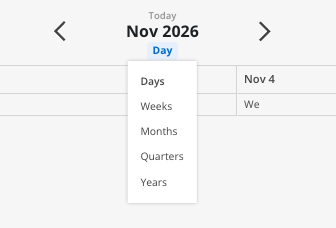
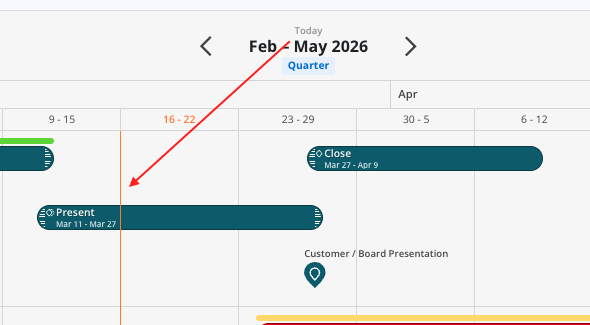
Use your mouse or the arrows to scroll to your desired time period. You will notice a ‘Today’ button above the date you are in - select this to pull you back to present day. You’ll also notice a orange line running down the space - there to give you a visual reminder of the day-line:
The Planner Space can be filtered and customized to fit your desired specifications. Learn more about steps to do so here.
Once desired projects have been selected and the timeframe has been adjusted accordingly, your projects will appear for review in the Space. Each Project has its own ‘row’ that can be expanded to show all Members and Open Roles accordingly.
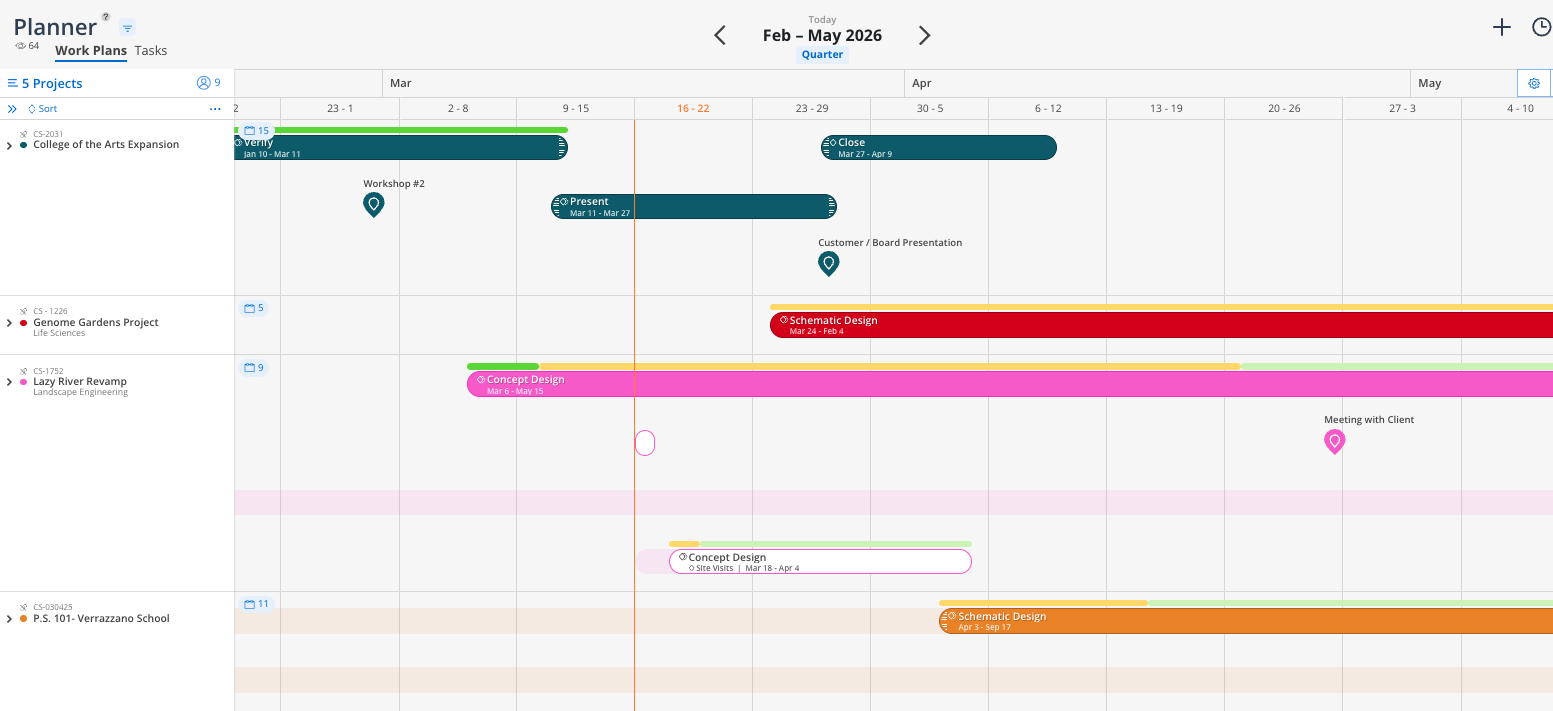
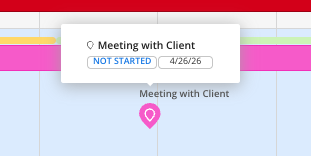
You will also notice bars and icons appearing within each Projects Row. These long bars represent Project Phases and Sub-Phases. A Milestone is designated by a smaller-icon - similar to one you’d see on a map, see below example:
Phases and Sub-phases: Represented by solid color bars with a single diamond icon if there are no Sub-phases underneath, or a double diamond icon if Sub-phases are present.
Milestones: Represented by a solid color location icon.
Work Categories: Depicted as solid color outlined bars that display the Phase/ Sub-phase name with the Work Category name underneath. (only applicable for some Organizations)

To manage Project Schedule items, you can:
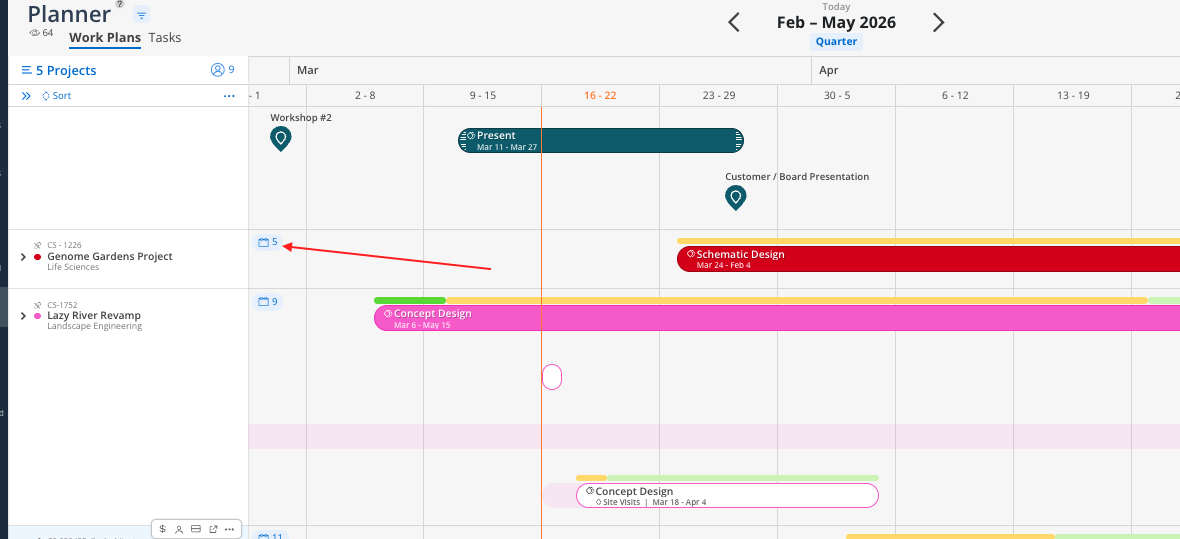
Select the Calendar Icon next to the Project Name Row to open up the Schedule Modal
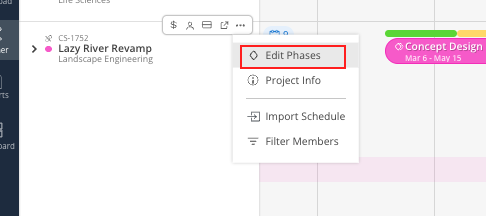
Select the Select Phases option in the Project Action Bar:
This will open up the Project Schedule Modal, for easy editting and additions:
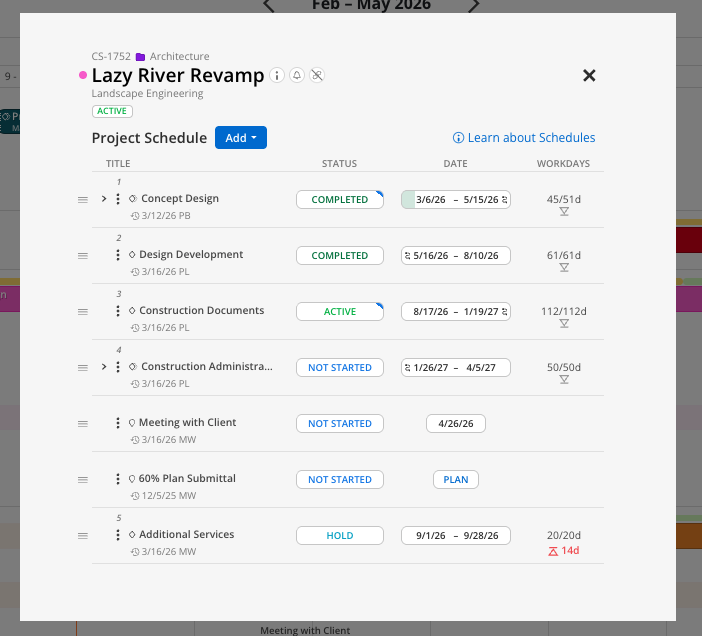
For more detailed steps on how to add, edit, schedule Phases/Sub-phases, Milestones and Work Categories, read more here: Project Schedule Modal Collection
Quick Date Adjustment via Bars/ Milestone Icons
Left-clicking or right-clicking on any Phase or Sub-Phase bars - or Milestone Icons - will open a calendar, allowing for quick adjustments to dates.
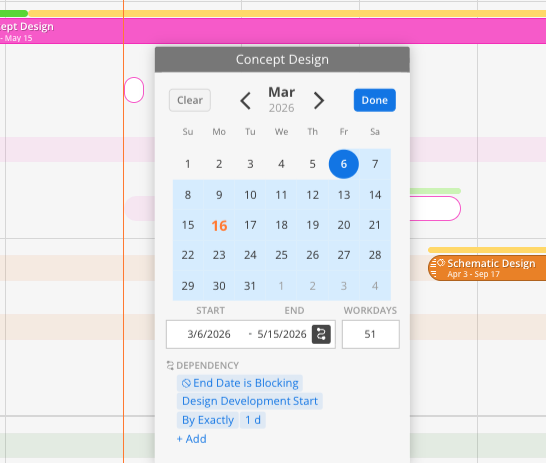
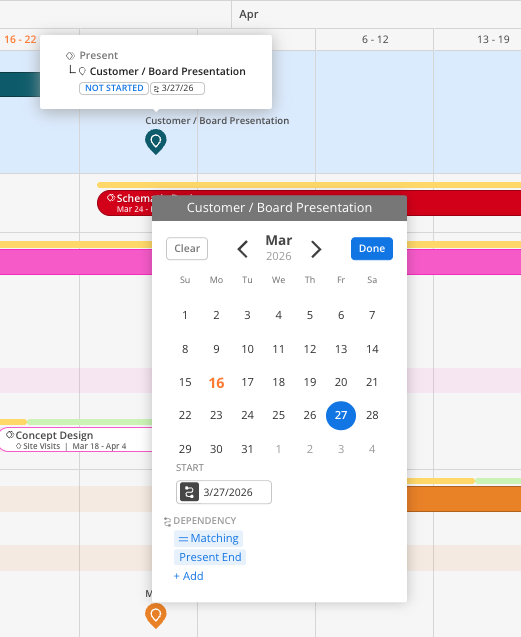
When hovering over items in the timeline, a tooltip reveals helpful context—offering quick insight into the project’s structure, schedule, and progress at a glance.
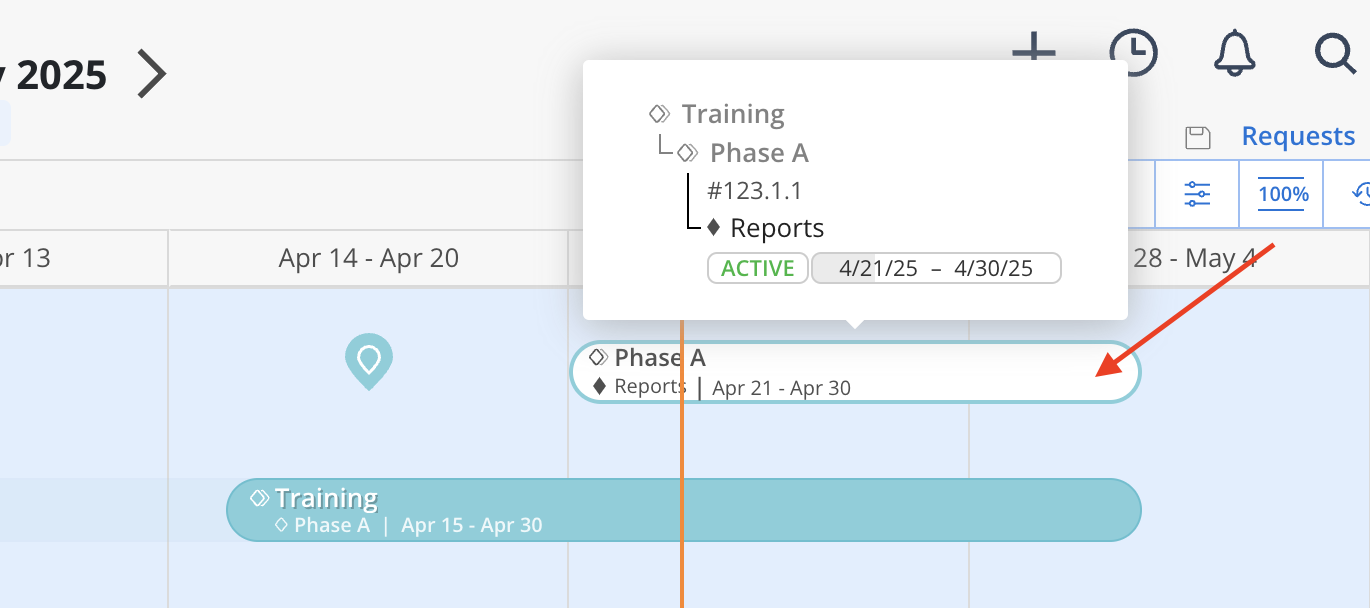
Hover over a Work Category bar:
Displays the parent Phase, status, and date range.
Ongoing items show the date tag with a gray background.
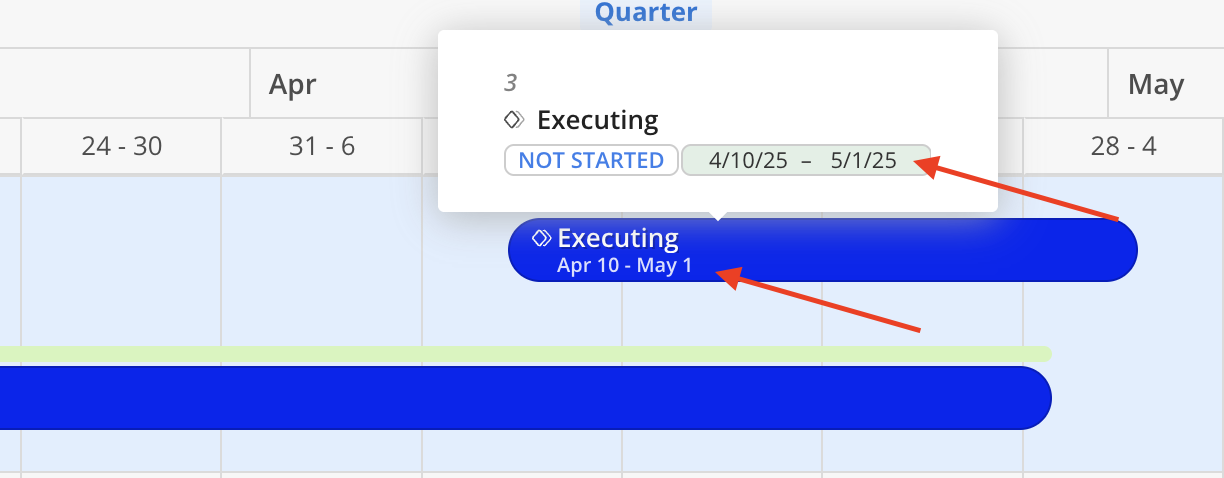
Hover over a Phase bar with no Budget:
Displays the status, dates, and hierarchical position of the Phase.
Completed Phases show the date tag with a green background.
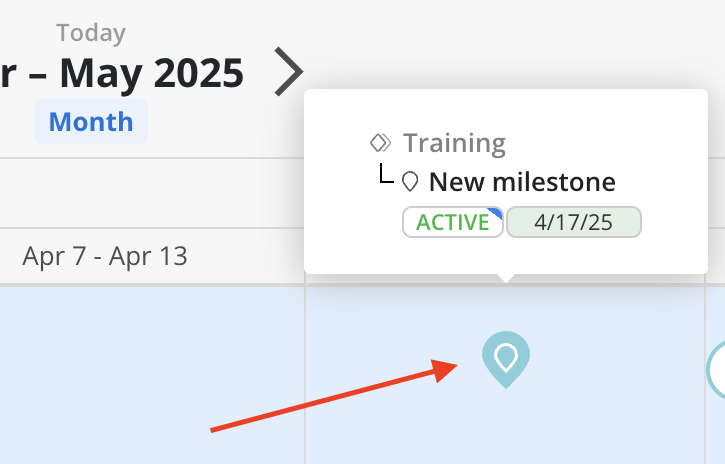
Hover over a Milestone:
Displays the parent Phase, current status, and date range for the Milestone.