Mosaic’s Planner Space filters allow you to quickly narrow down the schedule to specific projects, people, roles, or timeframes - so you can focus on the work and capacity that matters most. Below, we’ll dive in to steps to do so in your account.

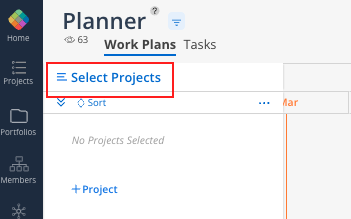
Click ‘Select Projects’ in the top-left corner of the Projects Bar.
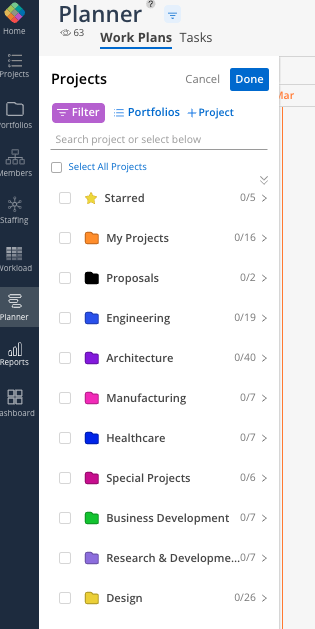
Your Organizations Projects will appear for review. By default, you’ll see the list of all Portfolios currently in your account. Note, the ‘Starred’ (from your favorited projects) Portfolio and ‘My Projects’ (compiling all projects you are a member of) will always appear first - and will change member to member.
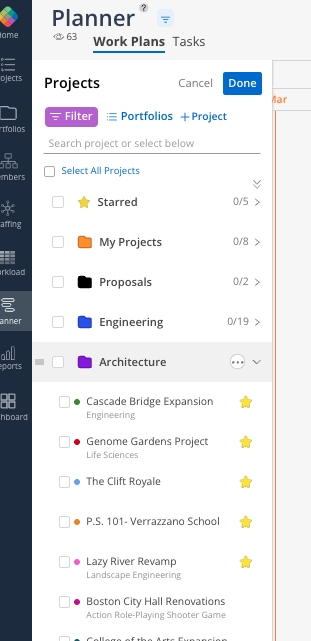
Selecting the caret next to the Portfolio Name allows you to review and select individual projects. Use the checkboxes to select some or all.
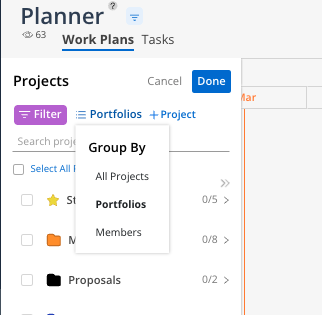
You will also notice you have the ability to change the grouping of projects. Select the Portfolios icon and an option to group by Portfolios (default option), members, or projects will appear.
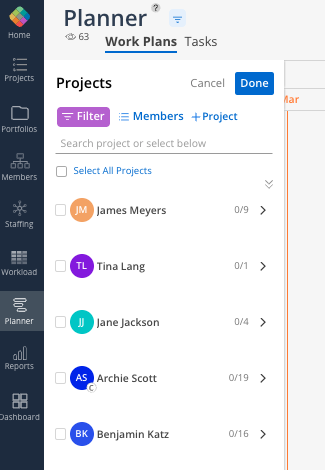
Grouping by Members shows all Organization Members and a count of the projects they are currently members of.
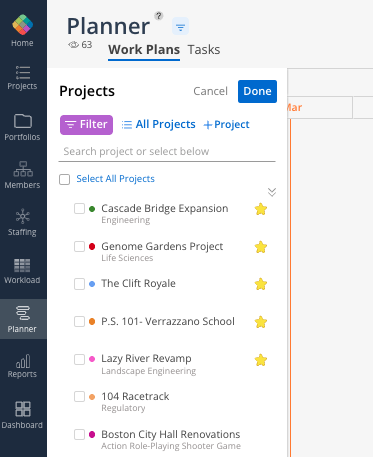
Grouping by All Projects shows a master project list. Note, the Portfolio is still visibible here - and appears under the Project Name.
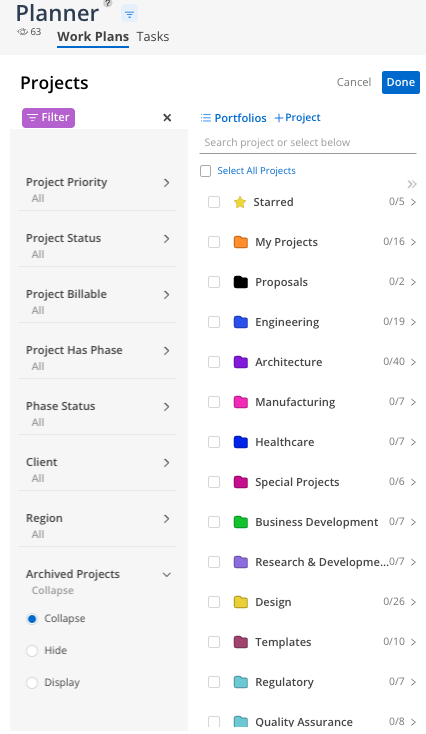
If needed, you can also drill down your project list by using Mosaic’s Project Attributes to Filter further. When in the ‘Select Projects’ Modal - click on the purple 'Filter’ button. A secondary menu will appear.
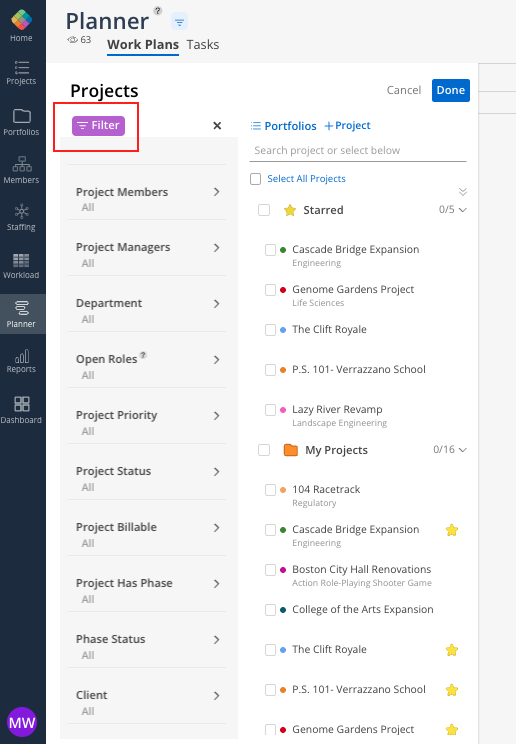
Projects can be filtered using various project attribute criteria to help narrow down results and locate specific records. These filters can also be layered; meaning multiple filters can be selected. Once those selections are made, you’ll notice the Project list (whether grouped by Portfolios, Members, or All Projects) will reflect your selections accordingly - giving you a quick and easy way to find appropriate projects for review.
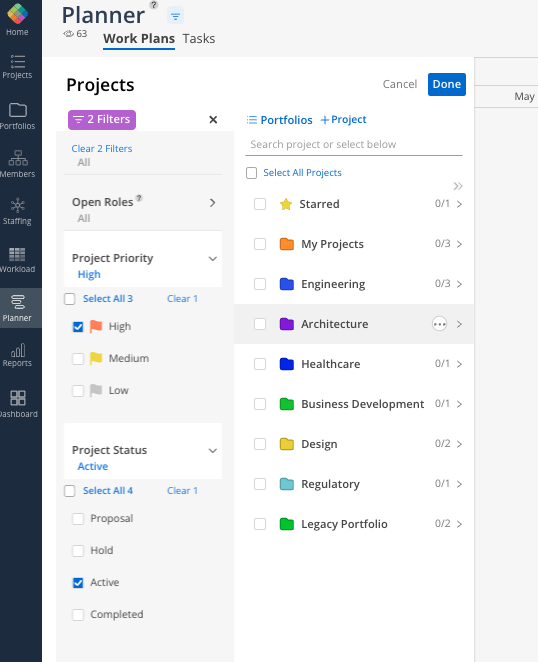
Select Done once you’ve found all desired projects to review.
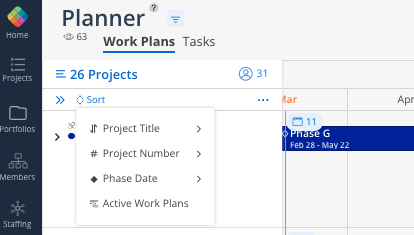
Once your projects are filtered and selected for review, you also have the ability to sort them further. Your options are to:
Project Title: Sorts Projects alphabetically in either A to Z or Z to A order.
Project Number: Sorts Projects by Project Reference Number, in either Low to High or High to Low order.
Phase Date: Sorts Projects based on the earliest start or end date among all Phases within each Project. Projects with the earliest start or end date appear first.
Active Work Plans: Sorts Projects by the sum of remaining days across all Work Plans within each Project. Projects with more remaining days appear first.
Should you need to filter your Project Selections further by Member-specific attributes, you can do so as well. Select the three-line icon at the top of the page. A Member attribute filter will appear. You can filter here by Members in:
Departments
Disciplines
Offices
Open Roles
People
Roles
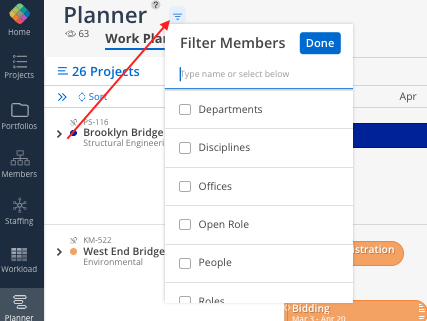
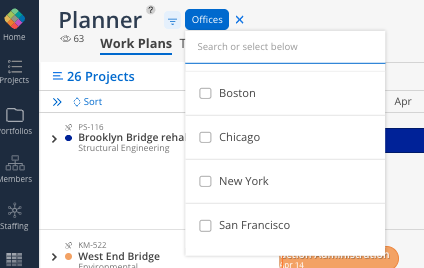
Select which filter you’d like to add to your Planner Space (you can add multiple here). Once selected, a new filter will appear next to the three-line icon. Select the filter to pop out those attributes for selection. See the ‘Offices’ filter below as an example: