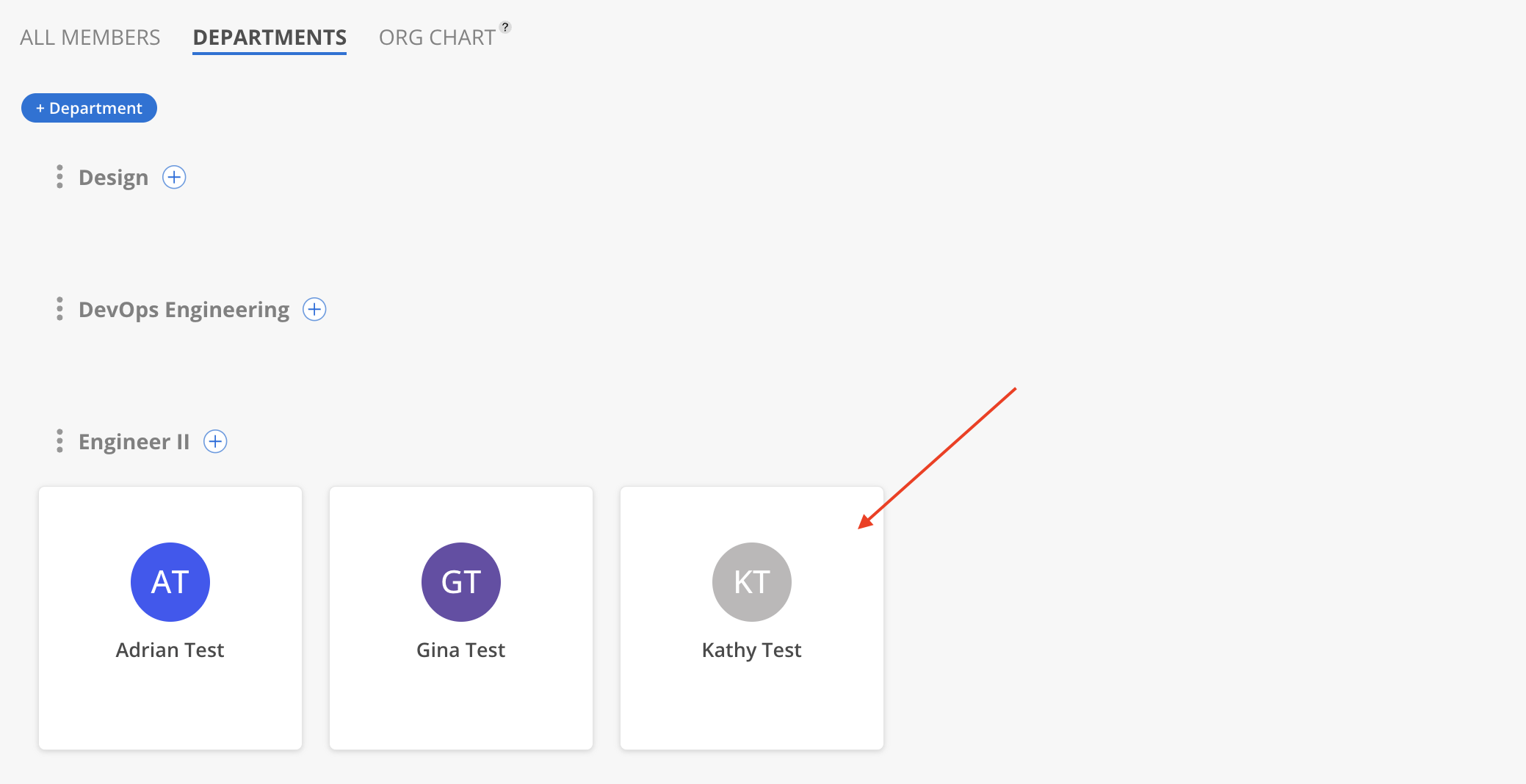
Departments are the second tab in the Members space. A department is a way of grouping the people who belong together in your organization, so you can search, filter, and report on them as a unit.
Departments are not only used here. They are the grouping the Org Chart draws its structure around, and they appear as a filter across other spaces and reports — so it is worth getting them right early.
What you see
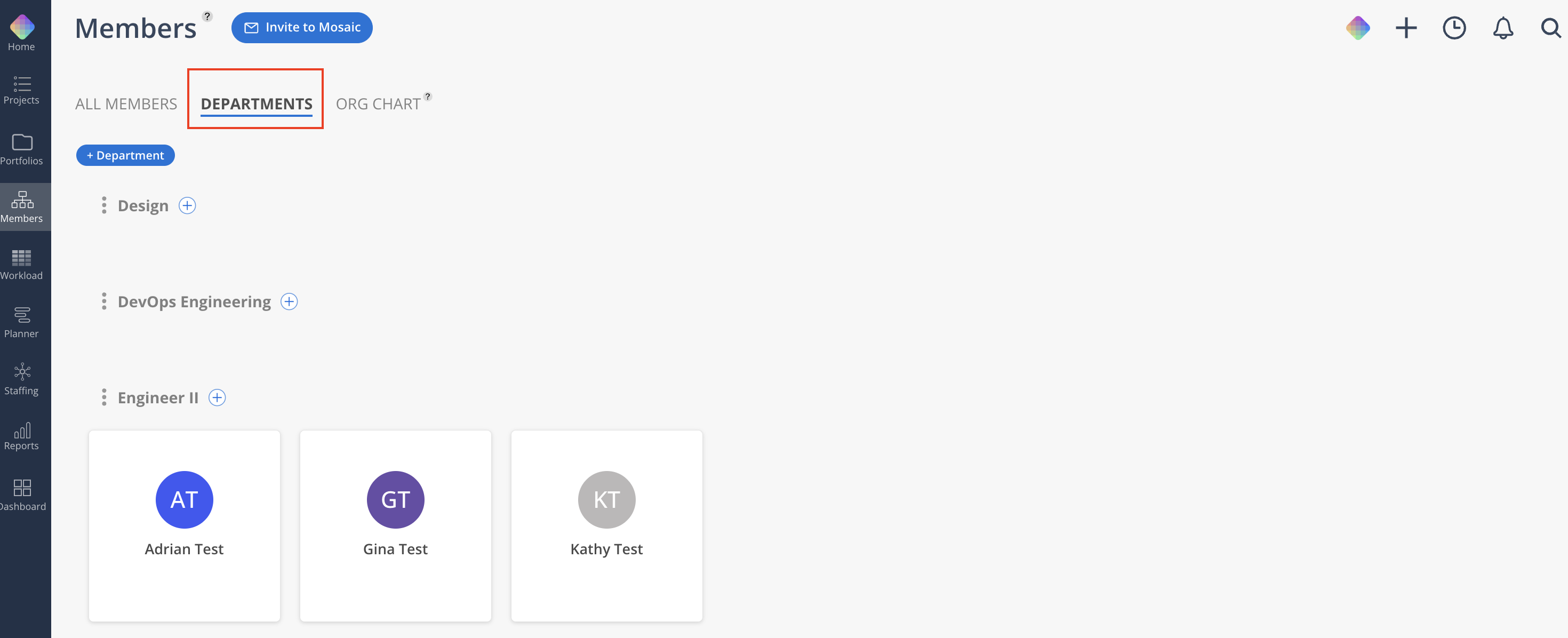
Once departments exist, each one gets its own section down the page:
The department name as the section heading.
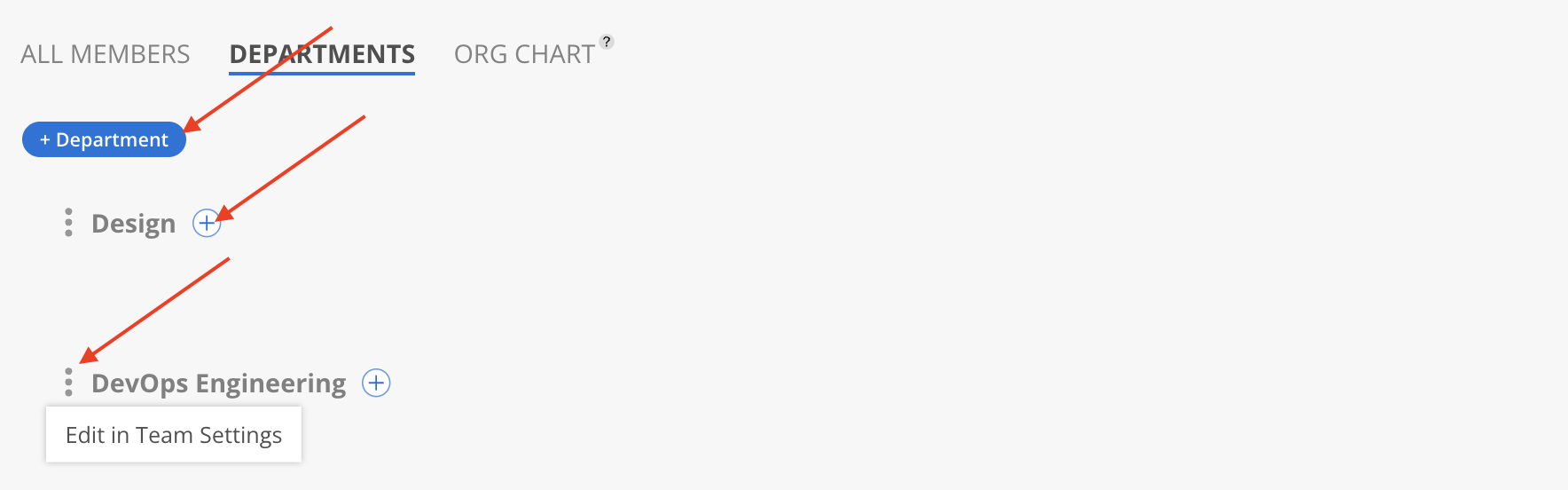
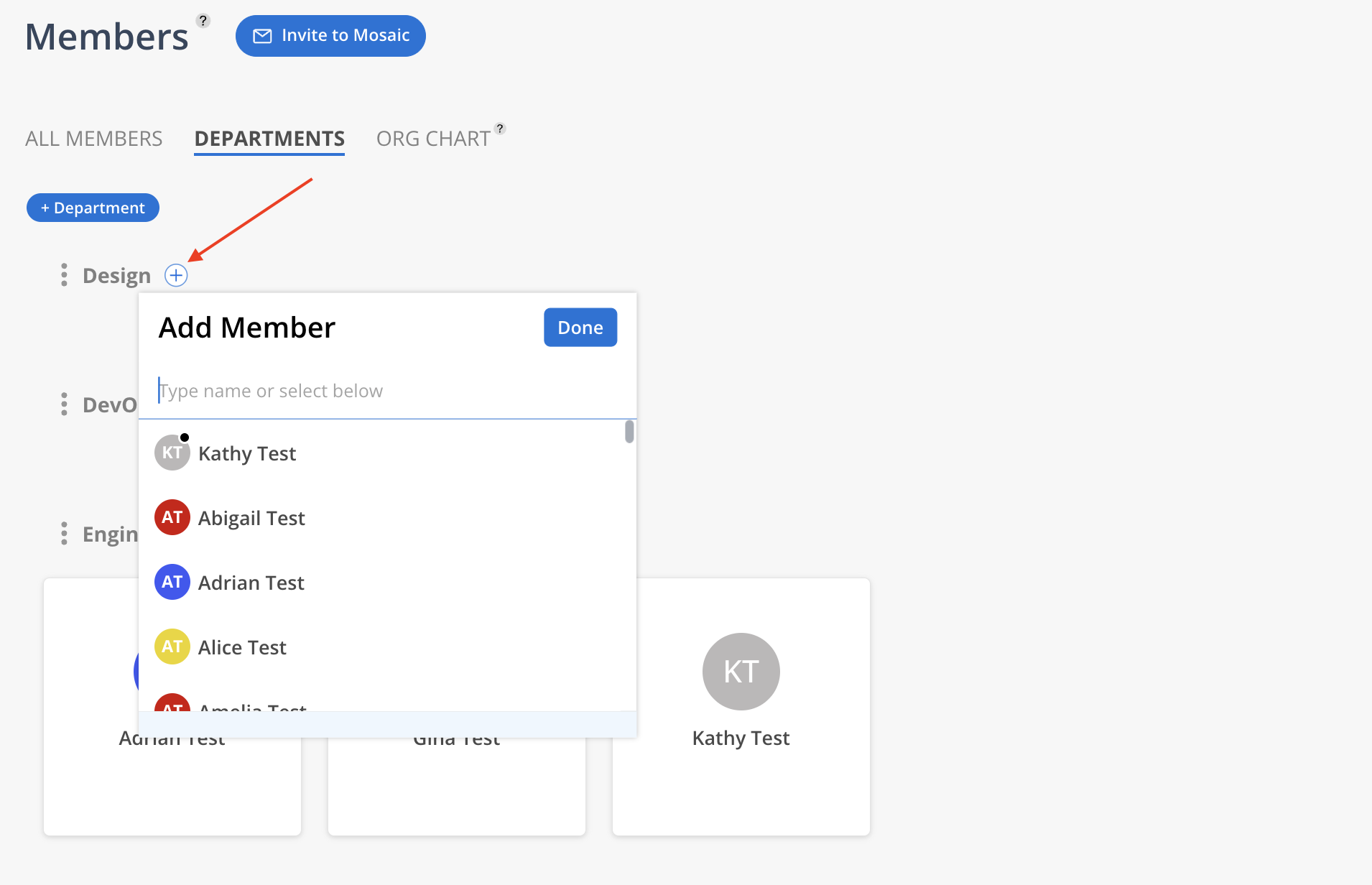
A + at the end of that row, for adding members to the department.
A three-dot menu on the heading with Edit in Team Settings, which opens that department in the Admin Panel.
Member cards for everyone currently in the department.
Archived departments are not shown here.
Creating a department
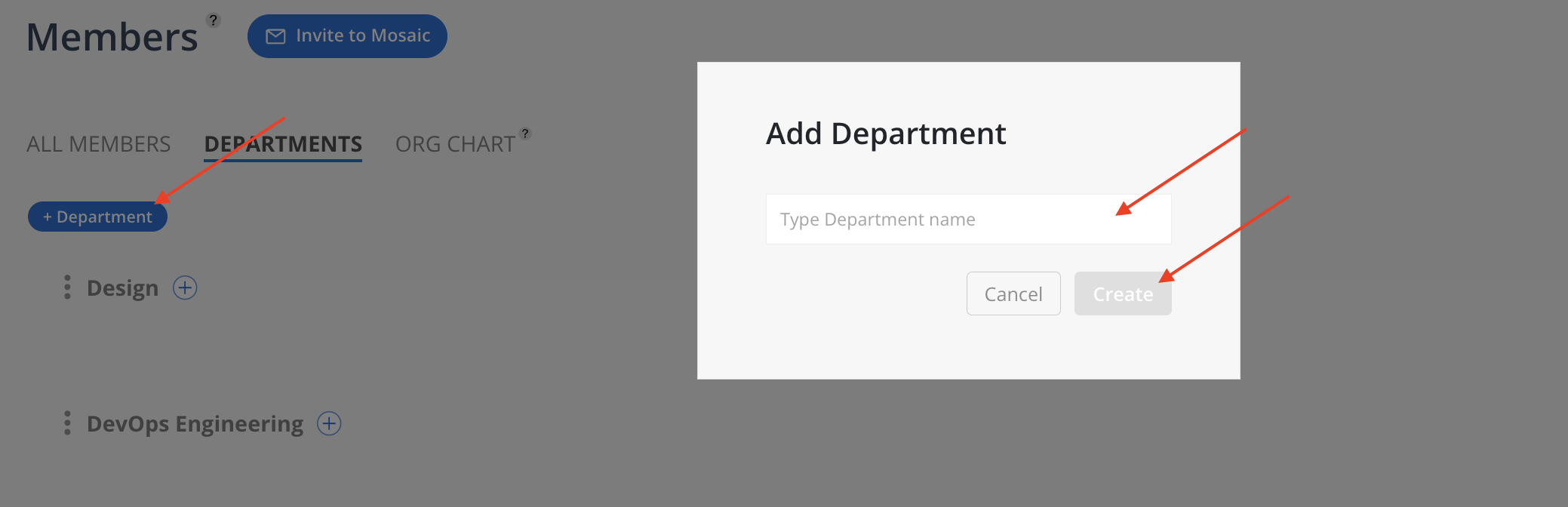
Click + Department at the top of the tab.
Type a name — the field is labelled Type Department name.
Click Create, or press Enter.
A department needs a name; the Create button stays inactive until you type one.
Adding members to a department
Click the + on the department's heading row.
Pick one or more members from the list, then confirm.
The list only offers people who are not already in that department. If someone was removed from it previously, adding them again restores their earlier membership rather than creating a new one.
A member can belong to more than one department, and will appear under each one.
View Member Modal
Click on the Member card to open Member Modal.