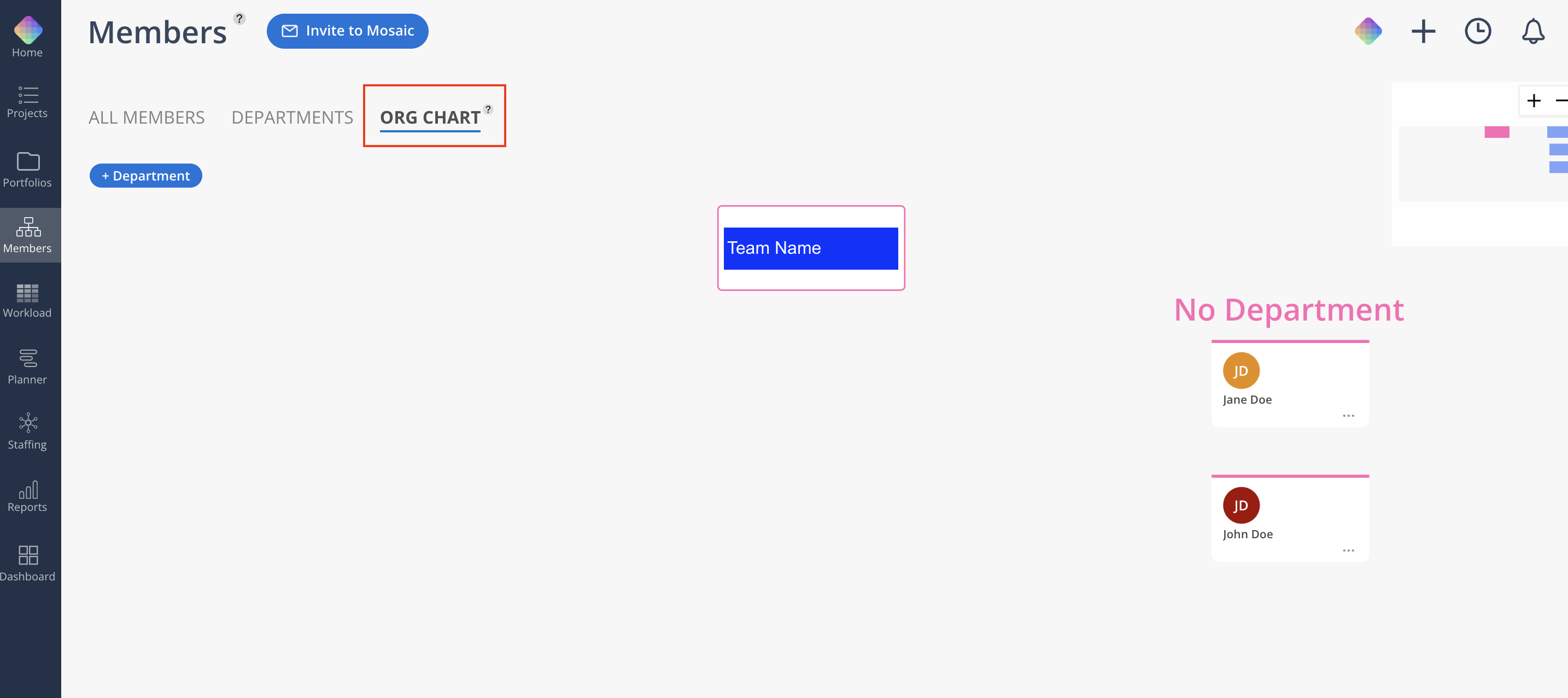
The Org Chart is the third tab in the Members space. It shows your organization as a connected chart — who reports to whom, which department each person sits in, and where two managers share the same reports. Unlike an org chart in a slide deck, this one is live: the departments and reporting lines you build here are the ones Mosaic uses everywhere else.
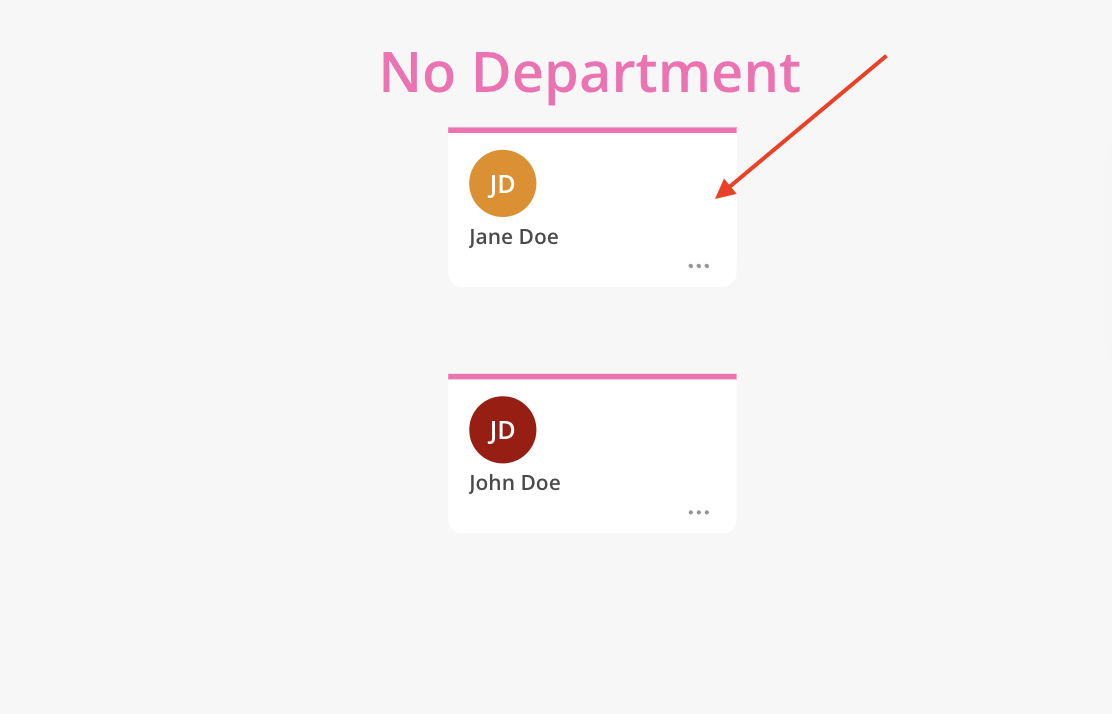
Access to the Org Chart is controlled by permissions; members without it are told they do not have permission to view the Organizational Chart.
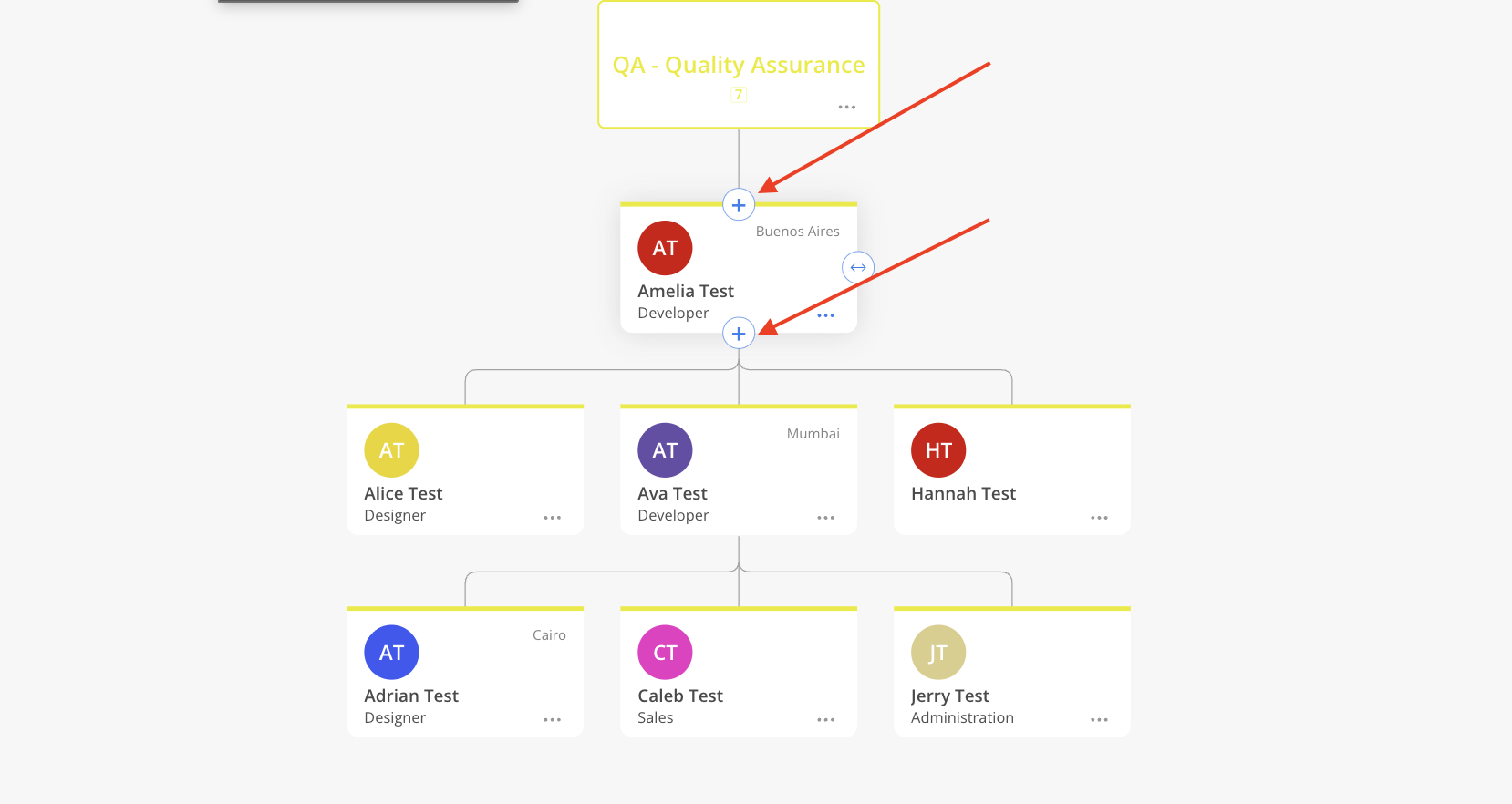
Member cards — each person's initials, name, role, and office or location.
Department groups — members are grouped under the department they belong to, and each department carries its own color.
No Department — anyone not yet assigned to a department is collected in a group to the right of the chart.
Connecting lines — a line between two cards means the upper person manages the lower one.
Minimap and zoom controls — at the edge of the chart. Scroll or drag to move around; use the controls to zoom.
Click any member card to open Member Modal.
Every card has + buttons on its edges and a three-dot menu. Use them to grow the structure outward from someone already on the chart:
Add Manager — place someone above this person.
Add Direct-Reports — add people who report to this person.
Add Middle Manager — insert someone between an existing manager and their reports.
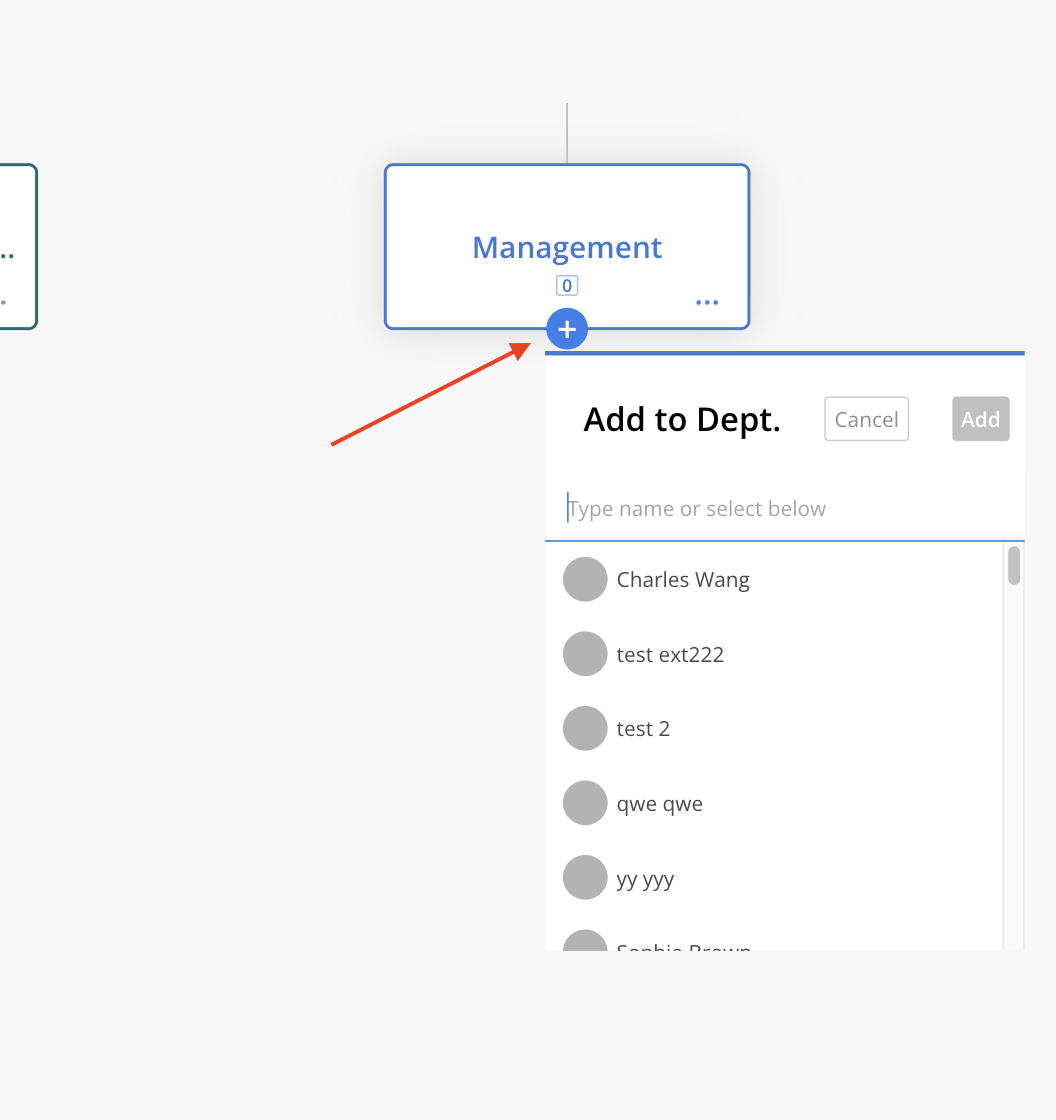
Add Members — add people beneath this card, in the same department.
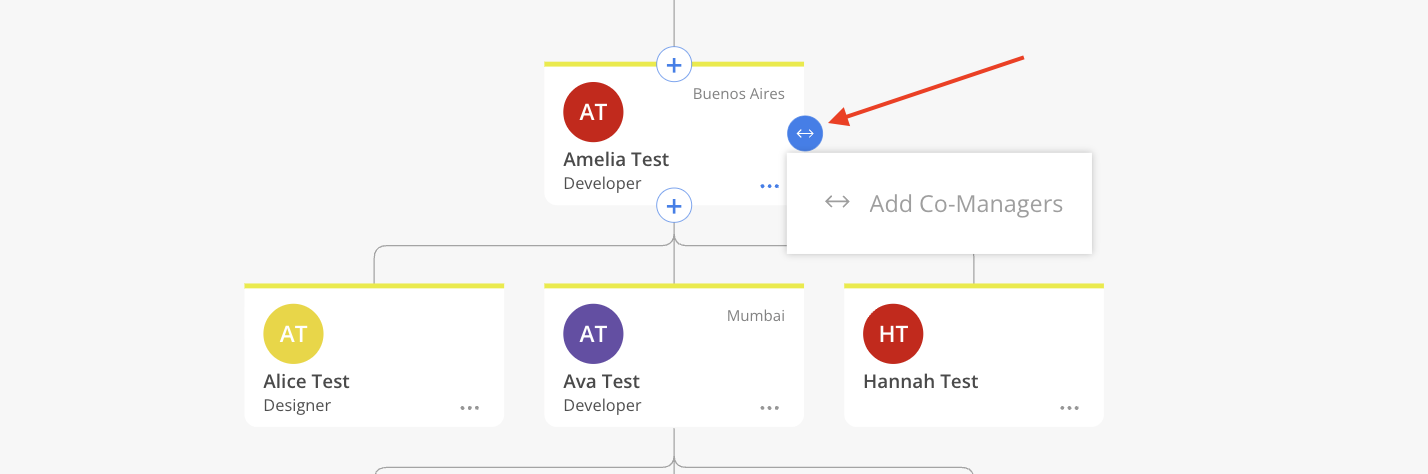
Add Co-Managers — pair this person with another manager so the two share reports. If no one is eligible, the option is greyed out.
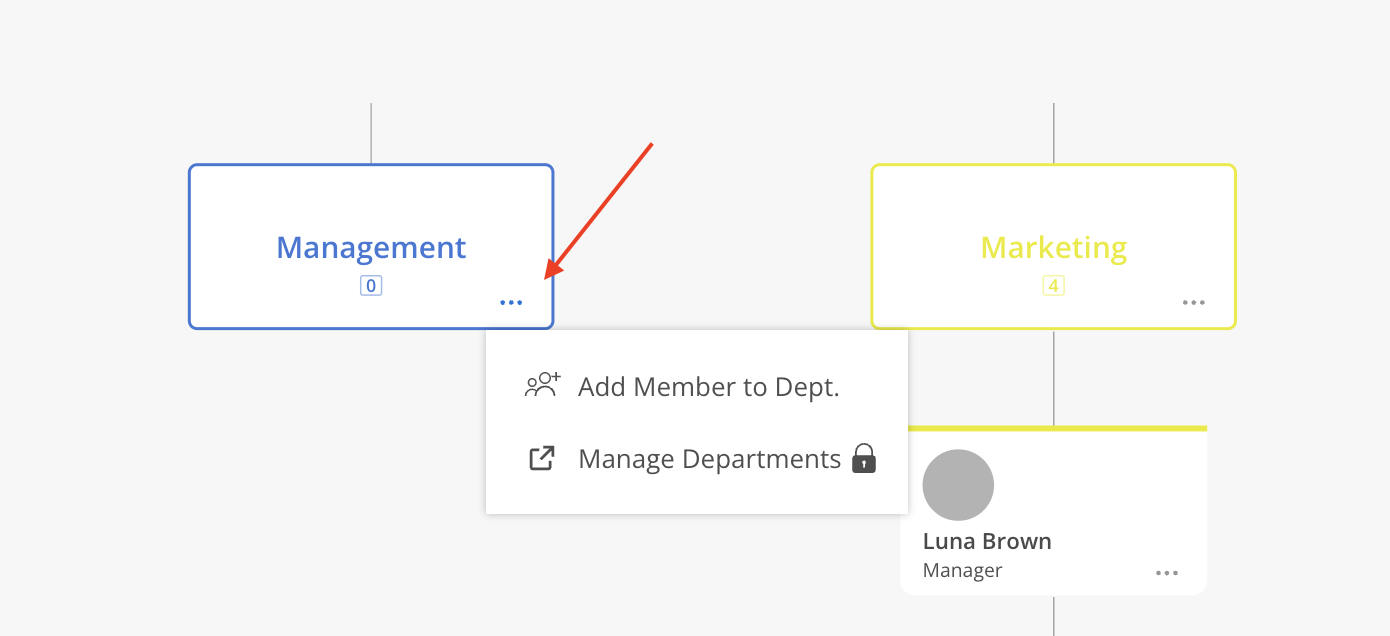
On a department card you will find Add Member to Dept. and Manage Departments. New departments come from the Add Department button above the chart, or from the top-level team card.
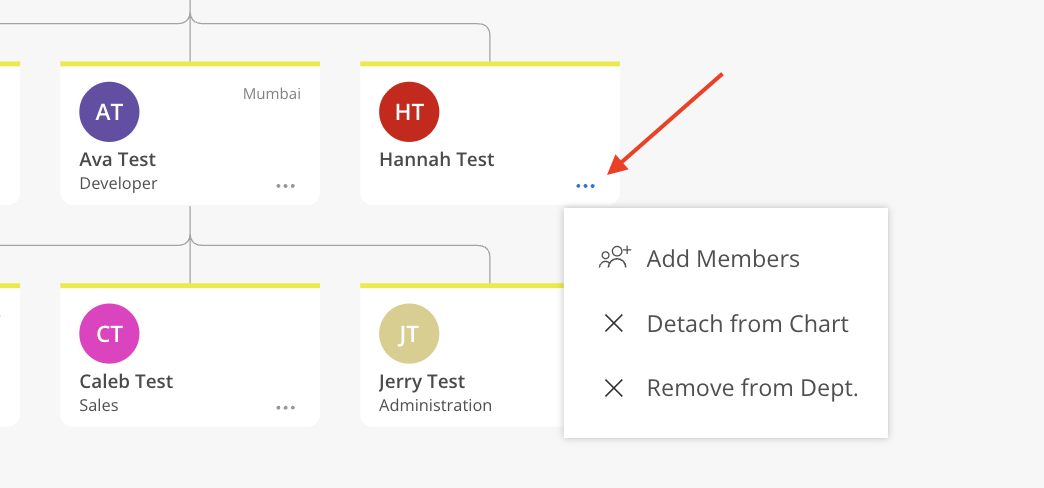
Two options sound alike and do very different things:
Detach from Chart — removes the card from the diagram only. The member keeps their department and everything else in Mosaic.
Remove from Dept — removes the member from that department across the whole system, not just here.
Drag one card onto another to change who that person reports to. Inside a single department the change applies straight away.
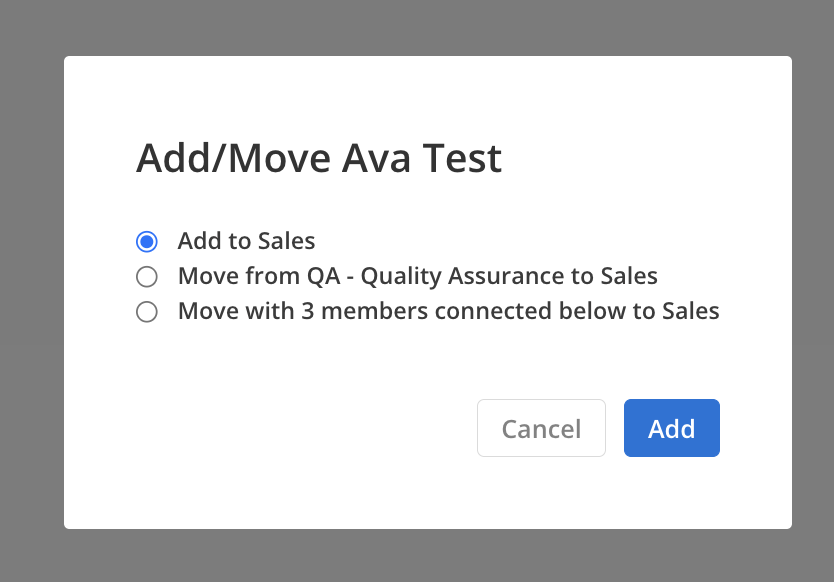
Dragging across departments asks you to confirm first, because it changes more than the line on screen. You choose one of:
Add to [Department] — the person joins the new department and keeps their current one.
Move from [A] to [B] — the person leaves their old department for the new one.
Move with [their reports] to [B] — the person and everyone beneath them move together.
Dropping onto a co-manager group offers the same choices, with the person added to that group. Mosaic blocks any drop that would make someone their own manager, and an option is unavailable when the member is already in the target department or somewhere in the branch you are dropping into.