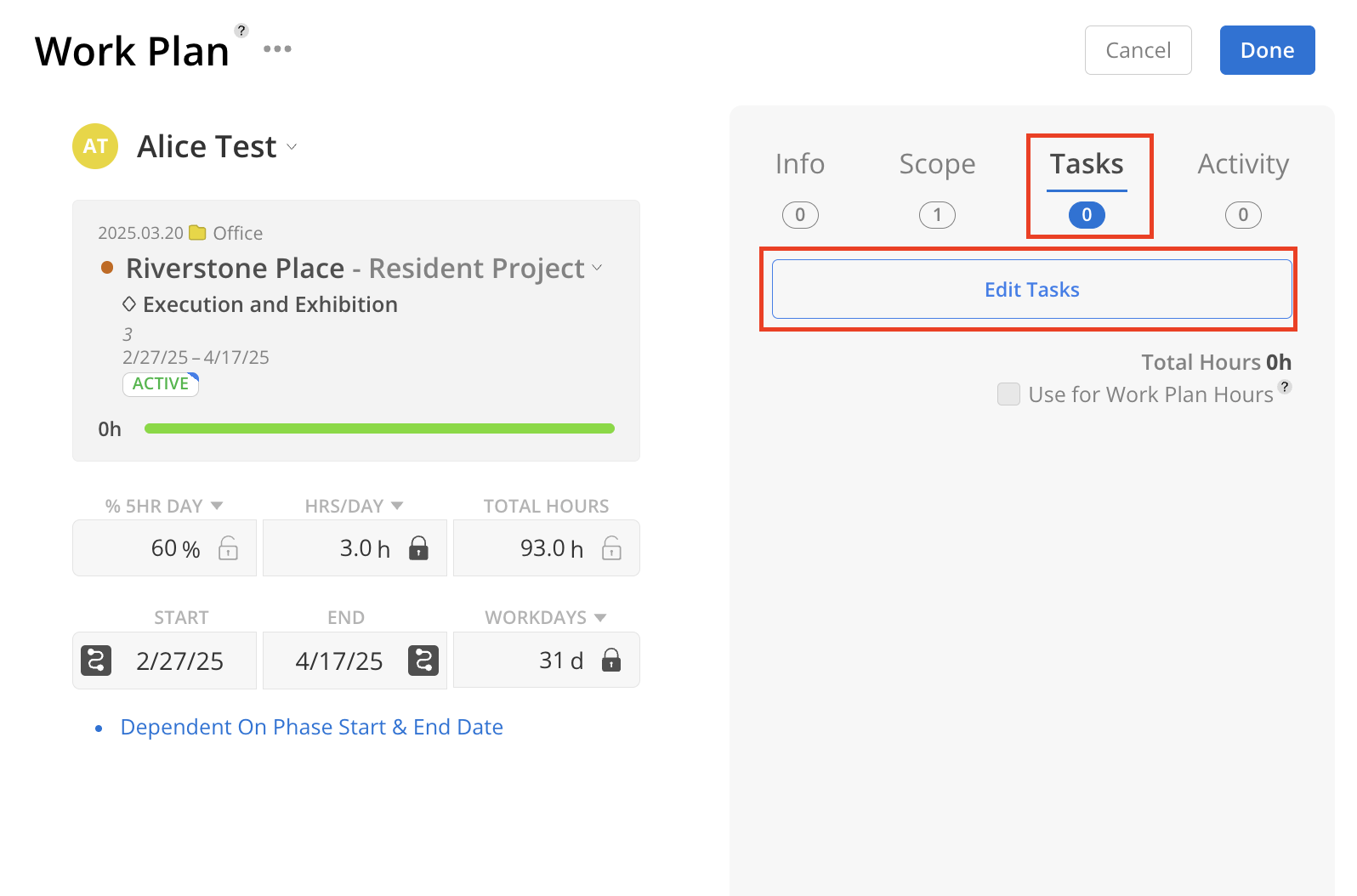
On the tasks tab, click edit tasks.
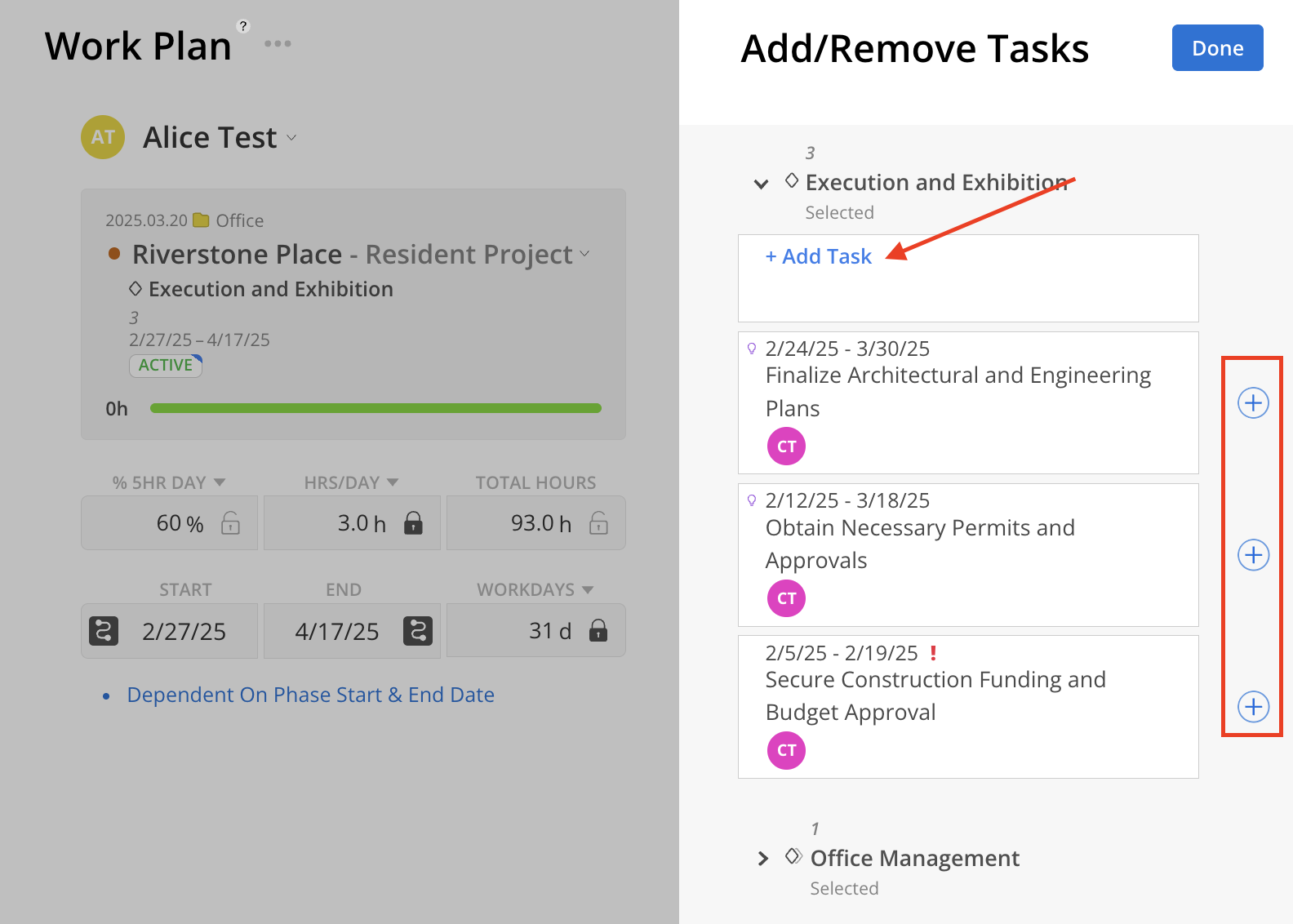
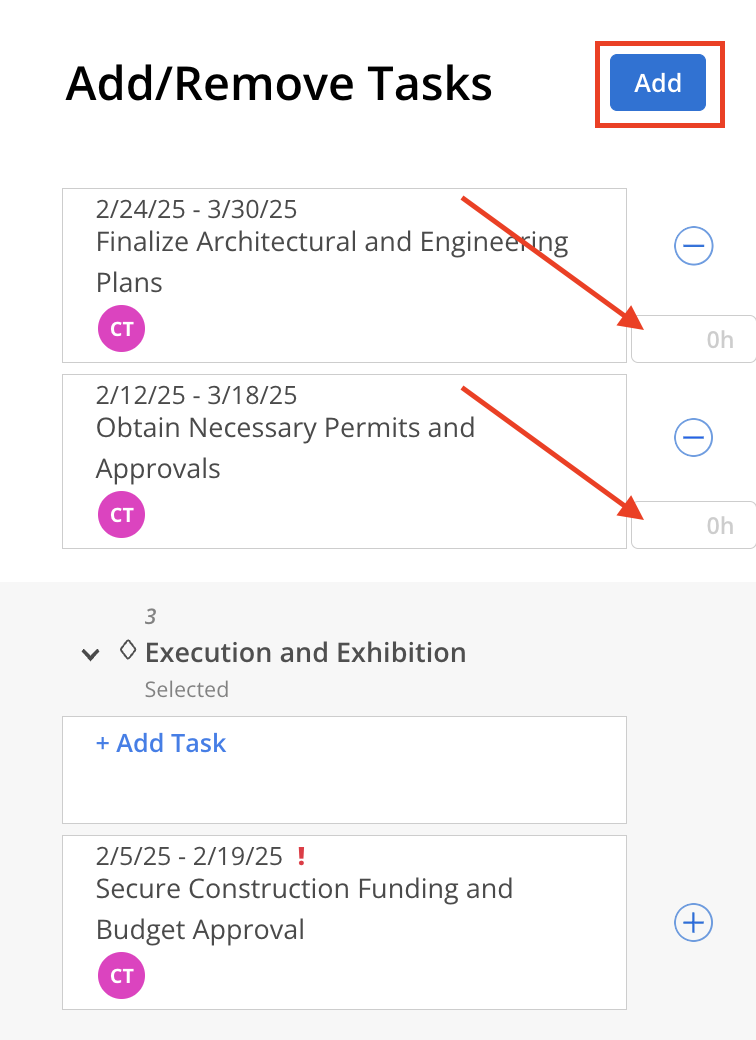
Select the existing Tasks to add by clicking the + button on the task or click +Add Task to create a new Task to add to the Work Plan.
The newly created task will be automatically assigned to the assignee of this work plan.

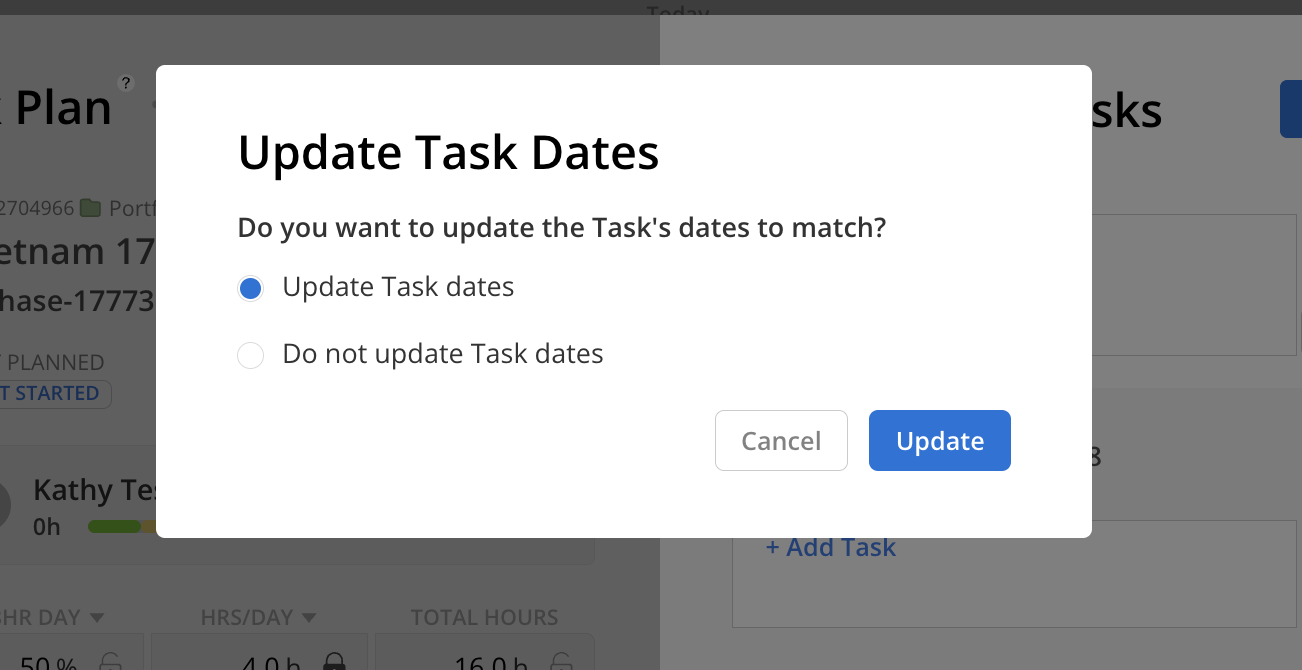
If the Task’s dates fall outside the Work Plan’s date range, an Update Task Dates confirmation modal appears asking whether the Task dates should be updated to match the Work Plan. Selecting Update Task dates changes the Task start and end dates to align with the Work Plan range, while selecting Do not update Task dates keeps the original Task dates unchanged. Update Task dates is selected by default.
Estimate hours can be entered on the Tasks, which can then be used as the total hours for the Work Plan. If Task Hours are not intended to be used for the Work Plan, this field can be left blank.
Click Add on the top when you are done selecting the tasks.
The Tasks will be displayed under the Tasks tab in the Work Plan. If estimated hours have been entered for the Tasks, the total estimated hours for all tasks within this Work Plan will also be visible.
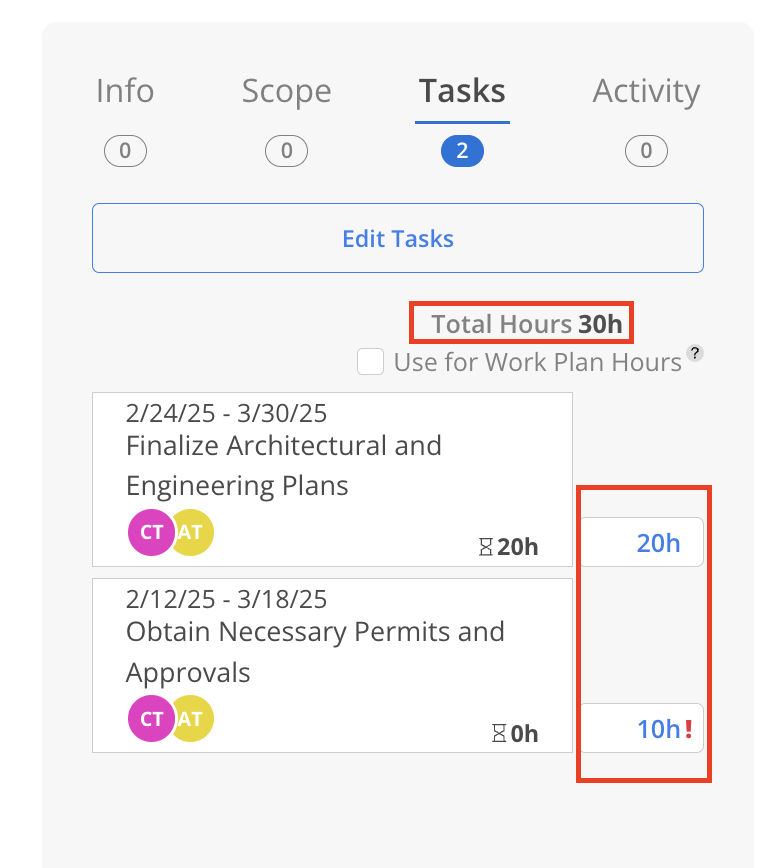
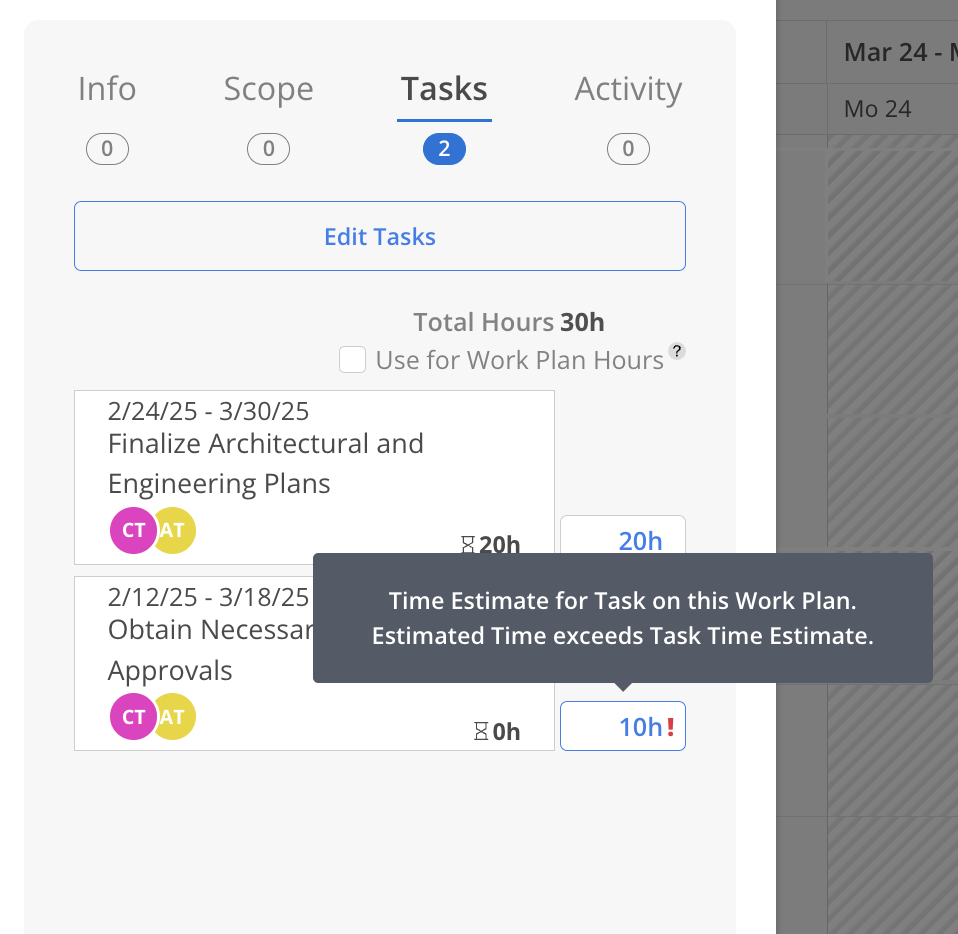
If the estimated hours entered in the Work Plan exceed the allocated hours for the associated Tasks, a red exclamation mark will appear to indicate the discrepancy.
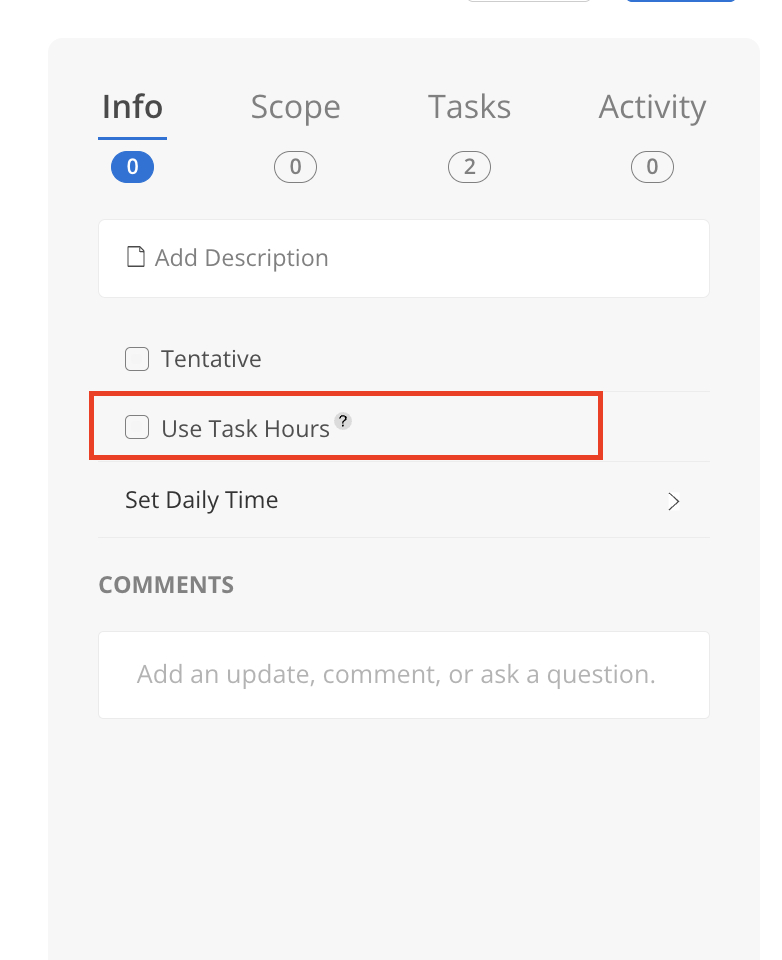
When opening a work plan modal, whether new or existing, a checkbox for "Use Task Hours" appears on the Info and Tasks tab. Any tasks already added to the work plan are also displayed on the Tasks tab.
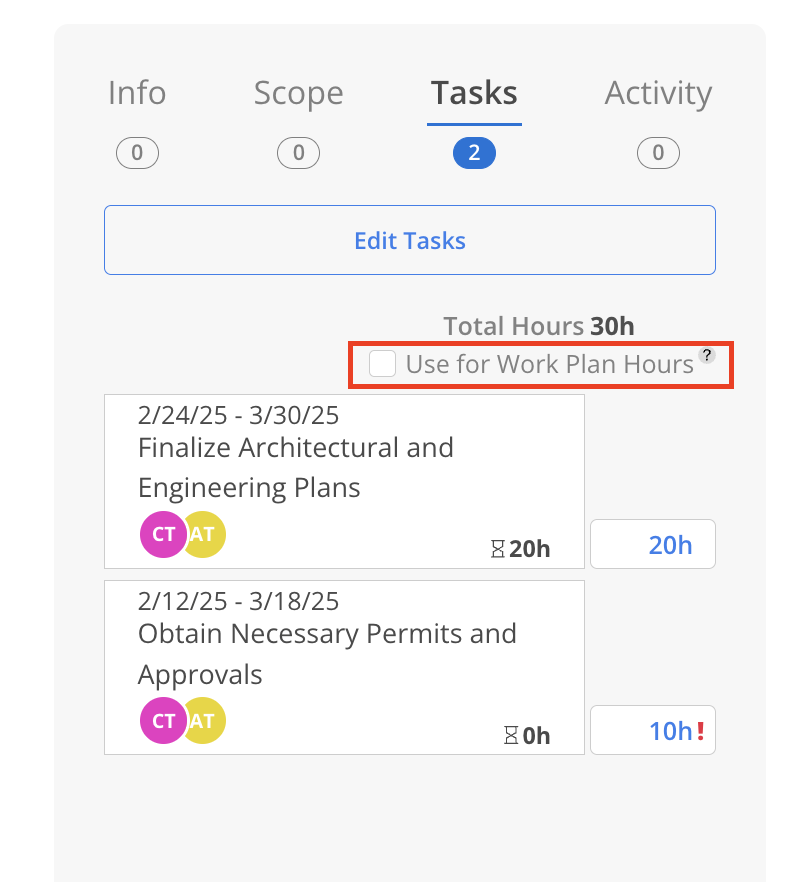
Make sure there are hours entered for each Task in the hour input field (red box). Adjust the hours if needed.
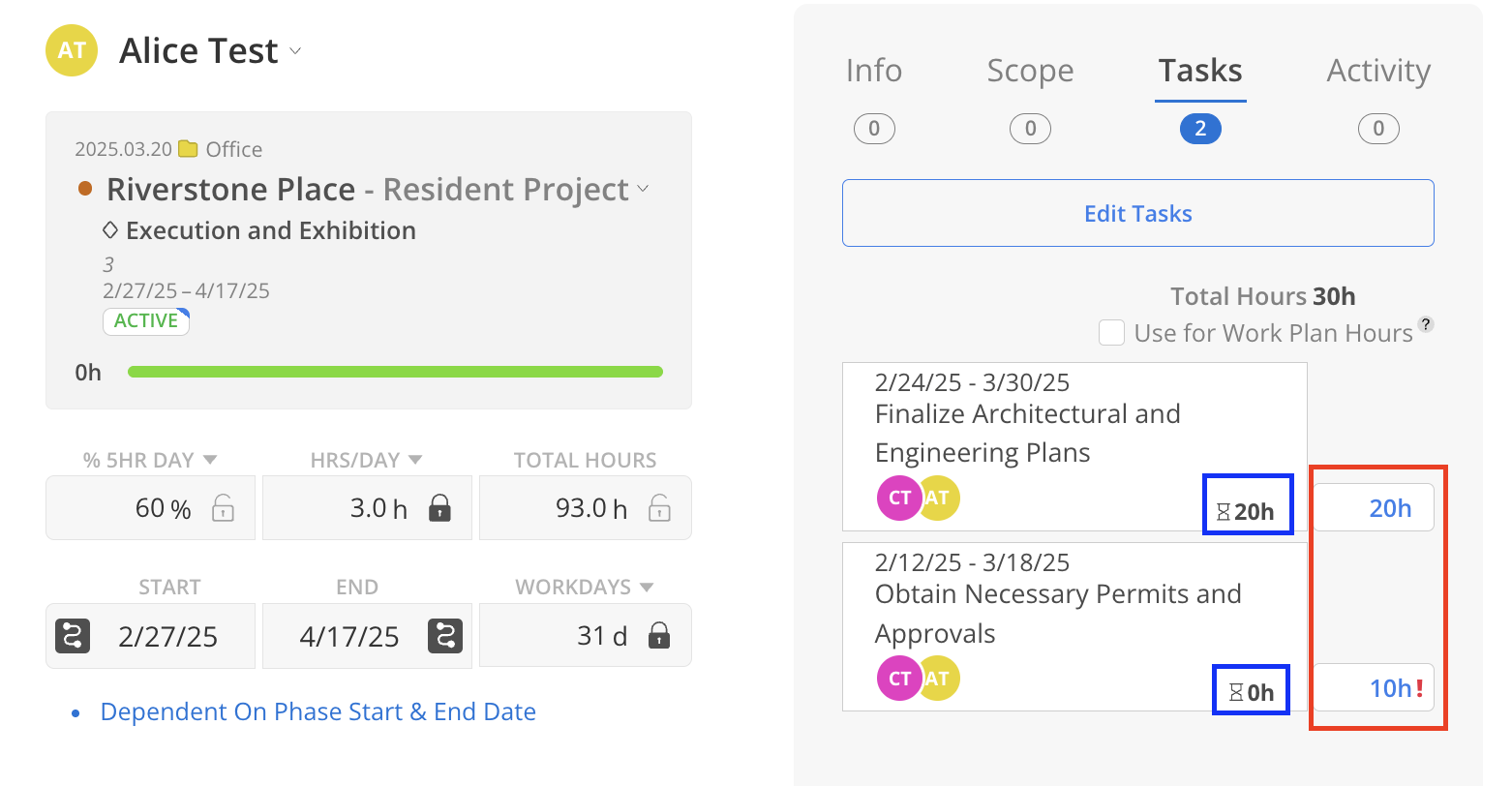
To enable the use of the total task hours for this work plan, select the "Use Task Hours" checkbox.
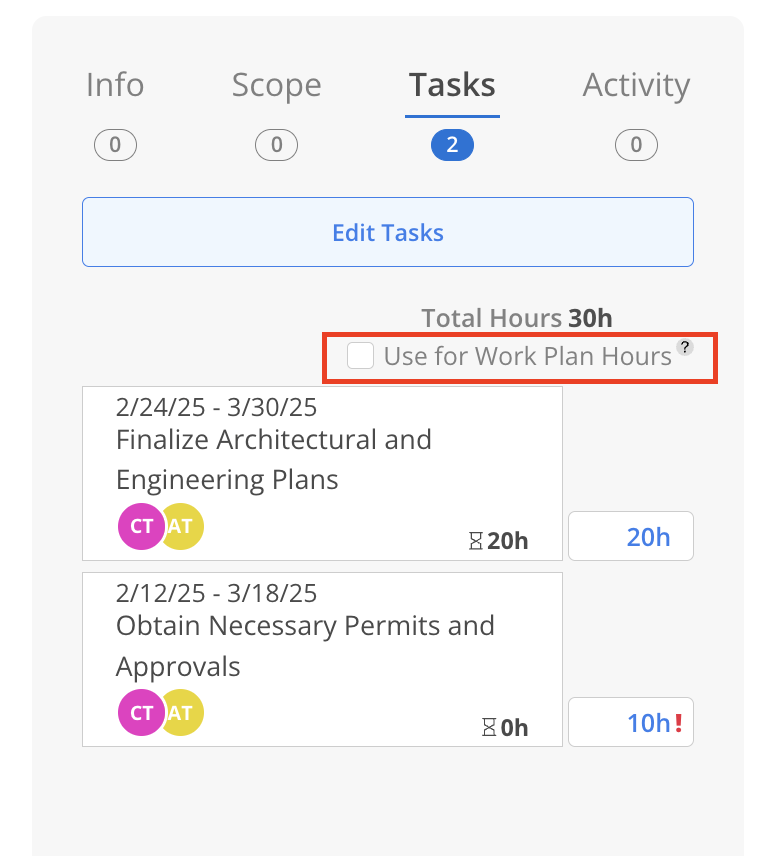
When Use Task Hours is selected, the Total Hours on the Work Plan automatically update to reflect the sum of the associated Task hours. A lock icon appears next to the Total Hours to indicate that the value is now controlled by the linked Tasks, rather than being manually editable. Additionally, a "Use Task Hours" label appears below the date fields to reinforce that the Work Plan is using the hours from its assigned Tasks.
The hours per day and percentage workday fields will be updated automatically based on the total hours and number of workdays.
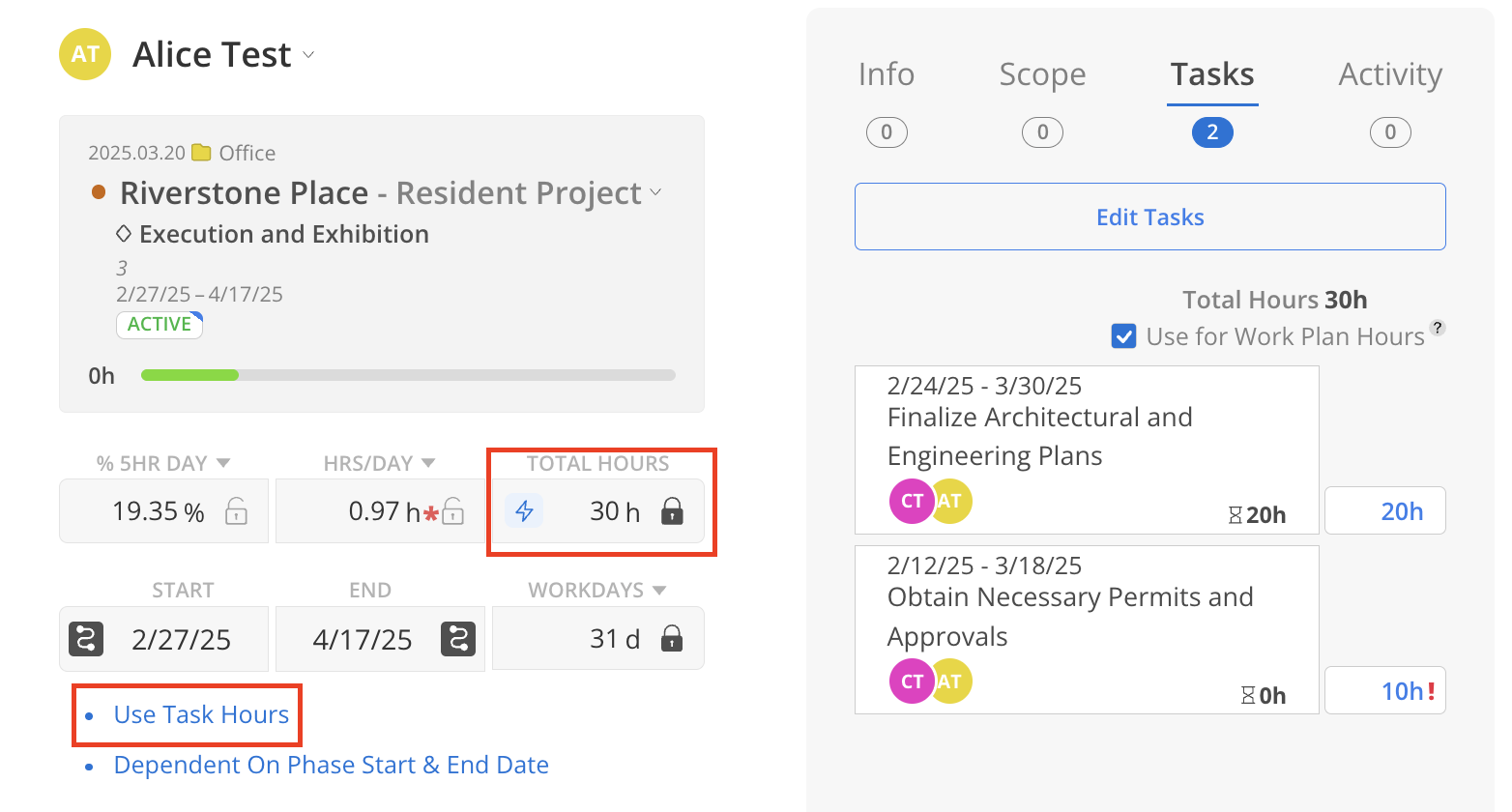
To finalize the change on the Work Plan, click Done at the top, or click Create if setting up a new Work Plan.
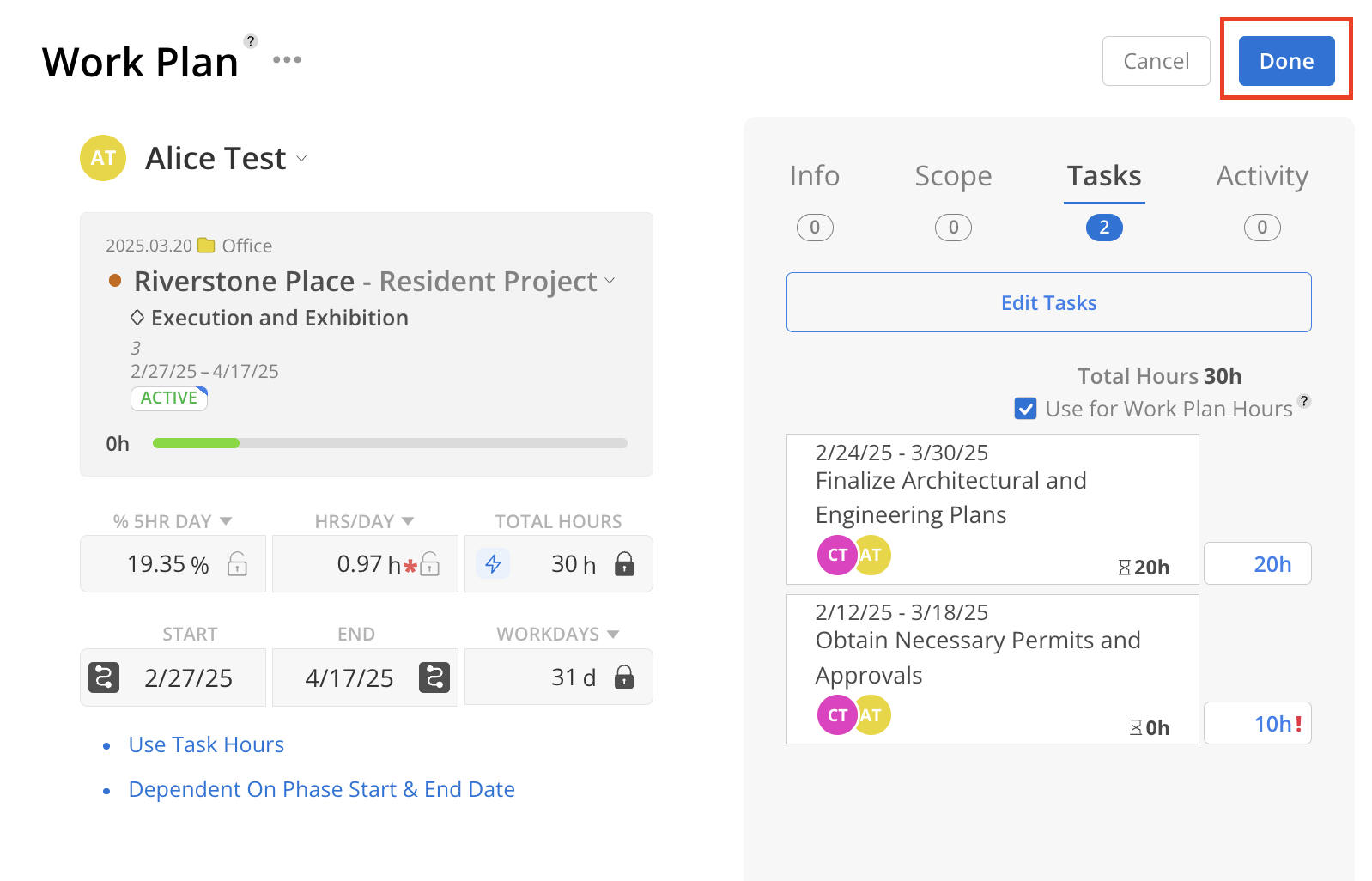
Open a Work Plan and navigate to the Tasks tab.
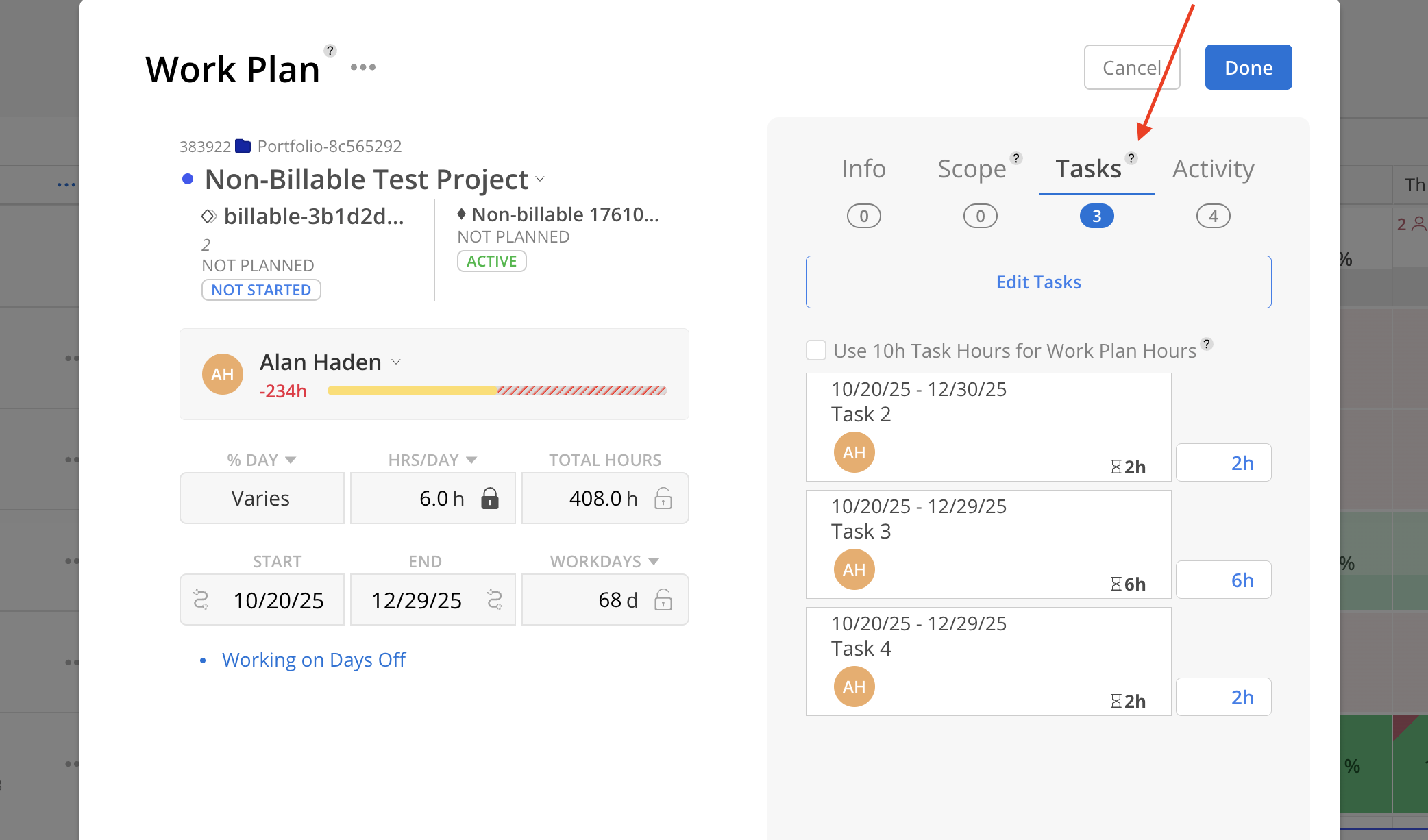
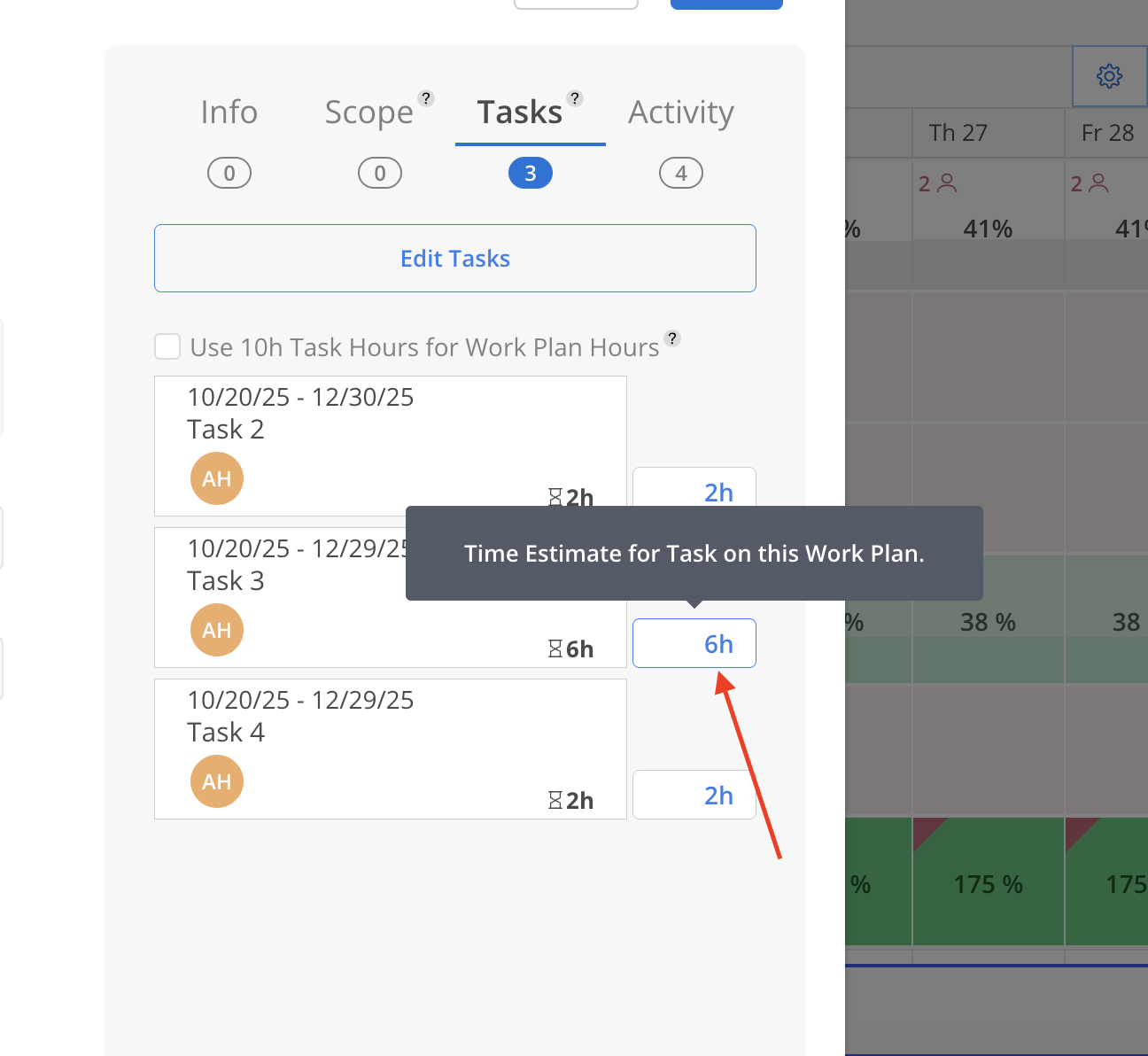
Click into the Work Plan hours input for the selected task. Enter a new value that is different from the current one.
A confirmation modal will appear to verify whether the Task hours should be updated. Select the appropriate option, then click Update to proceed.
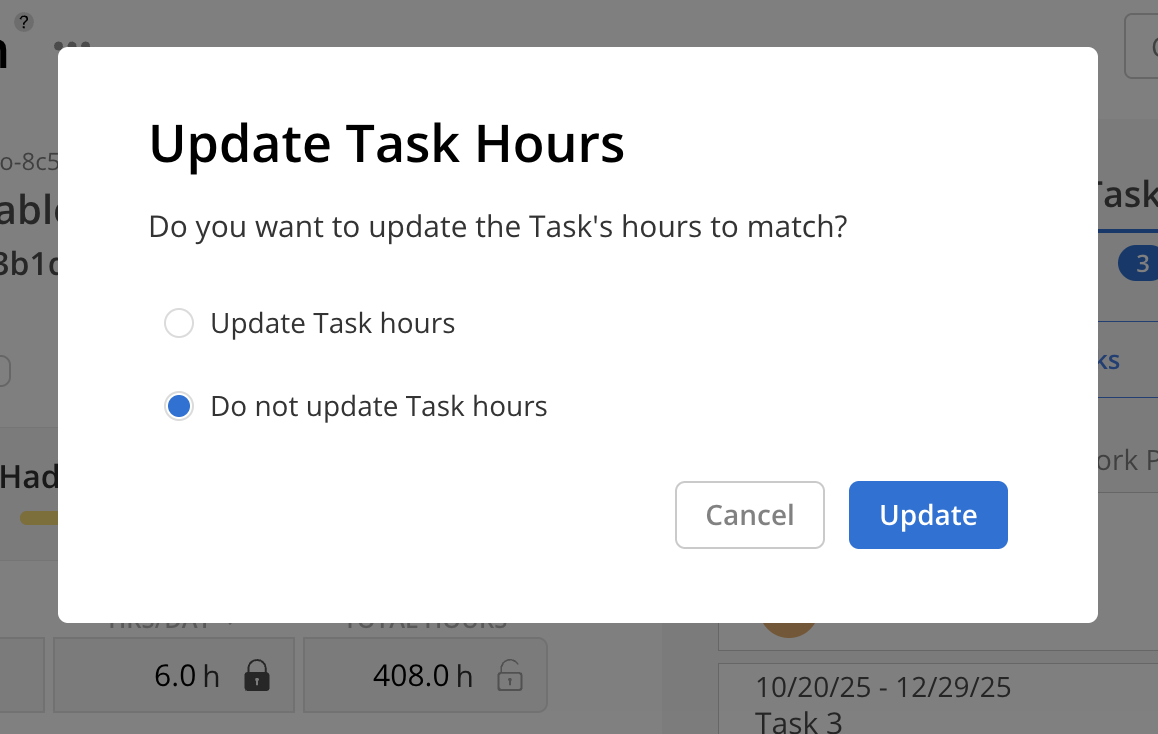
If the "Update Task Hours" option is selected, the Task's estimated hours will update immediately to match the entered Work Plan hours.

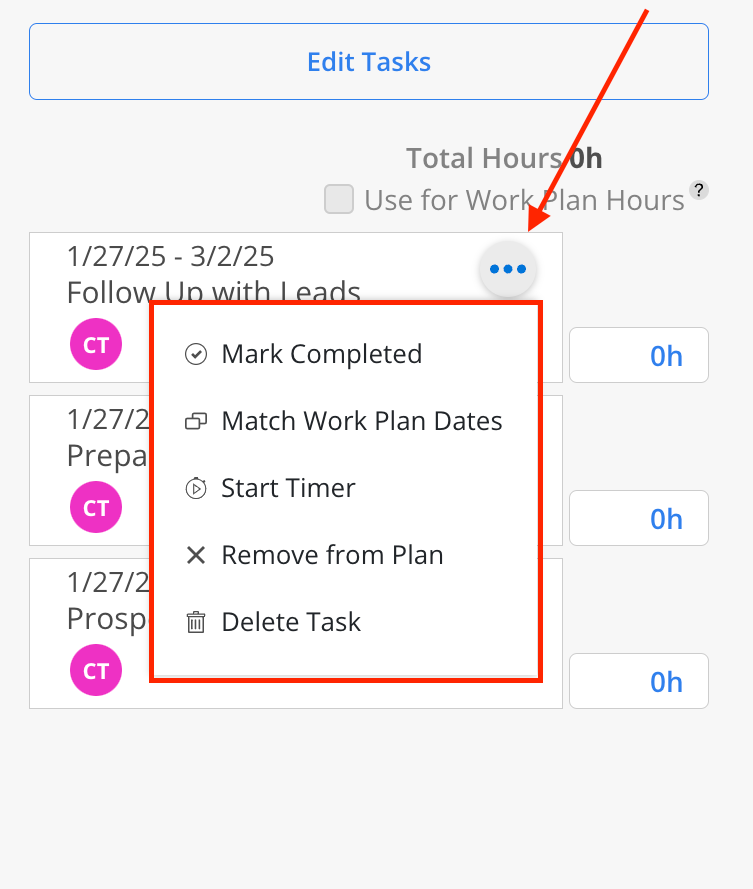
Click on the three-dot on the task, a menu will show with options to:
Mark Completed: Mark this task as completed.
Match Work Plan Dates: Make the dates on the task match the Work Plan dates.
Start Timer: Start a Timer on this Task.
Remove from Plan: Disassociate the Task from this Work Plan.
Delete Task: Delete this Task.